Customization of the Meridian Theme
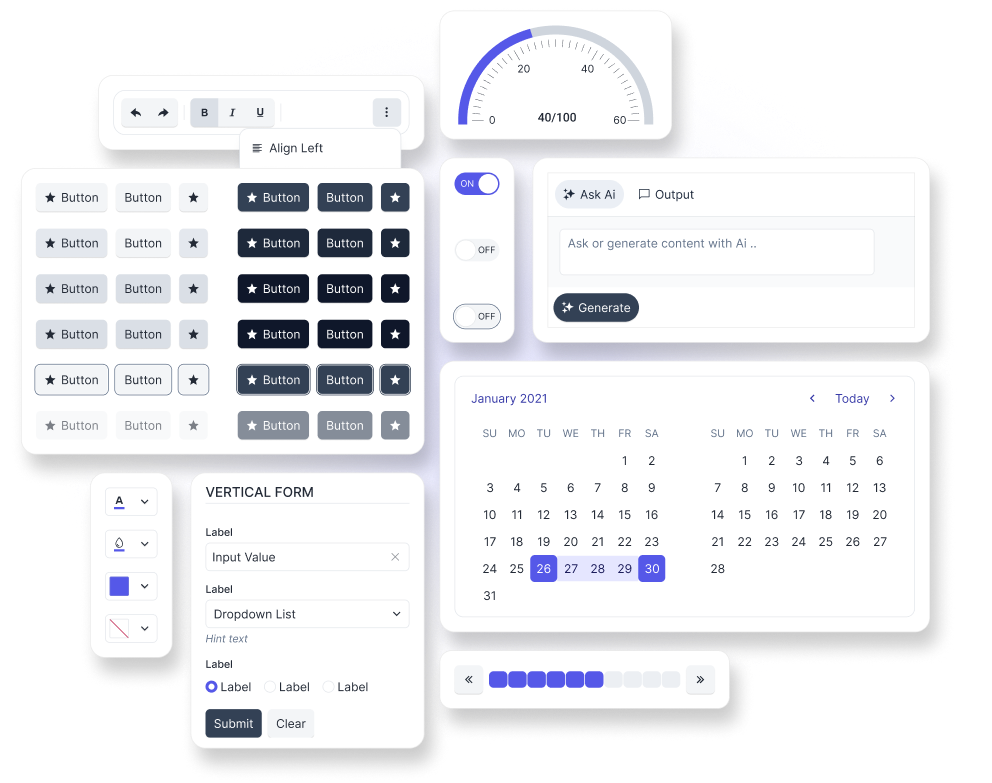
The Telerik and Kendo UI Meridian theme is a versatile theme that you can tailor to match your application design. The theme utilizes numerous variables that allow you to customize and fit the theme to your specific needs.
After installing the Telerik and Kendo UI Meridian theme, you can customize the theme variables directly in your application. For example, you can change the base background of the Button with the following lines:
// Use the theme with the modified base background of the Button.
@use '@progress/kendo-theme-meridian/scss/all.scss' as * with (
  $kendo-button-bg: #7f56d9
);
You can also customize individual components by overriding their variables:
// Use the theme with the modified component variables.
@use '@progress/kendo-theme-meridian/scss/index.scss' as * with (
  $kendo-button-bg: #7f56d9,
  $kendo-panelbar-bg: #f4f1fb
);

// Include only Button and PanelBar styles.
@include kendo-button--styles();
@include kendo-panelbar--styles();
Color
To learn how the Telerik and Kendo UI Meridian theme implements colors through its color system, see the Color Overview article. Each color variable in the theme belongs to a variable group that has a predefined meaning and purpose.
To customize the color system in the Telerik and Kendo UI Meridian theme, use either of the options below:
- Use the predefined color variables.
- Modify the color CSS variables.
- Modify the color Sass variables.
Predefined Color Variables
You can use the $kendo-colors map as is or customize it to fit your specific design needs. The predefined values in the Meridian theme are available in the $kendo-colors Sass map.
To use the predefined values, the recommended approach is to utilize the k-color() function, which takes a color name from the $kendo-colors map as a parameter and returns a CSS variable (custom property) with the actual color as a fallback:
// Import the Meridian theme.
@use '@progress/kendo-theme-meridian/scss/all.scss' as *;

.my-element {
  background-color: k-color(primary);
}
Color CSS Variables
Another way to customize the color system of the Meridian theme is to modify the CSS variables as each value in the Sass map is also represented as a CSS variable (custom property) and exposed at the root level.
Starting with Kendo Themes v14, the themes use CSS relative colors to derive related subtle, hover, active, emphasis, and on-surface tokens from their main tokens. This means that when you change a main token such as --kendo-color-primary, all of its derived tokens (hover, active, subtle, emphasis, on-surface, etc.) update automatically because they reference the main value through oklch(from var(--kendo-color-primary) ...).
Changing Main Tokens
This is the recommended approach when you want an entire color group to stay in sync while changing only the main token:
:root {
  --kendo-color-primary: oklch(69.85% 0.1923 27.19deg);
}
You can also override multiple color groups at once:
:root {
  --kendo-color-primary: oklch(69.85% 0.1923 27.19deg);
  --kendo-color-secondary: oklch(0.7 0.1344 328);
  --kendo-color-tertiary: oklch(0.7 0.1259 172.58);
}
Each color group — primary, secondary, tertiary, info, success, warning, error, inverse, and base — follows this pattern. The derived tokens for each group are calculated using CSS relative color syntax, for example:
/* Main token — the single value you customize */
--kendo-color-primary: oklch(69.85% 0.1923 27.19deg);

/* Derived tokens — automatically calculated from the main token */
--kendo-color-primary-hover: oklch(from var(--kendo-color-primary) calc(l - 0.044) calc(c - 0.012) h);
--kendo-color-primary-active: oklch(from var(--kendo-color-primary) calc(l - 0.088) calc(c - 0.027) h);
--kendo-color-primary-subtle: oklch(from var(--kendo-color-primary) 0.958 calc(c * 0.11) h);
--kendo-color-primary-subtle-hover: oklch(from var(--kendo-color-primary) 0.927 calc(c * 0.19) h);
--kendo-color-primary-subtle-active: oklch(from var(--kendo-color-primary) 0.88 calc(c * 0.33) h);
--kendo-color-primary-emphasis: oklch(from var(--kendo-color-primary) calc(l * 0.665 + 0.33) calc(c * 0.61) h);
--kendo-color-primary-on-subtle: oklch(from var(--kendo-color-primary) calc(l * 0.48) calc(c * 0.47) h);
--kendo-color-on-primary: oklch(from var(--kendo-color-primary) clamp(0.1, (0.75 - l) * 99999, 1) 0 h);
--kendo-color-primary-on-surface: oklch(from var(--kendo-color-primary) l c h);
Because the derived tokens reference the main token, changing only --kendo-color-primary causes the entire group to recalculate.
Fine-Tuning Individual Derived Tokens
You can also override individual derived tokens when you need more precise control over specific states. When you set a derived token to an absolute value, it no longer follows the main token:
:root {
  --kendo-color-primary-hover: oklch(55% 0.19 27.19deg);
  --kendo-color-primary-active: oklch(50% 0.17 27.19deg);
  --kendo-color-primary-subtle: oklch(95% 0.03 27.19deg);
}
Data Visualization (Series) Colors
The series color tokens use a two-level derivation chain. First, six series colors (series-a through series-f) are derived from a single --kendo-color-series main token. Then, each series color generates its own intensity variants (bold, bolder, subtle, subtler):
To change all chart colors at once, override the single --kendo-color-series main token:
:root {
  --kendo-color-series: oklch(69.85% 0.1923 27.19deg);
}
Each letter variant is then derived from --kendo-color-series by shifting lightness, chroma, and hue, and the intensity variants are in turn derived from their parent letter variant:
--kendo-color-series: oklch(69.85% 0.1923 27.19deg);

/* Level 1 — letter variants derived from the series main token */
--kendo-color-series-a: var(--kendo-color-series);

/* Level 2 — intensity variants derived from each letter variant */
--kendo-color-series-a-bold: oklch(from var(--kendo-color-series-a) calc(l * 0.81) calc(c * 0.79) h);
--kendo-color-series-a-bolder: oklch(from var(--kendo-color-series-a) calc(l * 0.61) calc(c * 0.57) h);
--kendo-color-series-a-subtle: oklch(from var(--kendo-color-series-a) calc(l * 0.55 + 0.45) calc(c * 0.5) h);
--kendo-color-series-a-subtler: oklch(from var(--kendo-color-series-a) calc(l * 0.79 + 0.21) calc(c * 0.77) h);

/* Level 1 — letter variants derived from the series main token */
--kendo-color-series-b: oklch(from var(--kendo-color-series) calc(l + 0.2128) calc(c - 0.0444) calc(h + 68.82));

/* Level 2 — intensity variants derived from each letter variant */
--kendo-color-series-b-bold: oklch(from var(--kendo-color-series-b) calc(l * 0.81) calc(c * 0.79) h);
--kendo-color-series-b-bolder: oklch(from var(--kendo-color-series-b) calc(l * 0.61) calc(c * 0.57) h);
--kendo-color-series-b-subtle: oklch(from var(--kendo-color-series-b) calc(l * 0.55 + 0.45) calc(c * 0.5) h);
--kendo-color-series-b-subtler: oklch(from var(--kendo-color-series-b) calc(l * 0.79 + 0.21) calc(c * 0.77) h);
To customize a single chart series, override its letter variant—the intensity tokens will follow:
:root {
  --kendo-color-series-b: oklch(75% 0.15 200deg);
}
To override a single intensity level, set it to an absolute value:
:root {
  --kendo-color-series-a-bold: oklch(56% 0.15 27.19deg);
}
Color Sass Variables
The same relative color behavior applies when customizing through Sass. You can override the main tokens in the $kendo-colors Sass map and all derived tokens (hover, active, subtle, emphasis, on-surface, etc.) will be automatically generated through CSS relative colors:
Changing Main Tokens
// Override only the main token — derived tokens are generated automatically.
@use '@progress/kendo-theme-meridian/scss/all.scss' as * with (
  $kendo-colors: (
    primary: #7f56d9,
  )
);
You can also override multiple color groups at once:
@use '@progress/kendo-theme-meridian/scss/all.scss' as * with (
  $kendo-colors: (
    primary: #7f56d9,
    secondary: #1f7ae0,
    tertiary: #16a34a,
  )
);
Fine-Tuning Individual Derived Tokens
If you need to fine-tune specific derived tokens alongside the main token, you can include them in the same map:
@use '@progress/kendo-theme-meridian/scss/all.scss' as * with (
  $kendo-colors: (
    primary-hover: #6d45c7,
    primary-active: #5f39b1,
    primary-subtle: #5b28c9,
  )
);
Data Visualization (Series) Colors
To change the series base color used for chart data visualization:
@use '@progress/kendo-theme-meridian/scss/all.scss' as * with (
  $kendo-colors: (
    series: #7f56d9,
  )
);
All letter variants (series-a through series-f) and their intensity variants (bold, bolder, subtle, subtler) will be derived automatically from the series main token.
In previous versions, the k-generate-color-variations() function was required to generate all shades of a color group from a single value. With the introduction of CSS relative colors in v14.0.0, this generation is now built-in — the theme automatically derives all related tokens from each main token. The function remains available for backward compatibility but is no longer necessary for new projects.
The k-generate-color-variations() function accepts three parameters:
name. The name of the variable group for which you need to generate colors. This is a string value.color. The color value. The color can be a HEX or RGBA value.theme. The name of the theme for which you need to generate colors. For examplemeridian.
For example, this is how the main, primary, and secondary variable groups are customized using the function:
@use 'sass:map';
@use '@progress/kendo-theme-meridian/scss/index.scss' as *;

$kendo-colors: map.merge(
  $kendo-colors,
  (
    app-surface: #fcfbff,
    on-app-surface: #211a2f,
  )
);

$kendo-colors: map.merge(
  $kendo-colors,
  k-generate-color-variations('primary', #7f56d9, 'meridian')
);
$kendo-colors: map.merge(
  $kendo-colors,
  k-generate-color-variations('secondary', #1f7ae0, 'meridian')
);
$kendo-colors: map.merge($kendo-colors, k-generate-color-variations('base', #ece9f5, 'meridian'));

@include kendo-theme--styles();
Translucency
The Meridian theme also includes translucency for a number of elevated surfaces such as the AppBar, BottomNavigation, Card, Drawer, Popup, Popover, Tooltip, and Window. These styles combine semi-transparent backgrounds with backdrop blur to create the layered Meridian look.
Translucency CSS Variables
By default, --kendo-translucency-base is set to 0%, which means surfaces are solid. To enable the translucent effect globally, increase the value. Higher values increase the translucent effect, while lower values make surfaces appear more solid:
:root {
  --kendo-translucency-base: 20%;
}
You can also apply translucency to a specific component instead of globally:
.k-card {
  --kendo-translucency-base: 30%;
}
You can adjust the value to any percentage that fits your design. For a consistent result, pair translucency changes with updates to your surface colors and elevation tokens so overlays, containers, and shadows remain visually cohesive.
Spacing
To learn how the Telerik and Kendo UI Meridian theme implements spacing, see the Spacing Overview article.
To customize the spacing system in the Telerik and Kendo UI Meridian theme, use either of the following approaches:
- Use the predefined spacing variables.
- Modify the spacing CSS variables.
- Modify the spacing Sass variables.
Predefined Spacing Variables
You can use the $kendo-spacing map as is or customize it to fit your specific design needs. The predefined spacing values in the Meridian theme are available in the $kendo-spacing Sass map.
To use the predefined values, the recommended approach is to utilize the k-spacing() function, which takes a spacing step from the $kendo-spacing map as a parameter and returns a CSS variable (custom property) with the actual spacing as a fallback:
// Import the Meridian theme.
@use '@progress/kendo-theme-meridian/scss/all.scss' as *;

.my-element {
  padding: k-spacing(4);
}
Spacing CSS Variables
Another way to customize the spacing system of the Meridian theme is to modify the CSS variables as each value in the Sass map is also represented as a CSS variable (custom property) and exposed at the root level.
All spacing tokens are derived from a single --kendo-spacing-base variable (default 0.25rem). Each step is a multiple of the base, so changing --kendo-spacing-base rescales the entire spacing system at once:
Changing the Base Step
To rescale every spacing token proportionally, override --kendo-spacing-base:
:root {
  --kendo-spacing-base: 0.3rem;
}
From 0.5 to 24 all values will be auto expanded.
--kendo-spacing-base: 0.3rem;

--kendo-spacing-0: 0px;
--kendo-spacing-1px: 1px;
--kendo-spacing-0\.5: calc(0.5 * var(--kendo-spacing-base));
--kendo-spacing-1: calc(1 * var(--kendo-spacing-base));
--kendo-spacing-1\.5: calc(1.5 * var(--kendo-spacing-base));
--kendo-spacing-2: calc(2 * var(--kendo-spacing-base));
--kendo-spacing-3: calc(3 * var(--kendo-spacing-base));
--kendo-spacing-4: calc(4 * var(--kendo-spacing-base));
/* ... steps continue up to 24 */
--kendo-spacing-24: calc(24 * var(--kendo-spacing-base));
Fine-Tuning Individual Steps
You can also override individual steps when you need a specific value that does not follow the base multiplier:
:root {
  --kendo-spacing-4: 1.25rem;
  --kendo-spacing-8: 2.5rem;
}
Spacing Sass Variables
The same base-multiplier pattern applies when customizing through Sass. The $kendo-spacing map contains all spacing steps, and each value references --kendo-spacing-base at runtime, so the CSS output retains the same derivation behavior.
Changing the Base Step
To rescale the entire spacing system, override $kendo-spacing-base:
@use '@progress/kendo-theme-meridian/scss/all.scss' as * with (
  $kendo-spacing-base: 0.3rem
);
Fine-Tuning Individual Steps
To override specific steps while keeping the rest derived from the base, pass only the steps you want to change:
@use '@progress/kendo-theme-meridian/scss/all.scss' as * with (
  $kendo-spacing: (
    4: 1.25rem,
    8: 2.5rem,
  )
);
Typography
To learn how the Telerik and Kendo UI Meridian theme implements typography, see the Typography Overview article.
By default, the Meridian theme does not enable the typography system. To enable it, set the .k-body class to the page <body> element. This class is required for the typography system to work properly on the document level and apply the predefined typography values to the page:
<body class="k-body">
  <!-- Your content here -->
</body>
In addition, you need to enable the typography system when using the theme:
// Use the theme with the enabled typography system.
@use '@progress/kendo-theme-meridian/scss/all.scss' as * with (
  $kendo-enable-typography: true
);
After enabling the typography system, you can use the predefined typography values in the Meridian theme which are available in the $kendo-font-families, $kendo-font-sizes, $kendo-line-heights, and $kendo-font-weights Sass maps. You can use them as is or customize them to fit your specific design needs.
Border Radius
To learn how the Telerik and Kendo UI Meridian theme implements border radii, see the Border Radius Overview article.
To customize the border radii system in the Telerik and Kendo UI Meridian theme, use either of the following approaches:
- Use the predefined border radii variables.
- Modify the border radii CSS variables.
- Modify the border radii Sass variables.
Predefined Border Radii Variables
You can use the $kendo-border-radii map as is or customize it to fit your specific design needs. The predefined border radii values in the Meridian theme are available in the $kendo-border-radii Sass map.
To use the predefined values, the recommended approach is to utilize the k-border-radius() function, which takes a border radius step from the $kendo-border-radii map as a parameter and returns a CSS variable (custom property) with the actual value as a fallback:
// Import the Meridian theme.
@use '@progress/kendo-theme-meridian/scss/all.scss' as *;

.my-element {
  border-radius: k-border-radius(md);
}
Border Radii CSS Variables
Another way to customize the border radii system of the Meridian theme is to modify the CSS variables as each value in the Sass map is also represented as a CSS variable (custom property) and exposed at the root level.
All border radius tokens are derived from a single --kendo-border-radius-base variable (default 0.375rem in the Meridian theme). Each named step is a fraction or multiple of the base, so changing --kendo-border-radius-base rescales the entire border radii system at once:
Changing the Base Value
To rescale every border radius token proportionally, override --kendo-border-radius-base:
:root {
  --kendo-border-radius-base: 0.5rem;
}
From xs to full all values will be auto expanded.
--kendo-border-radius-base: 0.375rem;

--kendo-border-radius-none: 0px;
--kendo-border-radius-xs: calc(var(--kendo-border-radius-base) / 3);
--kendo-border-radius-sm: calc(var(--kendo-border-radius-base) * 2 / 3);
--kendo-border-radius-md: var(--kendo-border-radius-base);
--kendo-border-radius-lg: calc(var(--kendo-border-radius-base) * 4 / 3);
--kendo-border-radius-xl: calc(var(--kendo-border-radius-base) * 2);
--kendo-border-radius-xxl: calc(var(--kendo-border-radius-base) * 8 / 3);
--kendo-border-radius-xxxl: calc(var(--kendo-border-radius-base) * 4);
--kendo-border-radius-full: calc(var(--kendo-border-radius-base) * 9999);
Fine-Tuning Individual Steps
You can also override individual steps when you need a specific value that does not follow the base multiplier:
:root {
  --kendo-border-radius-md: 0.5rem;
  --kendo-border-radius-lg: 0.75rem;
}
Border Radii Sass Variables
The same base-multiplier pattern applies when customizing through Sass. The $kendo-border-radii map contains all border radius steps, and each value references --kendo-border-radius-base at runtime, so the CSS output retains the same derivation behavior.
Changing the Base Value
To rescale the entire border radii system, override $kendo-border-radius-base:
@use '@progress/kendo-theme-meridian/scss/all.scss' as * with (
  $kendo-border-radius-base: 0.5rem
);
Fine-Tuning Individual Steps
To override specific steps while keeping the rest derived from the base, pass only the steps you want to change:
@use '@progress/kendo-theme-meridian/scss/all.scss' as * with (
  $kendo-border-radii: (
    md: 0.5rem,
    lg: 0.75rem,
  )
);
Elevation
To learn how the Telerik and Kendo UI Meridian theme implements elevation, see the Elevation Overview article.
To customize the elevation system in the Telerik and Kendo UI Meridian theme, use either of the following approaches:
- Use the predefined elevation variables.
- Modify the elevation CSS variables.
- Modify the elevation Sass variables.
Predefined Elevation Variables
You can use the $kendo-elevation map as is or customize it to fit your specific design needs. The predefined elevation values in the Meridian theme are available in the $kendo-elevation Sass map.
To use the predefined values, the recommended approach is to utilize the k-elevation() function, which takes an elevation step from the $kendo-elevation map as a parameter and returns a CSS variable (custom property) with the actual elevation as a fallback:
// Import the Meridian theme.
@use '@progress/kendo-theme-meridian/scss/all.scss' as *;

.my-element {
  box-shadow: k-elevation(3);
}
Elevation CSS Variables
Another way to customize the elevation system of the Meridian theme is to modify the CSS variables as each value in the Sass map is also represented as a CSS variable (custom property) and exposed at the root level:
:root {
  --kendo-elevation-1: 0 4px 12px rgba(20, 16, 30, 0.08);
  --kendo-elevation-2: 0 10px 30px rgba(20, 16, 30, 0.12);
}
Elevation Sass Variables
You can modify either all values in the $kendo-elevation Sass map or only specific elevation levels:
// Use the theme with the modified $kendo-elevation map.
@use '@progress/kendo-theme-meridian/scss/all.scss' as * with (
  $kendo-elevation: (
    3: (
      0 8px 20px rgba(20, 16, 30, 0.12),
      0 16px 36px rgba(20, 16, 30, 0.14),
    ),
  )
);
Motion
To learn how the Telerik and Kendo UI Meridian theme implements motion, see the Motion Overview article.
To customize the motion system in the Telerik and Kendo UI Meridian theme, use either of the following approaches:
- Use the predefined motion variables.
- Modify the motion CSS variables.
- Modify the motion Sass variables.
Predefined Motion Variables
You can use the $kendo-durations, $kendo-easings, and $kendo-transitions maps as is or customize them to fit your specific design needs. The predefined motion values in the Meridian theme are available in these Sass maps.
To use the predefined values, the recommended approach is to utilize the k-duration(), k-easing(), or k-transition() functions, which take a token name from the respective map as a parameter and return a CSS variable (custom property) with the actual value as a fallback:
// Import the Meridian theme.
@use '@progress/kendo-theme-meridian/scss/all.scss' as *;

.my-element-1 {
  transition: color k-transition(snappy);
}

.my-element-2 {
  transition-property: color;
  transition-duration: k-duration(swift);
  transition-timing-function: k-easing(decelerate);
}
Motion CSS Variables
Another way to customize the motion system of the Meridian theme is to modify the CSS variables as each value in the Sass maps is also represented as a CSS variable (custom property) and exposed at the root level:
:root {
  --kendo-duration-swift: 200ms;
  --kendo-duration-prompt: 300ms;
  --kendo-easing-decelerate: cubic-bezier(0, 0, 0.58, 1);
  --kendo-transition-snappy: var(--kendo-duration-swift) var(--kendo-easing-decelerate);
}
Motion Sass Variables
You can modify values in the $kendo-durations, $kendo-easings, or $kendo-transitions Sass maps:
// Use the theme with the modified motion maps.
@use '@progress/kendo-theme-meridian/scss/all.scss' as * with (
  $kendo-durations: (
    swift: 250ms,
    prompt: 350ms,
  ),
  $kendo-easings: (
    decelerate: cubic-bezier(0, 0, 0.5, 1),
  )
);
You can also customize transition tokens that combine duration and easing:
// Use the theme with the modified $kendo-transitions map.
@use '@progress/kendo-theme-meridian/scss/all.scss' as * with (
  $kendo-transitions: (
    enter: (
      duration: var(--kendo-duration-prompt),
      easing: var(--kendo-easing-decelerate),
    ),
  )
);
Accessibility and Reduced Motion
The Motion system respects user accessibility preferences through the prefers-reduced-motion media query. When users have enabled reduced motion in their operating system settings, all animations are automatically minimized to 0.01ms. This is achieved through the --kendo-duration-global CSS variable, which is a global variable for all duration tokens.
You can also manually control duration speed globally by setting the --kendo-duration-global variable:
/* Disable all animations */
:root {
  --kendo-duration-global: 0ms;
}

/* Automatically set all animations to a specific value */
:root {
  --kendo-duration-global: 500ms;
}