Steps Pane Overview
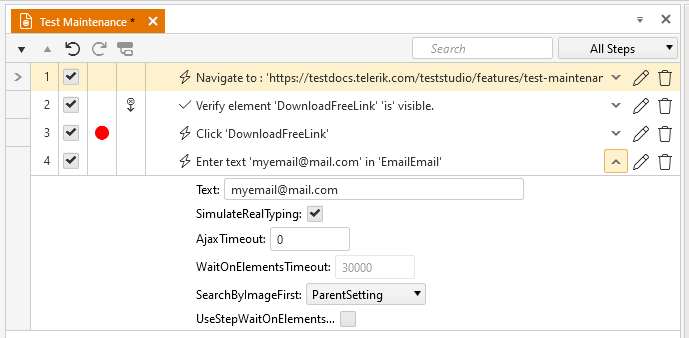
The Steps pane lists the steps in order of execution for the current test. Many actions and options are available here:
-
 - Move Step Down - Move the selected step(s) down one in the sequence.
 -
 - Move Step Up - Move the selected step(s) up one in the sequence.
 -
 - Undo - Restore a step you just deleted or changed to its previous state and location.
 -
 - Redo - Reapply the edit that was undone with the Undo button
 -
 - View Code Behind File - Coded Step only: switch the view between the step's code and the entire code behind file (if it exists).
 -
 - Step Marker - Set the step marker to denote where to insert newly recorded/added steps.
 -
 - Step Order - The step's place in the test sequence.
 -
 - Enabled Checkbox - Whether the step will run during execution.
 -
 - Breakpoint - Indicates whether the test will pause at that step and show Debug Options. (Not respected within a Test as Step. Use the Execution > Pause Test Step Property instead.)
 -
 - Continue on Failure - Indicates whether the test will stop if that step detects a failure.
 -
 - Step Type - Represents the type of step: Action, Verification, Coded, etc.
 -
 - Description - The default description given to the step by Test Studio.
 -
 - Show Inline Editor - Edit some of the step properties.
 -
 - Edit Custom Description - Alter the default step description.
 -
 - Delete - Removes the step from the test.
 -
 - Step Type Filter - Filter test steps by type.