Getting Started with the .NET MAUI SegmentedControl
This guide provides the information you need to start using the Telerik UI for .NET MAUI SegmentedControl by adding the control to your project.
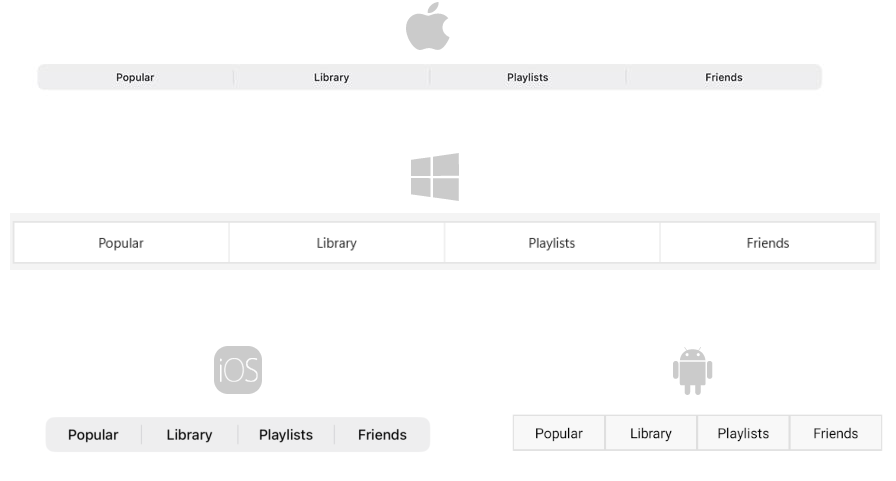
At the end, you will achieve the following result.
Prerequisites
Before adding the SegmentedControl, you need to:
Define the Control
1. When your .NET MAUI application is set up, you are ready to add a SegmentedControl to your page. Define the control and populate it by using the ItemsSource property:
<telerik:RadSegmentedControl>
    <telerik:RadSegmentedControl.ItemsSource>
        <x:Array Type="{x:Type x:String}">
            <x:String>Popular</x:String>
            <x:String>Library</x:String>
            <x:String>Playlists</x:String>
            <x:String>Friends</x:String>
        </x:Array>
    </telerik:RadSegmentedControl.ItemsSource>
</telerik:RadSegmentedControl>
2. Alternatively, you can display custom content in each segment through the ItemTemplate property. The example below renders an image in each segment:
<telerik:RadSegmentedControl>
    <telerik:RadSegmentedControl.ItemTemplate>
        <DataTemplate>
            <Image Source="{Binding .}"
                   Margin="5"
                   HeightRequest="40"
                   HorizontalOptions="Center"
                   VerticalOptions="Center" />
        </DataTemplate>
    </telerik:RadSegmentedControl.ItemTemplate>
    <telerik:RadSegmentedControl.ItemsSource>
        <x:Array Type="{x:Type FileImageSource}">
            <FileImageSource>available.png</FileImageSource>
            <FileImageSource>away.png</FileImageSource>
            <FileImageSource>busy.png</FileImageSource>
        </x:Array>
    </telerik:RadSegmentedControl.ItemsSource>
</telerik:RadSegmentedControl>
3. Add the following namespace:
xmlns:telerik="http://schemas.telerik.com/2022/xaml/maui" 4. Register the Telerik controls through the Telerik.Maui.Controls.Compatibility.UseTelerik extension method called inside the CreateMauiApp method of the MauiProgram.cs file of your project:
using Telerik.Maui.Controls.Compatibility;

public static class MauiProgram
{
	public static MauiApp CreateMauiApp()
	{
		var builder = MauiApp.CreateBuilder();
		builder
			.UseTelerik()
			.UseMauiApp<App>()
			.ConfigureFonts(fonts =>
			{
				fonts.AddFont("OpenSans-Regular.ttf", "OpenSansRegular");
			});

		return builder.Build();
	}
}
For a runnable example demonstrating the SegmentedControl Getting Started scenario, see the SDKBrowser Demo Application and go to the SegmentedControl > Getting Started category.
Additional Resources
- .NET MAUI SegmentedControl Product Page
- .NET MAUI SegmentedControl Forum Page
- Telerik .NET MAUI Blogs
- Telerik .NET MAUI Roadmap