.NET MAUI RefreshView Overview
Updated on Nov 10, 2026
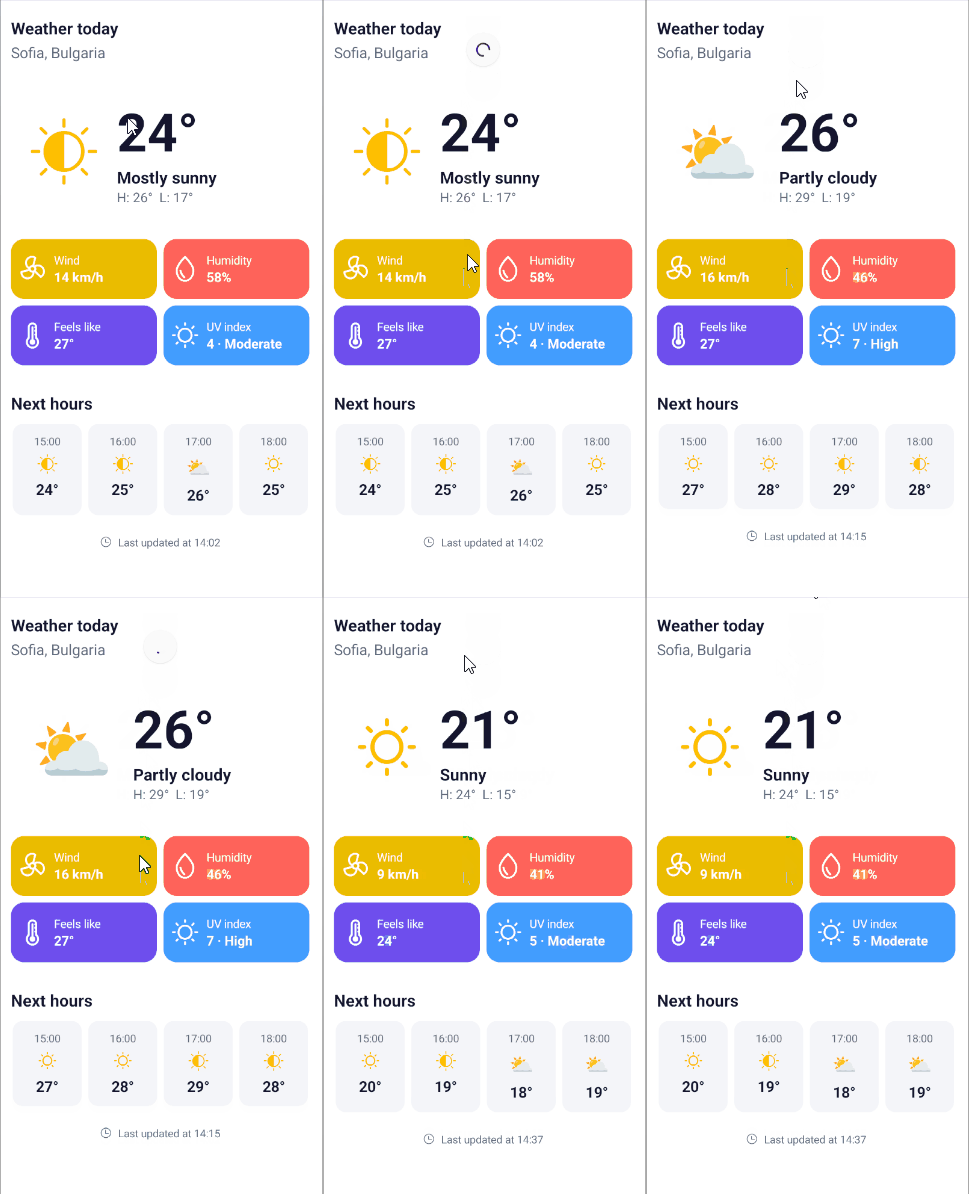
The Telerik UI for .NET MAUI RefreshView is a container control that adds pull-to-refresh behavior to any content. Use the RefreshView when users need to reload data, for example, to update a news feed, a list of messages, or a data grid with server data.
 Start Free Trial
When the user pulls the content past a configurable distance and releases it, the RefreshView starts a refresh. It raises events and executes a command, so you can load the new data. When loading finishes, set IsRefreshing to false to end the refresh.
Key Features of the Telerik .NET MAUI RefreshView
The RefreshView provides the following features:
- Refresh State—Start and stop a refresh programmatically and turn the pull gesture on or off.
- Indicator Type—Choose between the built-in
Circular,Spinner, andArrowrefresh indicators. - Pull Direction—Start a refresh by pulling from the top, bottom, left, or right edge of the content.
- Transition Mode—Define how the indicator and the content move while the user pulls.
- Thresholds—Control the pull distance at which the indicator appears and at which a refresh starts, and the indicator length.
- Templates—Replace the built-in indicator with custom content for the pulling and refreshing phases.
- Integration with CollectionView—Add pull-to-refresh to the Telerik CollectionView.
- Integration with DataGrid—Add pull-to-refresh to the Telerik DataGrid.
- Commands—Execute a view model command when a refresh starts.
- Events—Track the pull progress, cancel a pull gesture, and respond when a refresh starts or completes.
- Styling—Customize the color, size, and shadow of the built-in indicators.