.NET MAUI RefreshView Indicator Type
The RefreshView indicator type defines the built-in indicator that the control shows while the user pulls the content and while a refresh is in progress. Choose an indicator type to match the look of your app or to keep the same indicator on all platforms.
Select the Built-In Indicator
To select the built-in indicator, set the IndicatorType property (enum of type Telerik.Maui.Controls.RefreshView.RefreshViewIndicatorType). The property accepts the following values:
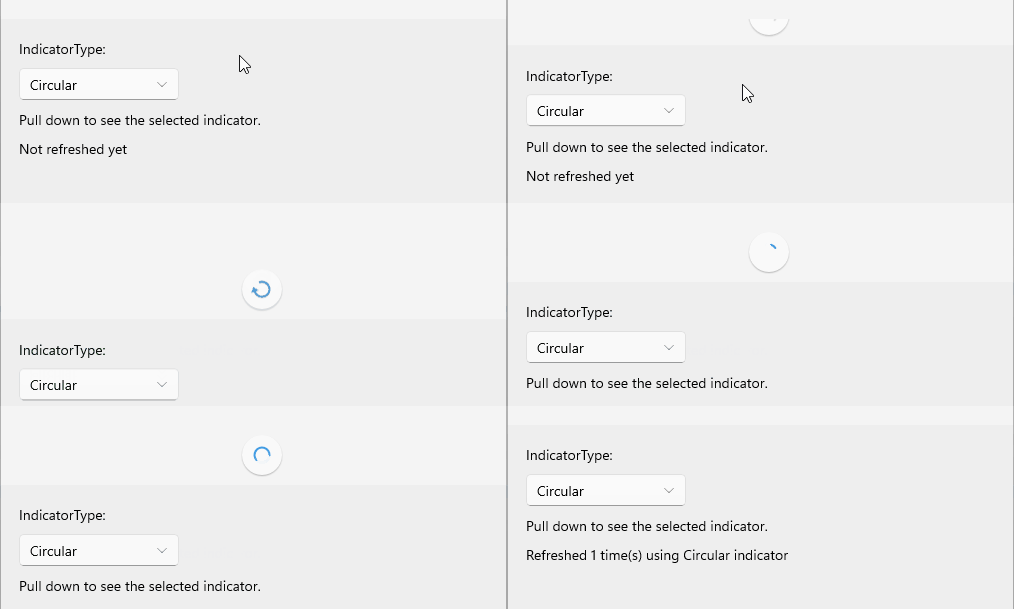
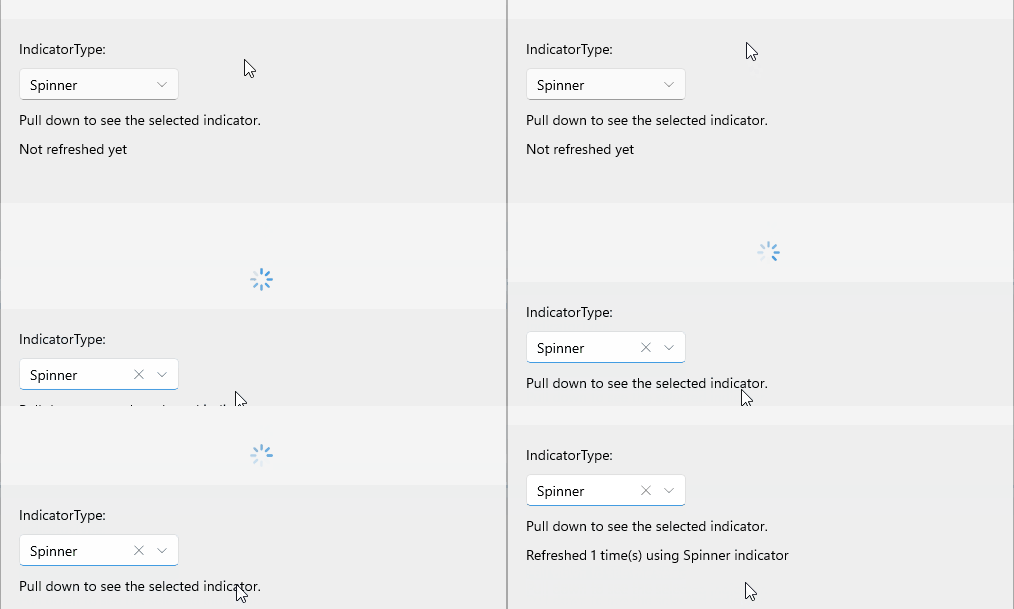
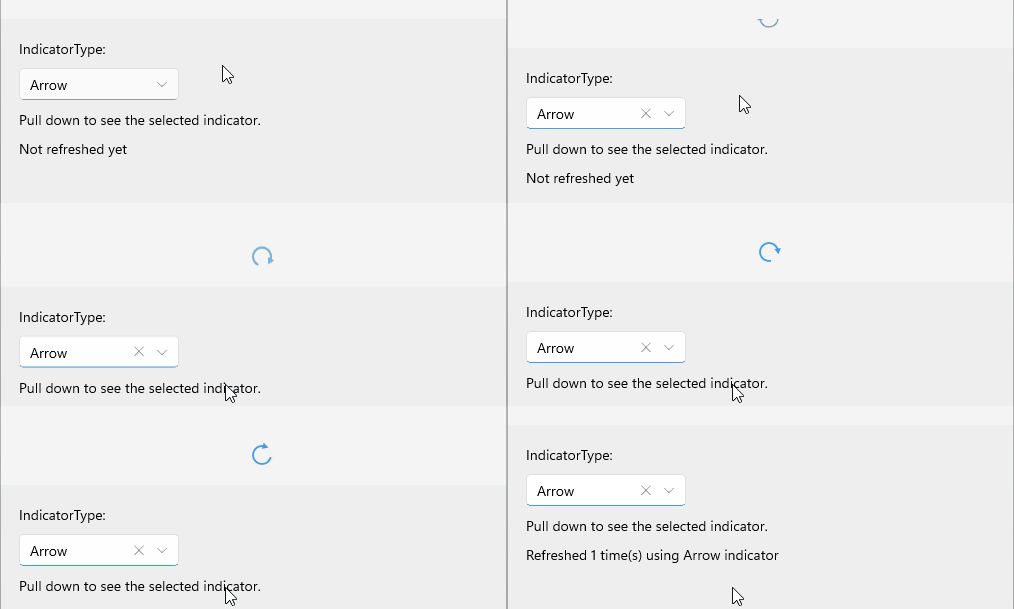
Circular—Displays a circular indicator with a progress arc and a pull arrow. Default on Android.Spinner—Displays an indicator with eight rotating bars. Default on iOS and MacCatalyst.Arrow—Displays a refresh arrow that rotates while pulling, pulses at the refresh threshold, and spins while refreshing. Default on Windows.
When you set the
PullingTemplateorRefreshingTemplateproperty, the template replaces the built-in indicator for the respective phase. For more information, see RefreshView Templates.
Circular indicator
Spinner indicator
Arrow indicator
Set the Indicator Type
The following example demonstrates how to set the IndicatorType property of the RefreshView.
-
Define the RefreshView in XAML:
XAML<telerik:RadRefreshView x:Name="refreshView" IndicatorType="Circular" Refreshing="OnRefreshing"> <VerticalStackLayout Padding="20" Spacing="10" BackgroundColor="#EEEEEE"> <Label Text="IndicatorType:" VerticalOptions="Center" /> <telerik:RadComboBox x:Name="indicatorTypeComboBox" HorizontalOptions="Start" WidthRequest="160" /> <Label Text="Pull down to see the selected indicator." /> <Label x:Name="statusLabel" Text="Not refreshed yet" /> </VerticalStackLayout> </telerik:RadRefreshView> -
Add the
teleriknamespace:XAMLxmlns:telerik="http://schemas.telerik.com/2022/xaml/maui" -
Handle the
Refreshingevent and end the refresh when the data is loaded:C#private async void OnRefreshing(object sender, EventArgs e) { await Task.Delay(1500); this.refreshCount++; this.statusLabel.Text = $"Refreshed {this.refreshCount} time(s) using {this.refreshView.IndicatorType} indicator"; this.refreshView.IsRefreshing = false; }
For a runnable example with the RefreshView Indicator Type scenario, see the SDKBrowser Demo Application and go to the RefreshView > Configuration category.