.NET MAUI RefreshView Pull Direction
The RefreshView pull direction defines the physical direction of the pull gesture and the edge at which the indicator appears. Change the pull direction when your content scrolls horizontally or when new items appear at the bottom, for example, in a chat history.
Set the Pull Direction
To set the pull direction, use the PullDirection property of type Telerik.Maui.Controls.RefreshViewPullDirection. The property accepts the following values:
TopToBottom—The user pulls from the top edge toward the bottom. This is the default value on all platforms.BottomToTop—The user pulls from the bottom edge toward the top.LeftToRight—The user pulls from the left edge toward the right.RightToLeft—The user pulls from the right edge toward the left.
The
LeftToRightandRightToLeftvalues describe physical directions. TheFlowDirectionof the layout doesn't reverse them.
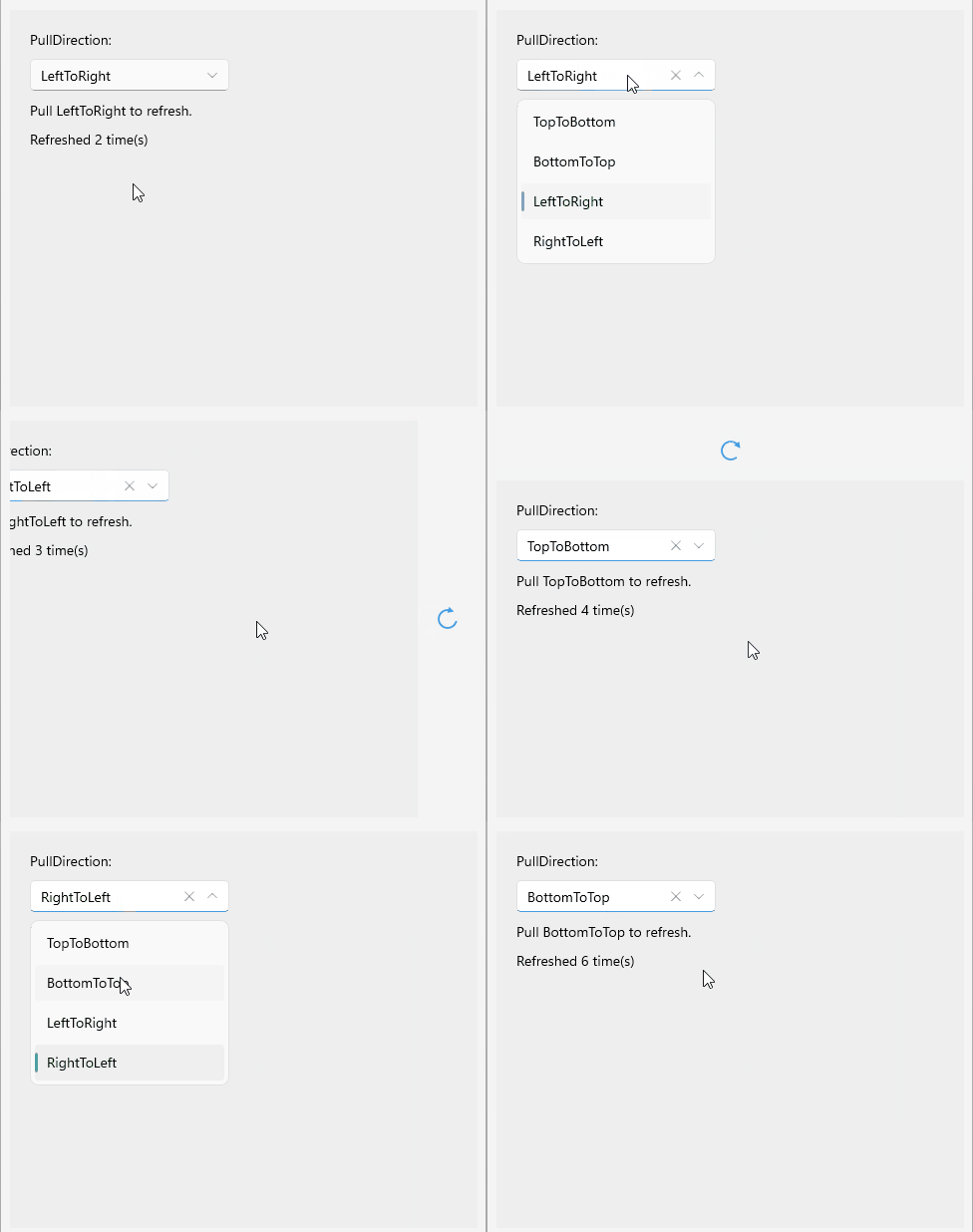
Change the Pull Direction
The following example demonstrates how to change the PullDirection of the RefreshView.
-
Define the RefreshView in XAML:
XAML<telerik:RadRefreshView x:Name="refreshView" PullDirection="BottomToTop" Refreshing="OnRefreshing"> <VerticalStackLayout Padding="20" Spacing="10" BackgroundColor="#EEEEEE"> <Label Text="PullDirection:" VerticalOptions="Center" /> <telerik:RadComboBox x:Name="pullDirectionComboBox" HorizontalOptions="Start" WidthRequest="200" /> <Label x:Name="hintLabel" Text="Pull in the selected direction to refresh." /> <Label x:Name="statusLabel" Text="Not refreshed yet" /> </VerticalStackLayout> </telerik:RadRefreshView> -
Add the
teleriknamespace:XAMLxmlns:telerik="http://schemas.telerik.com/2022/xaml/maui" -
Handle the
Refreshingevent and end the refresh when the data is loaded:C#private async void OnRefreshing(object sender, EventArgs e) { await Task.Delay(1500); this.refreshCount++; this.statusLabel.Text = $"Refreshed {this.refreshCount} time(s)"; this.refreshView.IsRefreshing = false; }
For a runnable example with the RefreshView Pull Direction scenario, see the SDKBrowser Demo Application and go to the RefreshView > Configuration category.