.NET MAUI RefreshView Integration with CollectionView
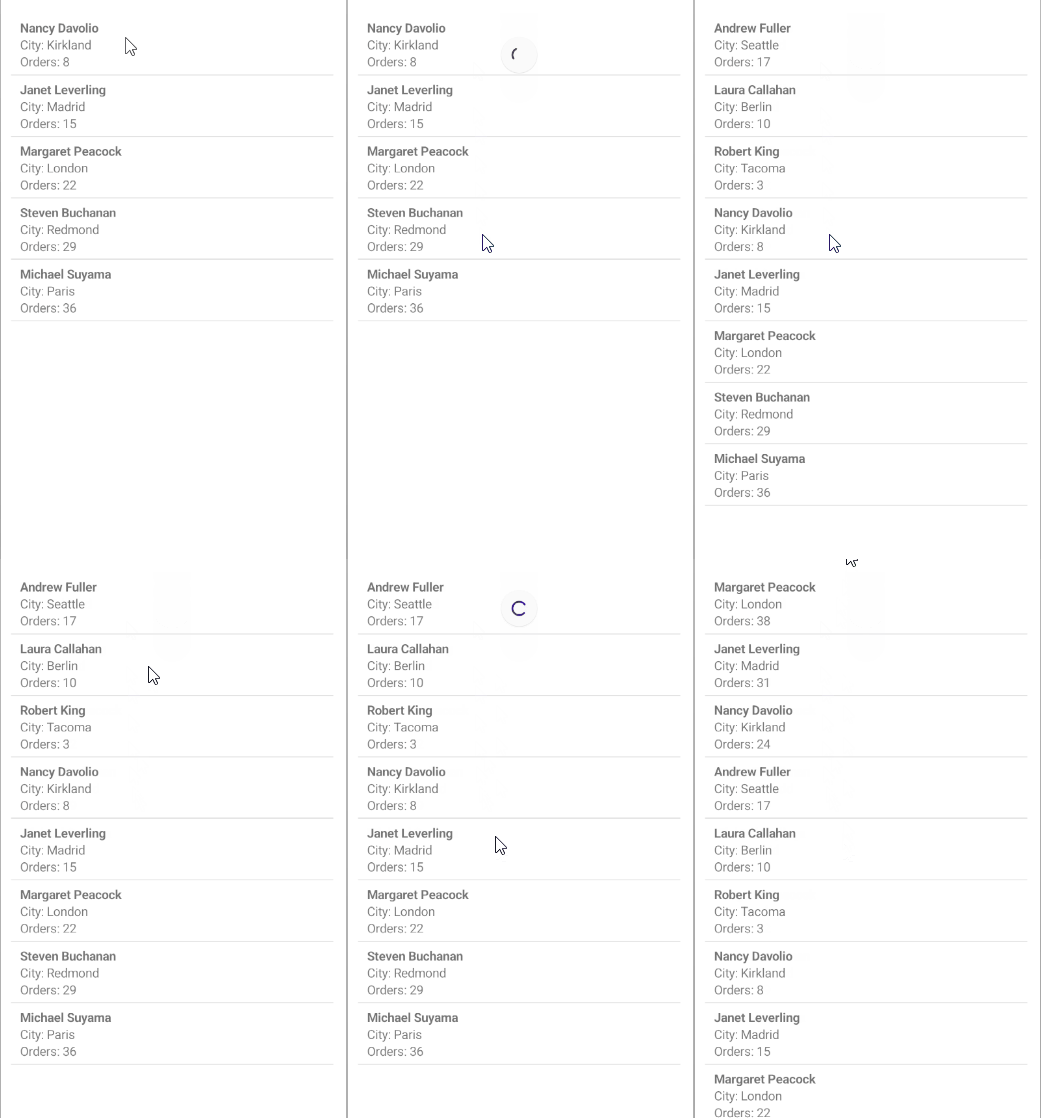
You can add pull-to-refresh to the Telerik UI for .NET MAUI CollectionView by wrapping the CollectionView in the RefreshView. Use this approach to let users reload a list of items, for example, customers, messages, or news entries, by pulling the list.
How the Integration Works
Wrap the RadCollectionView in the RadRefreshView as its content. When the user pulls the list past the pulling threshold and releases it, the RefreshView starts a refresh and executes its Command.
To connect the RefreshView to your view model, bind the following properties:
Command(ICommand)—Executes the view model logic that reloads the items.IsRefreshing(bool)—Reflects whether a refresh is in progress. The view model sets the property tofalsewhen the items are loaded to end the refresh.
For more information about the command properties, see RefreshView Commands.
Refresh the CollectionView Items
The following example demonstrates how to use the RefreshView with the CollectionView.
-
Define the RefreshView and the CollectionView in XAML:
XAML<telerik:RadRefreshView IsRefreshing="{Binding IsRefreshing}" Command="{Binding RefreshCommand}"> <telerik:RadCollectionView ItemsSource="{Binding Items}"> <telerik:RadCollectionView.ItemTemplate> <DataTemplate x:DataType="local:Customer"> <VerticalStackLayout Padding="10, 6"> <Label Text="{Binding Name}" FontAttributes="Bold" /> <Label Text="{Binding City, StringFormat='City: {0}'}" /> <Label Text="{Binding Orders, StringFormat='Orders: {0}'}" TextColor="Gray" /> </VerticalStackLayout> </DataTemplate> </telerik:RadCollectionView.ItemTemplate> </telerik:RadCollectionView> </telerik:RadRefreshView> -
Add the
teleriknamespace:XAMLxmlns:telerik="http://schemas.telerik.com/2022/xaml/maui" -
Define the
ViewModelwith the items, theIsRefreshingproperty, and theRefreshCommand:C#public class ViewModel : NotifyPropertyChangedBase { private static readonly string[] Names = { "Andrew Fuller", "Nancy Davolio", "Janet Leverling", "Margaret Peacock", "Steven Buchanan", "Michael Suyama", "Robert King", "Laura Callahan" }; private static readonly string[] Cities = { "Seattle", "London", "Tacoma", "Kirkland", "Redmond", "Berlin", "Madrid", "Paris" }; private bool isRefreshing; private int nextId = 1; public ViewModel() { this.Items = new ObservableCollection<Customer>(); for (int i = 0; i < 5; i++) { this.Items.Add(this.CreateCustomer()); } this.RefreshCommand = new Command(this.ExecuteRefresh); } public ObservableCollection<Customer> Items { get; } public ICommand RefreshCommand { get; } public bool IsRefreshing { get => this.isRefreshing; set => this.UpdateValue(ref this.isRefreshing, value); } private async void ExecuteRefresh() { await Task.Delay(1000); for (int i = 0; i < 3; i++) { this.Items.Insert(0, this.CreateCustomer()); } this.IsRefreshing = false; } private Customer CreateCustomer() { int id = this.nextId++; return new Customer { Id = id, Name = Names[id % Names.Length], City = Cities[(id * 3) % Cities.Length], Orders = (id * 7) % 40 + 1, }; } } -
Define the
Customerbusiness object:C#public class Customer { public int Id { get; set; } public string Name { get; set; } public string City { get; set; } public int Orders { get; set; } }
For a runnable example with the RefreshView Integration with CollectionView scenario, see the SDKBrowser Demo Application and go to the RefreshView > Integration category.