New to Telerik UI for .NET MAUI? Start a free 30-day trial
Getting Started with the .NET MAUI DropDownButton
Updated on Aug 12, 2026
This guide provides the information you need to start using the Telerik UI for .NET MAUI DropDownButton by adding the control to your project.
At the end, you will achieve the following result.
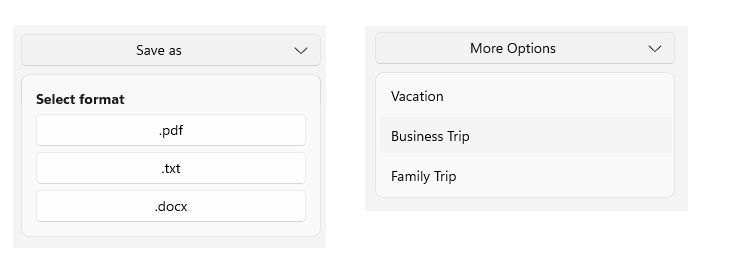
Prerequisites
Before adding the DropDownButton, you need to:
Define the Control
1. When your .NET MAUI application is set up, you are ready to add a DropDownButton control to your page:
- DropDownButton with layout and buttons inside the drop-down:
XAML
<telerik:RadDropDownButton Content="Save as">
    <telerik:RadDropDownButton.DropDownContent>
        <VerticalStackLayout Padding="12" Spacing="6">
            <Label Text="Select format"
                   FontAttributes="Bold" />
            <telerik:RadTemplatedButton Content=".pdf" />
            <telerik:RadTemplatedButton Content=".txt" />
            <telerik:RadTemplatedButton Content=".docx" />
        </VerticalStackLayout>
    </telerik:RadDropDownButton.DropDownContent>
</telerik:RadDropDownButton>- DropDownButton with list content inside the drop-down:
XAML
<telerik:RadDropDownButton Content="More Options">
    <telerik:RadDropDownButton.DropDownContent>
        <telerik:RadCollectionView>
            <telerik:RadCollectionView.ItemsSource>
                <x:Array Type="{x:Type x:String}">
                    <x:String>Vacation</x:String>
                    <x:String>Business Trip</x:String>
                    <x:String>Family Trip</x:String>
                </x:Array>
            </telerik:RadCollectionView.ItemsSource>
        </telerik:RadCollectionView>
    </telerik:RadDropDownButton.DropDownContent>
</telerik:RadDropDownButton>
2. Add the telerik namespace:
XAML
xmlns:telerik="http://schemas.telerik.com/2022/xaml/maui"3. Register the Telerik controls through the Telerik.Maui.Controls.Compatibility.UseTelerik extension method called inside the CreateMauiApp method of the MauiProgram.cs file of your project:
C#
using Telerik.Maui.Controls.Compatibility;
public static class MauiProgram
{
	public static MauiApp CreateMauiApp()
	{
		var builder = MauiApp.CreateBuilder();
		builder
			.UseTelerik()
			.UseMauiApp<App>()
			.ConfigureFonts(fonts =>
			{
				fonts.AddFont("OpenSans-Regular.ttf", "OpenSansRegular");
			});
		return builder.Build();
	}
}
For a runnable example with the DropDownButton Getting Started scenario, see the SDKBrowser Demo Application and go to the DropDownButton > Getting Started category.