Using AI to Build a Blazor App 3: Prototypes and Tracer Bullets
 by Jon Hilton

Summarize with AI:
How do you figure out how your app idea should feel to use? Or which part to build first? Turns out we can draw inspiration from some classic texts on software development.
In Parts 1 and 2, we used AI to help us get clear about what we’re building and why. We scoped it down and were explicit about what’s not in scope. This left us with some decisions made and a starting point for the next step.
But what is that step? Well that depends slightly on what you’re trying to do.
In Part 1, we identified that software design is messy. Reaching a shared understanding about what you’re building (shared with other humans or AI) is a challenge. What we definitely don’t want to do is give AI a giant spec and tell it to “go build it.” There are too many unknowns and opportunities for AI to drift from what we really wanted in the first place.
So how do we break this down into smaller steps and stay agile so we can react to reality when it hits us in the face and demands we change direction?
It turns out there are answers to be found in the classic software development texts. The Pragmatic Programmer (a book you absolutely should read, especially if you’re using AI for coding) talks about tracer bullets and prototypes. They are two different tools for slightly different purposes.
Tracer Bullets
A tracer bullet is a bullet that’s loaded at intervals alongside regular bullets and leaves a trace when fired. The idea is it helps you locate the target (if you see the tracer bullets hitting a target, so are the other bullets).
In coding terms, we can use this to build something that gives you early feedback that you’re aiming at the right target.
In a project like this, a useful tracer bullet might be a minimal feature that exercises the entire stack (UI to backend to persistent storage). Or maybe that first stage of setting up the web project, running it and checking it loads in the browser.
The key with the tracer bullet is that it’s production code, built vertically, to verify your basic premise holds up.
Prototypes
Prototypes are different. They’re useful for testing out UI designs or spiking technical choices that you haven’t used before. You can use them for everything from generating multiple versions of a screen (UI only, no backend) to settle on a design/UX, to spiking out how Claude’s Agent SDK could work to give your app AI capabilities.
The big difference between prototypes and tracer bullets is that prototypes are throwaway. Once you’ve used them to clarify an aspect of your project, you chuck them in the bin. Tracer bullets, on the other hand, are small vertical slices of your app that you then keep and build on over time.
So Which Is It to Be?
In this case, I wanted to think through the UI and UX for this new app. Specifically to figure out the ergonomics of everything we decided was in scope (in Part 2).
Now I want to prototype this. To be clear, this prototype is for deciding on the rough shape of the UI for this feature. I would like to see a rough mockup (not over-designed) of how this article workspace could look. This is prototype code which will be thrown away, so does not need to be functional beyond showing me potential UI/UX
Again, we’re starting with a prompt to see how Codex (GPT 5.5) handles this. From that prompt, it created a basic V1, which was surprisingly functional but had a few issues.
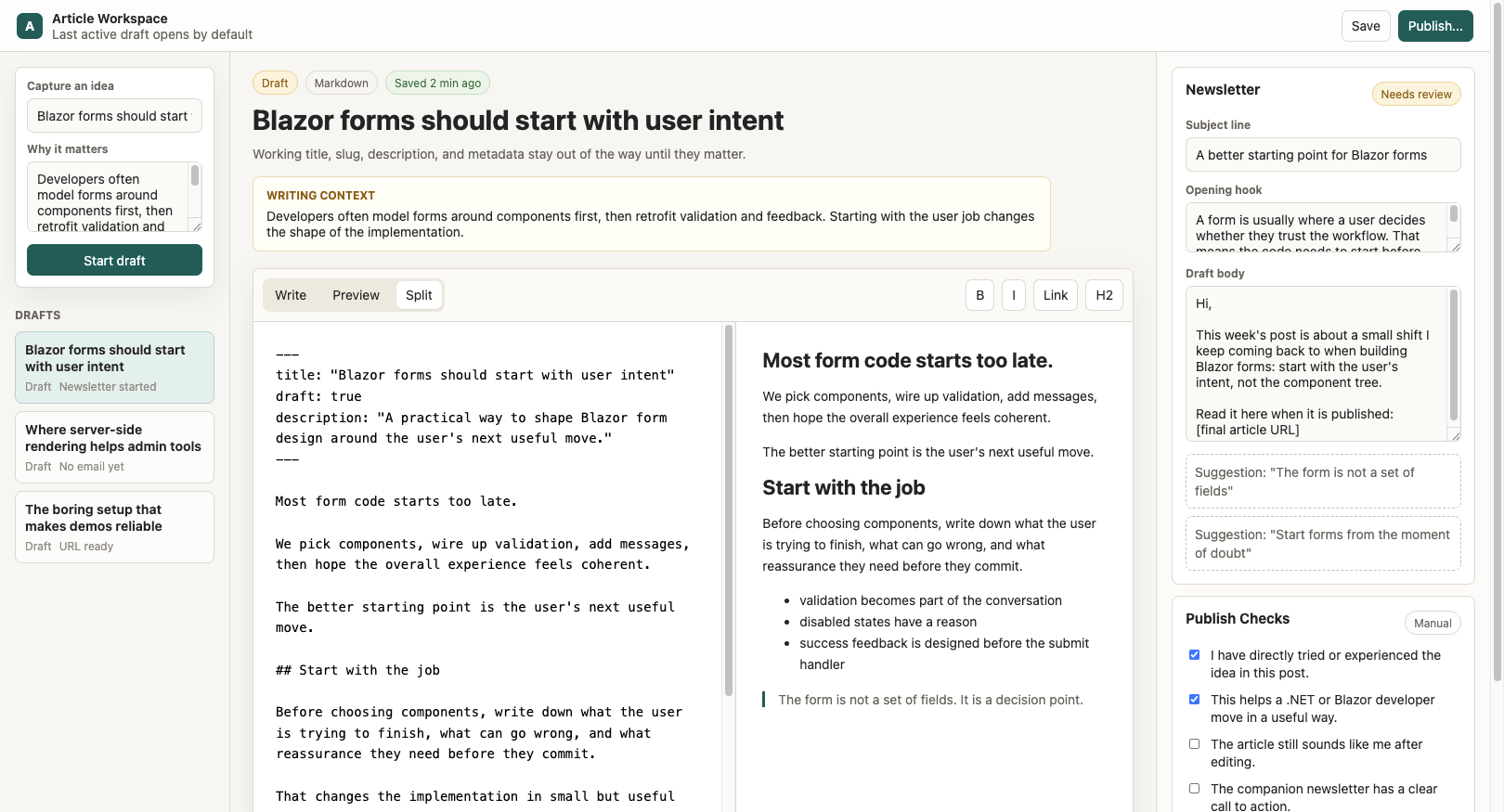
The issues here include:
- The “Quick Capture” is too small to be useful (top-left).
- The newsletter showing on the right (or underneath on smaller screens) feels a bit sidelined over there (again, too small).
- Overall, this is trying to do much on one screen.
But the markdown editor works, as does the left-hand nav, and I liked the idea of the publish checks (which we had surfaced in earlier conversations with the AI).
So, over a few messages, we iterated this prototype:
Capture an idea that is way too small to be useful. I think I’d be tempted to have that as a button, and a modal in this case (not always a fan of a modal, but seems OK here)
It then built a new modal for capturing an idea, but it added more fields. This is a trap with LLMs trying to be helpful (drifting from the brief), so I brought it back.
we’ve drifted from the brief there, we agreed to simply capture a rough idea/title and also optionally why it matters. So the idea should be a text area (rough idea) too and we don’t need additional fields
After a few more back-and-forths, we arrived at a better version, but I wanted to check we’d met the requirements listed in the most recent ADR (created in the last step).
if you review the ADR, what does this screen not meet (in terms of the requirements we landed on)
After a couple more iterations we landed here:
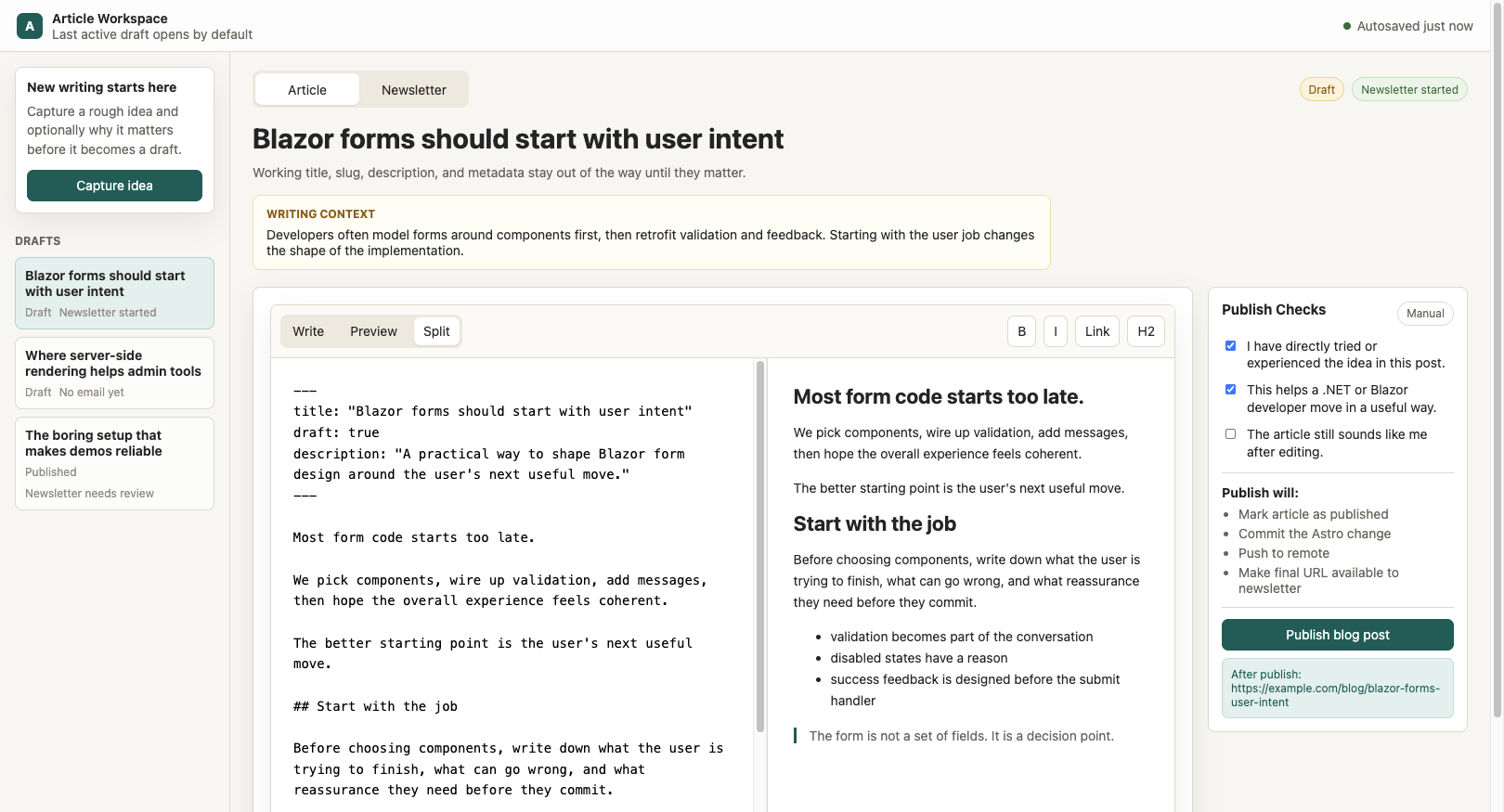
Key features that came out of this process:
- “Capture idea” button (opens modal)
- Shared “editor pane” for both Article and Newsletter (with tabs)
- Consistent UI/UX across both tabs (with publish checks on right)
- Same markdown editor used on both tabs
- AI functionality on the newsletter tab (to generate hook and subject line ideas)
The key thing that jumped out for me here was the realization that, although the ADR captured the details of what we were aiming for, it was only during this “mockup” stage that some key design decisions were made. It’s another example of using AI to help you, the human, think.
Because this is throwaway code, it’s cheap to iterate, throw ideas around and think through the ergonomics of this feature. This is not 1:1 production code, but it helped us arrive at some key UI/UX decisions, and we can always use this as a reference point when we come to build the real thing. It will be up to us how closely we want the AI to stick to this “design.”
Now for the Tracer Bullet
With that UI sorted, the next step is to make this something that runs in the browser, and as quickly as possible. A perfect case for tracer bullets!
using the prototype we settled on, please identify candidates for our first tracer bullet and present them to me. This should be a tracer bullet as in the Pragmatic Programmer, something we can build that’s real, and will be the basis of our app
At this point, GPT gave me a few options:
- Capture Idea To Real Draft
- Article Plus Companion Newsletter Draft
- Publish Draft To Blog
- Open Existing Draft and Save Edits
As this new UI will need to work with MDX files in my Astro blog as the source of truth, I figured “Open Existing Draft and Save Edits” was a good first step (proves the architecture and immediately gives me a new editor for existing content).
GPT suggested this acceptance test:
Given an existing Astro MDX draft, I can open the app, edit the article body in a comfortable editor, save it, close the app, reopen it, and see the same edited draft loaded from the real Astro source file.
At this stage, we need something to build from (which is a little more detailed than that acceptance test).
Ok great let’s capture that. I feel like we should create a task/ticket/issue for this.
With that GPT created a task md file. Here’s part of it:
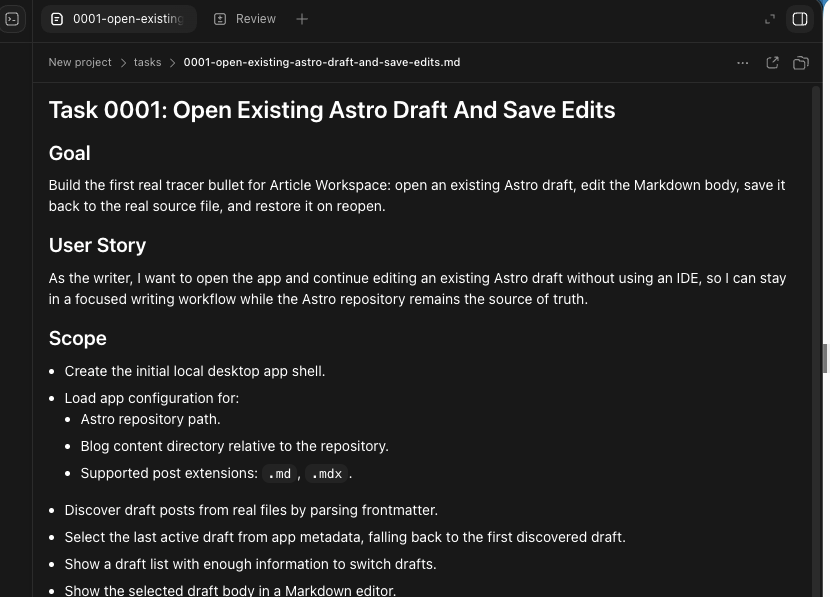
This is all about context. We want to give AI enough context to do the work, but not so much it has to start guessing and interpreting mountains of detail to find the parts it needs.
This is a good first step. Next time, we’ll build that tracer bullet for real.
Jon Hilton
Jon spends his days building applications using Microsoft technologies (plus, whisper it quietly, a little bit of JavaScript) and his spare time helping developers level up their skills and knowledge via his blog, courses and books. He's especially passionate about enabling developers to build better web applications by mastering the tools available to them. Follow him on Twitter here.
Related Posts
Comments
All articles
Topics
Web MobileMobile
Desktop
Design
Productivity
People