Enhancing the Default Navigation Menu in Blazor

Summarize with AI:
Side drawer, accordion, hierarchical, breadcrumbs. You’ve got a lot of navigation options beyond the basic Blazor offering.
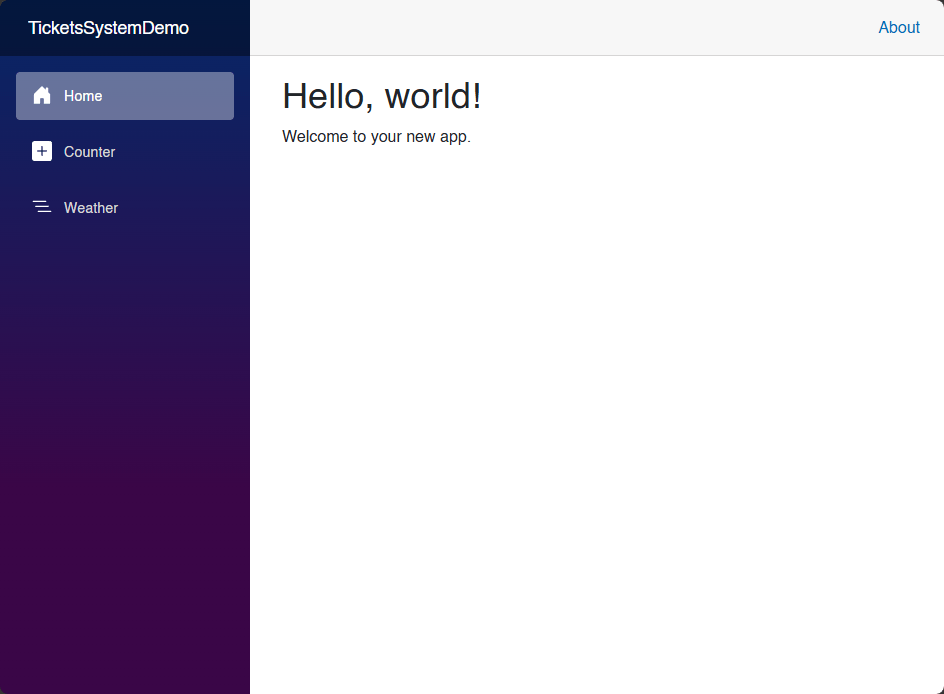
If you have developed applications with Blazor, you would surely recognize an uncustomized app by that characteristic purple menu. For demo applications, that’s fine. But when you want to take your users’ experience to the next level, you should think about how to improve it without affecting the application’s behavior.
In the Progress Telerik UI for Blazor suite, we can find a series of navigation components that allow replacing or enhancing the default menu. Let’s analyze each of them. Let’s get started!
The Famous Default Blazor Navigation Menu
Let’s review how the navigation menu included in the Blazor template is structured. We can see this in a newly created project by opening the file Components/Layout/NavMenu.razor:
<div class="nav-scrollable" onclick="document.querySelector('.navbar-toggler').click()">
    <nav class="nav flex-column">
        <div class="nav-item px-3">
            <NavLink class="nav-link" href="" Match="NavLinkMatch.All">
                <span class="bi bi-house-door-fill-nav-menu" aria-hidden="true"></span> Home
            </NavLink>
        </div>

        <div class="nav-item px-3">
            <NavLink class="nav-link" href="counter">
                <span class="bi bi-plus-square-fill-nav-menu" aria-hidden="true"></span> Counter
            </NavLink>
        </div>

        <div class="nav-item px-3">
            <NavLink class="nav-link" href="weather">
                <span class="bi bi-list-nested-nav-menu" aria-hidden="true"></span> Weather
            </NavLink>
        </div>
    </nav>
</div>
In the default code, you can identify NavLink elements, which automatically allow highlighting the active page in the menu. In the first NavLink, we can identify the attribute Match="NavLinkMatch.All", which indicates that that link (the home one) will only be marked as active when the URL matches completely. If we didn’t include it, the item would be highlighted on practically any page we navigated to.
As I said before, that’s fine for demo apps, but when we have enterprise applications, the menu can become long and hard to organize.
Now, let’s look at the Telerik components that can help us improve our navigation menus.
Replace the Side Menu with a TelerikDrawer
Without a doubt, one of the first components I had to talk about is the Blazor Drawer. This component is a sliding panel that can be collapsed and shown at will, so the user can really focus on the application.
Some benefits of the component are:
- Mini mode that shows only the configured icons
- Different opening modes, such as
PushandOverlay - It’s possible to bind to a list of objects
- Automatic highlighting of the selected menu item
If you want to try it, you can do so by modifying Components/Layout/NavMenu.razor, or by creating a new layout file and adding this code:
@inherits LayoutComponentBase

@implements IDisposable
@inject NavigationManager NavigationManager

<TelerikRootComponent>
    <div class="page">
        <TelerikDrawer @ref="DrawerRef"
                       Data="NavItems"
                       MiniMode="true"
                       Mode="@DrawerMode.Push"
                       @bind-SelectedItem="SelectedItem"
                       UrlField="Url">
            <DrawerContent>
                <main>
                    <div class="top-row px-4">
                        <TelerikButton Icon="@SvgIcon.Menu"
                                       FillMode="@ThemeConstants.Button.FillMode.Flat"
                                       OnClick="@(() => DrawerRef.ToggleAsync())">
                            Menu
                        </TelerikButton>
                    </div>
                    <article class="content px-4">
                        @Body
                    </article>
                </main>
            </DrawerContent>
        </TelerikDrawer>
    </div>
</TelerikRootComponent>

@code {
    private TelerikDrawer<DrawerNavItem> DrawerRef { get; set; } = default!;
    private DrawerNavItem? SelectedItem { get; set; }

    private readonly List<DrawerNavItem> NavItems = new()
    {
        new DrawerNavItem { Text = "Home", Url = "/", Icon = SvgIcon.Home },
        new DrawerNavItem { Text = "Counter", Url = "counter", Icon = SvgIcon.Plus },
        new DrawerNavItem { Text = "Weather", Url = "weather", Icon = SvgIcon.Calendar }
    };

    protected override void OnInitialized()
    {
        SelectCurrentPage(NavigationManager.Uri);
        NavigationManager.LocationChanged += HandleLocationChanged;
    }

    private void HandleLocationChanged(object? sender, LocationChangedEventArgs args)
    {
        _ = InvokeAsync(() =>
        {
            SelectCurrentPage(args.Location);
            StateHasChanged();
        });
    }

    private void SelectCurrentPage(string location)
    {
        var relativePath = NavigationManager.ToBaseRelativePath(location);
        var delimiterIndex = relativePath.IndexOfAny(new[] { '?', '#' });

        if (delimiterIndex >= 0)
        {
            relativePath = relativePath[..delimiterIndex];
        }

        relativePath = relativePath.Trim('/');

        SelectedItem = NavItems.FirstOrDefault(item =>
            string.Equals(item.Url.Trim('/'), relativePath, StringComparison.OrdinalIgnoreCase));
    }

    public void Dispose()
    {
        NavigationManager.LocationChanged -= HandleLocationChanged;
    }

    public class DrawerNavItem
    {
        public string Text { get; set; } = string.Empty;
        public string Url { get; set; } = string.Empty;
        public ISvgIcon? Icon { get; set; }
    }
}
In the previous code, you can get an idea of the component’s configuration potential with these details:
- We use
NavItemsbound toDatato display the menu. - With
MiniMode="true", we make the menu continue showing the icons when it collapses. - The binding
@bind-SelectedItemis responsible for keeping the active page highlighted.
The result of running it is the following:
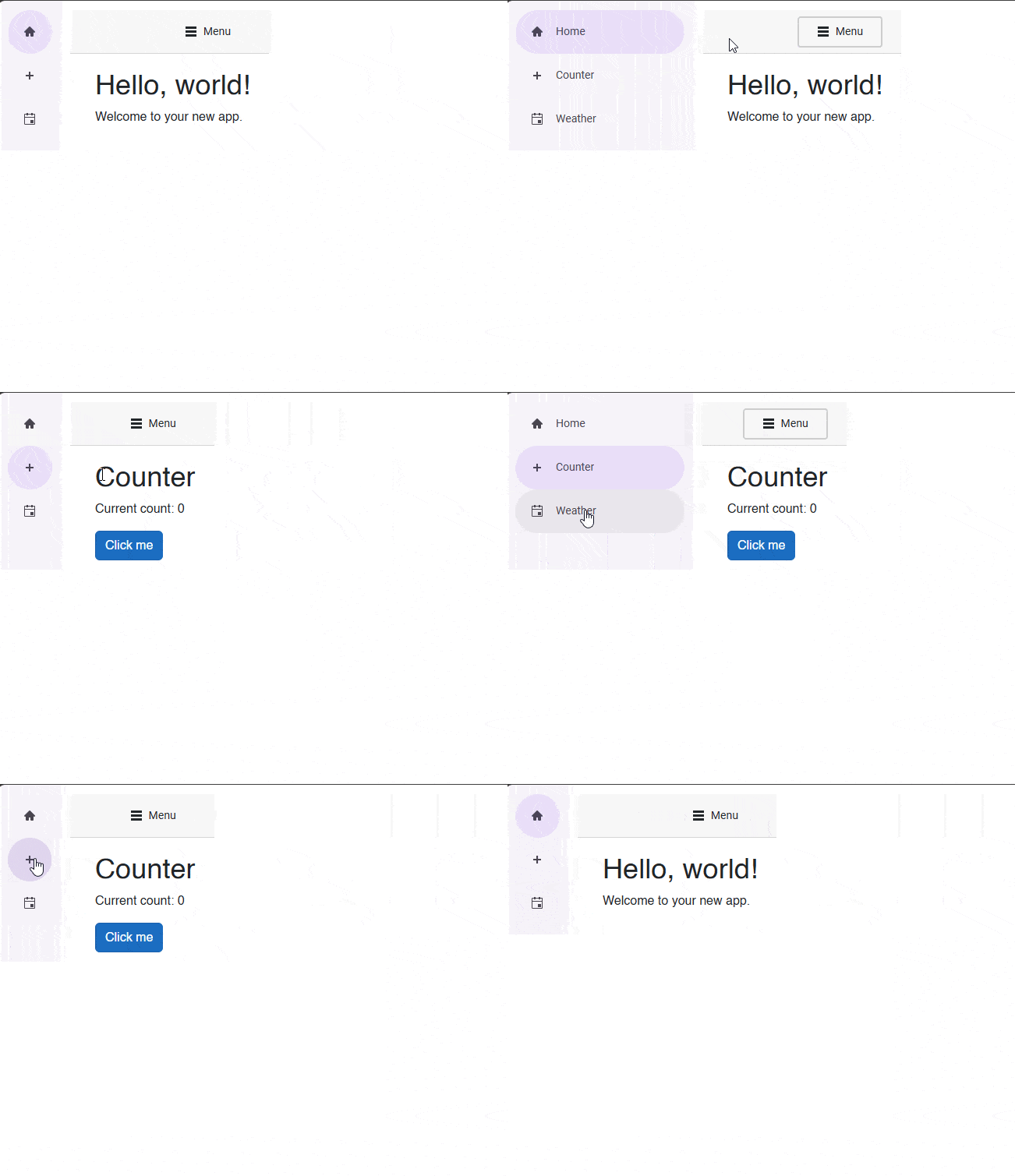
You can see that the side menu has improved considerably thanks to this implementation.
Implement a Horizontal Hierarchical Navigation in Blazor
The following component we’ll examine is the Blazor Menu. This component displays a horizontal navigation bar where parent items reveal their children on hover. Let’s look at some of its benefits:
- Supports navigation hierarchies with nested submenus
- Automatic reveal on hover
- Simple binding thanks to the property
Data
An example implementation is the following:
<TelerikMenu Data="MenuItems" />

@code {
    private List<MenuItem> MenuItems { get; set; } = new();

    protected override void OnInitialized()
    {
        MenuItems = new List<MenuItem>
        {
            new MenuItem { Text = "Home", Url = "", Icon = SvgIcon.Home },
            new MenuItem
            {
                Text = "Dashboard",
                Icon = SvgIcon.Grid,
                Items = new List<MenuItem>
                {
                    new MenuItem { Text = "Counter", Url = "counter", Icon = SvgIcon.Plus },
                    new MenuItem { Text = "Weather", Url = "weather", Icon = SvgIcon.Calendar }
                }
            }
        };
    }

    public class MenuItem
    {
        public string Text { get; set; } = string.Empty;
        public string? Url { get; set; }
        public ISvgIcon? Icon { get; set; }
        public List<MenuItem>? Items { get; set; }
    }
}
Let’s highlight some interesting points of the code above:
- Each
MenuItemobject can contain a list ofMenuItem, which creates hierarchies in the menu. - If an item doesn’t have the property
Urlassigned, it means it’s a group header, which means it will reveal its children.
Below, you can see a UI demonstration:
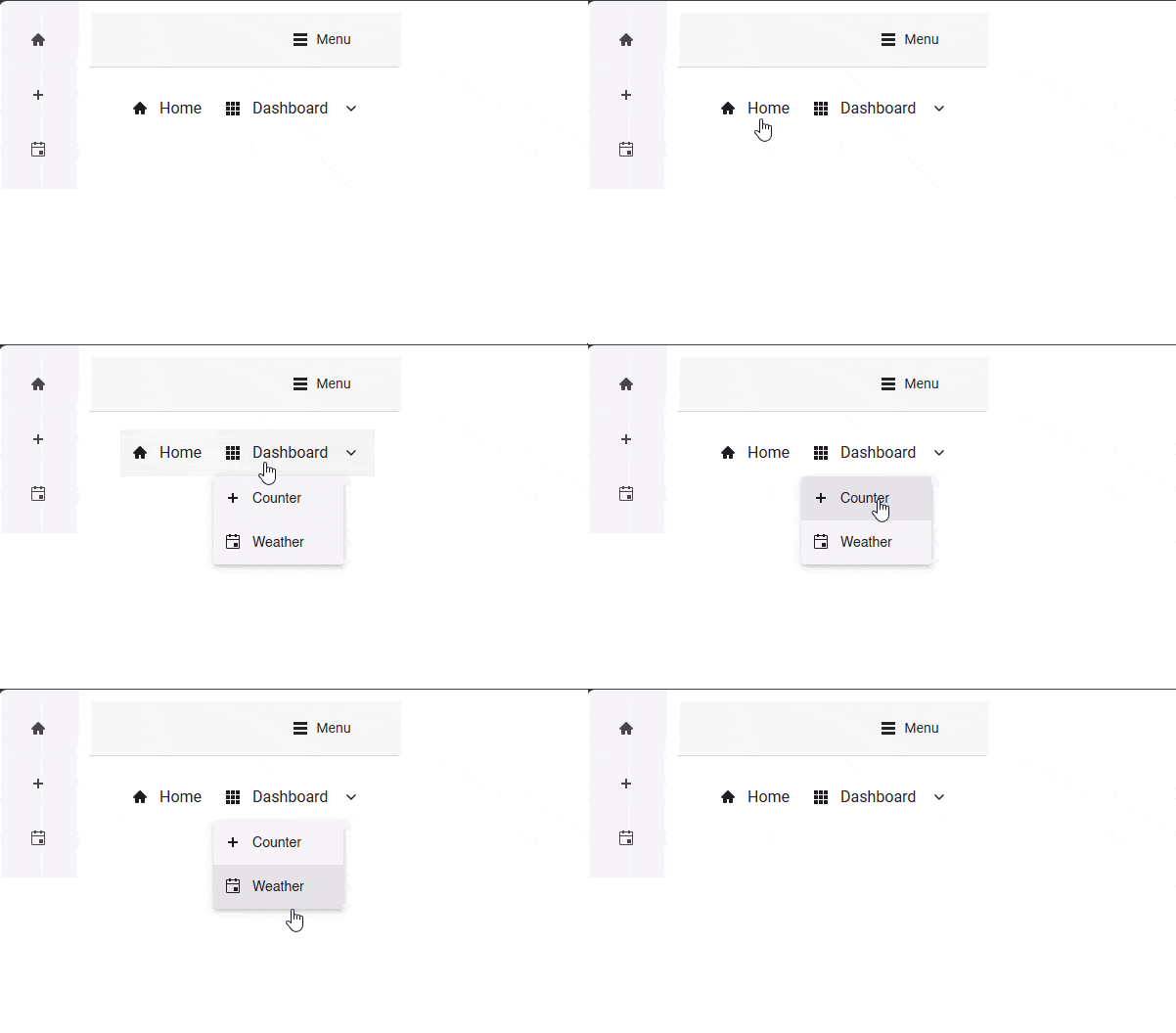
This type of menu can help your users navigate hierarchically with ease.
Implementing Accordion-Style Navigation Using TelerikPanelBar
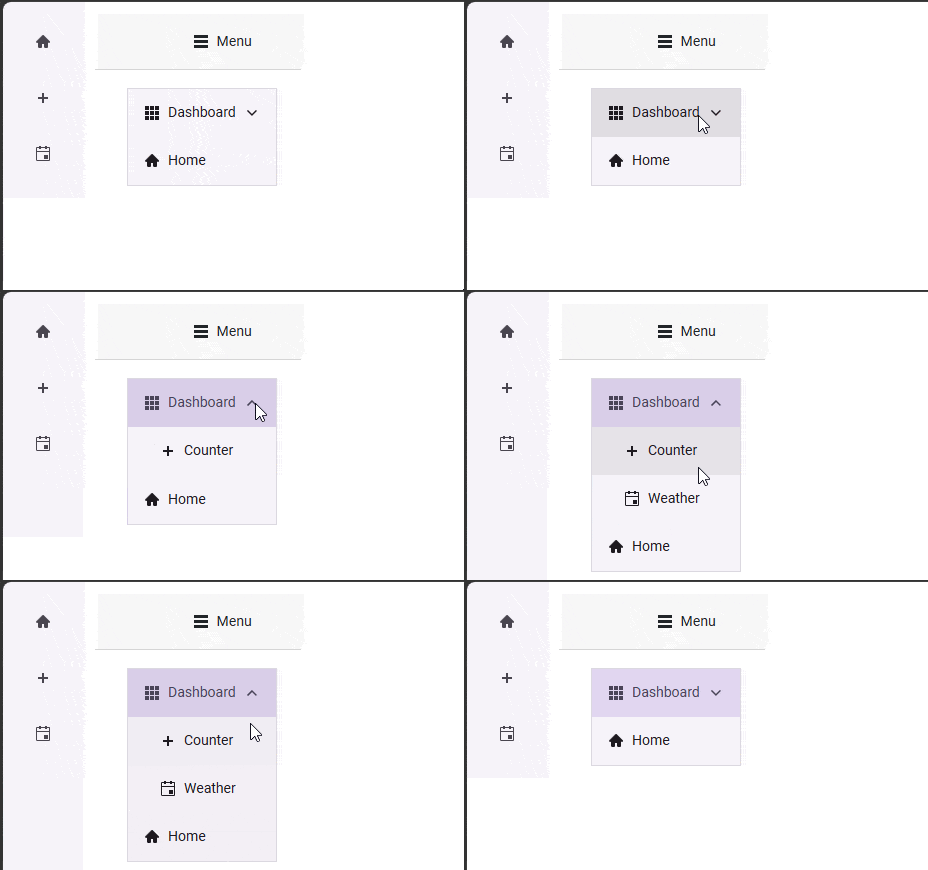
Another element that can be useful when creating custom menus is the Blazor PanelBar. This type of panel is widely used in email applications or similar, since it allows parent items to expand and collapse to reveal their children.
Some of its benefits are:
- Accordion-style design that saves vertical space
- Grouping of links into collapsible sections
- Binding to hierarchical data
If you want to implement it in your applications, you should use something like the following:
<TelerikPanelBar Data="Items" />

@code {
    private List<PanelBarItem> Items { get; set; } = new();

    protected override void OnInitialized()
    {
        Items = new List<PanelBarItem>
        {
            new PanelBarItem
            {
                Text = "Dashboard",
                Icon = SvgIcon.Grid,
                Items = new List<PanelBarItem>
                {
                    new PanelBarItem { Text = "Counter", Url = "counter", Icon = SvgIcon.Plus },
                    new PanelBarItem { Text = "Weather", Url = "weather", Icon = SvgIcon.Calendar }
                }
            },
            new PanelBarItem { Text = "Home", Url = "", Icon = SvgIcon.Home }
        };
    }

    public class PanelBarItem
    {
        public string Text { get; set; } = string.Empty;
        public string? Url { get; set; }
        public ISvgIcon? Icon { get; set; }
        public List<PanelBarItem>? Items { get; set; }
    }
}
In the code above we see a structure similar to a Blazor Menu, with hierarchical items bound through the property Items. Parent items like Dashboard are those that can be expanded or collapsed on click:
Hierarchical Navigation Using Tree Structures
The next component we’ll examine is the Blazor TreeView, which displays an expandable tree-style navigation. It’s ideal for deep structures, for creating documentation-style pages, file explorers or some kind of nested configuration.
Some of its main features are:
- Multi-level hierarchies with expandable nodes
- Binding to self-referenced flat data
- Control over expansion state
You can implement it as follows:
<TelerikTreeView Data="FlatData" @bind-ExpandedItems="ExpandedItems" />

@code {
    private IEnumerable<TreeItem> FlatData { get; set; } = new List<TreeItem>();
    private IEnumerable<object> ExpandedItems { get; set; } = new List<TreeItem>();

    protected override void OnInitialized()
    {
        FlatData = new List<TreeItem>
        {
            new TreeItem { Id = 1, Text = "Dashboard", ParentId = null, HasChildren = true, Icon = SvgIcon.Grid },
            new TreeItem { Id = 2, Text = "Counter", ParentId = 1, Url = "counter", Icon = SvgIcon.Plus },
            new TreeItem { Id = 3, Text = "Weather", ParentId = 1, Url = "weather", Icon = SvgIcon.Calendar }
        };

        ExpandedItems = FlatData.Where(item => item.HasChildren).ToList();
    }

    public class TreeItem
    {
        public int Id { get; set; }
        public string Text { get; set; } = string.Empty;
        public int? ParentId { get; set; }
        public bool HasChildren { get; set; }
        public string? Url { get; set; }
        public ISvgIcon? Icon { get; set; }
    }
}
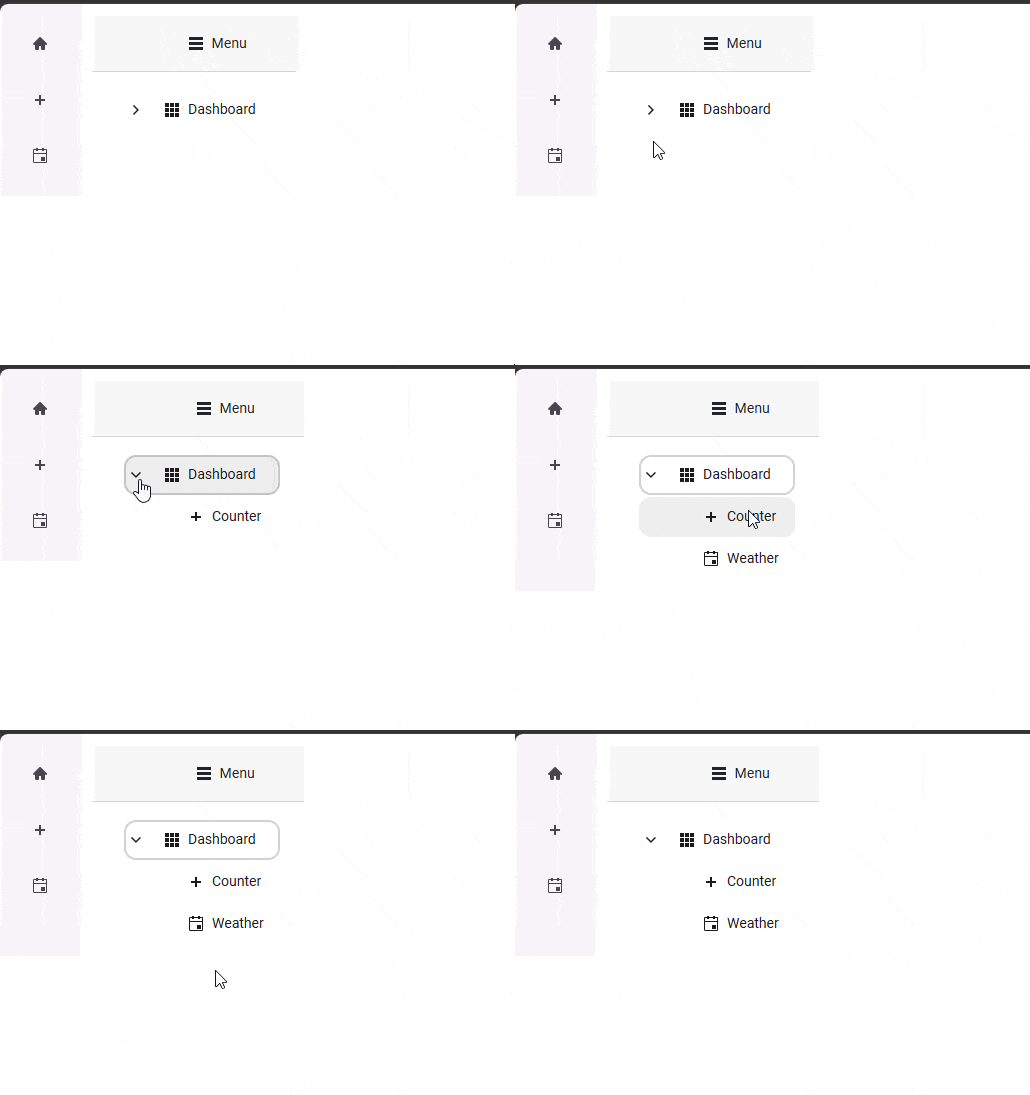
Unlike previous examples, here we used a flat data definition, meaning that each TreeItem item references its parent using the property ParentId.
On the other hand, the property HasChildren tells the tree which nodes can be expanded.
Finally, it’s possible to use the parameter @bind-ExpandedItems to control which nodes appear expanded. This is how it looks once implemented:
Now let’s explore the breadcrumb component.
Creating Breadcrumb-Based Navigation Routes in Blazor
Another possible solution for better navigation in your apps is to use breadcrumbs. The ideal component for this type of navigation is the Blazor Breadcrumb, which allows you to show the user’s current location within the app hierarchy, letting them return to any higher level quickly. Although it doesn’t completely replace the main sidebar menu, it can perfectly complement it.
Some of its main benefits are:
- It quickly indicates the user’s location.
- The user can easily navigate to any parent level.
- You can add icons and links for each level.
An example of its usage is the following:
<TelerikBreadcrumb Data="Items" CollapseMode="@BreadcrumbCollapseMode.None" />

@code {
    private List<BreadcrumbItem> Items { get; set; } = new();

    protected override void OnInitialized()
    {
        Items = new List<BreadcrumbItem>
        {
            new BreadcrumbItem { Text = "Home", Icon = SvgIcon.Home, Url = "" },
            new BreadcrumbItem { Text = "Components", Url = "menu" },
            new BreadcrumbItem { Text = "Navigation", Url = "treeview" },
            new BreadcrumbItem { Text = "Breadcrumb" }
        };
    }

    public class BreadcrumbItem
    {
        public string Text { get; set; } = string.Empty;
        public ISvgIcon? Icon { get; set; }
        public string? Url { get; set; }
    }
}
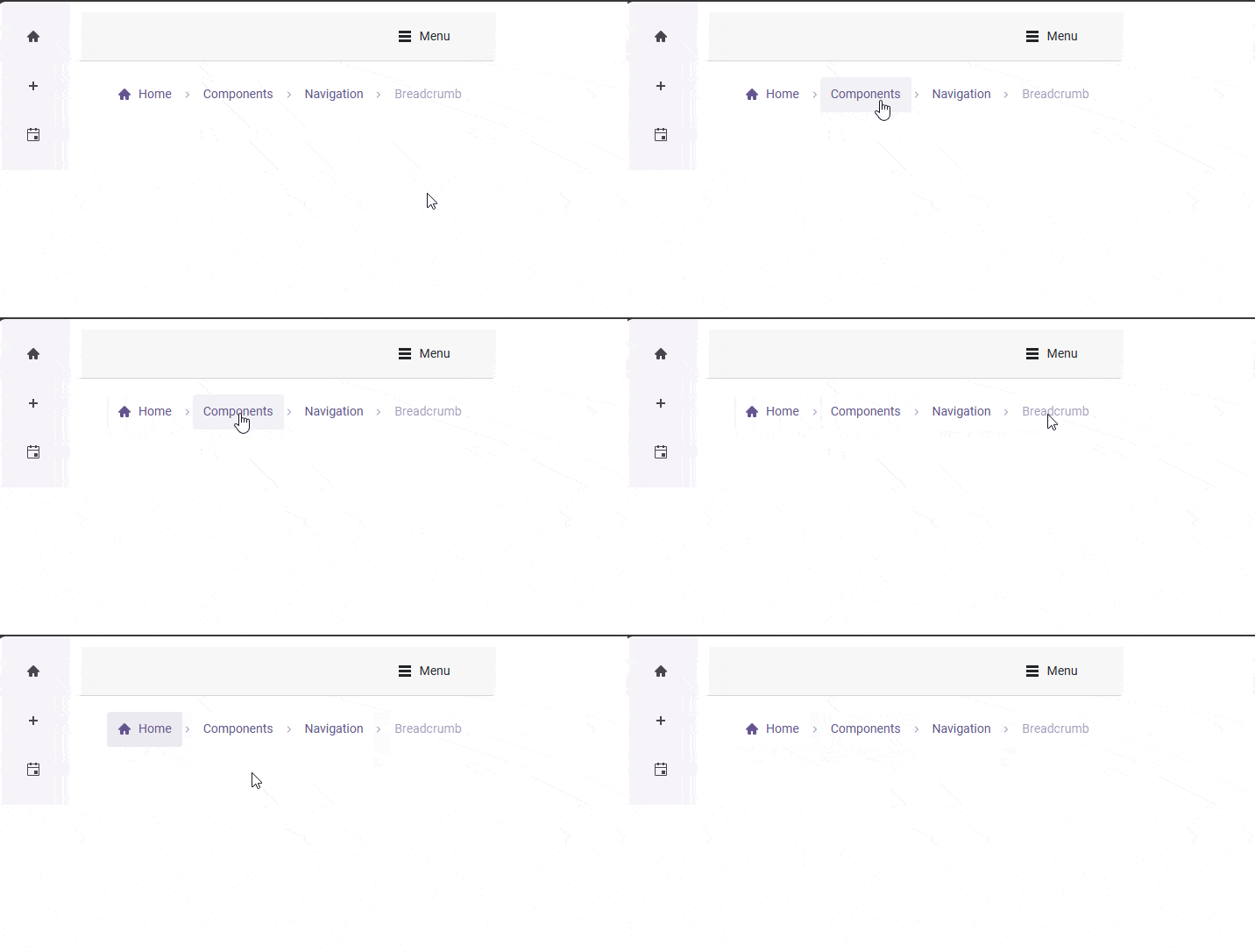
In the above code, each BreadcrumbItem element represents a level of the hierarchy, which should go from the most general to the most specific. Elements with a value in Url are navigable, while the last one, which does not have that value, represents the current page and will be disabled.
The result of the execution is as follows:
It is undoubtedly an excellent way to complement your app’s main navigation.
Conclusion
Throughout this article, you have been able to learn different ways to improve the default navigation system, from those that allow replacing Blazor’s characteristic sidebar menu to those that can serve as a complement to a main navigation system.
It’s your turn to make your users’ lives easier when they need to navigate, by using the components described in the article.

Héctor Pérez
Héctor Pérez is a Microsoft MVP with more than 10 years of experience in software development. He is an independent consultant, working with business and government clients to achieve their goals. Additionally, he is an author of books and an instructor at El Camino Dev and Devs School.
Related Posts
Comments
All articles
Topics
Web MobileMobile
Desktop
Design
Productivity
People