.NET MAUI DataGrid Overview
The Telerik UI for .NET MAUI DataGrid displays, edits, and organizes tabular data in .NET MAUI applications. Use it when you need a flexible grid that can handle large data sets, support common data operations, and adapt to desktop and mobile layouts.
 Start Free Trial
The DataGrid uses rows, columns, and cells to represent business data in a familiar layout. It also uses UI virtualization so that row and cell visuals are created only when they are needed, which helps keep scrolling and interaction responsive.
Use the .NET MAUI DataGrid to:
- Display data from collections of business objects or
ViewModelinstances. - Configure columns for different data types and editing scenarios.
- Let users sort, filter, group, search, and page through data.
- Improve usability with selection, row details, aggregates, and keyboard navigation.
- Customize styling, localization, empty states, and command handling.
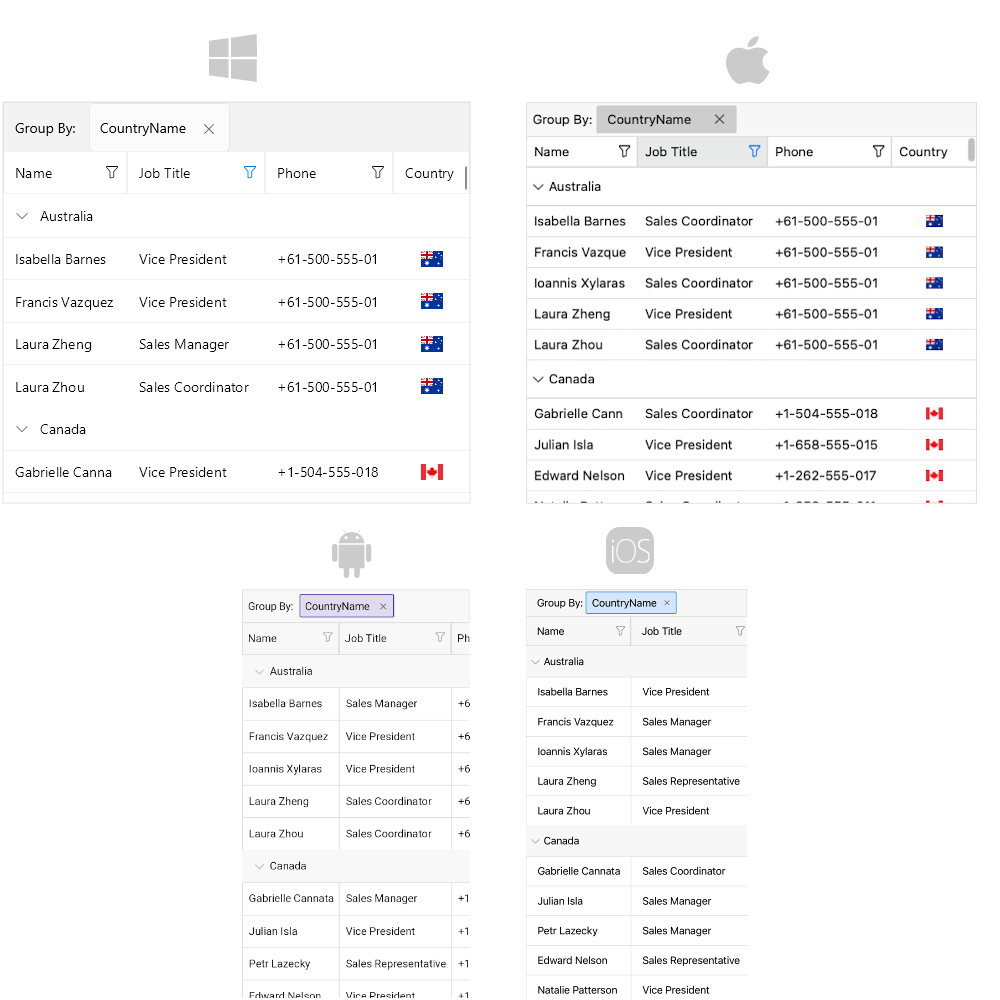
The following image shows the DataGrid running on supported desktop and mobile platforms:
MAUI DataGrid Video Tutorial
If you prefer a guided walkthrough, watch the MAUI DataGrid video tutorial.
Built-in Columns
The MAUI DataGrid provides a set of built-in columns such as Text, Boolean, Numeric, ComboBox, Date, Time, and Template. These predefined templates allow you to handle different data types and user scenarios, each with its specific editor.
Reordering and Resizing Columns
The .NET MAUI DataGrid provides a number of features and configuration options related to its columns to provide a flexible and usable user experience. For example, you can enable column reordering and resizing. If you want to prevent a column from resizing, you can lock the column and keep the important information always on top.
Sorting, Filtering, and Grouping Data
Perform sorting, filtering, and grouping operations on your data by using the convenient API of the control. Apply the sorting, filtering, and grouping operations per column. You can sort, filter and group through the built-in UI or programmatically using the RadDataGrid.SortDescriptors, RadDataGrid.FilterDescriptors, and RadDataGrid.GroupDescriptors collections.
Editing
You can enable users to edit the data presented in the .NET MAUI DataGrid. Depending on the column data type, a relevant editor allows end users to edit content in a friendly environment. For example, if one of the columns is a date, a date-picker will be used to offer a change in the date field.
Single and Multiple Selection
The DataGrid features a single or a multiple-item selection and provides options for controlling the cell or row selection unit, thus enabling any selection scenario you want your MAUI application users to have.
Loading Data On Demand
In some cases, you may need to load data in the .NET MAUI DataGrid when the control is already displayed as this can improve the performance of your application. The DataGrid offers automatic data loading once the user scrolls to the last available record, or by displaying a customizable button which will initiate the loading of more data items.
Row Details
The MAUI DataGrid allows you to represent additional information for the data in the row by using the row details feature.
Aggregates Support
You can use the exposed API for applying aggregates functions. Add aggregate descriptors to DataGridColumn.AggregateDescriptors, then use the predefined aggregate functions like Sum, Count, Min, Max, Average, etc, or implement a custom function.
Searching As You Type
The DataGrid provides the ability to search for specific data within its ItemsSource by using its built-in search functionality.
Paging Support
You can page the data of the DataGrid using the Telerik UI for .NET MAUI DataPager control.
Keyboard Navigation Support
Use keyboard keys for navigation in the MAUI DataGrid control. This feature is available on WinUI and MacCatalyst.
Smart AI Features
The DataGrid control provides a set of AI features that allow you to enhance the user experience by providing AI-powered suggestions and actions. The AI Smart Features provide a built-in UI that allows users to interact with the DataGrid using natural language queries and commands.
You can enable the Semantic Search and AI Smart Assistant features by setting the IsAIEnabled property to true.
Row Height
By default, the row height is calculated according to the cell content. You can override this behavior by setting a height for the rows.
Column Headers Visibility
The DataGrid exposes the ShowColumnHeaders (bool) property which controls whether the column headers row is visible. The default value is True. Set it to False to remove the column headers row from the DataGrid. For more details, refer to the Defining Columns article.
Column Footer
The Telerik UI for .NET MAUI DataGrid allows you to display additional information which applies to the columns in a specific row placed at the bottom of the control. Set ShowColumnFooters to True to visualize the row of individual footer cells for each column.
Empty Template
When the .NET MAUI DataGrid does not have any data, you can display an empty template in the DataGrid.
By default, EmptyContentDisplayMode is ItemsSourceNull, which means the empty template is shown only when ItemsSource is null (not when it is an empty collection). To also show it for empty collections, set EmptyContentDisplayMode to ItemsSourceNullOrEmpty.
Commands
The MAUI DataGrid allows you to add commands to the commands collection to execute additional logic when certain actions occur. You can execute the commands when a cell is tapped, double-tapped, when an editing operation begins, when tapping on a column header, when filtering data, and more.
Data Refresh and Busy State
The DataGrid also exposes APIs that help you control how data changes are processed:
ApplyDataOperationsOnPropertyChange(bool)—Defines whether sorting, filtering, and grouping are reapplied when an item in theItemsSourceraisesPropertyChanged. The default value isTrue.IsBusy(bool)—Indicates whether the DataGrid is currently busy. Set this property when you want to display an application-defined loading state while data is being fetched or updated.
When you bind the DataGrid to models with nested properties, you can also enable ListenForNestedPropertyChange to react to changes coming from nested objects. For more details, see Nested Properties.
Theming and Style
You can apply a theme to the MAUI DataGrid. If you prefer to use your own styling, then you can use the flexible styling API of the .NET MAUI DataGrid. The styling API allows you to style the DataGrid rows and columns, the cell content inside the columns, the group header, the aggregates inside the group header and the group footer, etc. In addition, you can apply a style selector.
Localization
The Telerik UI for .NET MAUI DataGrid provides localization support. You can translate the text displayed in the Filtering UI, Grouping panel, etc. to other languages, so that your application can be adapted to different cultures.
Next Steps
Continue with these articles to start using and refining the DataGrid:
- Getting Started with Telerik UI for .NET MAUI DataGrid
- Configure DataGrid column types and templates
- Customize the DataGrid appearance with styling