When Your Coding Assistant Finally Got X-Ray Vision

Summarize with AI:
The Fiddler Everywhere MCP server gives your coding assistant network inspection capabilities for debugging right inside your editor.
Let me paint you a picture.
You are sitting at your desk. Your app loads in the browser. The page renders. The buttons work. The data shows up. Everything looks fine.
Except it is not fine. Somewhere underneath that perfectly rendered page, a request is taking 3 seconds when it should take 200 milliseconds. Another endpoint is returning a 200 but leaking an auth token in a query parameter. A third one is completely missing its Cache-Control header, so every single page refresh costs your users the full round-trip all over again.
But hey—the page loads. So it is fine, right?

Image Credit: KC Green
Your browser: “Everything rendered successfully!” Your network traffic: literal dumpster fire.
This was the old debugging workflow for years: You open DevTools. You scroll through 47 network requests. You squint at the Timing column. You click into a request, copy the headers, paste them into a notepad, try to figure out if X-Content-Type-Options is set or not. By request number six, you have forgotten what you found in request number two. You do that for 12 more requests.
Then you switch back to your editor, ask your coding assistant for help, and it says something like: “You might want to check if your caching headers are configured properly.”
Might. Want. To check.
It does not know. It cannot know. It is reading your Express routes and giving you its best guess based on what the code probably does. It has never seen the actual traffic.
Now Imagine This Instead
You open your editor. You type:
#fiddler Start capturing HTTP traffic in Fiddler using Chrome
A Chrome window opens with the Fiddler proxy already configured. You click around your app for thirty seconds. Then you type:
#fiddler Identify the slowest API endpoints in the captured traffic
And your coding assistant—which can now actually see the captured sessions—comes back with:
GET /api/products/featured — average 2,847ms across 4 requests, 52KB response body, no Cache-Control header. This is your primary bottleneck.
No guessing. No “you might want to.” Just facts, pulled from real HTTPS sessions.
This is what the Progress Telerik Fiddler Everywhere MCP server does. It gives your coding assistant network vision. MCP—Model Context Protocol—is the open standard that lets your editor’s assistant call external tools during a conversation. The Fiddler MCP server exposes captured traffic data through those tools: session lists, request and response details, headers, bodies, timing, TLS info—the whole picture.
The setup? A JSON config file in your workspace:
{
  "servers": {
    "fiddler": {
      "type": "http",
      "url": "http://localhost:8868/mcp",
      "headers": {
        "Authorization": "ApiKey YOUR_API_KEY_HERE"
      }
    }
  }
}
Generate the key in Fiddler Everywhere, drop the config and you are connected. Works with VS Code, Cursor, Claude Code, Windsurf, Copilot CLI—the full lineup.
The Prompts That Make You Feel Like a Wizard
Once Fiddler MCP is connected, the things you can ask your assistant become genuinely fun:
#fiddler Show me all failed requests (status codes 4xx and 5xx)#fiddler Identify sessions with weak or missing security headers#fiddler Create a comprehensive report covering security highlights and performance optimizations#fiddler Analyze caching efficiency for the captured sessions
Each of these triggers real tool calls. The assistant reads actual captured sessions, not your imagination of what the sessions might look like. That means the security audit it produces is based on the headers your server actually sent, not the headers it assumes you configured.
The Fiddler Prompt Library has dozens more if you want to explore.
Skip the Setup: Fiddler Agent Skills
If even the two-minute config feels like too much (I get it, we are all busy), the official Fiddler agent skills do it for you. Clone the repo, drop the skills into your project, and tell your assistant:
Set up Fiddler MCP
Done. Port discovery, API key retrieval, config file, .gitignore update—all handled. There is also a skill that analyzes captured traffic after you run a feature and gives you a structured pass/fail report. Honestly, it is the kind of thing that makes you wonder why you were ever doing it manually.
Build Your Own Debugging Agents (This Is Where It Gets Good)
Here is where things get spicy. The built-in skills are great, but you can write your own. A skill is just a Markdown file—a SKILL.md—that tells your assistant which Fiddler tools to call, in what order, and how to format the output.
Some agents I think every team should consider building:
traffic-security-auditor – Scans every session for missing security headers, tokens exposed in URLs, insecure connections. Produces a prioritized report. Basically your own automated pen-test lite that runs from a chat prompt.
api-performance-watchdog – Flags slow endpoints, checks caching headers, reports payload bloat. Think of it as a performance review for your API—except this one is actually useful. (Sorry, managers.)
checkout-flow-verifier – Replays a captured e-commerce checkout flow and verifies each step hit the right status codes and redirects. Because nobody wants to find out the payment confirmation page is broken from an angry customer email.
The Creating Custom Skills guide has the full format and a working example.
You Never Have to Leave Your Editor
Here is the part that really lands once you try it: you do not need to switch to Fiddler Everywhere. You do not need to open a separate desktop application. You do not need to context-switch at all.
Everything happens inside the tool you are already using—VS Code with Copilot, Claude Code in the terminal, Cursor, Windsurf, whatever your setup is. Capture traffic, filter sessions, inspect headers, create rules, run a full security audit, all from the same chat window where you write code.
That is the whole point. The MCP server brings Fiddler network inspection capabilities directly into your coding workflow. Filters? Ask for them in a prompt. Rules? Create them with a sentence. Session details? One tool call away. You get the full power of a professional traffic inspector without ever breaking your flow.
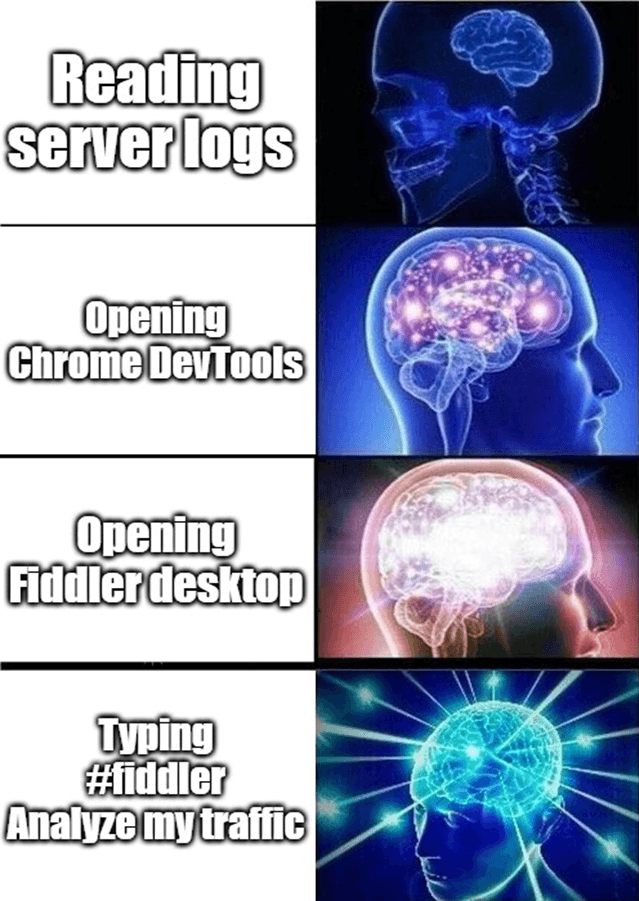
When your entire debugging workflow fits inside one chat window and zero browser tabs.
Try It
Seriously—if you are already using a coding assistant while you code, giving it access to your network traffic is one of the highest-leverage things you can do. The guessing stops. The analysis gets real. And you might actually enjoy debugging for once.
Seriously Though, Tell Us What You Think
We are building this as fast as we can, and your feedback is what steers the ship. Tried a prompt that did not work well? Built a custom skill that saved your team hours? Found a bug? We want all of it.
- Email: fiddler-support@progress.com
- GitHub issues: github.com/telerik/fiddler-everywhere/issues

Nikolay Iliev
Nikolay Iliev is a senior technical support engineer and, as such, is a part of the Fiddler family. He joined the support team in 2016 and has been striving to deliver customer satisfaction ever since. Nick usually rests with a console game or a sci-fi book.
Related Posts
Comments
All articles
Topics
Web MobileMobile
Desktop
Design
Productivity
People