Simplified Authentication with Better Auth

Summarize with AI:
We’ll build a complete email and password authentication system with session management to see how Better Auth works. Users will be able to sign up, log in and stay authenticated across page refreshes. We’ll use Next.js, Drizzle ORM and SQLite.
Authentication should be straightforward, but in practice, it takes time. You’re dealing with sessions, cookies, password hashing, OAuth redirects and email verification, and each piece has its own quirks and scattered documentation. The whole time, you may also be asking yourself if you’re doing this securely. One mistake exposes your users.
Most existing tools don’t help much. NextAuth is solid if you’re using Next.js, but switching frameworks means starting over. Building from scratch gives you control at the cost of maintaining every security detail yourself. Clerk and Auth0 work well until you reach their pricing tiers or require a feature they don’t support. Passport.js works, but it hasn’t aged well—there’s callback hell and endless boilerplate.
Better Auth takes a different approach. It’s lightweight, works with any framework (Next.js, Remix, Svelte, etc.), and comes with TypeScript baked in. You get OAuth, 2FA and password resets out of the box. You can also customize when you need to, or just use the defaults.
In this guide, we’ll build a complete email and password authentication system with session management to see how Better Auth works. Users will be able to sign up, log in and stay authenticated across page refreshes. We’ll use Next.js, Drizzle ORM and SQLite.
Prerequisites
To follow along with this guide, you’ll need:
- A decent understanding of JavaScript/TypeScript
- Basic familiarity with React and Next.js
- A database ready (PostgreSQL, MySQL or SQLite)
What Is Better Auth?
Better Auth is a TypeScript-first authentication library that avoids the usual trade-offs like vendor lock-in, expensive monthly fees or complex configurations. It is framework-agnostic, so you can use it with Next.js today and switch to Remix or SvelteKit tomorrow without rewriting your auth logic. It’s not a managed service, so there’s no per-user pricing or vendor lock-in.
What makes it different? It’s database-agnostic, meaning you can use PostgreSQL, MySQL, SQLite or MongoDB. Better Auth adapts through adapters like Prisma, Drizzle and Mongoose. It’s type-safe by default, built in TypeScript from the ground up, so your IDE knows what methods exist, what data comes back, and catches errors before you run your code. It also has security measures built in by default, with proper password hashing, HttpOnly cookies, CSRF protection and secure session management. The defaults follow best practices.
Better Auth supports OAuth providers (Google, GitHub, etc.), magic links, two-factor authentication, passkeys, even enterprise SSO, and more than what we’ll cover in this article. We’re focusing on the fundamentals so you understand how the system works. Once you grasp the basics, adding these features is straightforward through Better Auth’s plugin system.
Project Setup
Let’s start by creating a new Next.js project with TypeScript and Tailwind CSS. Run the following command in your terminal:
npx create-next-app@latest better-auth --ts --tailwind --eslint --app
This creates a Next.js project with TypeScript, Tailwind CSS, ESLint and App Router (the modern Next.js routing system) configured.
Run this command to navigate into the project:
cd better-auth
Run the following command to install Better Auth and its dependencies:
npm install better-auth drizzle-orm better-sqlite3
npm install -D drizzle-kit @types/better-sqlite3
Database Setup
Before configuring Better Auth, we need to prepare our database. We’ll break this down into three distinct files to keep things organized:
- Define the tables: Create the tables Better Auth needs (users, sessions, accounts, verification)
- Database initialization: Set up the SQLite connection and wrap it with Drizzle for type-safe queries
- Configure auth: Finally, we connect our database to Better Auth using the Drizzle adapter
Define the Tables
We need to explicitly define the tables Better Auth expects. We will add all of these to a single file. Open your lib/auth-schema.ts file and add the following to it:
The User Table
This stores basic user information.
//lib/auth-schema.ts
import { sqliteTable, text, integer } from "drizzle-orm/sqlite-core";
export const user = sqliteTable("user", {
  id: text("id").primaryKey(),
  name: text("name").notNull(),
  email: text("email").notNull().unique(),
  emailVerified: integer("emailVerified", { mode: "boolean" }).notNull(),
  image: text("image"),
  createdAt: integer("createdAt", { mode: "timestamp" }).notNull(),
  updatedAt: integer("updatedAt", { mode: "timestamp" }).notNull(),
});
The email field is unique, meaning no two users can share the same email. Better Auth requires these specific fields for its internal functionality.
Notice we mark name and email as notNull() here. This is important because Better Auth infers its types from this schema. By making them required in the database, TypeScript will automatically force us to provide them in the sign-up form later.
The Session Table
This manages active login sessions.
//lib/auth-schema.ts
export const session = sqliteTable("session", {
  id: text("id").primaryKey(),
  expiresAt: integer("expiresAt", { mode: "timestamp" }).notNull(),
  token: text("token").notNull().unique(),
  createdAt: integer("createdAt", { mode: "timestamp" }).notNull(),
  updatedAt: integer("updatedAt", { mode: "timestamp" }).notNull(),
  ipAddress: text("ipAddress"),
  userAgent: text("userAgent"),
  userId: text("userId")
    .notNull()
    .references(() => user.id),
});
Each session has a unique token and links to a user via userId. The expiresAt timestamp determines when the session becomes invalid.
The Account Table
This handles OAuth providers and stores authentication credentials.
//lib/auth-schema.ts
export const account = sqliteTable("account", {
  id: text("id").primaryKey(),
  accountId: text("accountId").notNull(),
  providerId: text("providerId").notNull(),
  userId: text("userId")
    .notNull()
    .references(() => user.id),
  accessToken: text("accessToken"),
  refreshToken: text("refreshToken"),
  idToken: text("idToken"),
  accessTokenExpiresAt: integer("accessTokenExpiresAt", { mode: "timestamp" }),
  refreshTokenExpiresAt: integer("refreshTokenExpiresAt", {
    mode: "timestamp",
  }),
  scope: text("scope"),
  password: text("password"),
  createdAt: integer("createdAt", { mode: "timestamp" }).notNull(),
  updatedAt: integer("updatedAt", { mode: "timestamp" }).notNull(),
});
The account table stores the user’s credentials, including the password. This separation keeps the architecture flexible, allowing you to link other providers like GitHub or Google to the same user identity.
Verification Table
This stores temporary code for email verification and password resets.
export const verification = sqliteTable("verification", {
  id: text("id").primaryKey(),
  identifier: text("identifier").notNull(),
  value: text("value").notNull(),
  expiresAt: integer("expiresAt", { mode: "timestamp" }).notNull(),
  createdAt: integer("createdAt", { mode: "timestamp" }),
  updatedAt: integer("updatedAt", { mode: "timestamp" }),
});
This table acts as a temporary vault for security tokens. When the system sends an email to verify a user, the unique code is stored here to ensure the link is valid and hasn’t expired when clicked.
Database Initialization
We need a running database connection. Let’s create a file called lib/db.ts. This is where we initialize SQLite and wrap it in Drizzle so we can use it everywhere else. We wrap it because we want to write TypeScript, not SQL strings. By passing the connection to Drizzle, you get to query your database using typed methods.
// lib/db.ts
import { drizzle } from "drizzle-orm/better-sqlite3";
import Database from "better-sqlite3";

// This creates a local 'sqlite.db' file if it doesn't exist
const sqlite = new Database("sqlite.db");

export const db = drizzle(sqlite);
We need to do this first so we can import db into our auth configuration without TypeScript yelling at us.
Configure Auth
Now we can write the auth config. This file is where we tell Better Auth about our database and configure how users will authenticate.
Create a lib/auth.ts file and add the following to it:
//lib/auth.ts
import { betterAuth } from "better-auth";
import { drizzleAdapter } from "better-auth/adapters/drizzle";
import { db } from "./db";
import * as schema from "./auth-schema";

export const auth = betterAuth({
  database: drizzleAdapter(db, {
    provider: "sqlite",
    schema: schema, // passing the schema here
  }),
  emailAndPassword: {
    enabled: true,
  },
  })
In the code above, we import the database connection db and schema we created, then pass them to Better Auth through the drizzleAdapter. This adapter translates Better Auth operations into Drizzle queries so it can read and write user data.
The provider: "sqlite" tells Better Auth we’re using SQLite. If we were using something else like PostgreSQL, we would change it to whatever we’re using.
It is important to note that the emailAndPassword: {enabled: true} option activates email and password authentication. Better Auth will generate the signup and signin endpoints we need.
Syncing Database
Now that we have three core files, we need to create the database file. Currently, sqlite.db doesn’t exist.
Drizzle Configuration
Create a file named drizzle.config.ts at the your root of your project and add the following to it:
//drizzle.config.ts
import { defineConfig } from "drizzle-kit";

export default defineConfig({
  schema: "./lib/auth-schema.ts", // where our tables will be defined
  dialect: "sqlite",
  dbCredentials: {
    url: "sqlite.db", // This is the name of the file it will create
  },
});
Here, we tell Drizzle where to find our schema and what database to use. The config points to our schema file ./lib/auth-schema.ts and specifies SQLite as the database type. The url is the filename Drizzle will create and in this case, it’s sqlite.db.
Now, run this command in your terminal to sync your code with the database:
npx drizzle-kit push
If everything is set up correctly, you should see a success message. Drizzle just created a local sqlite.db file in your project root with all your user, session and account tables.

API Route
Now we need to set up an API route so our frontend can communicate with Better Auth. Create a file named app/api/auth/[...all]/route.ts. This will be the API route that handles all auth requests:
// app/api/auth/[...all]/route.ts

import { auth } from "@/lib/auth";
import { toNextJsHandler } from "better-auth/next-js";

export const { GET, POST } = toNextJsHandler(auth);
If your project uses
src/, this goes insrc/api/auth/[...all]/route.ts.
Auth Client
Finally, for our setup, we need a way for our frontend to talk to the backend without writing messy fetch calls.
Create lib/auth-client.ts file and add the following to it:
import { createAuthClient } from "better-auth/react";

export const authClient = createAuthClient({
  baseURL: "http://localhost:3000",
});
This small utility will give us type-safe methods for signing in, signing up and checking sessions.
Email and Password Authentication
Now let’s build the authentication forms. We’ll create two components: one for sign-up and one for sign-in.
Sign-up Form
Create a file named components/sign-up.tsx and add the following to it:
// components/sign-up.tsx
"use client";

import { useState } from "react";
import { authClient } from "@/lib/auth-client";
import { useRouter } from "next/navigation";

export default function SignUp() {
  const [email, setEmail] = useState("");
  const [password, setPassword] = useState("");
  const [name, setName] = useState("");
  const [isLoading, setIsLoading] = useState(false);
  const router = useRouter();

  const signUp = async () => {
    await authClient.signUp.email(
      {
        email,
        password,
        name,
      },
      {
        onRequest: () => {
          setIsLoading(true);
        },
        onSuccess: () => {
          router.push("/dashboard");
        },
        onError: (ctx) => {
          alert(ctx.error.message);
          setIsLoading(false);
        },
      }
    );
  };

return (
  <div className="flex flex-col gap-4 w-full max-w-md mx-auto mt-10 border border-gray-200 p-6 rounded-lg shadow-sm bg-white">
    <h1 className="text-xl font-bold text-gray-900">Create Account</h1>

    <div className="flex flex-col gap-2">
      <label className="text-sm font-medium text-gray-700">Name</label>
      <input
        type="text"
        value={name}
        onChange={(e) => setName(e.target.value)}
        placeholder="John Doe"
        className="border border-gray-300 p-2 rounded focus:outline-none focus:ring-2 focus:ring-black text-black bg-white"
      />
    </div>

    <div className="flex flex-col gap-2">
      <label className="text-sm font-medium text-gray-700">Email</label>
      <input
        type="email"
        value={email}
        onChange={(e) => setEmail(e.target.value)}
        placeholder="user@example.com"
        className="border border-gray-300 p-2 rounded focus:outline-none focus:ring-2 focus:ring-black text-black bg-white"
      />
    </div>

    <div className="flex flex-col gap-2">
      <label className="text-sm font-medium text-gray-700">Password</label>
      <input
        type="password"
        value={password}
        onChange={(e) => setPassword(e.target.value)}
        placeholder="••••••••"
        className="border border-gray-300 p-2 rounded focus:outline-none focus:ring-2 focus:ring-black text-black bg-white"
      />
    </div>

    <button
      onClick={signUp}
      disabled={isLoading}
      className={`mt-2 p-2 rounded text-white font-medium transition-colors ${
        isLoading
          ? "bg-gray-400 cursor-not-allowed"
          : "bg-black hover:bg-gray-800"
      }`}
    >
      {isLoading ? "Creating an account..." : "Sign Up"}
    </button>
  </div>
);
This component handles the entire sign-up flow in a single file. If you look closer, you’ll see that the heavy lifting is done by authClient.signUp.email(). This function is type-safe and accepts two distinct arguments (the payload and the event handlers):
- The payload: This is the actual data we’re sending. In this case, email, password and name. Since our database schema requires these fields, the client verifies we actually provide them. If we miss a required field, TypeScript will flag it instantly.
- Event handlers: The second argument is an object that controls the request lifecycle, from the moment we click Sign Up to when we get a result. This is one of the perks of Better Auth because it replaces try/catch blocks with clean event hooks. All we have to do is define what happens at each stage:
onRequest,onSuccessandonError, which catches errors and alerts the user in this case.
Sign-in Form
With our current setup, users can only register. We need to log them in if they’re existing users.
Create a file named components/sign-in.tsx and add the following to it:
//components/sign-in.tsx
"use client";

import { useState } from "react";
import { authClient } from "@/lib/auth-client";
import { useRouter } from "next/navigation";

export default function SignIn() {
  const [email, setEmail] = useState("");
  const [password, setPassword] = useState("");
  const [isLoading, setIsLoading] = useState(false);

  const router = useRouter();

  const signIn = async () => {
    await authClient.signIn.email(
      {
        email,
        password,
      },
      {
        onRequest: () => {
          setIsLoading(true);
        },
        onSuccess: () => {
          setIsLoading(false);
          router.push("/dashboard");
        },
        onError: (ctx) => {
          setIsLoading(false);
          alert(ctx.error.message);
        },
      }
    );
  };

  return (
    <div className="flex flex-col gap-4 w-full max-w-md mx-auto mt-10 border border-gray-200 p-6 rounded-lg shadow-sm bg-white">
      <h1 className="text-xl font-bold text-gray-900">Sign In</h1>

      <div className="flex flex-col gap-2">
        <label className="text-sm font-medium text-gray-700">Email</label>
        <input
          type="email"
          value={email}
          onChange={(e) => setEmail(e.target.value)}
          placeholder="user@example.com"
          className="border border-gray-300 p-2 rounded focus:outline-none focus:ring-2 focus:ring-black text-black bg-white"
        />
      </div>

      <div className="flex flex-col gap-2">
        <label className="text-sm font-medium text-gray-700">Password</label>
        <input
          type="password"
          value={password}
          onChange={(e) => setPassword(e.target.value)}
          placeholder="••••••••"
          className="border border-gray-300 p-2 rounded focus:outline-none focus:ring-2 focus:ring-black text-black bg-white"
        />
      </div>

      <button
        onClick={signIn}
        disabled={isLoading}
        className={`mt-2 p-2 rounded text-white font-medium transition-colors ${
          isLoading
            ? "bg-gray-400 cursor-not-allowed"
            : "bg-black hover:bg-gray-800"
        }`}
      >
        {isLoading ? "Loading..." : "Sign In"}
      </button>
    </div>
  );
}
This component is nearly identical to the sign-up form with one key difference: we only need email and password since we’re verifying an existing user, not creating a new one.
When a user submits the form, Better Auth verifies the credentials against our database. If they match, it automatically creates a session and sets a secure HttpOnly cookie. This cookie persists the login state, so users stay logged in even after refreshing the page.
Remember when we enabled emailAndPassword: { enabled: true } in the lib/auth.ts file? Better Auth read that configuration and automatically generated this method for us.
Now let’s create dedicated pages for these forms.
Creating Authentication Pages
Instead of embedding forms on the homepage, we’ll create dedicated routes for sign-in, sign-up and a dashboard to verify successful login.
Sign-up Page
Create a component called app/signup/page.tsx and add the following to it:
//app/signup/page.tsx
import SignUp from "@/components/sign-up";
import Link from "next/link";

export default function SignUpPage() {
  return (
    <div className="flex flex-col items-center justify-center min-h-screen bg-gray-50">
      <SignUp />
      <div className="mt-6 text-center text-sm text-gray-600">
        Already have an account?{" "}
        <Link
          href="/signin"
          className="text-blue-600 font-medium hover:underline"
        >
          Sign In
        </Link>
      </div>
    </div>
  );
}
This page wraps the <SignUp /> component and adds a link to sign in.
Sign-in Page
Create a component called app/signin/page.tsx and add the following to it:
//app/signin/page.tsx
import SignIn from "@/components/sign-in";
import Link from "next/link";

export default function SignInPage() {
  return (
    <div className="flex flex-col items-center justify-center min-h-screen bg-gray-50">
      <SignIn />
      <div className="mt-6 text-center text-sm text-gray-600">
        New here?{" "}
        <Link
          href="/signup"
          className="text-blue-600 font-medium hover:underline"
        >
          Create an account
        </Link>
      </div>
    </div>
  );
}
This page wraps the <SignIn /> component and adds a link to Sign Up.
Dashboard Page
We need a destination for users after they log in. For now, let’s create a simple static page named app/dashboard/page.tsx and add the following to it:
//app/dashboard/page.tsx
export default function Dashboard() {
  return (
    <div className="flex flex-col items-center justify-center min-h-screen bg-white text-black">
      <h1 className="text-3xl font-bold">Dashboard</h1>
      <p className="mt-4 text-gray-600">You are successfully logged in!</p>
    </div>
  );
}
Now you can start your server by running npm run dev and then open http://localhost:3000.
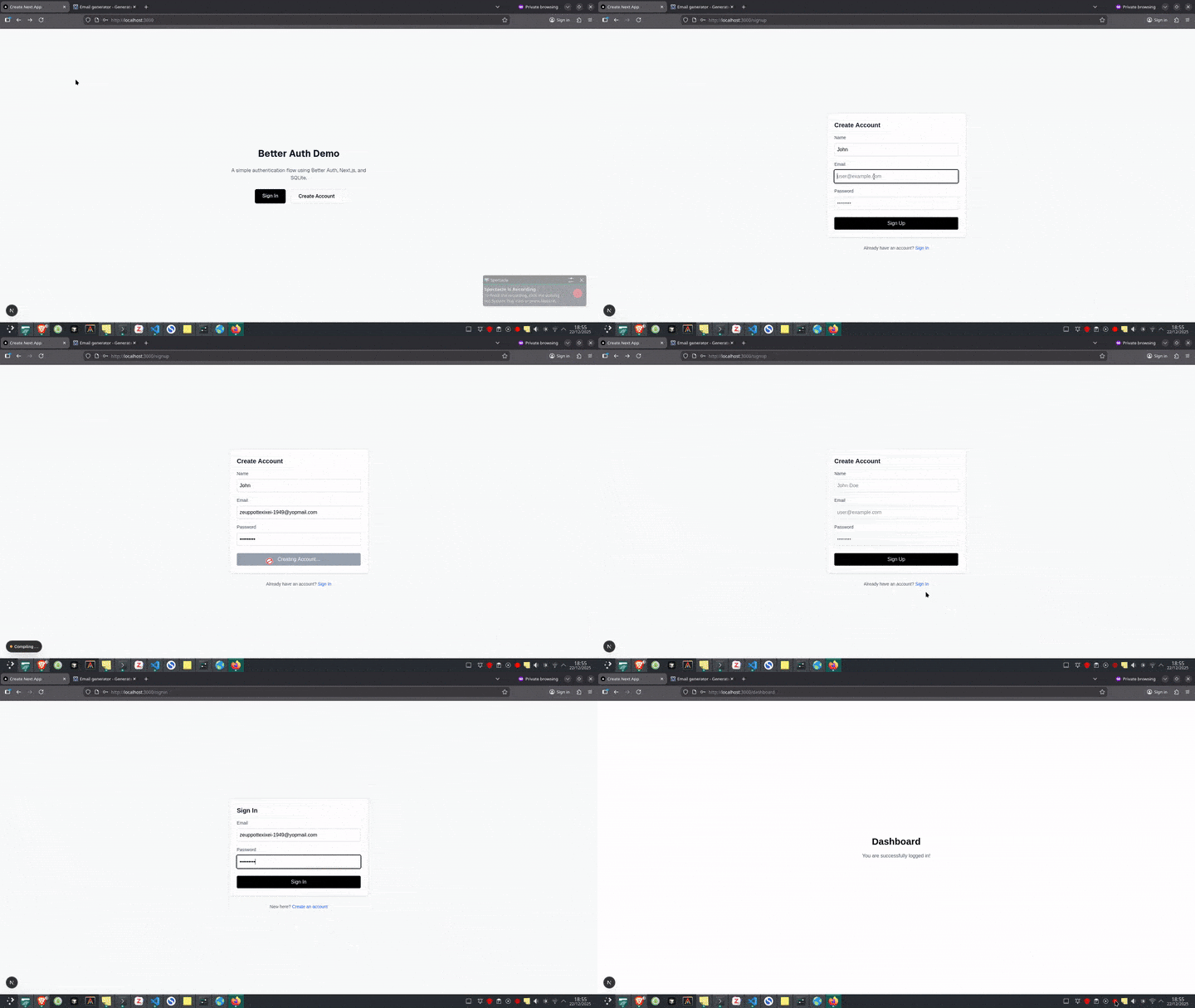
You should see a landing page with options to Sign In or Create Account. Follow these steps to test the authentication:
- Click “Create Account” and create a new user. If it works, you should be redirected to the dashboard.
- To test the login form, you don’t need to open another window. Just hit the back button in your browser to return to the landing page. Click “Sign In” this time, enter the email and password you just used to sign up, and watch it redirect you back to the dashboard.
Accessing User Sessions
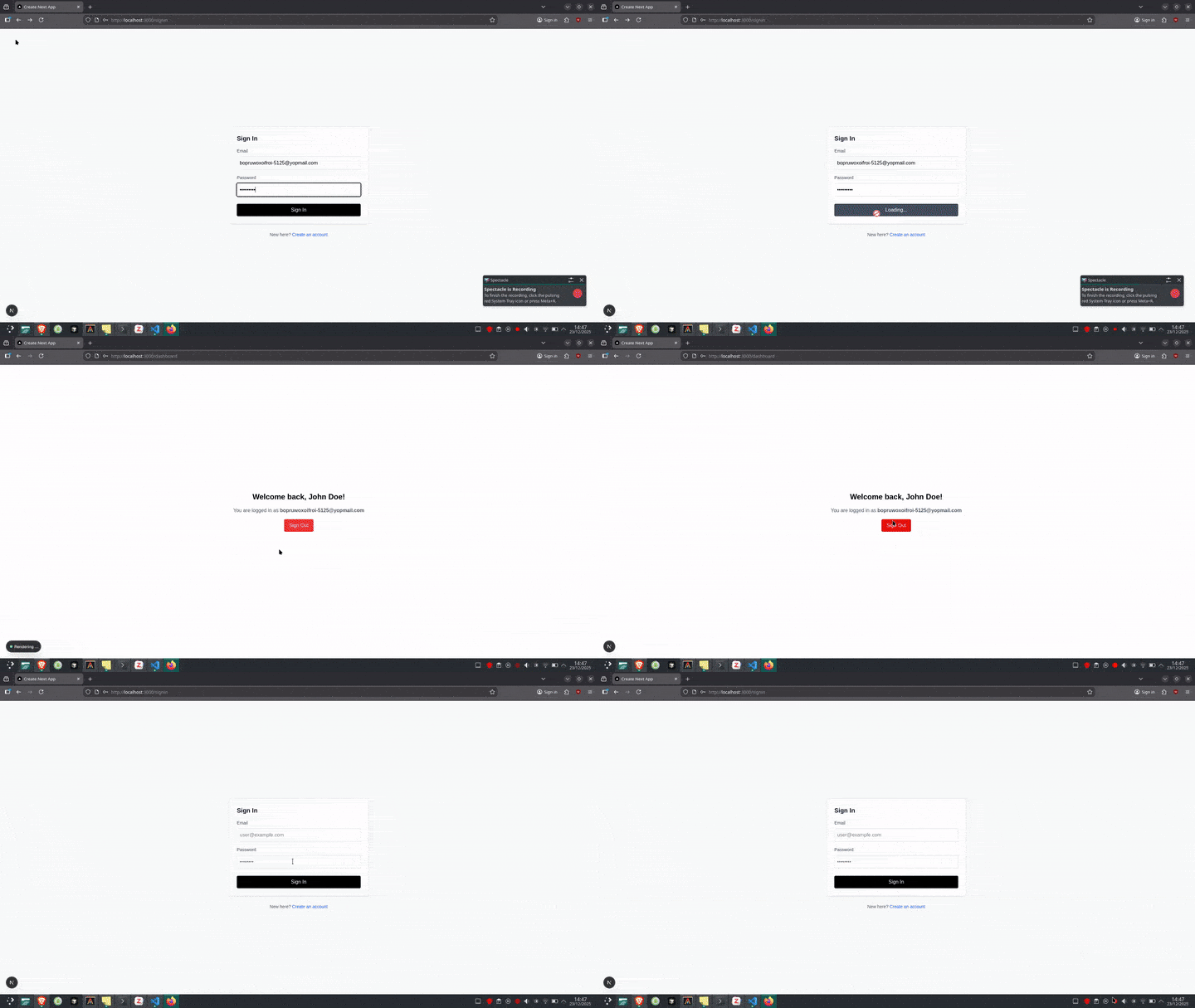
Right now, our dashboard just shows static text. We need to make it smart so it displays the actual user’s name and email.
To do this, we use the useSession hook from the auth-client. This hook gives us real-time access to the user’s data.
Update your app/dashboard/page.tsx file with the following:
//app/dashboard/page.tsx
"use client";

import { authClient } from "@/lib/auth-client";
import { useRouter } from "next/navigation";

export default function Dashboard() {
  const router = useRouter();
  const { data: session, isPending } = authClient.useSession();
  if (isPending) {
    return (
      <div className="flex min-h-screen items-center justify-center">
        <p className="text-gray-500">Loading...</p>
      </div>
    );
  }
  if (!session) {
    router.push("/signin");
    return null;
  }
  return (
    <div className="flex flex-col items-center justify-center min-h-screen gap-4 bg-white text-black">
      <h1 className="text-2xl font-bold">Welcome back, {session.user.name}!</h1>
      <p className="text-gray-600">
        You are logged in as{" "}
        <span className="font-semibold">{session.user.email}</span>
      </p>

      <button
        onClick={async () => {
          await authClient.signOut({
            fetchOptions: {
              onSuccess: () => {
                router.push("/signin");
              },
            },
          });
        }}
        className="px-4 py-2 bg-red-500 text-white rounded hover:bg-red-600 transition"
      >
        Sign Out
      </button>
    </div>
  );
}
We introduced the useSession() hook. This is the bridge between the frontend and the user’s session. It gives us access to the current session and keeps it in sync as authentication changes. It returns two key values:
- data: The session object containing user information (or null if not logged in).
- isPending: A boolean indicating whether the session is still loading. With this, we’re able to show a loading state so the user doesn’t see empty content.
Finally, the Sign Out button calls authClient.signOut(). This function invalidates the session cookie and uses the onSuccess callback to send the user straight back to the login screen.
Session Management and Protected Routes
Now that our app works, let’s look at what happens under the hood.
When a user signs in, Better Auth creates a session and stores it as an HttpOnly cookie. Unlike regular cookies that you can read with document.cookie, these are blocked from frontend JavaScript entirely. Only the browser can send them automatically with each request to the server.
There are two main ways of securing your pages, and they serve different purposes:
- Client-Side Protection: This is what we implemented in our
app/dashboard/page.tsxearlier. We wait for the session to load in the browser, and, if it’s missing, we redirect the user to the “Sign In” page. - Server-Side Protection (better for security): We check the session on the server before the page renders. If there’s no valid session, the request gets blocked immediately, and the sensitive page content is never sent to the browser.
To implement server-side protection, we use middleware. Middleware is code that runs before a page loads. It sits between the user’s request and your page, checking conditions and deciding whether to allow access or redirect elsewhere. In Next.js, it runs on the server, so unauthorized users never even download the page.
Protecting Routes with Middleware
Create a new file named middleware.ts at the same level as your app folder and add the following to it:
//middleware.ts
import { betterFetch } from "@better-fetch/fetch";
import type { Session } from "better-auth/types";
import { NextResponse, type NextRequest } from "next/server";

export default async function authMiddleware(request: NextRequest) {
  const { data: session } = await betterFetch<Session>(
    "/api/auth/get-session",
    {
      baseURL: request.nextUrl.origin,
      headers: {
        cookie: request.headers.get("cookie") || "",
      },
    }
  );

  if (!session) {
    return NextResponse.redirect(new URL("/signin", request.url));
  }
  return NextResponse.next();
}

export const config = {
  matcher: ["/dashboard"],
};
In a nutshell, the config object at the bottom defines the rules of engagement, telling Next.js to strictly apply this security check only to routes starting with /dashboard. When a user attempts to visit the page, the middleware steps in to verify their session first. If the session is missing, it instantly blocks the request and redirects them to the “Sign In” page, preventing the protected content from reaching the browser.
Refactor the Dashboard
Now that the server (middleware) is handling the security, we can simplify our dashboard page. We don’t need to redirect from inside the component anymore, but we’ll keep the data fetching to show the user’s name and email address.
//app/dashboard/page.tsx
"use client";

import { authClient } from "@/lib/auth-client";
import { useRouter } from "next/navigation";

export default function Dashboard() {
  const router = useRouter();
  const { data: session, isPending } = authClient.useSession();

  if (isPending) {
    return (
      <div className="flex min-h-screen items-center justify-center">
        <p className="text-gray-500">Loading...</p>
      </div>
    );
  }

  return (
    <div className="flex flex-col items-center justify-center min-h-screen gap-4">
      <h1 className="text-2xl font-bold">Dashboard</h1>
      <div className="p-4 border rounded shadow-sm bg-white min-w-[300px]">
        <p className="text-gray-600 mb-2">
          Signed in as:{" "}
          <span className="font-semibold text-black">
            {session?.user.email}
          </span>
        </p>
        <p className="text-xs text-gray-400">User ID: {session?.user.id}</p>
      </div>

      <button
        onClick={async () => {
          await authClient.signOut({
            fetchOptions: {
              onSuccess: () => {
                router.push("/signin");
              },
            },
          });
        }}
        className="px-4 py-2 bg-red-500 text-white rounded hover:bg-red-600 transition"
      >
        Sign Out
      </button>
    </div>
  );
}
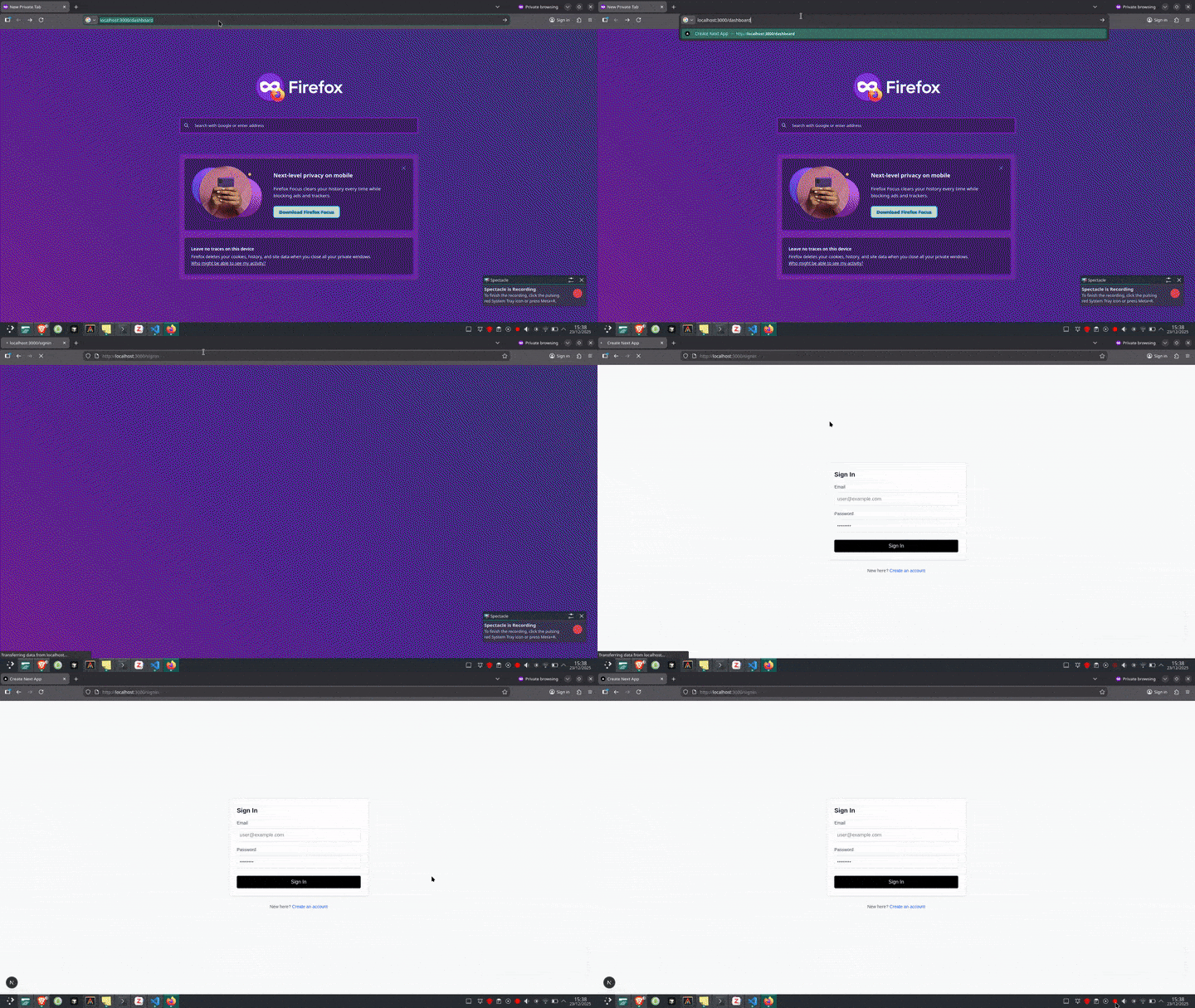
Now when we sign out from the app and try to manually visit http://localhost:3000/dashboard, we should be instantly redirected back to the sign-in page. The dashboard will never attempt to render because there’s no valid session.
Conclusion
At the base level, Better Auth handles the heavy lifting for authentication. The good thing is you aren’t reinventing the wheel, and because it works with pretty much everything, you don’t even have to rewrite your whole auth setup if you switch frameworks down the line. It just works, so you can focus on your app.

Christian Nwamba
Chris Nwamba is a Senior Developer Advocate at AWS focusing on AWS Amplify. He is also a teacher with years of experience building products and communities.
Related Posts
Comments
All articles
Topics
Web MobileMobile
Desktop
Design
Productivity
People