Blazor Basics: Implementing a Theme Switch in Blazor (Dark Mode)

Summarize with AI:
Learn how to implement dark mode and a theme switch for Blazor web applications using standardized CSS features and no JavaScript code.
In this article, we’ll learn how to properly implement dark mode and a theme switch for Blazor web applications.
Introduction
We want to implement a minimal yet complete example of dark mode and a theme switch for Blazor web applications.
We will keep it simple and use pure CSS to style the application and Blazor to manage the state. We do not use any JavaScript code for this solution.
Hint: Although the code used in the example project is based on the .NET 10 Blazor Web Application project template, which uses Bootstrap for its sample pages, we do not use Bootstrap or any other CSS library to implement the dark mode or the theme switch.
You can access the code used in this example on GitHub.
The Concept
There are three core principles we want to follow:
- We define all colors as CSS variables.
- We use a
.dark-themeCSS class to override/replace those base colors. - We implement a Blazor component that toggles this CSS class at runtime.
This solution works for Blazor Server and Blazor WebAssembly.
Defining the CSS Color Variables
In the app.css file or any other CSS file referenced in the index.html or App.razor file of your Blazor web application, we add the following CSS variable definitions:
:root {
    --background-color: #FFFFFF;
    --text-color: #1F1F39;
}

.dark-theme {
    --background-color: #1F1F39;
    --text-color: #FAFAFB;
}
Hint: We keep it simple in this example and use only CSS variables for the background color and text color. In a real-world implementation, you might also want to define CSS variables for border colors, primary and secondary colors, etc.
Applying the Color Variables
Now that we defined the CSS variables for our desired colors, we need to apply those variables in CSS definitions. Remember that the variable definition above only defines the variables, but does not apply them.
.theme {
    background-color: var(--background-color);
    color: var(--text-color);
}
Again, we keep it simple and apply the background color and the text color to the theme CSS class. We could go on and define colors for buttons, headings and other parts of the web application.
Adding the Theme State to the Layout Component
Now that we have the basic building block for styling the component in place, we want to keep track of whether dark mode is in use.
A simple implementation alters the MainLayout component like this:
<div class=@($"page theme {ThemeCSSClass}")>
    <div class="sidebar">
        <NavMenu />
    </div>

    <main>
        <div class="top-row px-4">
            <button class="btn btn-primary" @onclick="ToggleTheme">
                Toggle Theme
            </button>
            <a href="https://learn.microsoft.com/aspnet/core/" target="_blank">About</a>
        </div>

        <article class="content px-4">
            @Body
        </article>
    </main>
</div>
We add two CSS classes to the class list of the outer div element. In addition to the page CSS class used in the default project template, we also want to add the previously defined theme class, followed by a class name managed by the component.
We also add a button to toggle the theme.
We add the following behavior to the code section of the component:
@code {
    private bool _darkModeEnabled = false;

    private string ThemeCSSClass => _darkModeEnabled ? "dark-theme" : "";

    private void ToggleTheme()
    {
        _darkModeEnabled = !_darkModeEnabled;
    }
}
The code defines a _darkModeEnabled variable that tracks the user’s theme choice. We conditionally return dark-theme or an empty string for the ThemeCSSClass property, which is then rendered as part of the CSS class name list for the Layout component’s outer div.
The ToggleTheme method is triggered when the user presses the button and wants to switch the theme. It flips the value of the _darkModeEnabled boolean variable.
Theming in Action
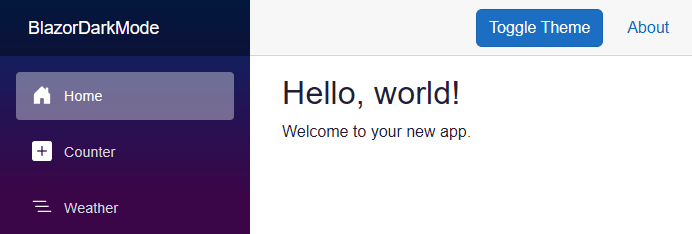
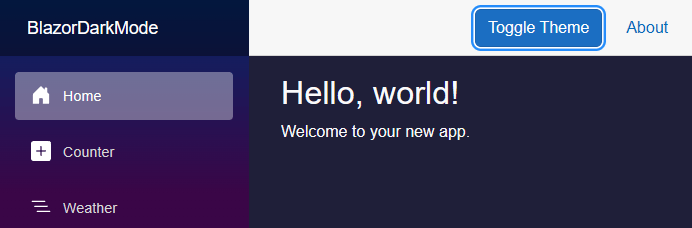
The user can now toggle the light and dark themes using the button in the page header.
Why This Solution Works Well in Blazor
This solution leverages how Razor component rendering works. Whenever the state of a component changes, the component is re-rendered.
For the layout component, this means that whenever the user presses the button, the component’s state changes, so it will be re-rendered. As part of the rendering process, the correct CSS classes will be applied.
A declarative user interface definition combined with state-driven component rendering is the strength of Blazor, and our solution therefore fits it perfectly.
Improving the User Experience
There are two main areas that could be improved to take our simple solution to the next level:
- The theme state is currently attached to the
MainLayoutcomponent. It means that if the user closes the browser tab or refreshes the page, the state is lost. Persisting the theme choice using local storage is a great idea to keep the user experience consistent. Learn more about accessing the local storage for Blazor Server web applications or how to use local Storage in Blazor WebAssembly applications. - You could respect the system preferences and apply them when a particular user starts the web application for the first time. CSS provides the
preferes-color-schememedia feature. The code would look like this:
@media (prefers-color-scheme: dark) {
    :root {
        /* variable definitions */
    }
}

@media (prefers-color-scheme: light) {
    :root {
        /* variable definitions */
    }
}
The Limitations of This Approach
As shown in the previous chapter on improving the user experience of our simple solutions, our approach is basic and doesn’t scale well. The following imminent limitations come to mind:
- Handling system preferences already adds complexity to our solution and requires more code to cleanly implement the expected behavior.
- CSS variables and definitions only cascade down the DOM tree. In our example, we add the themed CSS classes to the MainLayout component. Components rendered outside the
MainLayoutcomponent element tree are out of scope for theming and must be treated the same way (by adding thethemeanddark-modeCSS classes). - Changing colors and adjusting the theme requires altering global CSS definitions, which is hard to test and can potentially have unexpected side effects. Also, making sure to apply the CSS variables in the correct applicable CSS classes doesn’t scale.
- Third-party components will not automatically apply the custom CSS classes defined in the application. Meaning that if you integrate third-party components, you will need to implement additional code to integrate them with your custom theming implementation.
- Implementing multiple themes becomes even harder to maintain. Working with light and dark mode should not add too much complexity, but maintaining three or four, or even 10 different themes becomes much harder.
- You have to verify the selected colors work together and meet accessibility requirements (e.g., color contrast). And let’s be honest—not all developers are good designers.
For a small website, the approach shown in this article will probably work well. For larger web applications consisting of hundreds of pages and components, it can become a maintenance nightmare if the implementation is not carefully architected to properly handle state changes and apply the correct CSS classes for each component during rendering.
How Telerik UI for Blazor Solves Theming at Scale
In modern large-scale web applications, theming is important and helps meet accessibility requirements and expected user experience standards.
The Progress Telerik UI for Blazor component library provides a Blazor ThemeBuilder tool that allows visual customization (color previews), SCSS-based design tokens and built-in dark and light themes.
And most importantly, the themes are applied consistently across all components.
It is still important to understand how theming works under the hood, but for a professional web application, using a professionally implemented theming system can prevent headaches and reduce the amount of custom code required. Plus, accessibility features are baked in.
Learn more about theming from Peter Vogel in the Themes Magic in Telerik UI for Blazor article.
Conclusion
We learned how to implement a simple solution for a theme switch and light and dark mode in a Blazor web application. This basic solution works for Blazor Server and Blazor WebAssembly because it uses standardized CSS features and no JavaScript.
We learned how to further improve the solution and what limitations it will face for a large-scale web application.
Professionally implemented user interface component libraries, such as Telerik UI for Blazor, implement complex theming systems that we can leverage to get around those limitations.
If you want to learn more about Blazor development, watch my free Blazor Crash Course on YouTube. And stay tuned to the Telerik blog for more Blazor Basics.

Claudio Bernasconi
Claudio Bernasconi is a passionate software engineer and content creator writing articles and running a .NET developer YouTube channel. He has more than 10 years of experience as a .NET developer and loves sharing his knowledge about Blazor and other .NET topics with the community.
Related Posts
Comments
All articles
Topics
Web MobileMobile
Desktop
Design
Productivity
People