Blazor Basics: Blazor WebAssembly Using Local Storage in Offline Scenarios

Summarize with AI:
We will learn how to leverage the Local Storage API to implement an offline mode for Blazor WebAssembly applications.
Even though connectivity is almost always available in 2025, there are still use cases where offline support is crucial. For example, consider a factory worker ticking off a checklist two floors underground, a metro employee inspecting cars or a wildlife rescuer off-grid.
Blazor WebAssembly is an ideal technology for solving such a scenario. The client application runs entirely in the web browser on the client’s device without requiring a permanent client-server connection.
In this article, we will learn how to utilize local Storage to save data when the application is offline.
Challenges with Offline Mode
There are a few challenges when implementing an offline mode for any application. It’s especially true for web-based applications. When a user refreshes or closes the browser, any unsaved state will be lost.
In offline mode, we store data locally, but at some point, we need to transfer it to the server. What if there is already a more recent version available on the server?
There are many more challenges when implementing a fully-fledged offline solution for any (web) application.
In this article, we want to focus on the basics of getting started with Blazor WebAssembly and how to leverage Local Storage to temporarily store data client-side before synchronizing the state with the server when the application is back online.
Progressive Web Application (PWA) with Blazor WebAssembly
The application in this article is a progressive web application (PWA). Key features include: Offline support, installability, push notifications and improved performance due to client-side caching.
However, implementing a PWA is not the focus of this article. You can learn all about how to use a progressive web application with Blazor WebAssembly in a previous article.
What Is Local Storage and Why Use It?
Local Storage is a standard web API implemented by all modern web browsers to store key-value data on the client. There is an upper limit of around 5 MB per web application.
Other storage options include the Session Storage, which is deleted when the user closes the browser tab, or the IndexedDB, which allows for larger and more structured data storage.
We use Local Storage in this example for its simplicity and widespread browser support.
Implementing Local Storage Access
Now that we know what offline support is and how using the Local Storage API helps us temporarily save state on the client, we want to implement a simple solution.
In this article, we will work with the default Blazor web application Standalone template and implement a feature that lets the user store the counter value while being offline.
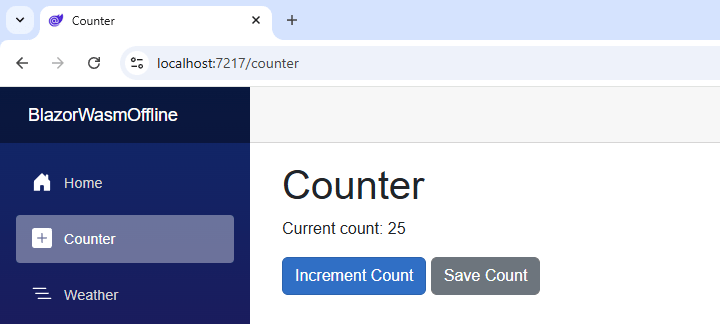
You can access the code used in this example on GitHub.
The project used in this example has an ASP.NET Core Web API project serving as a backend for the Blazor WebAssembly application. We won’t cover the details of that implementation.
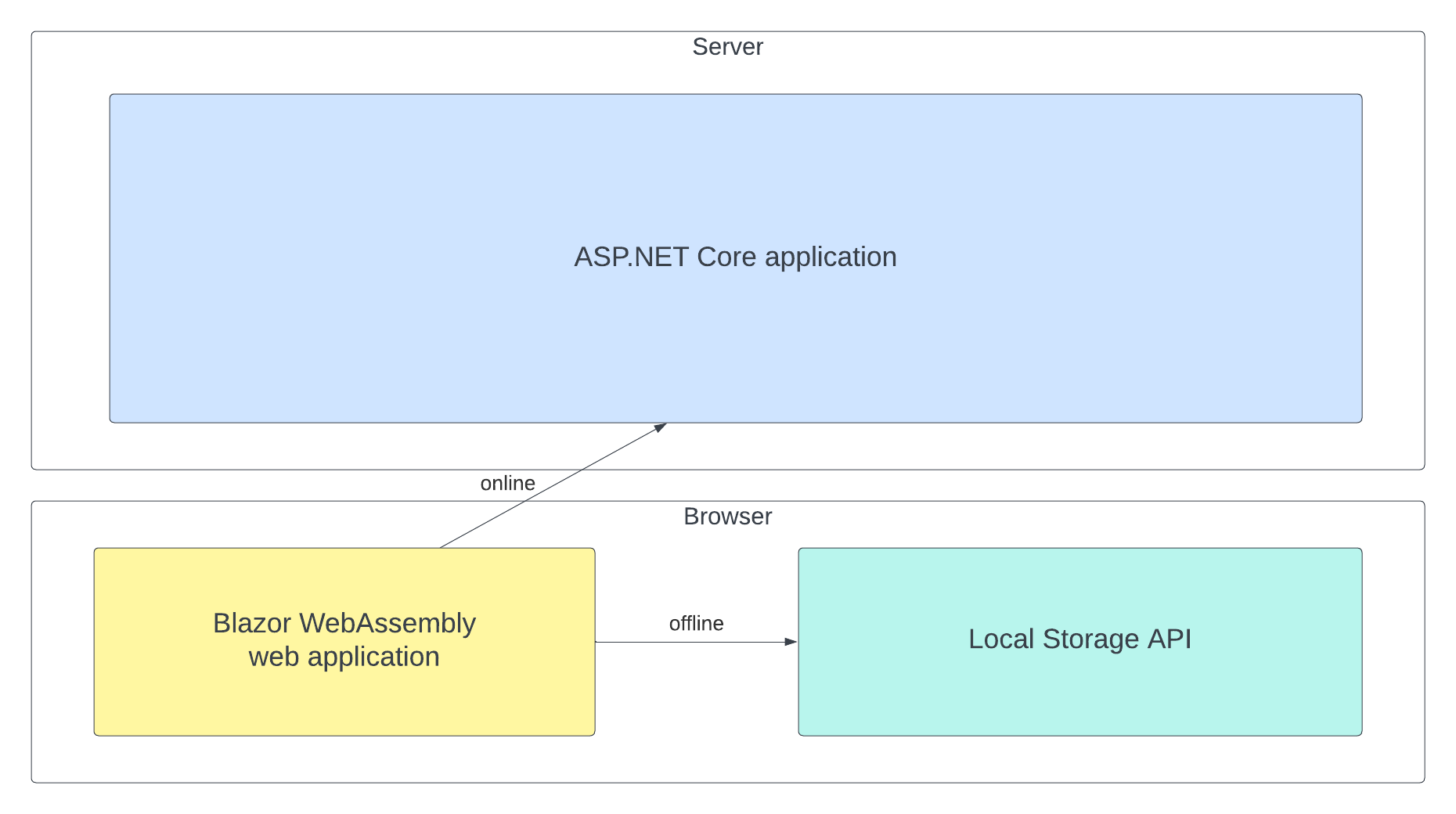
All we need to know is that, besides utilizing the Local Storage to temporarily save the client’s state in offline mode, we use the web API application to persist the data on the server when the application is online.
First, we add a Services folder and create an ILocalStorageService interface.
namespace BlazorWasmOffline.Services;

public interface ILocalStorageService
{
    Task SetItemAsync(string key, string value);
    Task<string?> GetItemAsync(string key);
}
This interface abstracts the implementation of the JavaScript interop code to access the Local Storage using its native JavaScript API.
The implementation in the LocalStorageService class looks like this:
using Microsoft.JSInterop;

namespace BlazorWasmOffline.Services;

public class LocalStorageService(IJSRuntime _js) : ILocalStorageService
{
    public async Task<string?> GetItemAsync(string key)
    {
        return await _js.InvokeAsync<string?>("localStorage.getItem", key);
    }

    public async Task SetItemAsync(string key, string value)
    {
        await _js.InvokeVoidAsync("localStorage.setItem", key, value);
    }
}
We inject an instance of the IJSRuntime type, which allows us to call JavaScript from .NET.
In the GetItemAsync method, we accept a key of type string and use that key to look for an item stored in the Local Storage using the localStorage.getItem JavaScript function.
In the SetItemAsync method, we accept a key and a value of type string and use the localStorage.setItem JavaScript function to write data to the Local Storage.
Note: If you are completely new to JavaScript interop, I highly recommend learning more about it in the Blazor JavaScript Interop—Calling JavaScript from .NET article of this Blazor Basics series.
Let’s not forget to register the service with the dependency injection system in the Program.cs file:
builder.Services.AddScoped<ILocalStorageService, LocalStorageService>();
Monitoring the Online/Offline Status
Next, we need to be able to monitor the status of whether the application is online or offline. We also need a mechanism to watch for changes, or, in other words, to get notified about the status change.
We create a new connectionStatus.js file in the js folder of the wwwroot folder with the following code:
window.connectionStatus = {
    isOnline: () => navigator.onLine,
    registerOnlineOfflineEvents: (dotNetObjRef) => {
        window.addEventListener('online', () => dotNetObjRef.invokeMethodAsync('SetOnlineStatus', true));
        window.addEventListener('offline', () => dotNetObjRef.invokeMethodAsync('SetOnlineStatus', false));
    }
};
We create a connectionStatus object and add an isOnline function and a registerOnlineOfflineEvents function.
We can call the isOnline method in the .NET code to check if the application is currently online or offline.
The registerOnlineOfflineEvents function lets us know when the status changes from online to offline or vice versa.
Hint: Here, we use the opposite direction of the JavaScript interop and call .NET code from JavaScript. If you want to learn more about it, you can read the Blazor JavaScript Interop—Calling .NET from JavaScript article of the Blazor Basics series.
In the index.html file, we add a reference to load the connectionStatus.js file below the blazor.webassembly.js file reference:
<script src="js/connectionStatus.js"></script>
Implementing the OfflineComponentBase Class
With the connectionStatus script and the LocalStorageService in place, we are ready to implement the Counter component.
First of all, we create an OfflineComponentBase class, which abstracts the handling of the online/offline status.
public abstract class OfflineComponentBase(IJSRuntime JS) : ComponentBase
{
    protected bool IsOnline { get; set; }

    protected abstract void OnlineStatusChanged(bool status);

    protected override async Task OnAfterRenderAsync(bool firstRender)
    {
        if (firstRender)
        {
            await JS.InvokeVoidAsync("connectionStatus.registerOnlineOfflineEvents",
                DotNetObjectReference.Create(this));
            IsOnline = await JS.InvokeAsync<bool>("connectionStatus.isOnline");
        }
    }

    [JSInvokable]
    public void SetOnlineStatus(bool status)
    {
        IsOnline = status;
        OnlineStatusChanged(status);
        StateHasChanged();
    }
}
The class contains an IsOnline property that we can conveniently access from the Counter component implementation when inheriting from this base class.
The abstract OnlineStatusChanged method allows us to implement code that will execute whenever the application’s online status changes.
In the OnAfterRenderAsync method, we use JavaScript interop to call the registerOnlineOfflineEvents function on the connectionStatus object and provide a reference to the current instance of the OfflineComponentBase class as its argument. We also check the online status and assign it to the IsOnline property.
The SetOnlineStatus method will be called from the JavaScript we previously implemented in the connectionStatus.js file. It’s important that we add the JSInvokable attribute to let Blazor know that we intend this method to be called from JavaScript.
In the implementation, we update the value of the IsOnline property, call the abstract OnlineStatusChanged method, and call the StateHasChanged method.
Implementing the Counter Component
Now, we’re finally ready to implement the Counter component.
First, we inject an instance of the ILocalStorageService type and inherit from the OfflineComponentBase class using Razor directives.
@inject ILocalStorageService LocalStorage
@inherits OfflineComponentBase
The component’s template looks almost like the default project, except for an additional button to save the counter value.
<PageTitle>Counter</PageTitle>

<h1>Counter</h1>

<p role="status">Current count: @_currentCount</p>

<button class="btn btn-primary" @onclick="IncrementCount">Increment Count</button>
<button class="btn btn-secondary" @onclick="SaveCount">Save Count</button>
In the code section, we add two fields and a constructor implementation:
@code {
    private int _currentCount = 0;
    private HttpClient _httpClient;

    public Counter(IJSRuntime _js) : base(_js)
    {
        _httpClient = new HttpClient();
        _httpClient.BaseAddress = new Uri("https://localhost:7071/api/");
    }
}
The _currentCount field holds the component state, and the _httpClient field has a reference to an HttpClient configured to call the API running on the server.
Hint: For simplicity, I put the
Uriin the code. In production, you want to extract that into a configuration setting.
Next, we implement the OnAfterRenderAsync lifecycle method:
protected async override Task OnAfterRenderAsync(bool firstRender)
{
    await base.OnAfterRenderAsync(firstRender);

    if (firstRender)
    {
        if (IsOnline)
        {
            var counterData = await _httpClient.GetFromJsonAsync<CounterData>("counter");
            if (counterData != null)
            {
                _currentCount = counterData.Counter;
            }
        }
        else
        {
            var counter = (await LocalStorage.GetItemAsync("counter")) ?? "0";
            _currentCount = int.Parse(counter);
        }
        StateHasChanged();
    }
}
We call the parent’s OnAfterRenderAsync method and handle the case when the firstRender argument is true.
In case we are online, we use the HttpClient object, load the value from the server and assign it to the internal component state.
If we are offline, we access LocalStorage and look for a value using the counter key.
In the SaveCount method, which gets called when the user presses the Save button, we also handle both the online and offline cases:
public async Task SaveCount()
{
    if (IsOnline)
    {
        await _httpClient.PostAsJsonAsync<int>("counter", _currentCount);
    }
    else
    {
        await LocalStorage.SetItemAsync("counter", $"{_currentCount}");
    }
}
Again, we use the HttpClient to send the count to the server if we are online. And if we are offline, we use the LocalStorage service to save the value on the client-side.
Last but not least, we implement the abstract OnlineStatusChanged method:
protected async override void OnlineStatusChanged(bool isOnline)
{
    if (isOnline)
    {
        await _httpClient.PostAsJsonAsync<int>("counter", _currentCount);
    }
}
With the current limited functionality, we only handle cases when the application gets back online after running offline. Again, we use the HttpClient and send the current value to the server.
Testing the Offline Mode
With all parts in place, we now want to build and run the application and test our implementation.
Hint: I configured the solution to run both the WebAssembly client project and the ASP.NET Core Web API server project when pressing F5.
When the application starts in the browser, you want to open the developer tools immediately using the F12 shortcut and open the network tab.
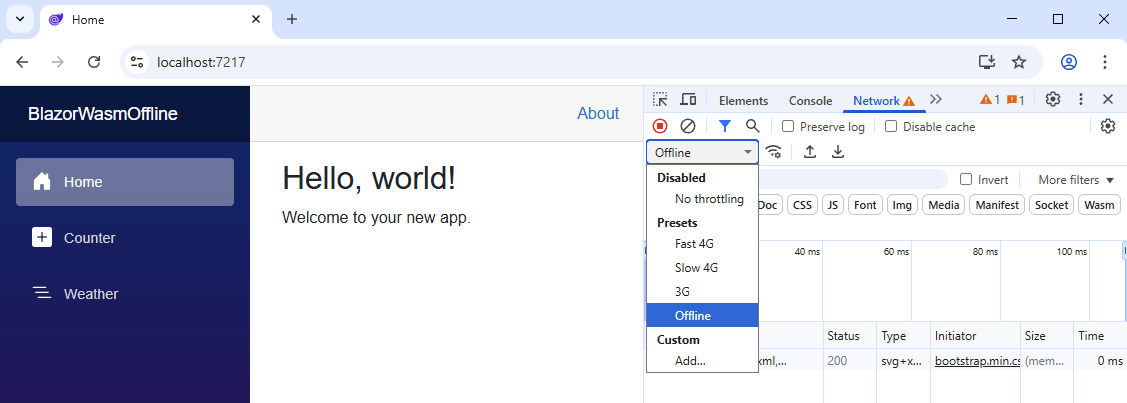
Select the Offline mode and navigate to the Counter page. We see zero as the current count. You can increase the count as much as you would like until you press the Save button to store the information.
Since we’re offline, the counter value will be stored in Local Storage. You can validate it by navigating to the Home page and back to the Counter page. The state is now loaded from the Local Storage.
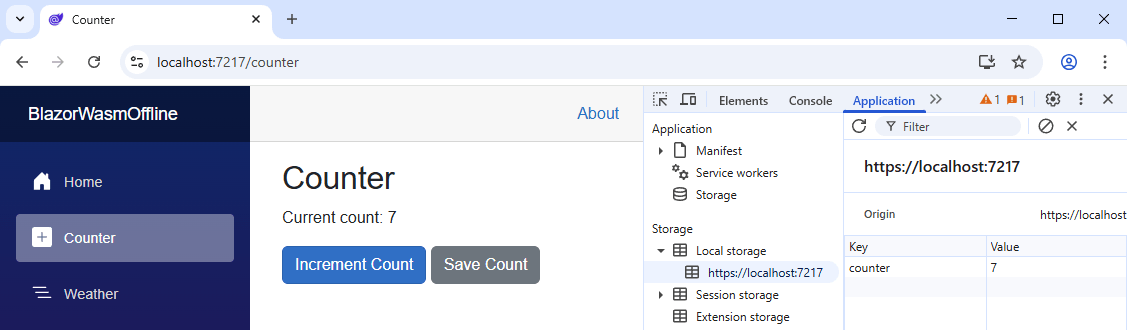
You can also open the developer tools and navigate to the application tab, where you can access the data stored in the Local Storage. There should be an item with the key counter and the saved value.
Once the application goes back online, the counter value will be sent to the server.
In the developer tools, we can put the application back online, and you should see the network call that sends the counter value to the server.
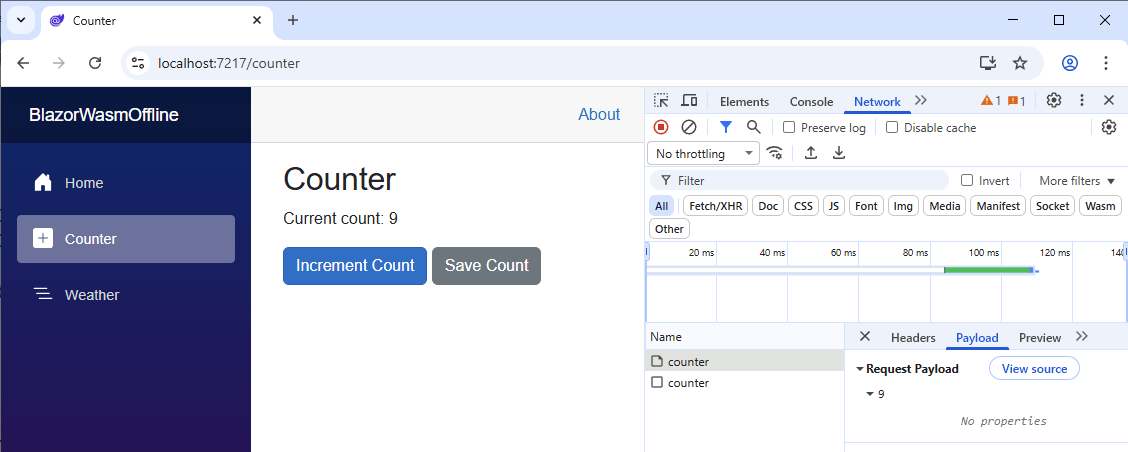
When you navigate to the Home page and back to the Counter page, you’ll be able to see that the value is loaded from the server.
Of course, debugging the application gives you even more insights into how everything works together.
Further Improvement with the Command Pattern
Instead of handling the two cases (online/offline) in the Counter page component and handling the event fired when the application is back online, you could implement the command pattern.
Using the command pattern, we create a command whenever the user presses the button to save the counter value.
The code deciding whether to store the data in the Local Storage or send it to the server is within the command handler and decoupled from the Blazor component.
Additional Challenges with Offline Mode
When implementing offline mode in a real-world Blazor web application, we must consider a few additional things.
For example, let’s say we have a form with three fields, and at some point the server implementation changes and adds a fourth field to the data structure.
The data temporarily saved in the Local Storage will not work with the new server API. Therefore, we must implement measures to deal with such a situation gracefully.
A defensive option is to reject any request that does not fit the data structure and provide a generic message to the user stating that the API has potentially changed. The user has to re-enter the data.
A more advanced solution would be properly implementing API versioning and dealing with each API change in more detail, such as providing a message migration mechanism.
Whatever solution you choose, keep in mind that by adding offline support to your application, you detach the moment the user inputs data from the moment the data is transmitted to the server.
Another challenge is temporal decoupling. Imagine two different users working with the same application. What if there is a shopping cart list and User A marks an item as completed, and User B does the same before the status update goes through?
Depending on the features of your application, it can be a lot more work to properly implement an offline mode for your application. Keep that in mind before lightheartedly announcing offline support to your users.
Conclusion
We learned how to access the browsers’ Local Storage from a Blazor WebAssembly application. We also learned how to monitor the offline/online status of the application.
We also learned that implementing an offline mode in a real-world web application requires solving more challenges than temporarily storing state in Local Storage.
If you want to learn more about Blazor development, watch my free Blazor Crash Course on YouTube. And stay tuned to the Telerik blog for more Blazor Basics.

Claudio Bernasconi
Claudio Bernasconi is a passionate software engineer and content creator writing articles and running a .NET developer YouTube channel. He has more than 10 years of experience as a .NET developer and loves sharing his knowledge about Blazor and other .NET topics with the community.
Related Posts
Comments
All articles
Topics
Web MobileMobile
Desktop
Design
Productivity
People