Better Auth with Nuxt and SQLite

Summarize with AI:
This unofficial Better Auth Nuxt demo should allow you to integrate your preferred database. It uses Tailwind 4, Nuxt 4, latest shadcn-vue, page protection and SQLite for login.
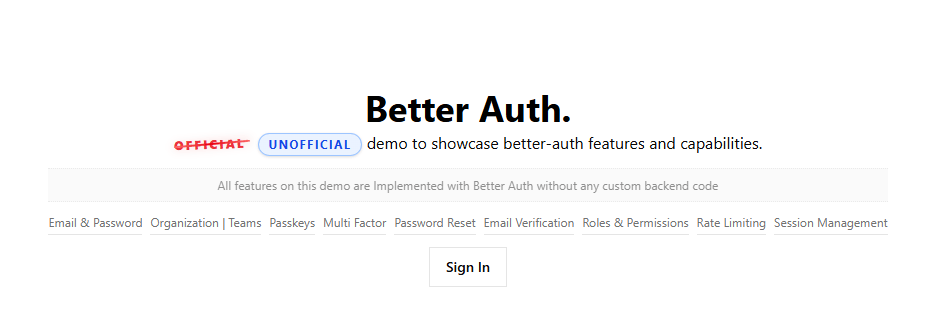
The official Better Auth Nuxt repo does not seem to work correctly for me, and it’s based on older Nuxt, Tailwind and shadcn-vue. I have updated it, added features and fixed security bugs allowing you to use whatever Better Auth database integrations you like.
TL;DR
This demo uses Tailwind 4, Nuxt 4, latest shadcn-vue, has page protection, allows you to change your password and does not suffer from client loading problems. You log in using SQLite, the session is automatically saved, and you can change your password and generate a password reset link.
Setup
Nuxt 4
First, generate a new Nuxt 4 repo.
npm create nuxt@latest
Tailwind
Follow official instructions to install Tailwind 4.
⚠️ DO NOT USE Nuxt Tailwind Module directly.
But, install it manually:
npm i -D @nuxtjs/tailwindcss
Vue ShadCN
Configure ShadCN Vue for Nuxt. You will need to install all components manually that you need.
npx shadcn-vue@latest add button
📝 There is an error with the all flag, as it will try to install old modules. Unfortunately, the only work around is to install the components manually.
npx shadcn-vue@latest add --all
Better Auth
Follow the installation guide. Here is a quick version.
Install the package. We will use better-auth/vue.
npm i better-auth
Generate config.
npx auth@latest generate
We will generate library files in a following section.
Install Temp Database
Fastest SQLite in Node.js.
npm i better-sqlite3
.env
Setup your config.
BETTER_AUTH_URL=http://localhost:3000 # Base URL of your app
Nuxt Config
Create the catch all server route.
// server/api/auth/[...all].ts

import { auth } from "~/lib/auth";

export default defineEventHandler((event) => {
	return auth.handler(toWebRequest(event));
});
This will handle all authentication server requests.
lib/auth-client.ts
Let’s import the reusable client functions.
import { createAuthClient } from "better-auth/vue";

export const authClient = createAuthClient();

export const {
	signIn,
	signOut,
	signUp,
	useSession,
	requestPasswordReset,
	resetPassword,
	changePassword
} = authClient;
lib/auth.ts
Generate a better auth instance.
import Database from "better-sqlite3";
import { betterAuth } from "better-auth";

export const auth = betterAuth({
	baseURL: process.env.BETTER_AUTH_URL || "http://localhost:3000",
	database: new Database("./db.sqlite"),
	emailAndPassword: {
		enabled: true,
		async sendResetPassword(url, user) {
			console.log("Reset password url:", url);
		},
	},
});
📝 You must config an email server later to send emails, for now you can just print the URL.
📝 Our database will the the file db.sqlite. It will NOT persist when deployed, so you must you a different hosted database. This is for testing on
Repo: GitHub
Protect Your Pages
// middleware/auth.globals.ts

export default defineNuxtRouteMiddleware(async (to, from) => {
	const session = await $fetch("/api/auth/get-session", {
		headers: useRequestHeaders(["cookie"]),
	}).catch(() => null);

	const authPages = ["/sign-in", "/sign-up", "/forget-password", "/reset-password"];
	const protectedPages = ["/dashboard", "/change-password"];

	if (!session) {
		if (protectedPages.includes(to.path)) {
			return navigateTo("/");
		}
	}

	if (session && authPages.includes(to.path)) {
		return navigateTo("/dashboard");
	}
});
📝 We don’t want login pages to be seen when logged-in, and we don’t want login-protected pages to be seen without a session. Our server auth handles these cookies and paths for us!
Change Password
<script lang="ts" setup>
import { changePassword } from "~/lib/auth-client.js";

const router = useRouter();

const currentPassword = ref("");
const newPassword = ref("");
const confirmPassword = ref("");

const handleChangePassword = async () => {
  if (confirmPassword.value !== newPassword.value) {
    alert("Please enter the same password in both fields");
    return;
  }

  await changePassword({
    currentPassword: currentPassword.value,
    newPassword: newPassword.value,
    fetchOptions: {
      onSuccess() {
        alert("Password changed successfully");
        router.push("/dashboard");
      },
      onError(context) {
        alert(context.error.message);
      },
    },
  });
};
</script>

<template>
  <div class="h-screen flex justify-center items-center">
    <Card class="mx-auto max-w-sm">
      <CardHeader>
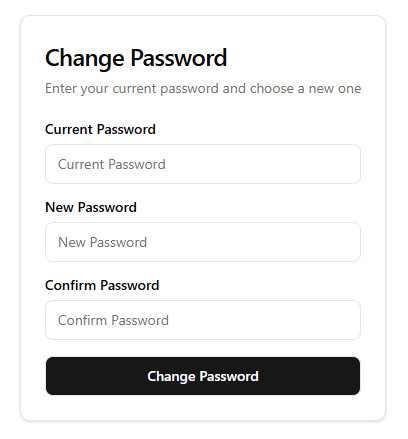
        <CardTitle class="text-2xl">Change Password</CardTitle>
        <CardDescription
          >Enter your current password and choose a new one</CardDescription
        >
      </CardHeader>
      <CardContent>
        <form class="grid gap-4" @submit.prevent="handleChangePassword">
          <div class="grid gap-2">
            <Label for="current-password">Current Password</Label>
            <Input
              id="current-password"
              type="password"
              autocomplete="current-password"
              required
              v-model="currentPassword"
              placeholder="Current Password"
            />
          </div>
          <div class="grid gap-2">
            <Label for="new-password">New Password</Label>
            <Input
              id="new-password"
              type="password"
              autocomplete="new-password"
              required
              v-model="newPassword"
              placeholder="New Password"
            />
          </div>
          <div class="grid gap-2">
            <Label for="confirm-password">Confirm Password</Label>
            <Input
              id="confirm-password"
              type="password"
              autocomplete="new-password"
              required
              placeholder="Confirm Password"
              v-model="confirmPassword"
            />
          </div>
          <Button type="submit" class="w-full">Change Password</Button>
        </form>
      </CardContent>
    </Card>
  </div>
</template>
📝 We import our auth-client functions to perform the client function for us. We MUST use a form to prevent warnings in Chrome, which is good practice anyway.
Dashboard
<script setup lang="ts">
import { signOut } from "~/lib/auth-client";

const router = useRouter();

const { data: user } = await useAsyncData("accounts", () =>
  useAuth()
    .getSession()
    .then((res) => res.data?.user),
);
</script>

<template>
  <div
    class="min-h-[80vh] flex items-center justify-center overflow-hidden no-visible-scrollbar px-6 md:px-0"
  >
    <Card class="w-87.5">
      <CardHeader>
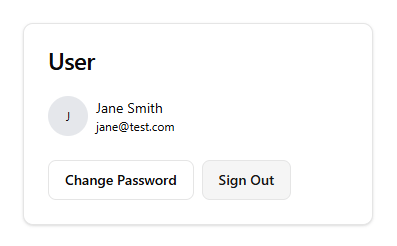
        <CardTitle>User</CardTitle>
      </CardHeader>
      <CardContent>
        <div v-if="user" class="flex gap-2 items-center">
          <Avatar class="bg-gray-200">
            <AvatarImage :src="user.image || ''" alt="User profile" />
            <AvatarFallback>{{ user.name?.[0] }}</AvatarFallback>
          </Avatar>
          <div>
            <p class="text-sm">{{ user.name }}</p>
            <p class="text-xs">{{ user.email }}</p>
          </div>
        </div>
        <div v-else class="flex gap-2 items-center">
          <Skeleton class="h-10 w-10 rounded-full" />
          <div class="space-y-2">
            <Skeleton class="h-4 w-28" />
            <Skeleton class="h-3 w-40" />
          </div>
        </div>
      </CardContent>
      <CardFooter class="flex gap-2">
        <Button as-child variant="outline">
          <NuxtLink to="/change-password">Change Password</NuxtLink>
        </Button>
        <Button
          :disabled="!user"
          @click="
            async () => {
              await signOut();
              router.push('/');
            }
          "
          variant="secondary"
        >
          Sign Out
        </Button>
      </CardFooter>
    </Card>
  </div>
</template>
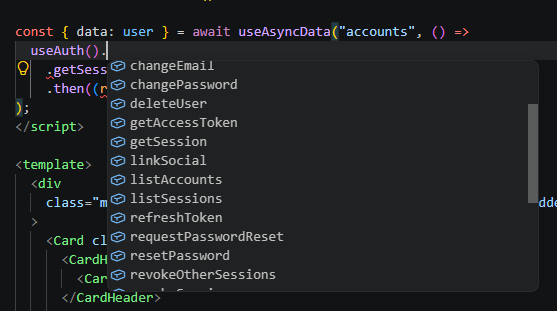
We want to load the session on the server, NOT on the client with a delay, like the original demo.
📝 useAuth has many functions we can configure to work in any scenario. useAsyncData loads on the sever and hydrates to the client.
Forget Password
<script lang="ts" setup>
import { requestPasswordReset } from "~/lib/auth-client.js";

const email = ref("");

const handleRequestPasswordReset = async () => {
  if (!email.value) {
    alert("Please enter your email address");
    return;
  }
  await requestPasswordReset(
    {
      email: email.value,
      redirectTo: "/reset-password",
    },
    {
      // onSuccess find the url with token in server console. For detail check requestPasswordReset section: https://www.better-auth.com/docs/authentication/email-password
      onSuccess() {
        alert("Password reset link sent to your email");
        window.location.href = "/sign-in";
      },
      onError(context) {
        alert(context.error.message);
      },
    },
  );
};
</script>

<template>
  <div class="h-screen flex justify-center items-center">
    <Card class="mx-auto max-w-sm">
      <CardHeader>
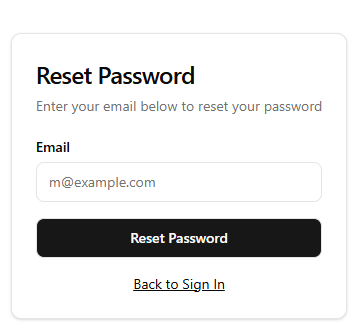
        <CardTitle class="text-2xl">Reset Password</CardTitle>
        <CardDescription>
          Enter your email below to reset your password
        </CardDescription>
      </CardHeader>
      <CardContent>
        <div class="grid gap-4">
          <div class="grid gap-2">
            <Label for="email">Email</Label>
            <Input
              id="email"
              type="email"
              autocomplete="email"
              placeholder="m@example.com"
              required
              v-model="email"
            />
          </div>
          <Button
            type="button"
            class="w-full"
            @click="handleRequestPasswordReset"
          >
            Reset Password
          </Button>
        </div>
        <div class="mt-4 text-center text-sm">
          <a href="/sign-in" class="underline">Back to Sign In </a>
        </div>
      </CardContent>
    </Card>
  </div>
</template>
📝 We must configure an email server to work in production. This setup is similar to previous pages.
Home
<script setup lang="ts">
import { useSession } from "~/lib/auth-client";

definePageMeta({
	layout: "default",
});

const features = [
	"Email & Password",
	"Organization | Teams",
	"Passkeys",
	"Multi Factor",
	"Password Reset",
	"Email Verification",
	"Roles & Permissions",
	"Rate Limiting",
	"Session Management",
];
const session = useSession();
</script>

<template>
    <div class="min-h-[80vh] flex items-center justify-center overflow-hidden no-visible-scrollbar px-6 md:px-0">
        <main class="flex flex-col gap-4 row-start-2 items-center justify-center">
            <div class="flex flex-col gap-1">
                <h3 class="font-bold text-4xl text-black dark:text-white text-center">
                    Better Auth.
                </h3>

                <p class="text-center wrap-break-word text-sm md:text-base">
                    <span class="inline-flex items-center gap-2">
                        <span class="relative inline-block -rotate-2 pr-1 text-[0.78rem] font-black uppercase tracking-[0.16em] text-red-600/80">
                            <span class="absolute left-0 right-0 top-1/2 h-0.5 -translate-y-1/2 -rotate-3 rounded-full bg-linear-to-r from-red-400 via-red-600 to-red-400 shadow-[0_0_10px_rgba(220,38,38,0.45)]" />
                            <span>official</span>
                        </span>
                        <span class="inline-flex items-center rounded-full border border-blue-500/40 bg-linear-to-r from-blue-500/10 to-blue-500/10 px-2.5 py-0.5 text-[0.72rem] font-bold uppercase tracking-[0.14em] text-blue-700 shadow-sm">
                            unofficial
                        </span>
                    </span>
                    demo to showcase
                    <a
							href="https://better-auth.com"
							target="_blank"
							className="italic underline"
						>better-auth
                    </a>
                    features and capabilities. <br />
                </p>

                <div class="flex flex-col gap-3 pt-2 flex-wrap">
                    <div class="border-y py-2 border-dotted bg-secondary/60 opacity-80">
                        <div class="text-xs flex items-center gap-2 justify-center text-muted-foreground">
                            <span class="text-center">
                                All features on this demo are Implemented with Better Auth without
                                any custom backend code
                            </span>
                        </div>
                    </div>
                    <div class="flex gap-2 justify-center flex-wrap">
                        <div v-for="feature in features" :key="feature">
                            <span
                                class="border-b pb-1 text-muted-foreground text-xs cursor-pointer hover:text-foreground duration-150 ease-in-out transition-all hover:border-foreground flex items-center gap-1">{{
                                    feature }}
                            </span>
                        </div>
                    </div>
                </div>
                <div class="flex items-center gap-2 mt-2 mx-auto">
                    <NuxtLink to="/sign-in" v-if="!session?.data">
                        <Button variant="outline" class="rounded-none">
                            Sign In
                        </Button>
                    </NuxtLink>
                    <NuxtLink to="/dashboard" v-if="session?.data">
                        <Button variant="outline" class="rounded-none">
                            Dashboard
                        </Button>
                    </NuxtLink>
                </div>
            </div>
        </main>
    </div>
</template>
📝 Nothing special here, except for checking for a session.
Reset Password
<script lang="ts" setup>
import { resetPassword } from "~/lib/auth-client.js";

const confirmPassword = ref("");
const password = ref("");

const handleResetPassword = async () => {
  if (confirmPassword.value !== password.value) {
    alert("Please enter same passwords");
    return;
  }

  await resetPassword({
    newPassword: password.value,
    fetchOptions: {
      onSuccess(context) {
        window.location.href = "/sign-in";
      },
      onError(context) {
        alert(context.error.message);
      },
    },
  });
};
</script>

<template>
  <div class="h-screen flex justify-center items-center">
    <Card class="mx-auto max-w-sm">
      <CardHeader>
        <CardTitle class="text-2xl">Reset Password</CardTitle>
        <CardDescription>Enter your new password below</CardDescription>
      </CardHeader>
      <CardContent>
        <form class="grid gap-4" @submit.prevent="handleResetPassword">
          <div class="grid gap-2">
            <Label for="new-password">New Password</Label>
            <Input
              id="new-password"
              type="password"
              autocomplete="new-password"
              required
              v-model="password"
              placeholder="New Password"
            />
          </div>
          <div class="grid gap-2">
            <Label for="confirm-password">Confirm Password</Label>
            <Input
              id="confirm-password"
              type="password"
              autocomplete="new-password"
              required
              placeholder="Confirm Password"
              v-model="confirmPassword"
            />
          </div>
          <Button type="submit" class="w-full">Reset</Button>
        </form>
      </CardContent>
    </Card>
  </div>
</template>
📝 Same setup as before, import our resetPassword function from our auth library.
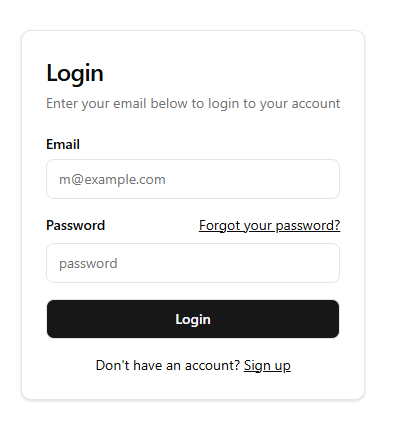
Sign In
<script setup lang="ts">
import { signIn } from "~/lib/auth-client.js";

const email = ref("");
const password = ref("");
const router = useRouter();

const handleSignIn = async () => {
  await signIn.email({
    email: email.value,
    password: password.value,
    callbackURL: "/dashboard",
    fetchOptions: {
      onError(context) {
        alert(context.error.message);
      },
      onSuccess() {
        router.push("/dashboard");
      },
    },
  });
};
</script>

<template>
  <div class="h-screen flex justify-center items-center">
    <Card class="mx-auto max-w-sm">
      <CardHeader>
        <CardTitle class="text-2xl"> Login </CardTitle>
        <CardDescription>
          Enter your email below to login to your account
        </CardDescription>
      </CardHeader>
      <CardContent>
        <form class="grid gap-4" @submit.prevent="handleSignIn">
          <div class="grid gap-2">
            <Label for="email">Email</Label>
            <Input
              id="email"
              type="email"
              autocomplete="email"
              placeholder="m@example.com"
              v-model="email"
              required
            />
          </div>
          <div class="grid gap-2">
            <div class="flex items-center">
              <Label for="password">Password</Label>
              <a
                href="/forgot-password"
                class="ml-auto inline-block text-sm underline"
              >
                Forgot your password?
              </a>
            </div>
            <Input
              id="password"
              type="password"
              autocomplete="current-password"
              placeholder="password"
              v-model="password"
              required
            />
          </div>
          <Button type="submit" class="w-full"> Login </Button>
        </form>
        <div class="mt-4 text-center text-sm">
          Don't have an account?
          <a href="/sign-up" class="underline"> Sign up </a>
        </div>
      </CardContent>
    </Card>
  </div>
</template>
📝 Manually forward router to /dashboard upon success.
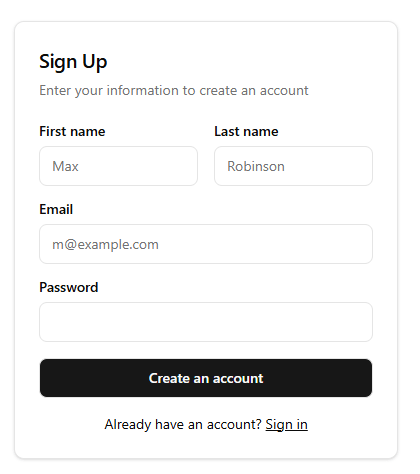
Sign Up
<script lang="ts" setup>
import { signUp } from "~/lib/auth-client.js";

const firstName = ref("");
const lastName = ref("");
const email = ref("");
const password = ref("");

const handleSignUp = async () => {
  const user = {
    firstName: firstName.value,
    lastName: lastName.value,
    email: email.value,
    password: password.value,
  };
  await signUp.email({
    email: user.email,
    password: user.password,
    name: `${user.firstName} ${user.lastName}`,
    callbackURL: "/",
    fetchOptions: {
      onError(context) {
        alert(context.error.message);
      },
      onSuccess() {
        useRouter().push("/dashboard");
      },
    },
  });
};
</script>

<template>
  <div class="h-screen flex justify-center items-center">
    <Card class="mx-auto max-w-sm">
      <CardHeader>
        <CardTitle class="text-xl">Sign Up</CardTitle>
        <CardDescription>
          Enter your information to create an account
        </CardDescription>
      </CardHeader>
      <CardContent>
        <form class="grid gap-4" @submit.prevent="handleSignUp">
          <div class="grid grid-cols-2 gap-4">
            <div class="grid gap-2">
              <Label for="first-name">First name</Label>
              <Input
                id="first-name"
                autocomplete="given-name"
                placeholder="Max"
                required
                v-model="firstName"
              />
            </div>
            <div class="grid gap-2">
              <Label for="last-name">Last name</Label>
              <Input
                id="last-name"
                autocomplete="family-name"
                placeholder="Robinson"
                required
                v-model="lastName"
              />
            </div>
          </div>
          <div class="grid gap-2">
            <Label for="email">Email</Label>
            <Input
              id="email"
              type="email"
              autocomplete="email"
              placeholder="m@example.com"
              required
              v-model="email"
            />
          </div>
          <div class="grid gap-2">
            <Label for="password">Password</Label>
            <Input
              id="password"
              type="password"
              autocomplete="new-password"
              v-model="password"
            />
          </div>
          <Button type="submit" class="w-full">Create an account</Button>
        </form>
        <div class="mt-4 text-center text-sm">
          Already have an account?
          <a href="/sign-in" class="underline"> Sign in </a>
        </div>
      </CardContent>
    </Card>
  </div>
</template>
📝 We use alert for errors, but this is easily configurable.
Bonus
We can easily use any database integration we like.
Postgres
export const auth = betterAuth({
  database: new Pool({
    connectionString: "postgres://user:password@localhost:5432/database",
  }),
});
import { betterAuth } from "better-auth";
import { createPool } from "mysql2/promise";
export const auth = betterAuth({
  database: createPool({
    host: "localhost",
    user: "root",
    password: "password",
    database: "database",
    timezone: "Z", // Important to ensure consistent timezone values
  }),
});
Now, go build the rest of your app!
Repo: GitHub

Jonathan Gamble
Jonathan Gamble has been an avid web programmer for more than 20 years. He has been building web applications as a hobby since he was 16 years old, and he received a post-bachelor’s in Computer Science from Oregon State. His real passions are language learning and playing rock piano, but he never gets away from coding. Read more from him at https://code.build/.
Related Posts
Comments
All articles
Topics
Web MobileMobile
Desktop
Design
Productivity
People