Replicating a Travel App in .NET MAUI

Summarize with AI:
Practice thoughtful planning before you begin coding with this .NET MAUI travel app. We’ll divide the design into blocks and code each one.
Take note of this: always—always—absolutely always—when you start developing an app, take a moment to step back and analyze what you truly need. That way, you avoid writing the same code two, three or even N times.
Once you begin, aim to keep your code as clean and optimized as possible. Remember that every component you choose is a decision that shapes the quality of your app from the layout you select (where everything begins) to the components you use and the reasoning behind them. And of course, becoming more comfortable with XAML every day is key. With creativity and a willingness to think outside the box, anything can be achieved in a UI.
With practice, this process becomes easier, as experience gives you the insight needed to make faster and more confident decisions. That’s why in this article we will replicate a travel UI from scratch, inspired by a design obtained from Dribbble.
How will the explanation work?
So you can understand everything 100%, I’ll explain how the process will work:
➖Visual diagram: Before we start, you’ll see a diagram with a screenshot of the design we want to achieve. This design will be divided into blocks, each identified with a name and a color. Each block will be explained individually.
➖Code explanation per block: In addition to the text explanation, each block will include the exact code snippet you need to write to achieve the result.
➖Step-by-step visual progress: Each explanation will have its corresponding screenshot, so you can see the progress as we build the UI.
⚠️ For the purposes of these articles, there will be some changes to the original user interface.
🔧 Environment Setup
You’ll learn how to take advantage of some of the powerful components provided in the Progress Telerik UI for .NET MAUI component library. Before we dive in, let’s get your environment ready, just keep these two key points in mind:
If you don’t have a Telerik account yet, you can create one for free. You’ll get access to a trial license so you can explore not only RadBorder and RadButton, but all the Telerik controls for .NET MAUI.
You need to install Telerik UI for .NET MAUI. This is a one-time setup, meaning you don’t need to do it for every component you use. (If you don’t have it installed yet, I’ve included an article where it is explained step by step how to set it up in both Visual Studio and Visual Studio Code.)
Breaking Down the Design into Blocks
To make this easier to follow, I’ve divided the design into clear blocks. We’ll build each part one at a time, in the order you see below.
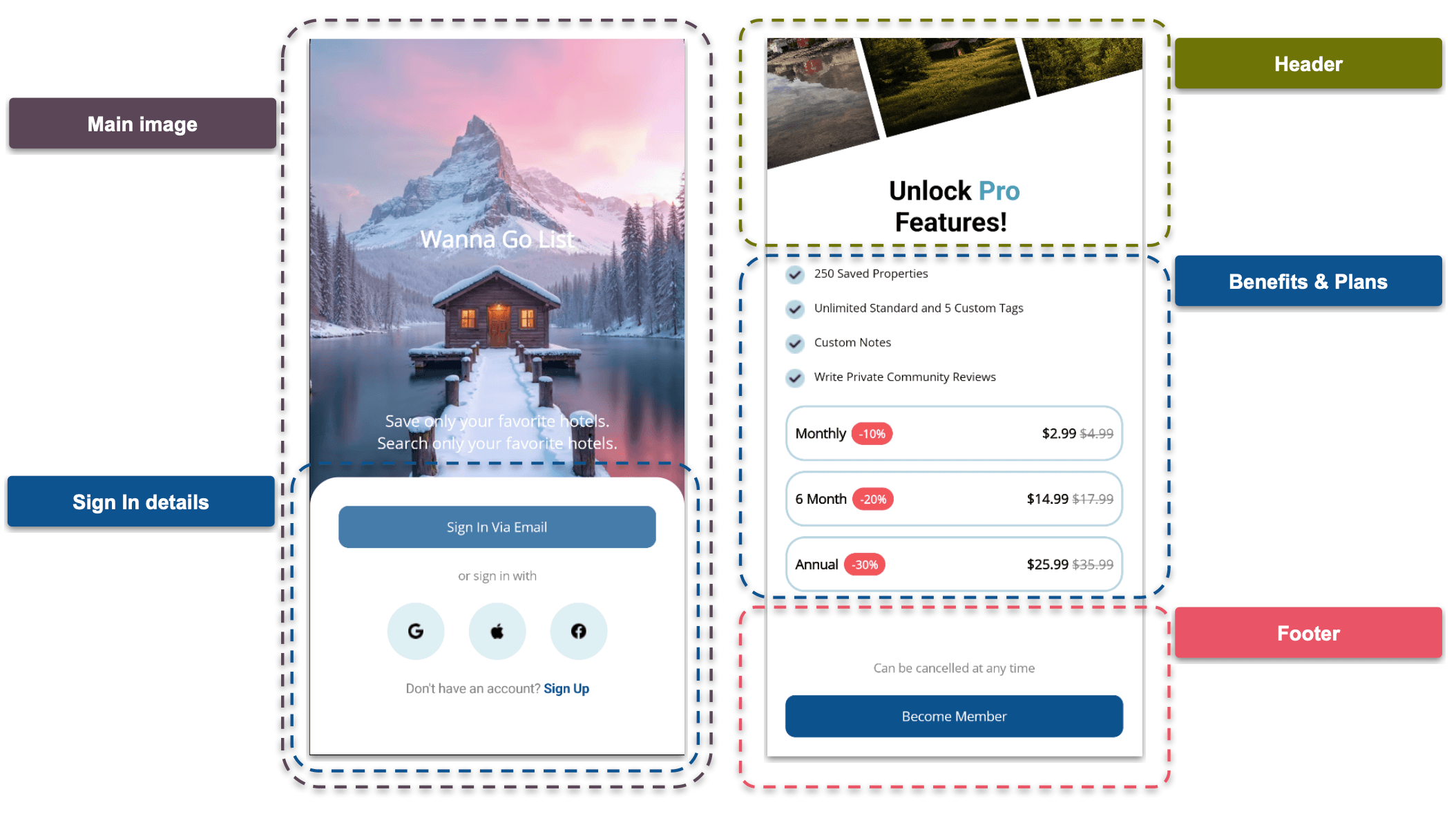
Alright, we’ve now divided our UI into blocks. Grab a cup of coffee (or hot chocolate), and let’s start writing some code! 😎
1. Main Image
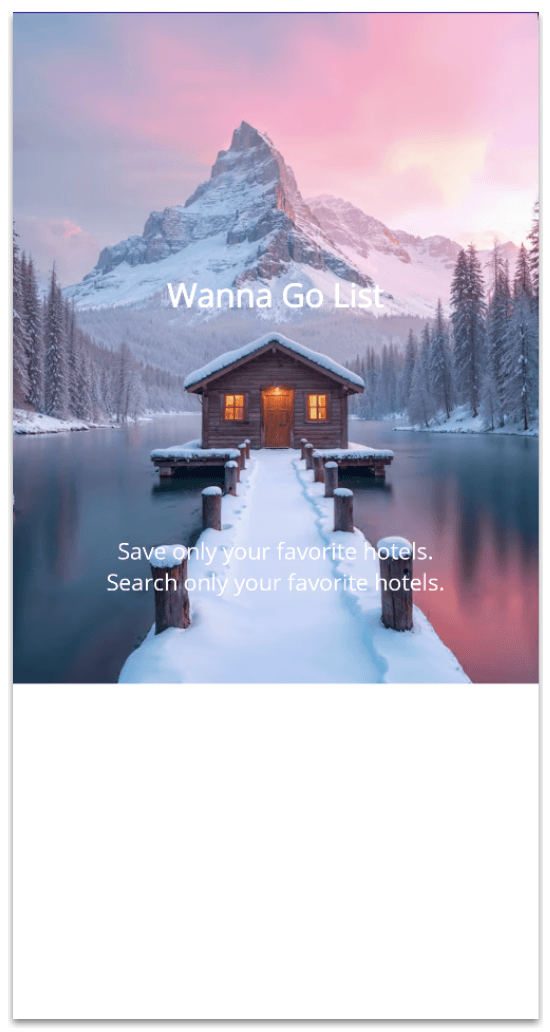
When starting to build a UI, the first thing you should evaluate is which layout best fits your needs. In this case, we need a flexible layout that allows us to create overlapping effects both for positioning text on top of the image and for building the overlapping effect in the second block.
For this, we’ll use a Grid, structured as follows:
<Grid RowDefinitions="auto,*">
    <!-- Place here the remaining elements that belong to the first block-->
    <!-- Insert here the code for the next block -->
</Grid>
Now, let’s add the main image along with the two text elements displayed on top of it. Place this code in the section indicated by the comment: <!-- Place here the remaining elements that belong to the first block -->.
<Image Grid.Row="0" Source="homebg" Aspect="Fill" HeightRequest="500"/>
<Label Grid.Row="0" Text="Wanna Go List" TextColor="White" FontSize="24" FontAttributes="Bold"
TranslationY="-40"
HorizontalTextAlignment="Center"
VerticalTextAlignment="Center"/>
<Label Grid.Row="0" Text="Save only your favorite hotels. Search only your favorite hotels."
TextColor="White" FontSize="17" TranslationY="-65"
HorizontalTextAlignment="Center"
VerticalTextAlignment="End"/>
✍️ To help create the overlapping effect across the Grid areas, I used the TranslationY property to position the element exactly where needed.
2. Sign-in Details
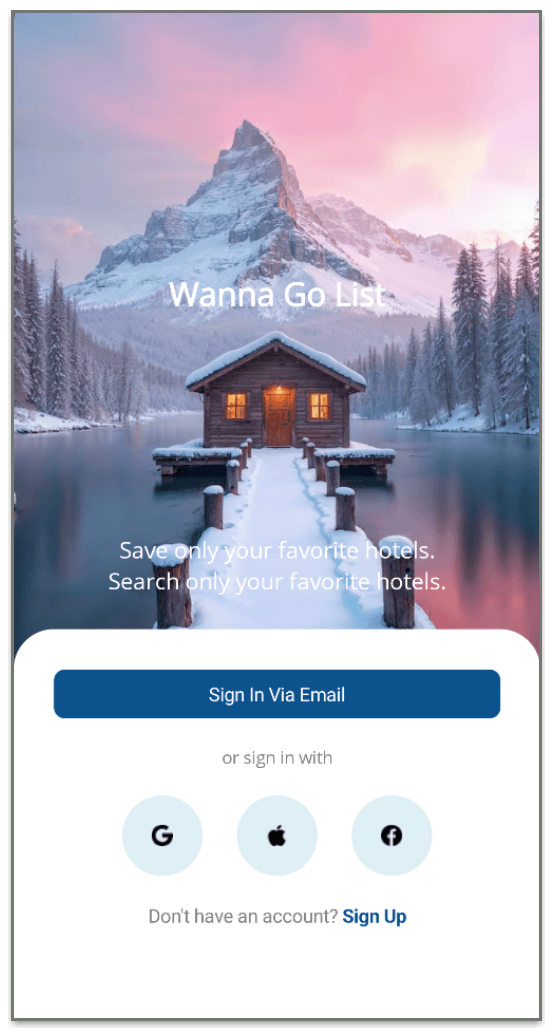
For this second block, we’ll work with several elements, all contained within a white background with rounded top corners. This is where Telerik RadBorder plays a key role.
Inside this container, we’ll include:
- Rounded and rectangular buttons (using Telerik RadButton)
- Simple labels and styled text (using FormattedText)
White Background with Rounded Corners
To get started with RadBorder, add the corresponding namespace:
xmlns:telerik="clr-namespace:Telerik.Maui.Controls;assembly=Telerik.Maui.Controls"
Once that’s set up, add the component as shown below.
<telerik:RadBorder Grid.Row="1"
    BackgroundColor="White"
    VerticalOptions="Fill"
    Margin="0,-40,0,0"
    CornerRadius="30"
    Padding="30">
    <!-- Add the Grid here-- >
</telerik:RadBorder>
Inside the RadBorder, we’ll use a Grid to structure the content. This Grid will consist of four rows and three columns, with a spacing of 20 between elements to maintain a clean and well-organized layout.
<Grid RowDefinitions="auto,auto,auto,auto" ColumnDefinitions="*,*,*" RowSpacing="20">
    <!-- Add all remaining elements for the second block here -->
</Grid>
Finally, let’s add all the remaining elements inside the Grid. Here are a few key points to keep in mind:
➖ For the buttons, we’ll use Telerik RadButton. Since you already added the namespace earlier, there’s no need to include it again.
➖ To achieve a rounded button, simply set the WidthRequest and HeightRequest to the same value, and define the CornerRadius as half of that value.
➖ For the label with multiple colors, instead of using several separate labels, we’ll use FormattedText. This helps keep the code cleaner and more efficient.
<telerik:RadButton Grid.Row="0" Grid.Column="0" Grid.ColumnSpan="3" Text="Sign In Via Email" TextColor="White" BackgroundColor="#0c538f" CornerRadius="8"/>

<Label Grid.Row="1" Grid.Column="0" Grid.ColumnSpan="3" Text="or sign in with" FontSize="13" HorizontalTextAlignment="Center" TextColor="Grey"/>

<telerik:RadButton Grid.Row="2" Grid.Column="0" ImageSource="google" BackgroundColor="#def0f5" HeightRequest="60" WidthRequest="60" CornerRadius="30" HorizontalOptions="End"/>

<telerik:RadButton Grid.Row="2" Grid.Column="1" ImageSource="apple" BackgroundColor="#def0f5" HeightRequest="60" WidthRequest="60" CornerRadius="30"/>

<telerik:RadButton Grid.Row="2" Grid.Column="2" ImageSource="facebook" BackgroundColor="#def0f5" HeightRequest="60" WidthRequest="60" CornerRadius="30" HorizontalOptions="Start"/>

<Label Grid.Row="3" Grid.Column="0" Grid.ColumnSpan="3" HorizontalTextAlignment="Center">

<Label.FormattedText>
    <FormattedString>
	    <Span Text="Don't have an account? " TextColor="Grey"/>
	    <Span Text="Sign Up" FontAttributes="Bold" TextColor="#0c538f"/>
    </FormattedString>
    </Label.FormattedText>
</Label>
3. Header
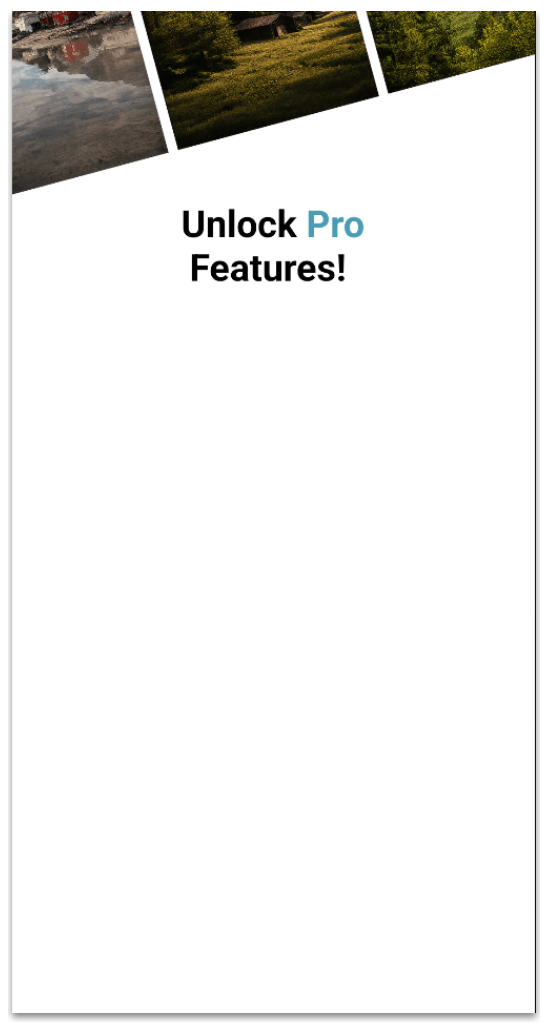
Woohoo!!! 🎊 Our first screen is ready. 😎 Now, in this third block, we’ll start building the second screen packed with some really interesting elements!
Let’s begin with the main layout. We’ll create a three row Grid where we’ll position the header image, a VerticalStackLayout to hold the plans and benefits and the footer.
<Grid RowDefinitions="auto,*,auto,auto" RowSpacing="20" Padding="20,0">
    <!-- Add the header image code here -->
    <!-- Add the VerticalStackLayout here →
    <!-- Add the footer code here -->
</Grid>
To get started, we’ll focus on placing the header image and the primary label.
Header Image
You can either use an image that already has a diagonal effect or take a regular image and create that effect through code. For this demo, I used a regular image and rotated it to show you how it works. This effect comes from combining Rotation, TranslationY, and TranslationX properties, along with adjusting the width and height.
<Image Grid.Row="0" Source="header" HeightRequest="370" WidthRequest="500" Aspect="AspectFit"
    Rotation="-15"
    TranslationX="-20"
    TranslationY="-300"/>
Main Label
Before adding the label itself, we’ll set up the layout that will contain it. Add a VerticalStackLayout, and inside it place a Label with FormattedText. This allows you to apply different colors, sizes and styles within a single label, keeping your UI clean and flexible.
<VerticalStackLayout Grid.Row="0" Margin="0,140,0,0">
<Label HorizontalTextAlignment="Center" FontSize="28" CharacterSpacing="18">
<Label.FormattedText>
<FormattedString>
<Span Text="Unlock " FontAttributes="Bold"/>
<Span Text="Pro " FontAttributes="Bold" TextColor="#4b9db4"/>
<Span Text="Features! " FontAttributes="Bold"/>
</FormattedString>
</Label.FormattedText>
</Label>
<!-- Add the Benefits code block here -->
<!-- Add the Plans code block here -->
</VerticalStackLayout>
4. Benefits & Plans
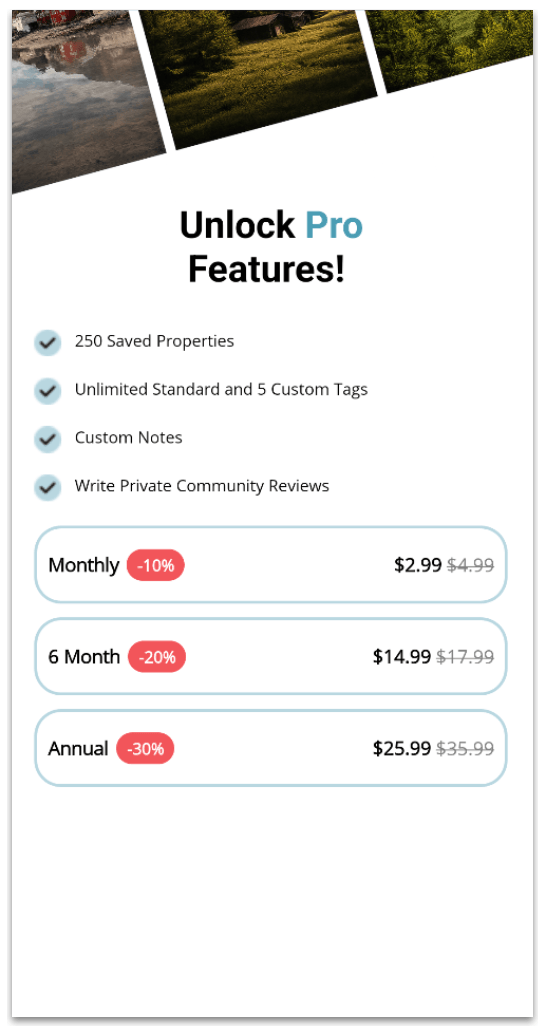
For this block, we’ll also use Telerik RadBorder, so make sure to include the same namespace used on the previous page here as well. This section is composed of the following elements:
➖ Benefits: We’ll use a CollectionView so the information can be loaded from a flexible list, instead of adding each item manually in XAML. Each item will include a checkmark image and a label with the benefit name.
<CollectionView.ItemTemplate>
<DataTemplate>
	    <HorizontalStackLayout Spacing="10" Padding="0,8">
		    <Image Source="check" HeightRequest="20" WidthRequest="20"/>
		    <Label Text="{Binding Description}" FontSize="12"/>
	    </HorizontalStackLayout>
    </DataTemplate>
</CollectionView.ItemTemplate>
</CollectionView
➖Plans: We’ll also use a CollectionView for the plan selector. Each item will be displayed inside a box with rounded blue borders and will contain the plan name, the discount, the current price and the previous price.
<CollectionView VerticalScrollBarVisibility="Never"
ItemsSource="{Binding plans}">
    <CollectionView.ItemTemplate>
	    <DataTemplate>
		    <telerik:RadBorder Grid.Row="1"
		    BorderColor="#b9d7e1"
		    BorderThickness="2"
		    CornerRadius="20"
		    Margin="0,10,0,0"
		    Padding="10,15">
		    <Grid ColumnDefinitions="auto,auto,*,auto" VerticalOptions="Center">
		    <Label Grid.Column="0" Text="{Binding Name}" FontSize="14" FontAttributes="Bold" VerticalTextAlignment="Center" />

		    <telerik:RadBorder Grid.Column="1"
		    BackgroundColor="#F2555A"
		    BorderThickness="2"
		    CornerRadius="50"
		    Padding="10,6">

		    <Label
		    Text="{Binding Discount}"
		    TextColor="White"
		    FontAttributes="Bold"
		    FontSize="12"
		    HorizontalTextAlignment="Center"
		    VerticalTextAlignment="Center" />
		    </telerik:RadBorder>

		    <Label Grid.Column="2" Text="{Binding Price} " FontSize="14" VerticalTextAlignment="Center" HorizontalTextAlignment="End" FontAttributes="Bold"/>

		    <Label Grid.Column="3" Text="{Binding OldPrice}" VerticalTextAlignment="Center" TextDecorations="Strikethrough" FontSize="14" TextColor="Gray"/>
		    </Grid>
		    </telerik:RadBorder>
	    </DataTemplate>
    </CollectionView.ItemTemplate>
</CollectionView>
5. Footer
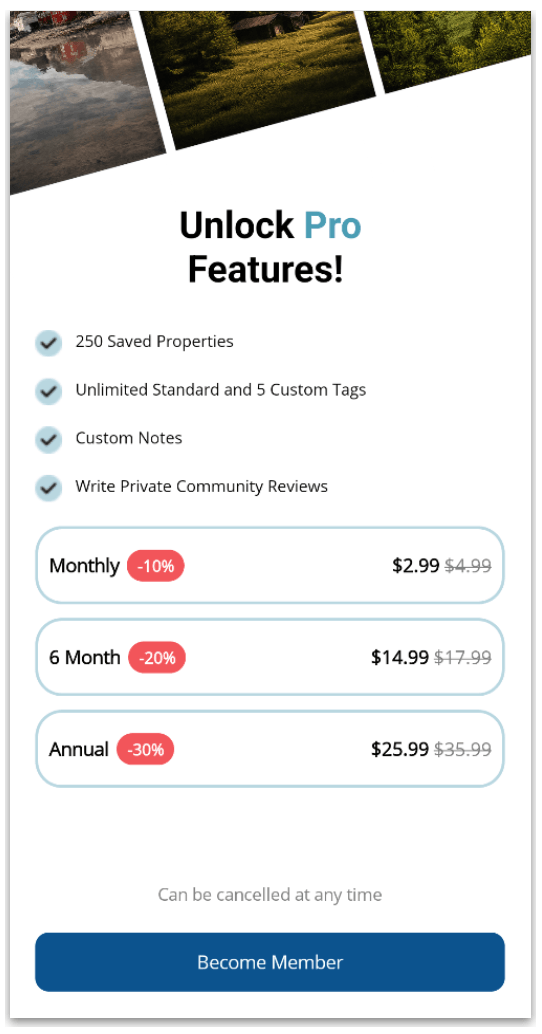
Oh yeah! We’ve reached the final block, the footer. This section includes a centered label and a button (using Telerik RadButton). To add it, go to the main Grid of this screen and locate the comment <!-- Add the footer code here -->.
Then, place the following code in that section:
<Label Grid.Row="1" Text="Can be cancelled at any time" FontSize="13" TextColor="Grey" VerticalOptions="End" HorizontalTextAlignment="Center"/>

<telerik:RadButton Grid.Row="2" Text="Become Member" BackgroundColor="#0c538f" CornerRadius="10" VerticalOptions="End"/>
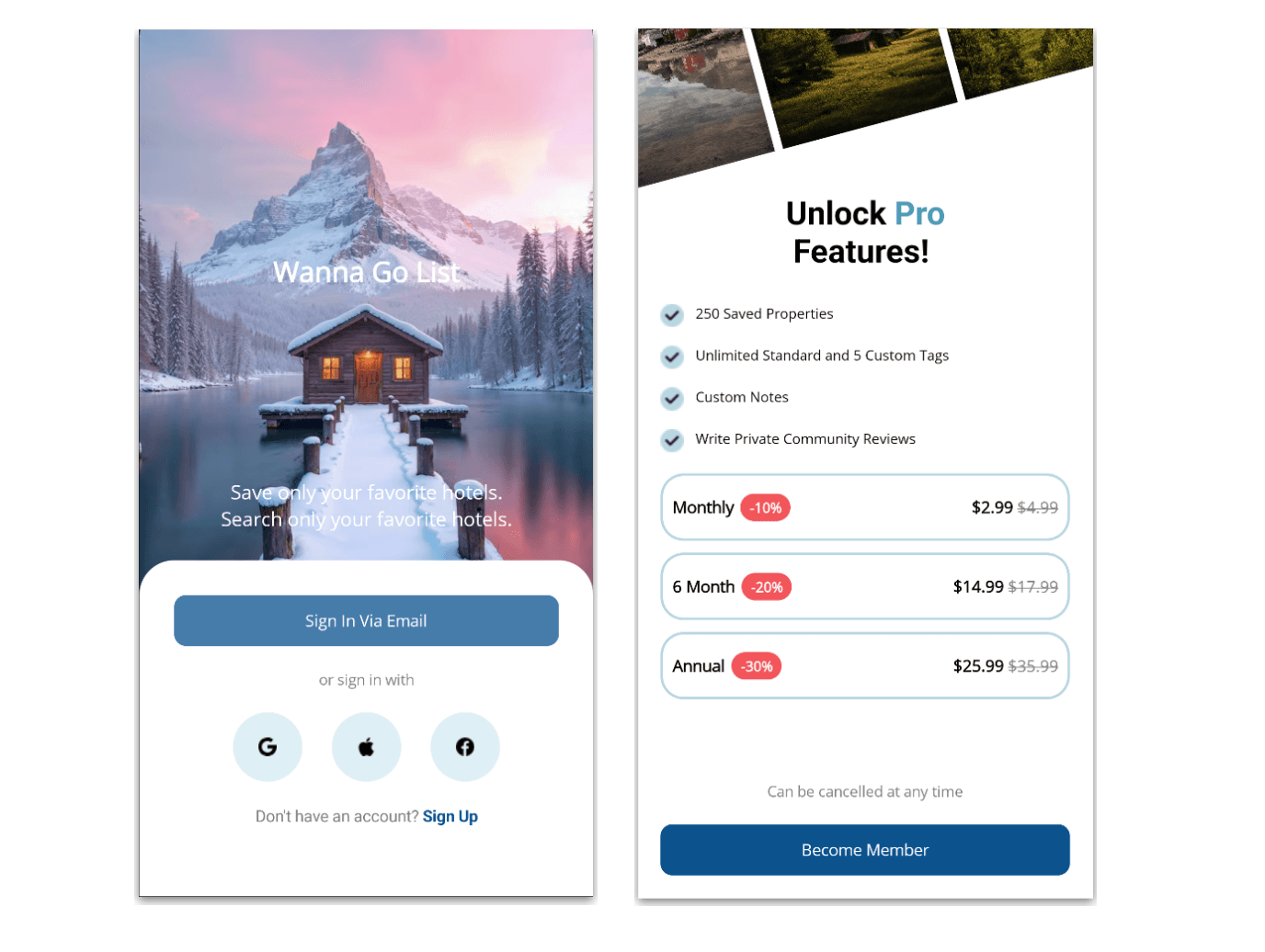
And that’s it—we’re all done! 🎉 Below, you can see the final result of both screens.
Conclusion
And that’s it! 🎉 In this article, we explored how to build a travel UI using .NET MAUI with XAML, inspired by a modern design.
I hope this guide helps you take these ideas and practices and apply them to your own UI implementations, especially when working with layouts, overlapping elements, and Telerik components.
If you have any questions or would like me to dive deeper into a specific part, feel free to leave a comment, I’ll be happy to help! 💚
See you in the next article! 🙋♀️🚀
Remember, Telerik UI for .NET MAUI comes with a free 30-day trial. See what you can create:

Leomaris Reyes
Leomaris Reyes is a software engineer from the Dominican Republic specializing in mobile development. She is a 7-time Microsoft MVP and actively builds mobile applications while sharing practical knowledge through technical articles and developer-focused content.
Through her work, she explains programming concepts, developer tools and real-world development practices to help developers grow in their careers.
You can follow her on Instagram and TikTok at @leomarisreyes.dev, read her articles on AskXammy, and connect with her on LinkedIn, where she shares tutorials, insights and resources for developers.
Related Posts
Comments
All articles
Topics
Web MobileMobile
Desktop
Design
Productivity
People