Replicating a Ticket Screen in .NET MAUI

Summarize with AI:
Travel! It’s one of our favorite things, and here is how to build a flight ticket screen in .NET MAUI.
I dare to say that one of the most loved hobbies, and one of the reasons we want vacations to arrive quickly, is traveling. 😇 Guilty as charged, haha.
But personally, beyond the trip itself, I really enjoy being involved in the whole experience—from packing my bags to having my flight ticket in an app. But you know what’s the most fun part? Besides having my ticket in an app, I can also combine my passion for traveling with my profession, by programming and replicating an app that brings these two things together.
For this reason, in this article you will continue strengthening your UI skills in .NET MAUI. Get it out of your head that you can’t build beautiful and creative UIs, because you absolutely can. 😎 Today we will replicate a ticket UI inspired by a Dribbble design, which will allow us to practice using several .NET MAUI components such as Shapes, Grid, Label, and especially a super special component: the .NET MAUI Border from Progress Telerik UI. All of this in a very simple way. We’ll break it down step by step!
How will the explanation work?
So you can understand everything 100%, I’ll explain how the process will work:
➖Visual diagram: Before we start, you’ll see a diagram with a screenshot of the design we want to achieve. This design will be divided into blocks, each identified with a name and a color. Each block will be explained individually.
➖Code explanation per block: In addition to the text explanation, each block will include the exact code snippet you need to write to achieve the result.
➖Step-by-step visual progress: Each explanation will have its corresponding screenshot, so you can see the progress as we build the UI.
⚠️ For the purposes of these articles, there will be some changes to the original user interface.
Breaking Down the Dribbble Design into Blocks
To make this easier to follow, I’ve divided the original design into clear blocks. We’ll build each part one at a time, in the order you see below.
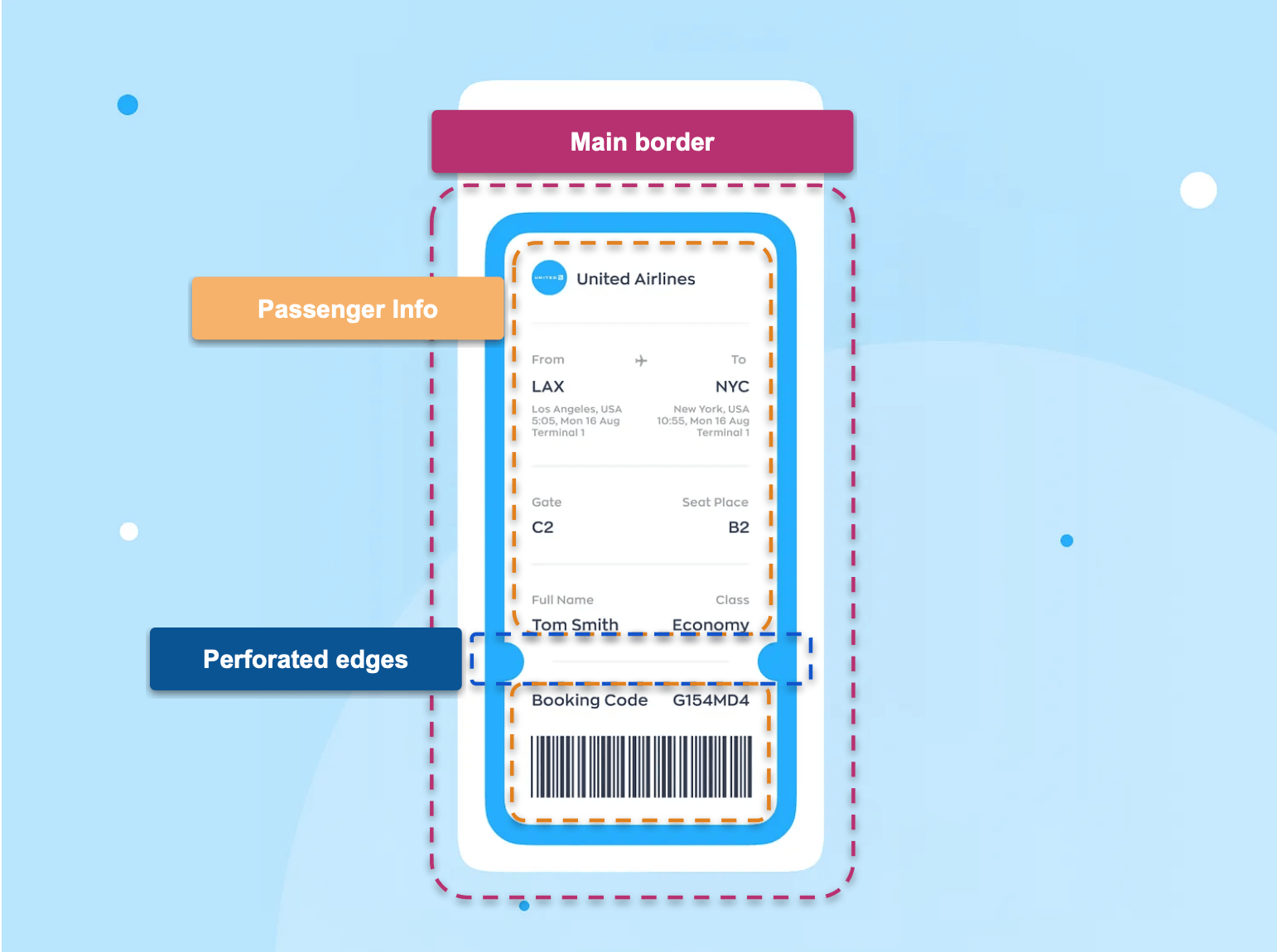
1. Main Border Block
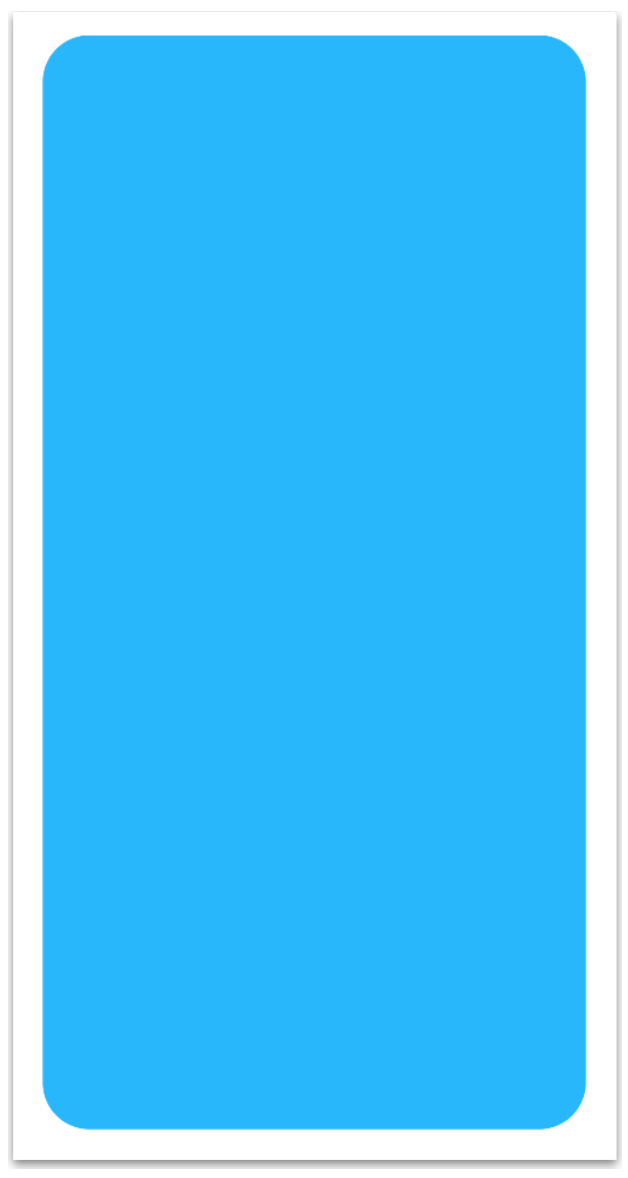
Let’s start building the first block. This block is the most important one, since it contains all the elements of the remaining blocks.
To replicate the element in this block, we need a control that allows us to add a background color and apply rounded corners.
We will use the RadBorder control from Progress Telerik. This control makes it easy to manage border color, thickness and even apply different corner radius values for each side. It’s super useful!
To use it, keep the following in mind:
If you don’t have a Telerik account yet, you can create one for free. You’ll get access to a trial license so you can explore not only RadBorder, but all the Telerik UI for .NET MAUI controls.
You need to install Telerik UI for .NET MAUI. This is a one-time setup, meaning you don’t need to do it for every component you use. (If you don’t have it installed yet, I’ve included an article where it is explained step by step how to set it up in both Visual Studio and Visual Studio Code).
Once you have these two points ready, go to your XAML and follow these steps:
- Add the following namespace:
xmlns:telerik="clr-namespace:Telerik.Maui.Controls;assembly=Telerik.Maui.Controls"
- Add a RadBorder to serve as the main container. Configure it with a background color of #29b7fc, a CornerRadius of 30, and apply Padding and Margin to control internal and external spacing, respectively.
<telerik:RadBorder VerticalOptions="Fill"
    BackgroundColor="#29b7fc"
    CornerRadius="30"
    Padding="30"
    Margin="20">

<!-- Please add the code for the following block here. -->

</telerik:RadBorder>
2. Passenger Information Block
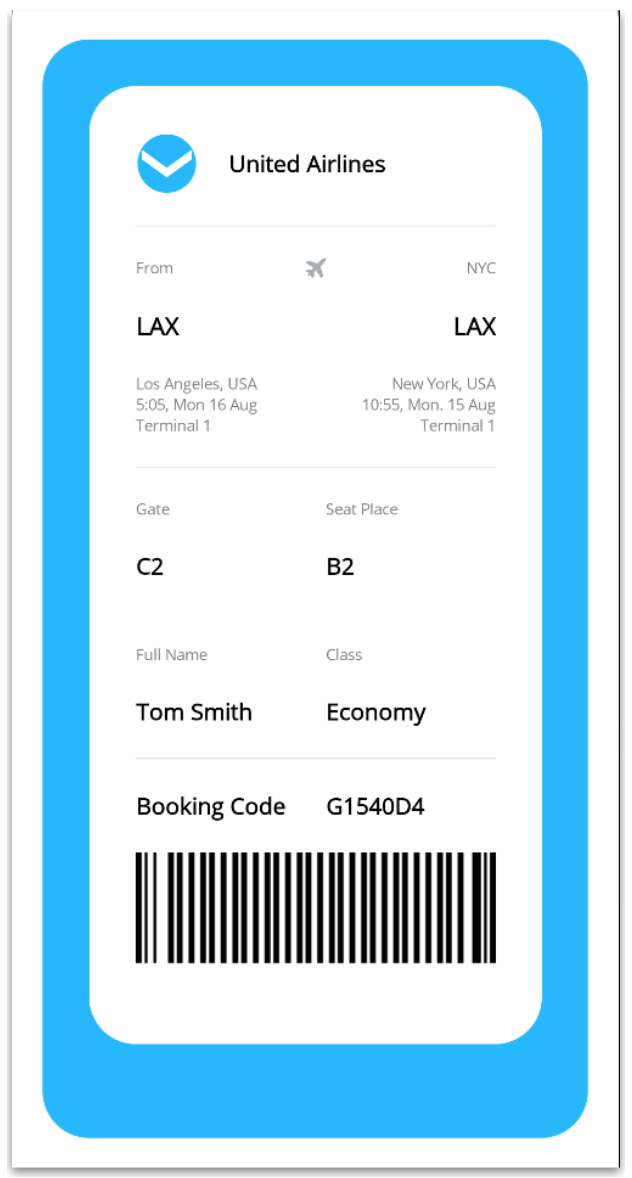
This second block contains approximately 95% of the remaining UI design. This is where we will display the ticket details, such as the airline name, origin and destination (from, to), gate and the customer’s name.
We will start by adding a Grid. This will allow us, in the next block, to apply the rounded side cut effect that makes the design resemble a ticket.
⚠️ Note: This Grid must be added exactly on the line in the previous code block that says:
<!-- Please add the code for the following block here. -->

<Grid RowDefinitions="auto,auto"
    ColumnDefinitions="*,*">"
    <!-- Add the border here -->
</Grid>
Now, add a border with a white background. We will continue using the Telerik RadBorder control to maintain design consistency.
    <telerik:RadBorder Grid.Row="0" Grid.Column="0"
	    Grid.ColumnSpan="2"
	    BackgroundColor="White"
	    VerticalOptions="Fill"
	    CornerRadius="30"
	    Padding="30">

	    <!-- Add the Grid here -->

    </telerik:RadBorder>

    <!-- Add the circles here -->
Inside this RadBorder, we will add another Grid to organize all the ticket information.
This Grid will have three columns and fourteen rows, giving us the structure needed to properly arrange each element in the UI.
<Grid ColumnDefinitions="*,auto,*"
    RowDefinitions="auto,auto,auto,auto,auto,auto,auto,auto,auto,auto,auto,auto,auto,auto"
    RowSpacing="20">

    <!--Add all the information here -- >

</Grid>
Finally, let’s add all the passenger information. For the first section, we will use a HorizontalStackLayout, while the remaining structure will be built using Label elements, Line elements and a sample image to represent the barcode.
<HorizontalStackLayout Grid.Column="0"
Grid.ColumnSpan="3" Grid.Row="0"
Spacing="20"
VerticalOptions="Center">
<Image Source="arrowlogo.png"
HeightRequest="40"
Aspect="AspectFill"
WidthRequest="40" />
<Label Text="United Airlines" FontSize="15" FontAttributes="Bold" VerticalTextAlignment="Center"/>
</HorizontalStackLayout>
<Line Grid.Row="1" Stroke="LightGrey" StrokeThickness="0.6" X2="800" HorizontalOptions="Center"/>
<Image Grid.Row="2" Grid.Column="1" Source="airplane" HeightRequest="13" WidthRequest="13"/>
<Label Grid.Row="2" Grid.Column="0" Text="From" FontSize="10" TextColor="Gray"/>
<Label Grid.Row="3" Grid.Column="0" Text="LAX" FontSize="16" FontAttributes="Bold" />
<Label Grid.Row="4" Grid.Column="0" Text="Los Angeles, USA 5:05, Mon 16 Aug Terminal 1" FontSize="10" TextColor="Gray" />
<Label Grid.Row="2" Grid.Column="2" Text="NYC" HorizontalTextAlignment="End" FontSize="10" TextColor="Gray" />
<Label Grid.Row="3" Grid.Column="2" Text="LAX" HorizontalTextAlignment="End" FontSize="16" FontAttributes="Bold"/>
<Label Grid.Row="4" Grid.Column="2" Text="New York, USA 10:55, Mon. 15 Aug Terminal 1" HorizontalTextAlignment="End" FontSize="10" TextColor="Gray" />
<Line Grid.Row="5" Stroke="LightGrey" StrokeThickness="0.6" X2="800" HorizontalOptions="Center"/>
<Label Grid.Row="6" Grid.Column="0" Text="Gate" FontSize="10" TextColor="Gray" />
<Label Grid.Row="7" Grid.Column="0" Text="C2" FontSize="15" FontAttributes="Bold"/>
<Label Grid.Row="6" Grid.Column="2" Text="Seat Place" FontSize="10" TextColor="Gray"/>
<Label Grid.Row="7" Grid.Column="2" Text="B2" FontSize="15" FontAttributes="Bold" />
<Line Grid.Row="8" Stroke="LightGrey" StrokeThickness="0.6" X2="800" HorizontalOptions="Center" />
<Label Grid.Row="9" Grid.Column="0" Text="Full Name" FontSize="10" TextColor="Gray" />
<Label Grid.Row="10" Grid.Column="0" Text="Tom Smith" FontSize="15" FontAttributes="Bold"/>
<Label Grid.Row="9" Grid.Column="2" Text="Class" FontSize="10" TextColor="Gray"/>
<Label Grid.Row="10" Grid.Column="2" Text="Economy" FontSize="15" FontAttributes="Bold" />
<Line Grid.Row="11" Stroke="LightGrey" StrokeThickness="0.6" X2="800" HorizontalOptions="Center" />
<Label Grid.Row="12" Grid.Column="0" Text="Booking Code" FontSize="15" FontAttributes="Bold"/>
<Label Grid.Row="12" Grid.Column="2" Text="G1540D4" FontSize="15" FontAttributes="Bold" />
<Image Grid.Row="13" Grid.Column="0" Grid.ColumnSpan="3" Source="barcodesample" Aspect="Fill"/>
3. Perforated Edges Block
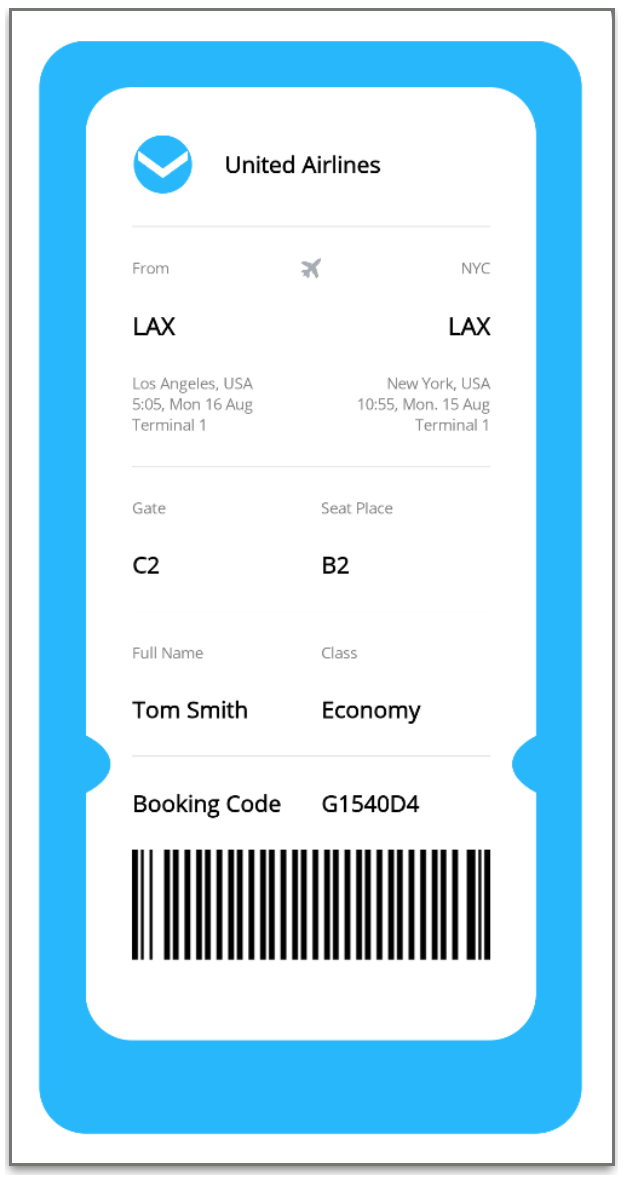
Now, we are adding the finishing touch to this UI: simulating the ticket side cutouts on the white background Border. To achieve this, we will use the Ellipse shape from .NET MAUI.
We will add two Ellipse elements, one on each side, to recreate the visual effect of a ticket.
<Ellipse Grid.Row="0" Grid.Column="0"
    HeightRequest="60"
    TranslationX="-130"
    TranslationY="130"
    Fill="#29b7fc"/>

<Ellipse Grid.Row="0" Grid.Column="1"
    HeightRequest="60"
    TranslationX="130"
    TranslationY="130"
    Fill="#29b7fc"/>
⚠️ Please note: this code must be placed exactly in one of the sections of the second block where it says: <!-- Add the circles here -->.
Conclusion
And that’s it! 🎉 In this article, we explored how to build a ticket screen using .NET MAUI with XAML, recreating a modern and visually appealing boarding pass design.
I hope this guide helps you understand how to approach similar UI challenges and inspires you to recreate more complex designs in your own .NET MAUI applications.
If you have any questions or would like me to explore a specific part in more detail, feel free to leave a comment—I’ll be happy to help! 💚
See you in the next article! 🙋♀️🚀
If you want to learn more about Ellipse in .NET MAUI, I invite you to read the Microsoft Learn article. It is a very useful element for creating creative UI designs.
Additional Resources
I invite you to learn more about the Telerik RadBorder.

Leomaris Reyes
Leomaris Reyes is a software engineer from the Dominican Republic specializing in mobile development. She is a 7-time Microsoft MVP and actively builds mobile applications while sharing practical knowledge through technical articles and developer-focused content.
Through her work, she explains programming concepts, developer tools and real-world development practices to help developers grow in their careers.
You can follow her on Instagram and TikTok at @leomarisreyes.dev, read her articles on AskXammy, and connect with her on LinkedIn, where she shares tutorials, insights and resources for developers.
Related Posts
Comments
All articles
Topics
Web MobileMobile
Desktop
Design
Productivity
People