Getting Contact Information with .NET MAUI

Summarize with AI:
Let users easily pull contact info (like name, number, email) from one app and save it to their device’s contact list in .NET MAUI.
Let’s be honest, the only “accessory” you take with you everywhere—no matter the activity you’re doing or the type of event it is, and something that never bothers you to carry—is your mobile device. 🤓
OK … and what does this mean? It means that a large part of the things you need to do in your day-to-day life are covered by your phone: from super basic operations like calculating amounts and saving contacts, to talking with your friends or even ordering food.
Now, think about this: imagine you have an application with a form where you need to enter contact information—the same information you already saved on your phone when creating that contact. Having to type everything again can feel tedious, right?
This is where things get interesting. A simple action like saving a contact opens the door for multiple applications to obtain that information and work together with the data that already exists on the device. If your app could “pull” that information directly, without the user having to type it again, that would be a win! 🚀
So get excited, because in this article I’ll show you how to obtain that contact information to use it in your .NET MAUI apps. 🤩
What Do I Need Before I Start?
Before we begin, it’s important to configure a few platform-specific steps. Let’s go through each one, step by step:
Android
To be able to read contacts, you must explicitly request the READ_CONTACTS permission. There are three different ways to add this permission on Android:
Option 1: Add the permission directly in the AndroidManifest.xml
Go to Platforms → Android, open the AndroidManifest.xml file, and add the following node:
<uses-permission android:name="android.permission.READ_CONTACTS" />
Option 2: Use the Android Manifest graphical editor
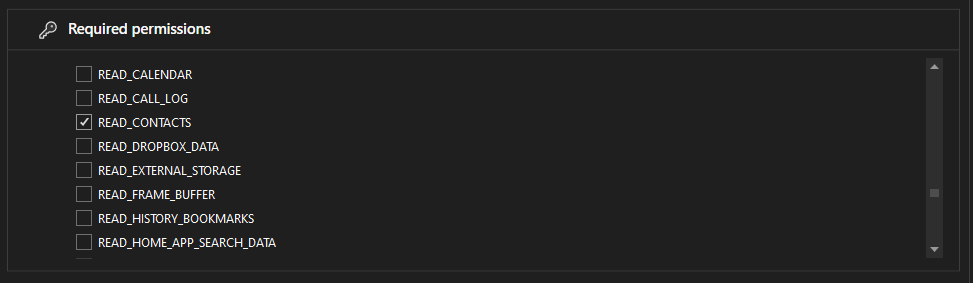
Go to Platforms → Android, double-click the AndroidManifest.xml file, and locate the Required permissions section. Find the permission labeled READ_CONTACTS and simply check the option, as shown below.
Option 3: Add the assembly-based permission
Go to Platforms → Android → MainApplication.cs and add the permission as follows:
[assembly: UsesPermission(Android.Manifest.Permission.ReadContacts)]
iOS/Mac Catalyst
On iOS and Mac Catalyst, we also need a very similar configuration to be able to access contacts. Follow these steps:
Step 1:
Right-click on Platforms → iOS → Info.plist and on Platforms → MacCatalyst → Info.plist (yes, each configuration is done per platform) and open the file with the editor.
Step 2:
Once the file is open, add the NSContactsUsageDescription key along with its description. This step is mandatory to comply with Apple’s guidelines. Keep in mind that this text must be very precise, as it will be the message shown to the user when the app requests permission to access their contacts.
<key>NSContactsUsageDescription</key>
<string>This app needs access to your contacts to select a contact and retrieve its information.</string>
Windows
Contact picking is not supported on Windows.
Let’s Start!
All set! We’ve prepared the initial configuration to get started! 🚀
.NET MAUI provides the IContacts interface, which allows us to select and retrieve information from the contacts stored on the device.
This interface is part of the Microsoft.Maui.ApplicationModel.Communication namespace and is available through the Default property, which gives us access to the ready-to-use implementation provided by .NET MAUI.
Important Considerations for iOS and macOS
There is a namespace conflict because multiple classes named Contacts exist. As a result, if you write only Contacts, .NET doesn’t know exactly which one you are referring to, and you might think there is an issue with your code when in reality you are just using the wrong class.
What’s the Solution?
To avoid this conflict, you must tell .NET exactly where the class you want to use comes from. This is done by using the fully qualified name:
Microsoft.Maui.ApplicationModel.Communication.Contacts
A Cleaner Solution
There is also a cleaner way to handle this. Instead of writing the full name every time you use it, you can create an alias with a using directive, like this:
using Communication = Microsoft.Maui.ApplicationModel.Communication;
This gives the namespace a shorter name. Then, you can use that alias directly in your code:
var contact = await Communication.Contacts.Default.PickContactAsync();
What Contact Information Can We Retrieve Exactly?
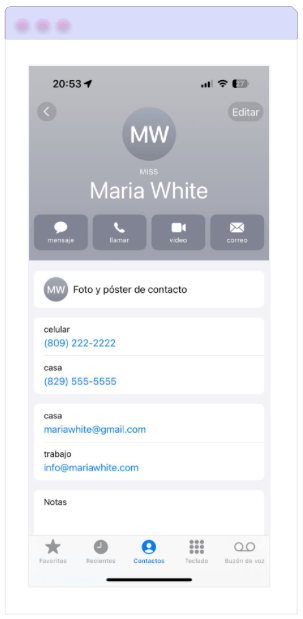
Let’s take a look at the data that can be retrieved from a contact. The following are the available fields:
- Id: The internal identifier of the contact on the device.
- NamePrefix: The name prefix (Mr., Mrs., Eng., Dr., etc.)
- GivenName: The contact’s first name.
- MiddleName: The contact’s middle name.
- FamilyName: The contact’s last name.
- NameSuffix: The name suffix (if any), for example, Jr.
- Phones: The list of phone numbers associated with the contact.
- Emails: The list of email addresses associated with the contact.
- DisplayName: The full name displayed on the phone. For example: Eng. Maris Lopez.
Getting Your Device Contact List
To retrieve the full list of contacts stored on your device, you can use the GetAllAsync() method. This method returns a collection containing all available contacts.
Below is an example showing how to retrieve them:
public async IAsyncEnumerable<string> GetContactNames()
{
    var contacts = await Contacts.Default.GetAllAsync();
// No contacts
if (contacts == null)
    yield break;

foreach (var contact in contacts)
    yield return contact.DisplayName;
}
But How Can I Select a Specific Contact? 🤔
To ask the user to select a specific contact from their device, we use the PickContactAsync() method. This method opens the system’s contact list, where the user can simply choose a contact.
⚠️ If the user does not select any contact or cancels the action, the method returns null.
In the following example, you can see how to retrieve the different pieces of information from the selected contact:
private async void SelectContactButton_Clicked(object sender, EventArgs e)
{
    try
    {
    var contact = await Contacts.Default.PickContactAsync();

	    if (contact == null)
		    return;
	    string id = contact.Id;
	    string namePrefix = contact.NamePrefix;
	    string givenName = contact.GivenName;
	    string middleName = contact.MiddleName;
	    string familyName = contact.FamilyName;
	    string nameSuffix = contact.NameSuffix;
	    string displayName = contact.DisplayName;
	    List<ContactPhone> phones = contact.Phones;
	    List<ContactEmail> emails = contact.Emails;
    }

    catch (Exception ex)
    {
    // Most likely permission denied
    }
}
✍️ Platform Differences You Should Know
Android
GetAllAsyncdoes not support thecancellationTokenparameter.
iOS / Mac Catalyst
GetAllAsyncdoes not support thecancellationTokenparameter.- The
DisplayNameproperty is not supported natively. Instead, its value is constructed usingGivenName FamilyName.
Conclusion
And that’s it! 🎉 In this article, you learned how to work with device contacts in .NET MAUI, from selecting a specific contact to retrieving the full contact list. You also explored key platform differences and important considerations to keep in mind when targeting Windows, Android, iOS and Mac Catalyst.
With this knowledge, you can now integrate contact access into your apps in a clear and reliable way, improving the user experience while handling platform-specific behaviors correctly.
See you in the next article! 🙋♀️✨
Reference
Code samples and explanations were based on the official documentation.

Leomaris Reyes
Leomaris Reyes is a software engineer from the Dominican Republic specializing in mobile development. She is a 7-time Microsoft MVP and actively builds mobile applications while sharing practical knowledge through technical articles and developer-focused content.
Through her work, she explains programming concepts, developer tools and real-world development practices to help developers grow in their careers.
You can follow her on Instagram and TikTok at @leomarisreyes.dev, read her articles on AskXammy, and connect with her on LinkedIn, where she shares tutorials, insights and resources for developers.
Related Posts
Comments
All articles
Topics
Web MobileMobile
Desktop
Design
Productivity
People