How to Verify Network Connectivity in .NET MAUI

Summarize with AI:
Learn the key steps to checking network connectivity in the various platforms available to your .NET MAUI app.
Identifying the connectivity of the devices running our mobile applications allows us to have much more precise control over the decisions we need to make within the app. From knowing whether the device has internet access, if the connection is limited, and if connection types such as Bluetooth, WiFi or Ethernet are active, all this information helps us provide a better user experience.
For example, we can decide whether to show an empty state when there is no internet connection, prevent certain actions or clearly inform the user about what is happening. This is especially important because, in many cases, the user loses connectivity and assumes the problem is with the application, when in reality it is a network issue.
Additionally, we can display different scenarios or behaviors depending on the type of connection available, such as when the device only has Bluetooth active or does not have internet access. That’s why it’s essential to know how to detect these connectivity states. The good news is that in .NET MAUI, we have the ability to do this in a very simple way. Let’s take a look! 🚀
First, Platform Configuration
Before starting with any implementation, it’s important to verify whether you need to apply any platform-specific configuration. Some platforms may require additional setup, while others work out of the box.
For this, iOS/Mac Catalyst and Windows require no additional configuration.
For Android, to access connectivity information, you must add the ACCESS_NETWORK_STATE permission. There are three different ways to add this permission on Android:
Android Option 1: Add the Permission Directly in the AndroidManifest.xml
Go to Platforms → Android, open the AndroidManifest.xml file, and add the following node:
<uses-permission android:name="android.permission.ACCESS_NETWORK_STATE" />
Android Option 2: Use the Android Manifest Graphical Editor
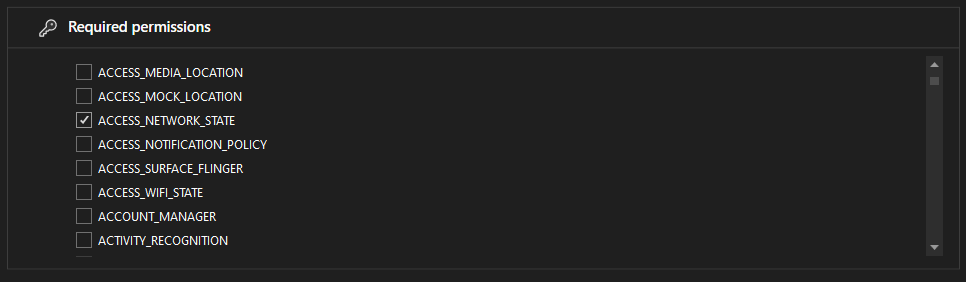
Go to Platforms → Android, double-click the AndroidManifest.xml file, and locate the Required permissions section. Find the permission labeled ACCESS_NETWORK_STATE and simply check the option, as shown below.
Android Option 3: Add the Assembly-based Permission
Go to Platforms → Android → MainApplication.cs and add the permission as follows:
[assembly: UsesPermission(Android.Manifest.Permission.AccessNetworkState)]
Network Accessibility in .NET MAUI
To inspect the network accessibility on a device, .NET MAUI provides the IConnectivity interface. This is part of the Microsoft.Maui.Networking namespace and is available through the Connectivity.Current property.
One thing I really like about this API is that it doesn’t simply return a boolean value indicating whether there is internet access or not. Instead, it provides much more detailed information, such as the scope of the current network (for example, Internet, ConstrainedInternet and others), as well as details about active connection profiles like Bluetooth, Cellular, WiFi and others. It also exposes an event that allows you to monitor changes in the device’s connectivity state in real time.
Next, we’ll take a closer look at each of these values to better understand what they mean and how you can use them in your applications.
How to Inspect the Current Network Scope? 🤔
Thanks to the .NET MAUI team, we can determine the scope of the current network in a much more precise way through the NetworkAccess property. This property provides different values that we can evaluate to obtain more detailed information about the device’s connectivity state. These values are the following:

➖ Internet: Indicates that the device has access to both the local network and the internet. This is the ideal state for making API calls or performing any action that requires a full internet connection.
➖ Local: The device has access only to the local network.
➖ None: No type of connectivity is available. In this state, it’s ideal to inform the user that all or some actions within the app will not work correctly due to the lack of connectivity. This can be done through an empty state, an alert or any other approach that best fits the scenario you’re working on.
➖ Unknown: It’s not possible to determine the connectivity state. If this happens, while the correct information is being retrieved, it’s recommended to inform the user in the same way as in the None state.
➖ ConstrainedInternet: Indicates that the device has limited internet access. This state usually appears when the device is connected to a network with a captive portal, meaning networks that require accepting terms or entering information before granting full internet access. This is common in places like airports, universities or hotels.
Thanks to all these states, as developers we can be much more specific in how we communicate connectivity issues to our users and better adapt the behavior of our applications.
For the code implementation, you can do something like what I show below:
NetworkAccess accessType = Connectivity.Current.NetworkAccess;

if (accessType == NetworkAccess.Internet)
{
    // Add the code that you need here
}
Checking Active Connection Profiles
While NetworkAccess tells us how accessible the network is (internet, local, none, etc.), ConnectionProfiles allows us to know which type of connection the device is actively using at a given moment.
The types of connections we can detect are the following:
- WiFi
- Cellular (mobile data)
- Bluetooth
- Ethernet
This information is extremely useful for making decisions within your application. For example:
- You can limit your app to download files only when the device is connected to a WiFi network.
- Enable local features when only a Bluetooth connection is available.
It’s important to keep in mind that Connectivity.Current.ConnectionProfiles returns a collection (IEnumerable<ConnectionProfile>), because a device can have multiple connection types active at the same time. For instance, the device may be connected to WiFi while Bluetooth is enabled simultaneously.
In code, the implementation would look like the following:
IEnumerable<ConnectionProfile> profiles = Connectivity.Current.ConnectionProfiles;

if (profiles.Contains(ConnectionProfile.WiFi))
{
    // Add the code that you need here.
}
Reacting to Connectivity Changes
We know that network conditions can change at any moment. For this reason, .NET MAUI provides the ConnectivityChanged event, which allows us to detect when network access or active connection profiles change. This makes it possible for our applications to react immediately to these changes, without breaking the app experience.
Let’s take a look at an example based on the official documentation:
public class ConnectivityListener
{
    public ConnectivityListener()
    {
	    Connectivity.ConnectivityChanged += OnConnectivityChanged;
    }

    void OnConnectivityChanged(object sender, ConnectivityChangedEventArgs e)
    {
	    if (e.NetworkAccess != NetworkAccess.Internet)
	    {
		    Console.WriteLine("No internet connection available.");
	    return;
	    }

	    if (e.ConnectionProfiles.Contains(ConnectionProfile.WiFi))
	    {
		    Console.WriteLine("Connected via Wi-Fi.");
	    }
	    else if (e.ConnectionProfiles.Contains(ConnectionProfile.Cellular))
	    {
		    Console.WriteLine("Using mobile data.");
	    }
    }
}
⚠️ Important Considerations
NetworkAccess.Internet: Due to how connectivity detection works on each platform, .NET MAUI can only detect that a network connection is available. It does not guarantee that the connection has real internet access. For example, a device may be connected to a WiFi network, but the router itself may not have an internet connection.
Conclusion
And that’s it! 🎉 In this article, you explored how to work with network connectivity in .NET MAUI using Connectivity. You learned how to determine the scope of the current network, detect active connection profiles such as WiFi, Cellular, Bluetooth and Ethernet, and react to connectivity changes in real time using the ConnectivityChanged event.
With this knowledge, you can now make better decisions in your apps, provide clearer feedback to users and build more resilient experiences that adapt to changing network conditions.
See you in the next article! 🙋♀️✨
References
Code samples and explanations were based on the official documentation:

Leomaris Reyes
Leomaris Reyes is a software engineer from the Dominican Republic specializing in mobile development. She is a 7-time Microsoft MVP and actively builds mobile applications while sharing practical knowledge through technical articles and developer-focused content.
Through her work, she explains programming concepts, developer tools and real-world development practices to help developers grow in their careers.
You can follow her on Instagram and TikTok at @leomarisreyes.dev, read her articles on AskXammy, and connect with her on LinkedIn, where she shares tutorials, insights and resources for developers.
Related Posts
Comments
All articles
Topics
Web MobileMobile
Desktop
Design
Productivity
People