Integrating Haptic Feedback in .NET MAUI

Summarize with AI:
Learn how to give your users interactive feedback with long or short haptic vibration in your .NET MAUI application.
From my experience, keeping users continuously informed about in-app activity is one of the most important retention strategies.
This feedback can take different forms. For example:
- A message indicating that a record could not be created because the email format isn’t valid
- An empty state that informs the user that the app is not working due to a loss of internet connection
- Sound feedback that confirms an action such as a successful transaction
However, there is another type of feedback that goes beyond visuals or sound: feedback that can be felt. This is where haptic feedback comes into play. This type of feedback is usually expressed through a device vibration to notify the user that an action has occurred.
Common examples include banking applications that vibrate when a transaction is completed successfully, or gaming apps that use vibrations to indicate a collision or an important in-game event. This type of interaction can help create a closer and more natural communication between the user and the application.
The good news is that today you will learn how to integrate haptic feedback into your .NET MAUI applications in a simple and very fast way! 😎
What Exactly Is IHapticFeedback? 🤔
IHapticFeedback is an interface in the Microsoft.Maui.Devices namespace that allows you to trigger device vibrations and can be accessed through the HapticFeedback.Default property.
Haptic feedback provides two different sensation modes that we can trigger in our application:
Click
This refers to a short and subtle vibration. It’s a great option when we want to provide feedback for simple interactions, such as tapping a button, selecting an item from a list or performing quick actions.
LongPress
This produces a longer vibration compared to Click. It’s mainly used for actions that require more attention or have greater importance, such as confirming a transaction or notifying the user about a relevant event.
Through HapticFeedback, we can specify which type of sensation we want to trigger. Let’s see how to get it implemented.
Initial Setup
For Android, we need authorization in our application in order to vibrate the device. This permission can be added in three different ways, which we’ll look at below.
For iOS / Mac Catalyst and Windows, no initial setup is required.
Android Option 1: Add It Directly to the Android Manifest
You can find this file at Platforms ➖ Android ➖ AndroidManifest.xml. Open it and add the following line:
<uses-permission android:name="android.permission.VIBRATE" />
Android Option 2: Using the Android Manifest Editor
Go to Platforms ➖ Android, double-click the AndroidManifest.xml file and locate the Required permissions section. Find the permission labeled VIBRATE and simply check the option, as shown below.
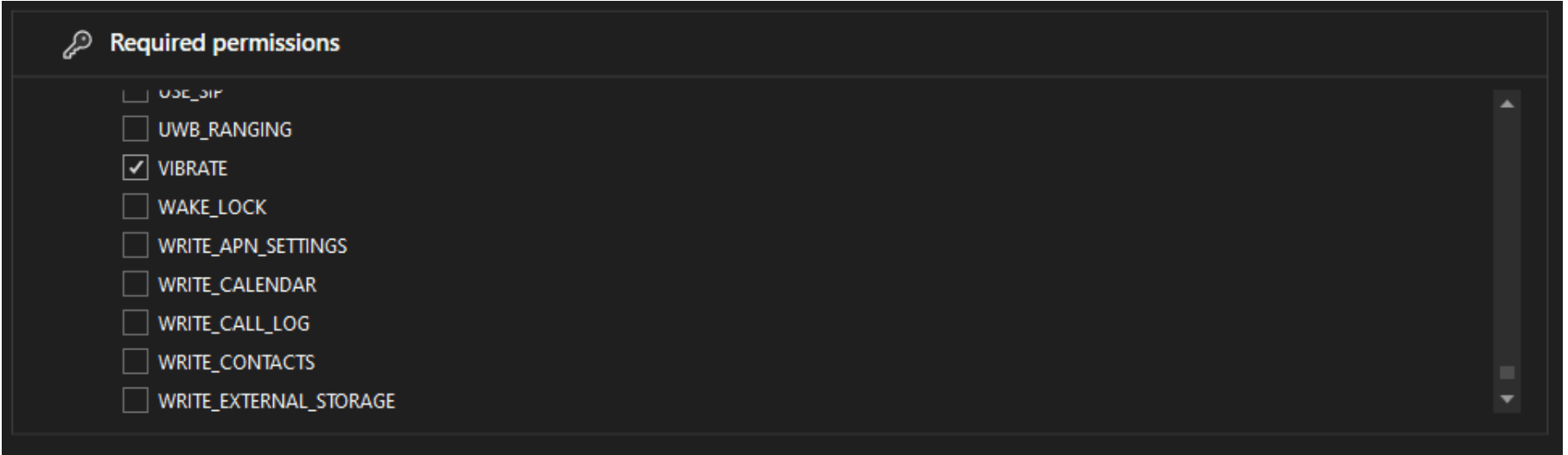
This automatically adds the same line we saw in the first option, but through a graphical interface.
Android Option 3: Adding the Assembly-based Permission
Go to the file Platforms ➖Android ➖ MainApplication.cs and add the permission as follows:
[assembly: UsesPermission(Android.Manifest.Permission.Vibrate)]
How to Implement Haptic Feedback?
Once we understand what haptic feedback is and have the correct platform configuration in place, adding it to our project is very easy.
Click (Short Haptic)
private void HapticShortButton_Clicked(object sender, EventArgs e) =>

HapticFeedback.Default.Perform(HapticFeedbackType.Click);
Taking a closer look, this code represents an event handler that contains the following:
HapticFeedback.Default: retrieves the default system implementation for the current device.
.Perform(HapticFeedbackType.Click): tells the system to execute a Click haptic feedback immediately.
LongPress (Longer Haptic)
private void HapticLongButton_Clicked(object sender, EventArgs e) =>

HapticFeedback.Default.Perform(HapticFeedbackType.LongPress);
This works exactly the same way as the previous example, but changes the feedback type to LongPress, resulting in a stronger and longer tactile response.
Connecting Haptic Feedback to a Button
Let’s look at a simple example using buttons in XAML:
<Button Text="Short Haptic" Clicked="HapticShortButton_Clicked"/>

<Button Text="Long Haptic" Clicked="HapticLongButton_Clicked"/>
With this setup, each button triggers a different type of haptic feedback when clicked, allowing the user to feel the interaction directly through the device.
🔧 Platform Considerations
- On Apple, haptic feedback must be triggered from the UI thread.
Conclusion
And that’s it! 🎉 In this article, you learned what haptic feedback is and how it can significantly improve user experience by providing tactile confirmation for user interactions in your .NET MAUI applications.
You also explored the different types of haptic feedback available—Click and LongPress—and when to use each one, as well as the platform-specific setup required, especially on Android, to enable the feature to work correctly across devices.
With these concepts in mind, you now have a clear understanding of how to integrate haptic feedback in a simple and effective way, enhancing interaction, usability, and overall app retention without adding unnecessary complexity to your code.
If you have any questions or would like me to cover more .NET MAUI topics, feel free to leave a comment—I’d be happy to help! 💚
See you in the next article! 🙋♀️✨
References
The explanation was based on the official documentation:

Leomaris Reyes
Leomaris Reyes is a software engineer from the Dominican Republic specializing in mobile development. She is a 7-time Microsoft MVP and actively builds mobile applications while sharing practical knowledge through technical articles and developer-focused content.
Through her work, she explains programming concepts, developer tools and real-world development practices to help developers grow in their careers.
You can follow her on Instagram and TikTok at @leomarisreyes.dev, read her articles on AskXammy, and connect with her on LinkedIn, where she shares tutorials, insights and resources for developers.
Related Posts
Comments
All articles
Topics
Web MobileMobile
Desktop
Design
Productivity
People