Building an Instagram-Style Like Animation in .NET MAUI

Summarize with AI:
Learn how to make your .NET MAUI app a little more engaging with interactive animations. We’ll see how to animate a heart for a like action.
One of the most rewarding aspects of software development is being able to replicate interfaces and behaviors from applications we use every day. Seeing a familiar interaction come to life in our own product—while respecting its essence and behavior—is undoubtedly very satisfying.
In this article, we’ll explore some of the basic animations available in .NET MAUI and how we can combine them to recreate one of Instagram’s most recognizable interactions: the like animation when tapping the heart. Through a practical example, we’ll see how to implement this behavior in a clear and straightforward way.
The goal is to help you lose the fear of working with animations in .NET MAUI. Sometimes we assume animation is too complicated or that it’s better not to attempt it at all. But the reality is that when used correctly and combined thoughtfully, even the most basic animations can produce great results. And the best part: with just a few lines of code, you can achieve this Instagram-like effect.
For better guidance, we’ll divide this article into the following phases:
- We’ll build a simple interface that represents the base structure of an Instagram post.
- We’ll start working with animations, walking through each step with its corresponding code example.
- Finally, we will see a result of the explained code.
Demo of the Goal Before We Start 👀
Before jumping into the implementation, here’s a quick demo of how the Instagram-like animation we’re building will look.
Building the Structure of an Instagram Post in XAML
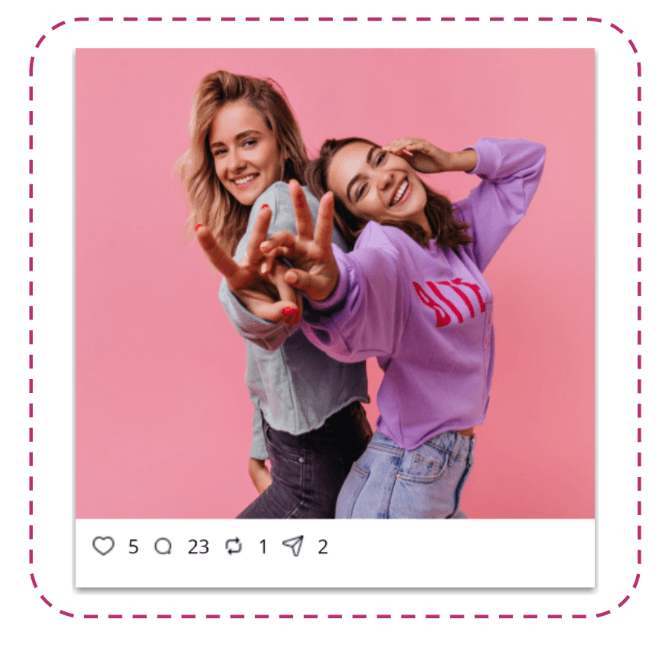
To better understand the animation, we’ll first recreate a simplified Instagram post UI in XAML. This structure will serve as the foundation for our animation and should look like the example shown below.

To replicate the basic structure of an Instagram post, we’ll start by adding a VerticalStackLayout. This layout will contain the user image, followed by a Grid that will be responsible for organizing the action icons: like, comment, repost and send.
Although, for now, we’ll only animate the heart icon, including the remaining actions helps make the example feel more realistic and closer to a real Instagram post design. 🤩
Let’s begin by creating the VerticalStackLayout and adding the Image.
<VerticalStackLayout>
    <Image Source="models.png"
	       Aspect="AspectFill"
	       HeightRequest="350" />
    <!-- Add all the remaining code here -- >
</VerticalStackLayout>
Okay, now let’s open a Grid. Initially, we’ll add all the elements that are not related to the like interaction, so that later we can focus exclusively on the XAML for the “likes.”
<Grid ColumnDefinitions="Auto,Auto,Auto,Auto,Auto,Auto,Auto,Auto"
    Padding="20,10"
    ColumnSpacing="10">

    <!-- Add likes implementation in the space -->
    <Label Grid.Column="1" Text="5" />

    <!-- Comments -->
    <Image Grid.Column="2" Source="comment" WidthRequest="15" HeightRequest="15" />
    <Label Grid.Column="3" Text="23" />

    <!-- Repost -->
    <Image Grid.Column="4" Source="repost" WidthRequest="15" HeightRequest="15" />
    <Label Grid.Column="5" Text="1" />

    <!-- Send -->
    <Image Grid.Column="6" Source="send" WidthRequest="15" HeightRequest="15" />
    <Label Grid.Column="7" Text="2" />
</Grid>
Adding Likes in the XAML
Although there are different ways to implement this behavior—such as leveraging VisualState—for this example, we’ll keep the approach intentionally simple. The goal is to take a closer look at how components like Grid and GestureRecognizers behave and how we can take advantage of them to build animations in a clear and controlled way.
We’ll need three images to achieve the animation:
- Outline image: When the post has not been liked yet, this is a heart with a transparent background and black outline.
- Filled image: When the post is liked, this is a solid heart (no outline) and it will remain hidden until the “liked” state needs to be displayed.
- Animated overlay : The image that will be used exclusively to display the animation.
In XAML, this translates to the following. In the code example above, locate the line that says <!-- Add likes implementation in the space --> and replace it with the following code:
<Grid Grid.Column="0"
WidthRequest="15"
HeightRequest="15">

<Image x:Name="HeartIcon"
    Source="heartoutline"
    WidthRequest="15"
    HeightRequest="15">

<Image.GestureRecognizers>
    <TapGestureRecognizer Tapped="OnHeartTapped" />
</Image.GestureRecognizers>
</Image>

<Image x:Name="HeartFilled"
    Source="heartfilledred"
    WidthRequest="15"
    HeightRequest="15"
    Opacity="0"
    InputTransparent="True" />

<Image x:Name="HeartBurst"
    Source="heartfilledred"
    WidthRequest="15"
    HeightRequest="15"
    Opacity="0"
    Scale="1"
    TranslationY="0"
    InputTransparent="True" />
</Grid>
✍️ We added a GestureRecognizer to the heart in its initial state. This allows us to detect the tap gesture and trigger the animation accordingly.
If you’d like to learn more about GestureRecognizers, I recommend you check out this MS Learn article.
Bringing the Like Interaction to Life 😎
In the previous XAML, we added an image with the name HeartIcon and associated it with an event called OnHeartTapped. The next step is to give that event a body and define what should happen when the user taps the heart.
The first thing we need is a variable that represents the current like state:
bool _isLiked;
Then, let’s implement the OnHeartTapped event:
void OnHeartTapped(object sender, EventArgs e)
{
    if (_isLiked)
    {
	    SetLiked(false);
	    return;
    }

    _ = PlayLikeAnimationAsync();
}
What Happens in This Event?
- Every time the heart is tapped, we first check whether it is already marked as liked.
If it is, that means the user wants to remove the like. So we set it to false usingSetLiked(false). - If the post is not liked, it means we need to trigger the heart animation. We do that by calling
PlayLikeAnimationAsync().
⚠️ PlayLikeAnimationAsync has not been created yet; we will add it and give it a body in the next steps.
Now that we know when the animation should be triggered, the next step is to create the PlayLikeAnimationAsync method to life. But before implementing it, let’s do a brief overview of the animations we will be using:
FadeTo: allows us to progressively change the opacity of a visual element. It receives values between 0 and 1.
💡 In our case, we use it to show or hide the heart while the like animation is happening.
TranslateTo: this animation is responsible for moving the element along the X axis (horizontal movement) and the Y axis (vertical movement).
💡 In our animation, we use it to simulate the heart jumping upward and then returning to its initial position.
To be able to run these animations simultaneously, we will use Task.WhenAll.
There are also two additional methods, SetLiked() and ResetWithEmptyHeart(), which we will cover and explain in the next steps.
Now, let’s see how all of this translates into code below.
async Task PlayLikeAnimationAsync()
{
    if (_isLiked) return;

    await Task.WhenAll(
	    HeartBurst.FadeTo(1, 80, Easing.CubicOut),
	    HeartBurst.TranslateTo(0, -35, 160, Easing.CubicOut)
    );

    await Task.WhenAll(
	    HeartBurst.TranslateTo(0, 0, 120, Easing.CubicInOut)
    );

    SetLiked(true);
    ResetWithEmptyHeart();
}
To close the animation flow, we rely on two methods that serve very specific purposes: SetLiked and ResetWithEmptyHeart.
SetLiked
This method is responsible for updating the visual state of the heart. Basically, if the like is true, we hide the HeartIcon (outline) and show the HeartFilled. If the like is false, we do the opposite: we show the outline icon and hide the filled icon.
In code, it looks like this:
void SetLiked(bool liked)
{
    _isLiked = liked;
    HeartIcon.Opacity = liked ? 0 : 1;
    HeartFilled.Opacity = liked ? 1 : 0;
}
ResetWithEmptyHeart
Finally, we have the ResetWithEmptyHeart() method. This one is responsible for cleaning up and resetting the animated image (HeartBurst) once the animation has finished, so that it always starts from a clean state the next time it runs.
In code, it would look like this:
void ResetWithEmptyHeart()
 {
    HeartBurst.Opacity = 0;
    HeartBurst.TranslationY = 0;
}
Here we reset:
- The opacity, so the animated heart is no longer visible.
- And the vertical position, bringing the heart back to its starting point.
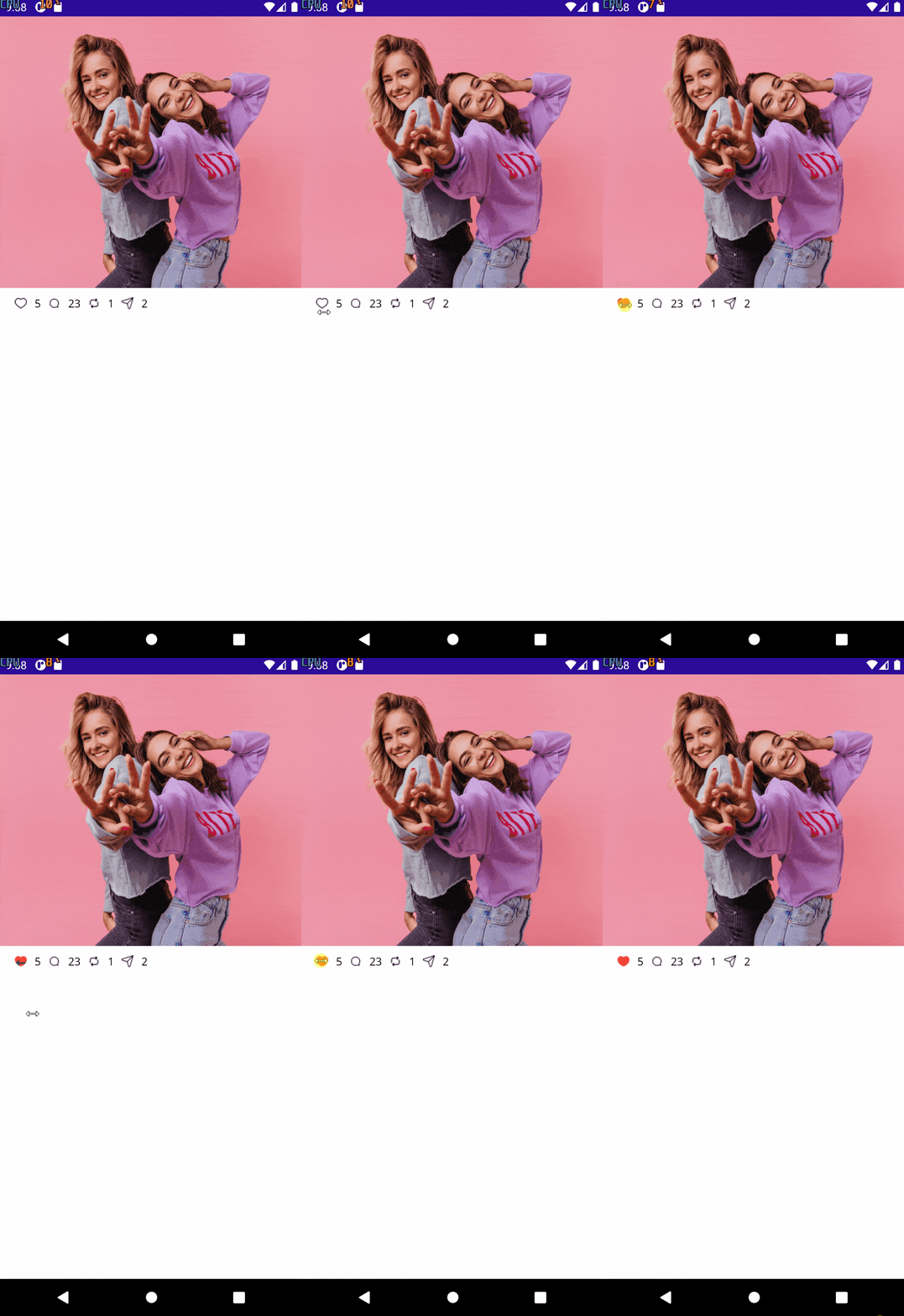
And with this implementation, the animation is now complete. 🎉 It should behave as follows:
Conclusion
And that’s it! 🙌 In a super simple way, we were able to replicate the Instagram like animation in .NET MAUI. We built it step by step so you could clearly understand how it works and, in the same way, apply this implementation to your everyday needs as a .NET MAUI developer.
If you have any questions or would like me to dive deeper into specific topics, feel free to leave a comment—I’ll be happy to help! 💚
See you in the next article! 🙋♀️

Leomaris Reyes
Leomaris Reyes is a software engineer from the Dominican Republic specializing in mobile development. She is a 7-time Microsoft MVP and actively builds mobile applications while sharing practical knowledge through technical articles and developer-focused content.
Through her work, she explains programming concepts, developer tools and real-world development practices to help developers grow in their careers.
You can follow her on Instagram and TikTok at @leomarisreyes.dev, read her articles on AskXammy, and connect with her on LinkedIn, where she shares tutorials, insights and resources for developers.
Related Posts
Comments
All articles
Topics
Web MobileMobile
Desktop
Design
Productivity
People