Replicating a Valentine-Inspired Login UI in .NET MAUI

Summarize with AI:
Learn how to build a Valentine-inspired login interface with .NET MAUI. We’ll go through the process step by step!
We find love in many forms: in the people around us, in that hobby we enjoy so much, in wearing clothes that make us feel good … and also in every step of our professional growth.
Yes, even in that love for creating beautiful, functional and well-thought-out user interfaces using XAML.
For many, designing UI can be a challenge. But like everything in development, that challenge is overcome by learning, practicing and daring to create. That’s why in this article we’re going to build a Valentine’s-inspired UI, taking as reference a design found on Dribbble and adapting it into an implementation using .NET MAUI.
We’ll build step by step a registration and a login screen. We’ll break down each section with its corresponding code blocks, so you can walk away not only with a visually appealing interface, but also with practical ideas you can apply to your own projects.
So get ready, because today we’re putting a little love into code. ❤️
Explanation & Insights
Before we get started, let’s go over a few key points that will help you better understand and replicate the UI:
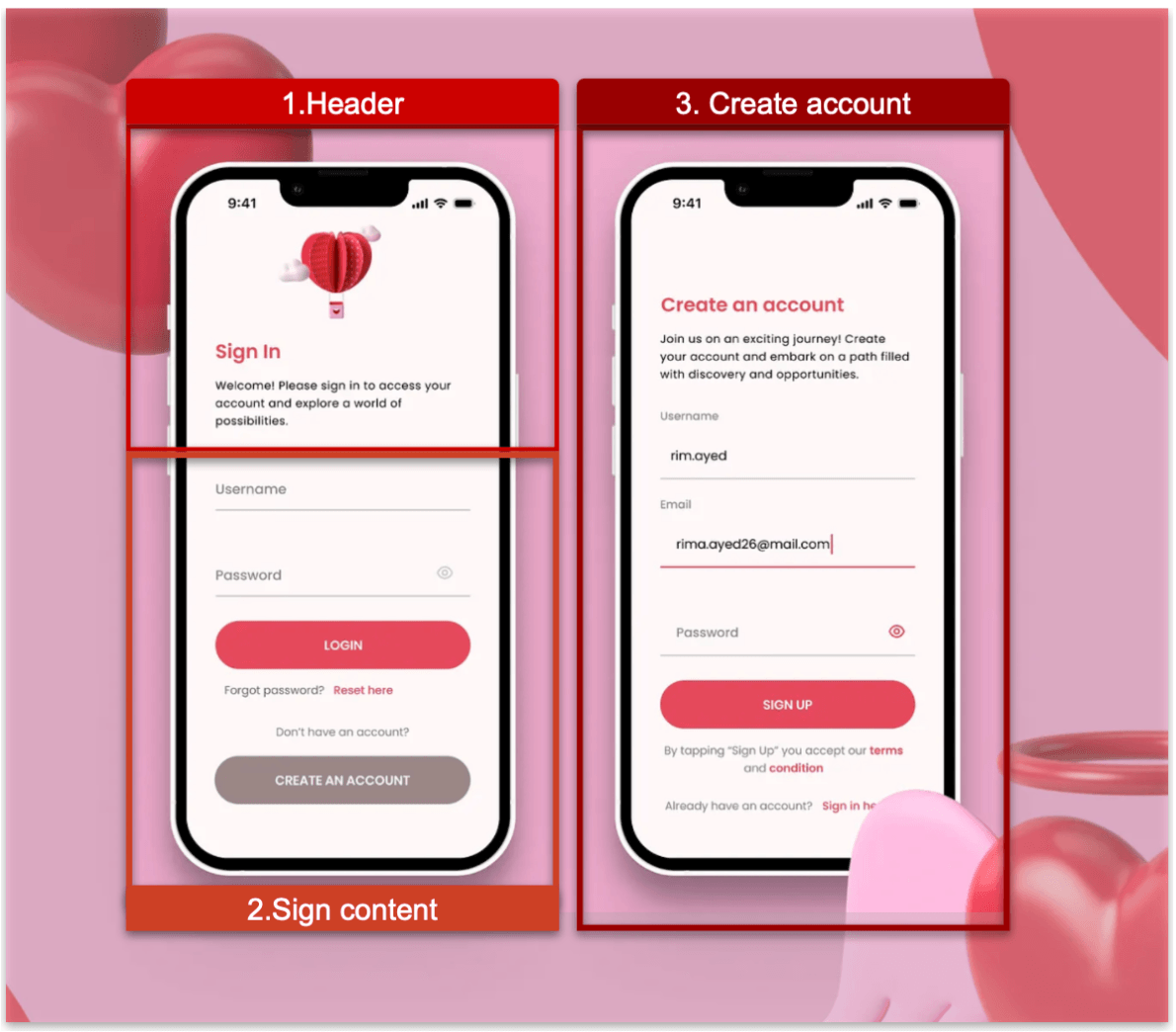
- Visual guide: Before we begin, I’ll share a preview of the UI we want to achieve. This image will be divided into color-coded blocks to make it easier to identify each section throughout the article.
- Code blocks: Each block will be explained separately. Every section will include a textual explanation, a code snippet with the exact code you need to write to achieve the result, and a screenshot showing how the UI evolves step by step.
- No styles: For the moment, we won’t use styles. This way, even developers who are just starting to build UIs can follow along more easily and understand the core structure without extra complexity. ❤️
Breaking Down the Dribbble Design into Blocks
To make this easier to follow, I’ve divided the original design into clear blocks. We’ll build each part one at a time, in the order you see below.
Main Structure
To create the first screen, we’ll start by creating a file called SignInPage.xaml. This file will contain the elements corresponding to blocks one and two of the block-based structure shown earlier.
Before we begin adding elements, it’s important to define an efficient structure, and this is where the layout comes into play. Choosing the right layout allows us to organize elements more easily within the screen. Since this is a simple example with a single vertical column of elements, we’ll use VerticalStackLayout as the main layout.
The VerticalStackLayout allows the elements to be vertically centered. Additionally, I added 30 of horizontal padding and a spacing of 40 between all the elements contained on this screen.
<ScrollView>
    <VerticalStackLayout
	    VerticalOptions="Center"
	    Padding="30,0"
	    Spacing="40">

    <!-- Add all the code here →

    </VerticalStackLayout>
</ScrollView>
💡 Tip: We’ll also wrap this layout inside a ScrollView, so that on devices with smaller screens, users can scroll through the content without it being cut off or overflowing the screen.
If you want to know more information about VerticalStackLayout, I invite you to read the article Exploring Layout Options in .NET MAUI.
Adding a background to the ContentPage: To give the page a uniform background color, we add the BackgroundColor property to the ContentPage and assign it the value #FFF8F8.
Header Block
Now we’re ready! Let’s start building the first block.
Before creating a UI, I like to analyze all the elements that make it up. This helps me clearly identify which components I’ll need and avoid having to rewrite code later on.
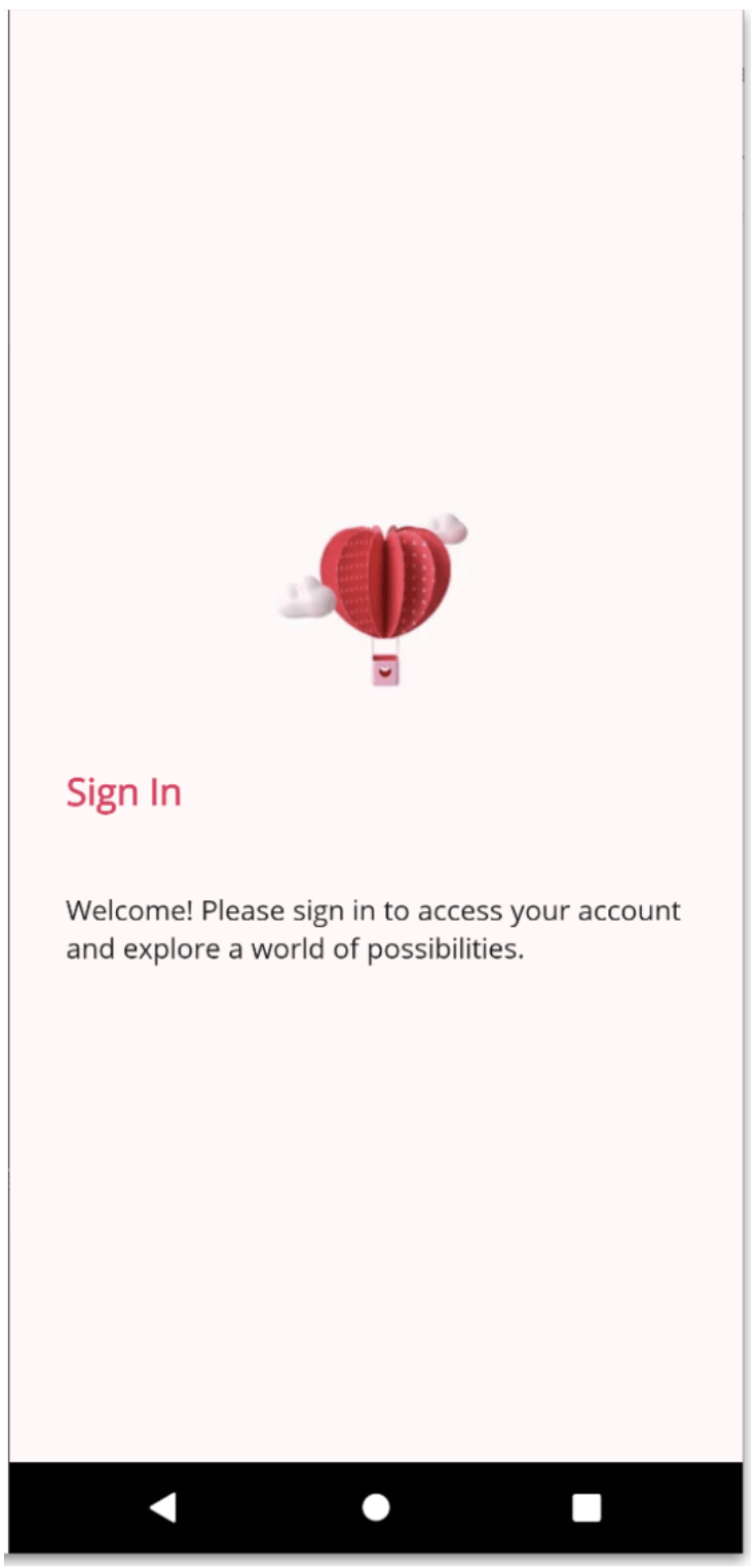
In this first block, the elements we see on the screen are:
- A horizontally centered image → we’ll use an
<Image>component - A red title → we’ll use a
<Label> - A description or subtitle in black → we’ll use a
<Label>
Let’s start by adding the image 👇
<Image
    Source="heart"
    HeightRequest="100"
    Aspect="AspectFit"
    SemanticProperties.Description="Header image" />

<!-- Add the next code block below -->
Here are a few important points to highlight:
➖ AspectFit: We added the image using the Aspect property with the value AspectFit, which allows the image to fit entirely within the available display area without being distorted. You can learn more about the differences between the various image aspect options in this article.
➖ SemanticProperties: We added a semantic description, which helps screen readers understand what element is being displayed on the screen. You can read more about this topic in the article Creating Accessible Apps with Semantic Properties in .NET MAUI.
Let’s continue adding the Label with the title:
<Label
    Text="Sign In"
    FontSize="20"
    FontAttributes="Bold"
    TextColor="#d14361"
    SemanticProperties.Description="Sign In" />
<!-- Add the next code block below -->
And to finish this first block, let’s add the description or subtitle:
<Label
    Text=”Welcome! Please sign in to access your account and explore a world of possibilities."
    TextColor="#121111"
    FontSize="15"
    SemanticProperties.Description="Welcome!"/>
<!-- Add the next code block below -->
At this point, your UI should look similar to the following example:
Sign-in Content Block
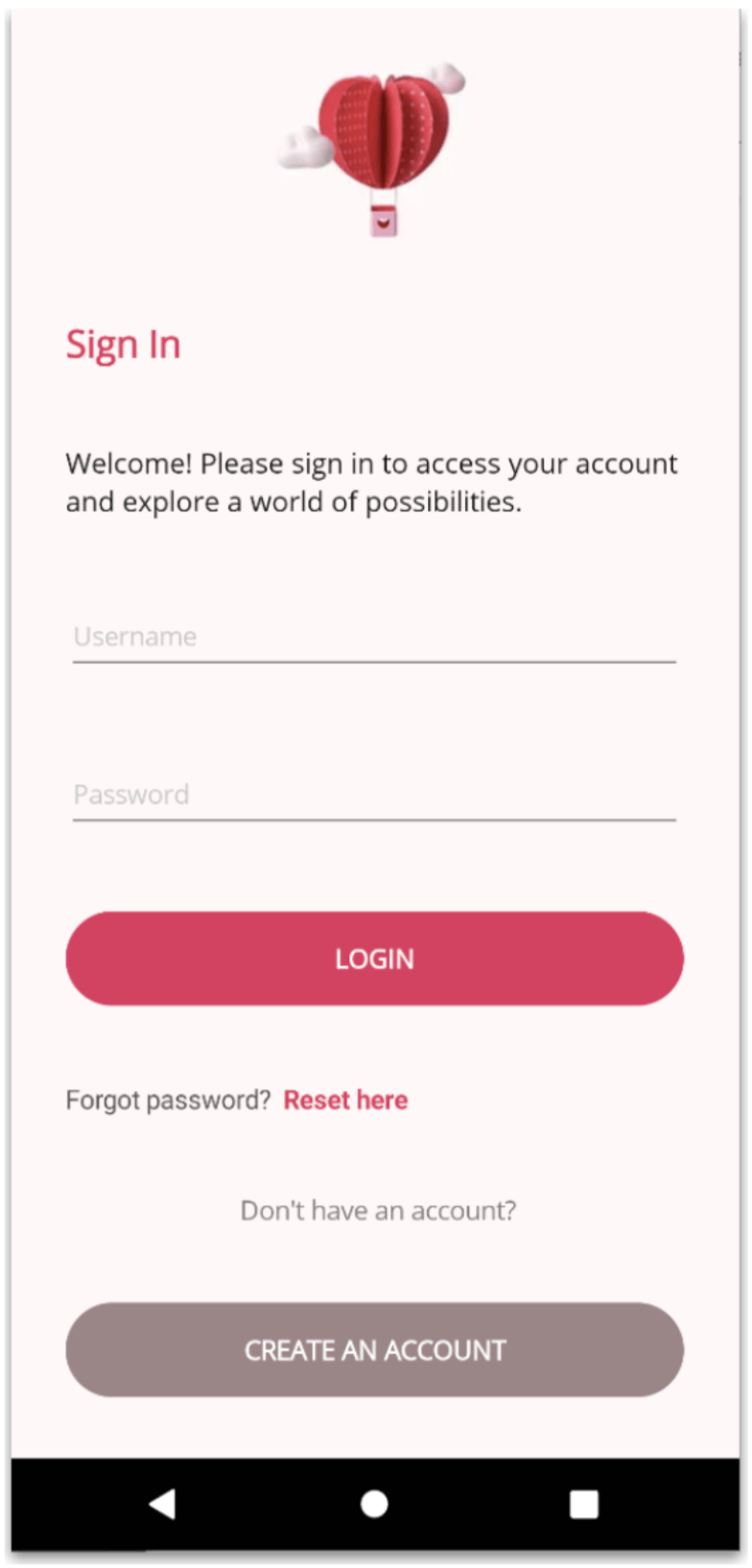
Continuing with the second block, let’s take a look at the elements that make up this component:
- Two input fields: One for the username and one for the password
- Two buttons: The first with the fields, “Login”; and the second for “Create an account”
- Two labels: One for the “Forgot your password” message and another for “Don’t have an account”
Let’s start with the two fields for the username and password 👇
Here, in addition to the username Entry, we add a password Entry and set the IsPassword property to True so the characters are hidden as the user types.
<Entry Placeholder="Username"/>
<Entry IsPassword="True" Placeholder="Password"/>
<!-- Add the next code block below -->
The Login Button
<Button BackgroundColor="#d14361"
    CornerRadius="50"
    FontAttributes="Bold"
    HeightRequest="50"
    Text="LOGIN"/>
<!-- Add the next code block below -->
Forgot Your Password Label
This text is composed of two different styles, and since a simple <Label> cannot handle multiple styles at the same time, we’ll use <Label.FormattedText> to achieve this.
<Label>
    <Label.FormattedText>
	    <FormattedString>
		    <Span Text="Forgot password? " TextColor="#555351" />
		    <Span Text=" Reset here" TextColor="#d14361" FontAttributes="Bold"/>
	    </FormattedString>
    </Label.FormattedText>
</Label>
<!-- Add the next code block below -->
Don’t Have an Account Label
<Label Text=" Don't have an account?"
    HorizontalOptions="Center"
    TextColor="Gray"/>
<!-- Add the next code block below -->
Create an Account Button
<Button BackgroundColor="#9A8687"
    CornerRadius="50"
    HeightRequest="50"
    FontAttributes="Bold"
    Text="CREATE AN ACCOUNT"/>
And that’s it! 😍 We’ve completed this second section, which means the first screen is now finished. At this point, your result should look like the following:
Create Account Page
We’ve reached the final stretch! And the last screen! 😎
Since this is a new screen, we’ll create a file called CreateAccountPage.xaml. Just like on the previous screen, we’ll use a VerticalStackLayout as the main layout.
<ScrollView>
    <VerticalStackLayout
	    VerticalOptions="Center"
	    Padding="30,0"
	    Spacing="40">

    <!-- Add all the code here →

    </VerticalStackLayout>
</ScrollView>
✍️ Here, we will also add the BackgroundColor property to the ContentPage, setting its value to #FFF8F8.
This screen contains several elements—let’s start with the title and the description labels:
<Label
    Text="Create an account"
    FontSize="20"
    FontAttributes="Bold"
    TextColor="#d14361"/>

<Label
    Text="Join us on an exciting journey! Create your account and embark on a path filled with discovery and opportunities."
    TextColor="#121111"
    FontSize="15"/>

<!-- Add the next code block below -->
Let’s continue with the username, email and password input fields. To keep this example simple, we won’t add a show/hide password feature.
<Entry Placeholder="Username"/>

<Entry Placeholder="Email"/>

<Entry IsPassword="True" Placeholder="Password"/>
Finally, let’s add a button, text for the terms and conditions, and another button to navigate to the Sign Up action.
<Button BackgroundColor="#d14361"
    CornerRadius="50"
    FontAttributes="Bold"
    HeightRequest="50"
    Text="SIGN UP"/>

<Label>
    <Label.FormattedText>
	    <FormattedString>
		    <Span Text="By tapping 'Sign In' you accept out " TextColor="#555351" />
		    <Span Text=" terms" TextColor="#d14361" FontAttributes="Bold"/>
		    <Span Text=" and " TextColor="#555351" />
		    <Span Text=" conditions" TextColor="#d14361" FontAttributes="Bold"/>
	    </FormattedString>
    </Label.FormattedText>
</Label>

<Label>
    <Label.FormattedText>
	    <FormattedString>
		    <Span Text="Already have an account? " TextColor="#555351" />
		    <Span Text=" Sign Up here" TextColor="#d14361" FontAttributes="Bold"/>
	    </FormattedString>
    </Label.FormattedText>
</Label>
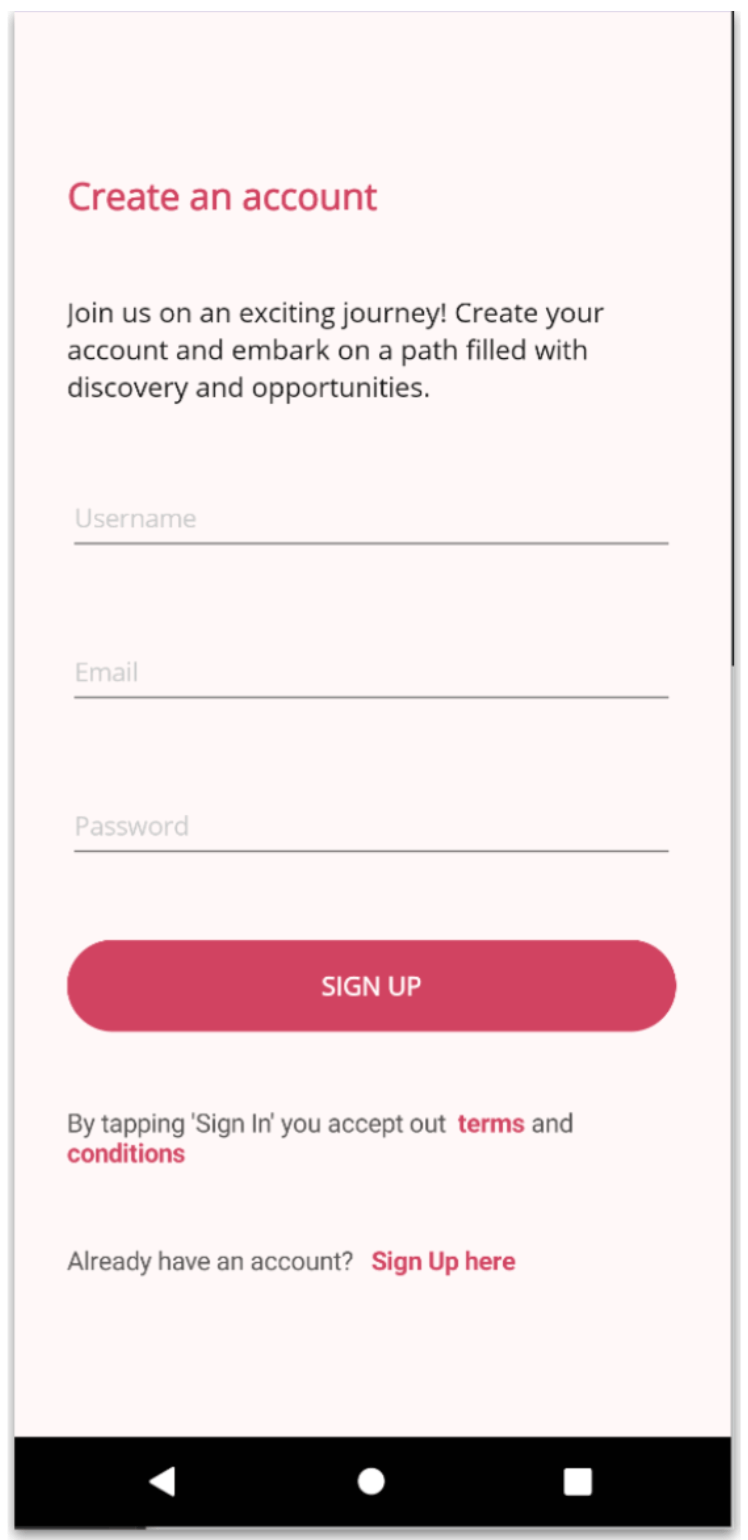
And the final result should look like the following:
With these simple steps, you’ve learned how to work with various .NET MAUI components and have successfully built your first two screens! 😍
Conclusion
And that’s it! 🎉 In this article, we explored how to build a Valentine-inspired login and sign-up UI using .NET MAUI with XAML. By breaking the UI into clear blocks and working step by step, you were able to focus on layout, and components without adding unnecessary complexity.
Remember, creating beautiful interfaces is not just about visuals—it’s about crafting experiences users will enjoy interacting with.
If you have any questions or would like me to dive deeper into specific topics, feel free to leave a comment—I’ll be happy to help! 💚
See you in the next article! 🙋♀️

Leomaris Reyes
Leomaris Reyes is a software engineer from the Dominican Republic specializing in mobile development. She is a 7-time Microsoft MVP and actively builds mobile applications while sharing practical knowledge through technical articles and developer-focused content.
Through her work, she explains programming concepts, developer tools and real-world development practices to help developers grow in their careers.
You can follow her on Instagram and TikTok at @leomarisreyes.dev, read her articles on AskXammy, and connect with her on LinkedIn, where she shares tutorials, insights and resources for developers.
Related Posts
Comments
All articles
Topics
Web MobileMobile
Desktop
Design
Productivity
People