Adding External Fonts in .NET MAUI

Summarize with AI:
Change your font, change your app. Here’s how to use an external font inside your .NET MAUI app to match your branding and style.
Did you know that changing a font can improve the perception of the user experience in your app? Of course! Because if you use a font that is very hard to read, the user will end up feeling frustrated and discouraged.
In app development, there is a whole team working together to prevent these kinds of issues. Besides developers, one super important role is the designer—the person who creates that “picture” of how the app should look: colors, styles, EVERYTHING! And within this, the designer also specifies which fonts we should use in the app.
As developers, we are responsible for making those design decisions happen—even if that means adding an external font to the project!
And that’s exactly why, in this article, you’ll learn how to add external fonts in .NET MAUI in a super quick and easy way
So grab your cup of coffee (or hot chocolate) and let’s get to work! ☕✨
.NET MAUI Font Handling
When you add a component that displays text, .NET MAUI already includes a default font called Open Sans for all platforms. This means that if you don’t want to add a different font, .NET MAUI will handle it for you automatically.
However, you can also add external fonts whenever you need them. A single font can include multiple visual styles—such as bold, italic or different weights and sizes.
All these variations can be controlled through properties like FontAttributes and FontSize in .NET MAUI. Even when using external fonts, you can still apply these properties to easily adjust the appearance and style of your text.
So … what do you need to do to add external fonts to your .NET MAUI project? 🤔
Relax! We can do it in just a few simple steps. This explanation will be divided into the following points:
1️⃣ Adding the font to your project
2️⃣ Registering the font
3️⃣ And using it in your app!
Now let’s dive into the explanation of each step!
Step 1: Adding the Font to Your Project
⚠️ Before adding a font to your project, make sure it uses a format supported by .NET MAUI:
- TrueType (.ttf): The most common font format, widely supported across platforms
- OpenType (.otf): Very similar to TTF, but with more advanced style options like ligatures, alternate characters and extended symbol support
If you don’t have a font available right now, don’t worry! To practice, I recommend DaFont, it has tons of super cool fonts you can use! 😎✨ - For this example, I downloaded the Super Joyful font.

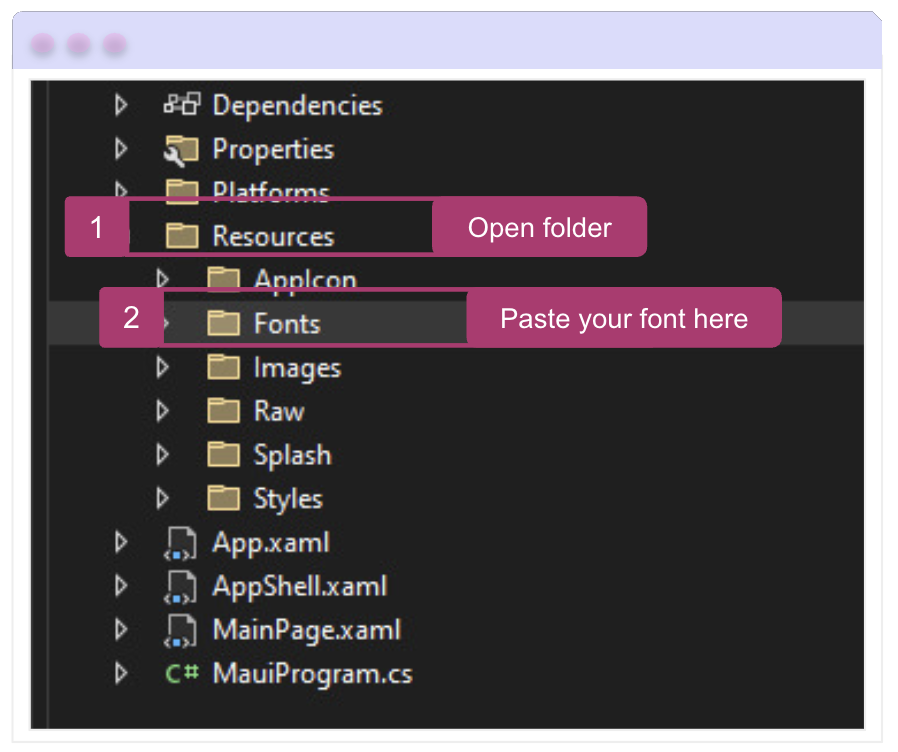
Once you’ve downloaded the font, go to your project and navigate to the Resources/Fonts directory. Place the font file there.
This step automatically sets the Build Action to MauiFont, which registers the font in your project. However, I always recommend double-checking just to be sure.
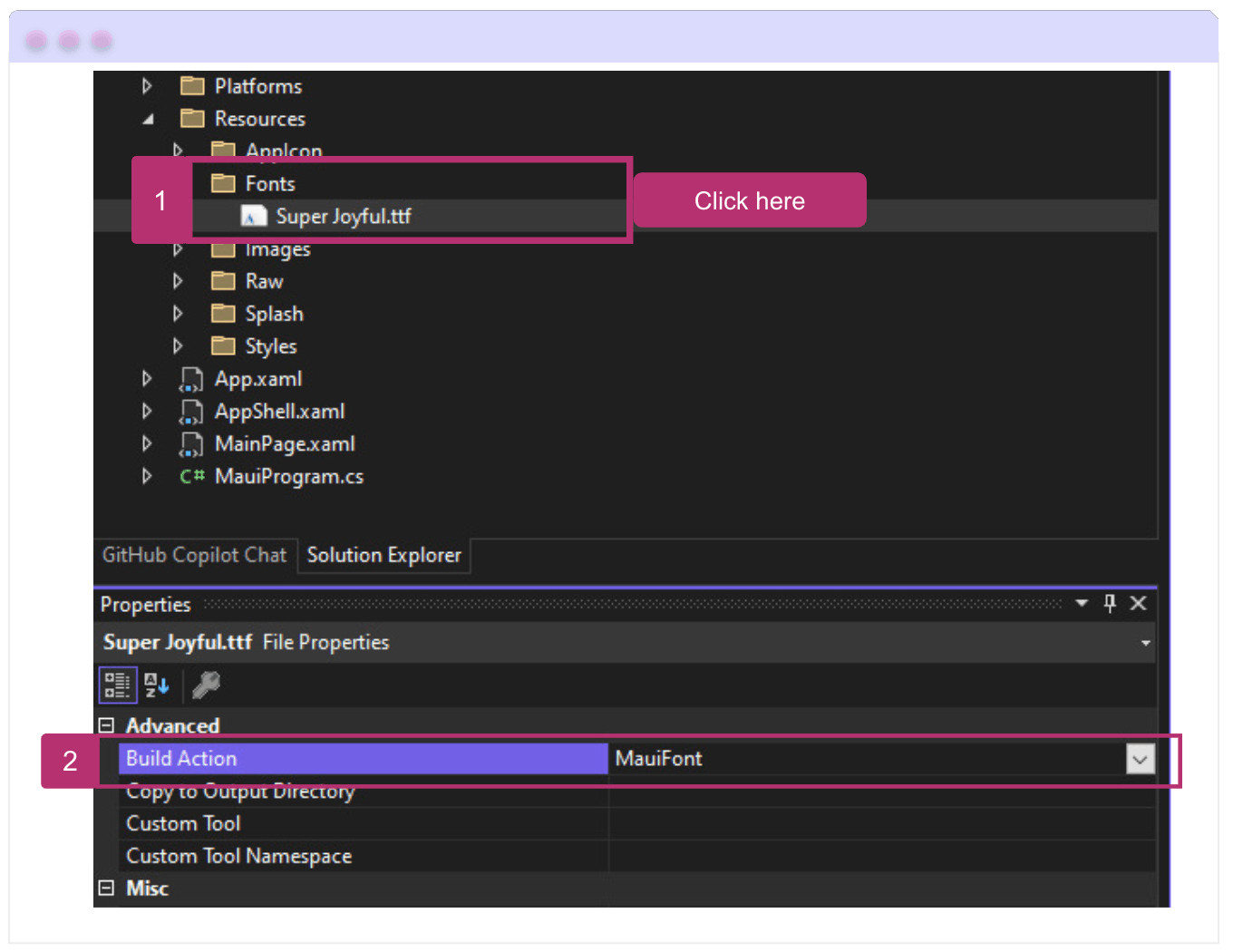
Open the font properties in the Solution Explorer. Then, locate the Build Action setting and verify it is set to MauiFont. This confirms that the font is correctly registered in your project. If it’s not, just select it—and you’re all set!
Below is an image that illustrates the configuration:
This registration will be reflected in your .csproj file as you can see in the following example:
<ItemGroup>
  <MauiFont Include="Resources\Fonts\*" />
</ItemGroup>
Step 2: Now It’s Time to Register the Font! 🎉
Open the MauiProgram class in your project and locate the CreateMauiApp method. There, we’ll call the ConfigureFonts method on the MauiAppBuilder instance.
Using the IFontCollection object, call the AddFont method. This allows you to include your font file. It accepts the following parameters:
- Font file name: The exact name of your font file as it appears in the project
- Alias (optional): A convenient name you can use to reference the font
In code, your MauiProgram class should look similar to the following example:
namespace MyMauiApp
{
    public static class MauiProgram
    {
	    public static MauiApp CreateMauiApp()
	    {
		    var builder = MauiApp.CreateBuilder();
		    builder
		    .UseMauiApp<App>()
		    .ConfigureFonts(fonts =>
		    {
			    fonts.AddFont("Super Joyful.ttf", "SuperJ");
		    });

	    return builder.Build();
	    }
    }
}
Step 3: How to Use the Previously Added Font? 🤔
To use your external font, simply use the FontFamily property. You can reference the font either by the file name included in the project or by the alias you defined during registration.
For example:
Using the font file name:
<Label Text="Hello .NET MAUI!"
    FontFamily="Super Joyful.ttf" />
Using the alias:
<Label Text="Hello .NET MAUI!"
    FontFamily="SuperJ" />
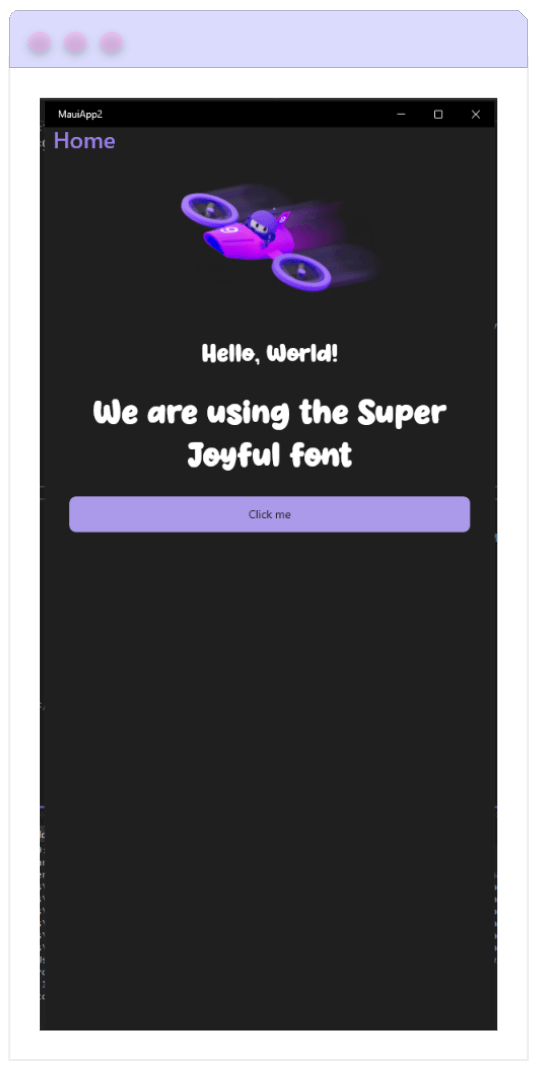
Done! 👏 We’ve successfully integrated the Super Joyful font—now let’s take a look at how it appears in a UI example! 👀✨
✍️ Platform Tips

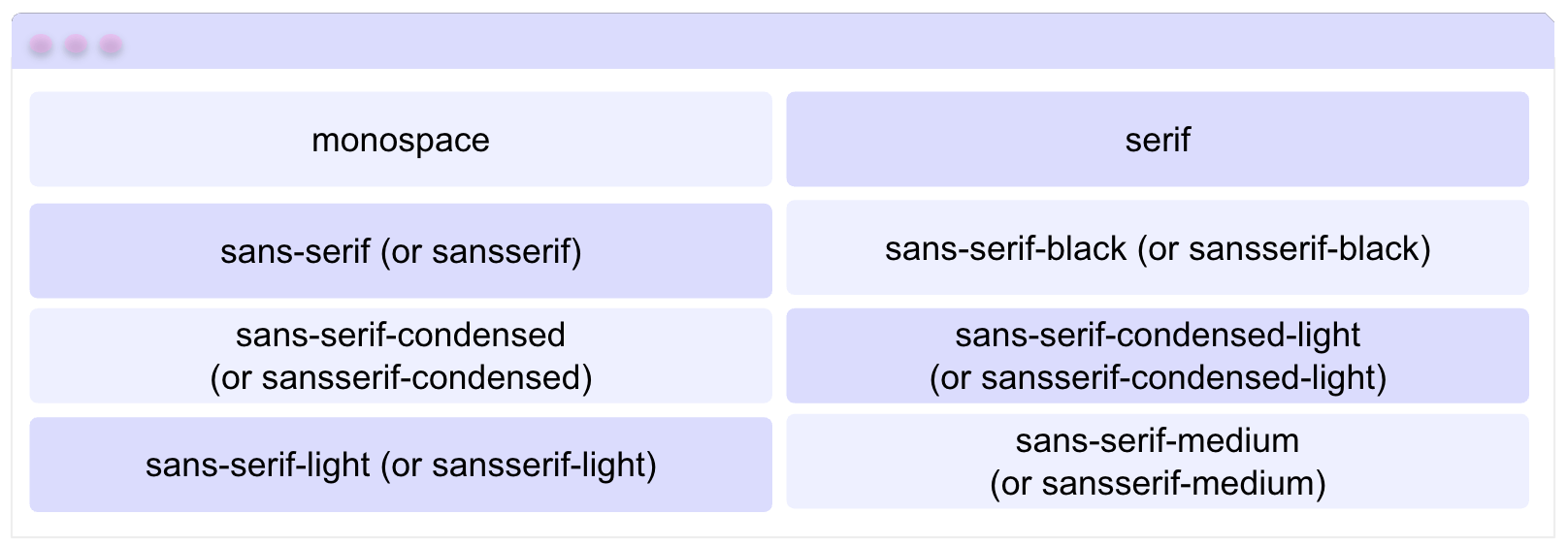
On Android, besides the default Open Sans, there are several fonts already installed on the device. Thanks to this, .NET MAUI allows you to use them without adding any font files to the Fonts folder and without registering them in the project.
To reference these system fonts, all you need to do is set their name as the value of the FontFamily property. 🙌 Fonts that include hyphens can be referenced with or without the hyphen, and they will work exactly the same!
The available fonts are:
And you can use them in your project exactly the same way as any other font!
<Label Text="Hello .NET MAUI"
    FontFamily="monospace" />
Conclusion
And that 's it! 🎉 In just a few simple steps, you’ve learned how to add external fonts to your .NET MAUI apps and how to take advantage of the system fonts that Android already provides. Now you’re ready to give your UI a more personalized and polished look! ✨
I hope this guide helps you enhance the visual experience in your applications starting today.
If you have any questions, feel free to leave them in the comments. I’d love to help! 💚✨ See you in the next article! 🙋♀️
References

Leomaris Reyes
Leomaris Reyes is a software engineer from the Dominican Republic specializing in mobile development. She is a 7-time Microsoft MVP and actively builds mobile applications while sharing practical knowledge through technical articles and developer-focused content.
Through her work, she explains programming concepts, developer tools and real-world development practices to help developers grow in their careers.
You can follow her on Instagram and TikTok at @leomarisreyes.dev, read her articles on AskXammy, and connect with her on LinkedIn, where she shares tutorials, insights and resources for developers.
Related Posts
Comments
All articles
Topics
Web MobileMobile
Desktop
Design
Productivity
People