Moving to Angular Zoneless

Summarize with AI:
Instead of change detection after every asynchronous task, Zoneless Angular applications use Signals to detect relevant state changes. Here’s how to set that up greenfield and what to watch for as you migrate to Zoneless.
If you have worked with Angular, you have probably seen components react and update the UI after a click, timer or HTTP request without calling detectChanges(). Angular has provided this convenience for years, so you usually do not need to think about what makes it work.
ZoneJS and Angular’s NgZone make this possible, and we can make reactive apps easy, but NgZone makes Angular check more than necessary. As your app grows, you may start asking a simple question: can Angular update only the views that really changed?
Modern Angular gives you that option with Zoneless change detection. Signals and other Angular APIs can tell Angular when a view needs an update. This lets you build applications without depending on NgZone to watch every asynchronous task.
Today, let’s build together a small product dashboard with Angular 22 and Progress Kendo UI for Angular. First, we will learn how the old model works. Then we will use Signals and httpResource to build a Zoneless dashboard. Finally, we will review common problems that can appear during a Zoneless migration.
Let’s start with what made the old model work: NgZone and ZoneJS.
What Are NgZone and ZoneJS?
When we talk about NgZone, it’s a service that connects Angular to the ZoneJS library. ZoneJS patches many browser APIs, including timers, events and promises. When one of these operations finishes, Angular can use that notification to schedule change detection.
Think of ZoneJS as a central alarm. It does not know which component changed. As a result, Angular may check a large part of the component tree after the alarm rings. This is easy to use because developers do not always need to tell Angular that state changed.
For example, this code changes a normal property from a timer:
export class NotificationComponent {
  badgeCount = 0;

  ngOnInit(): void {
    setInterval(() => {
      this.badgeCount++;
    }, 3000);
  }
}
With ZoneJS, the timer can trigger Angular change detection, and the badge updated property can appear in the template even though the component did not explicitly notify Angular. That convenience has a cost, especially in larger applications:
- Angular can perform checks that do not produce a visible change.
- ZoneJS injects runtime code into the application.
- Stack traces can include framework scheduling details that make debugging painful.
The performance cost depends on the application. Zoneless does not promise that every application will become faster. It makes change detection more explicit and can reduce unnecessary work when the application exposes its state clearly.
We have seen why Angular used NgZone and what ZoneJS added. Now, let’s look at how Angular knows that a Zoneless view needs an update.
How Does Zoneless Change Detection Work?
Zoneless Angular does not need NgZone to watch browser tasks. Instead, Angular schedules change detection when one of its APIs sends a notification. Examples include a signal read by a template, a bound event listener, a component input and ChangeDetectorRef.markForCheck(). Signals are the most common option. They store state and tell Angular which views use it.
The difference is simple. ZoneJS can trigger a broad check after a timer, event or promise, but Zoneless Angular reacts to an Angular notification and updates the views connected to that state. Not every value must become a signal(). However, values used by a template must change through a mechanism that Angular can observe.
That is the idea we will use in the dashboard: a user event changes a signal, the resource loads new data and the template updates.
Build a Zoneless Product Dashboard
Let’s build a small product dashboard with a category filter and a Kendo UI for Angular Grid. Keeping the example small makes it easier to follow the change detection path.
Step 1: Create the Angular Project
Create the project with Angular CLI. Run this command in a terminal:
npx @angular/cli@22 new zoneless-kendo-dashboard --standalone --style=scss --ssr=false
cd zoneless-kendo-dashboard
The first command creates an Angular 22 project. It includes standalone components and SCSS, and it disables server-side rendering. The second command moves into the project folder. You should now have files such as src/app/app.ts, src/app/app.html, andsrc/app/app.scss`.
Start the new application to check that the project works before continuing:
ng serve
Open http://localhost:4200 in your browser. You should see the default Angular application. Stop the server with Ctrl+C before continuing.
New Angular projects use the defaults for that Angular version. Before using the next step in an existing project, check its Angular version and the generated app.config.ts.
Next, check the change detection configuration Angular generated.
Zoneless in Angular 22
In this example, you are using Angular 22, which uses zoneless change detection by default. The generated app.config.ts does not need a provideZonelessChangeDetection() call. The project also does not include zone.js as a dependency.
import { ApplicationConfig, provideBrowserGlobalErrorListeners } from '@angular/core';
import { provideHttpClient } from '@angular/common/http';
import { provideRouter } from '@angular/router';
import { routes } from './app.routes';

export const appConfig: ApplicationConfig = {
  providers: [
    provideBrowserGlobalErrorListeners(),
    provideRouter(routes),
    provideHttpClient(),
  ],
};
We add provideHttpClient() because this dashboard will use httpResource to call the Fake Store API. provideHttpClient() is an HTTP provider, not a Zoneless provider, but if your application does not make HTTP requests, you can leave it out.
What About Older Angular Versions?
This section is only for older versions like Angular 20, because not every project uses the latest Angular version. Angular 20 and later support opting into Zoneless with provideZonelessChangeDetection(). New projects created with Angular 21 and later use Zoneless by default, but existing applications still need a migration review.
For an Angular 20 application that still uses ZoneJS, add the provider in app.config.ts, then review the project configuration. If you use an older Angular version, check its version-specific migration guide because the provider and setup can be different:
import { provideZonelessChangeDetection } from '@angular/core';

export const appConfig: ApplicationConfig = {
  providers: [
    provideZonelessChangeDetection(),
  ],
};
After checking the application, tests and third-party libraries, remove zone.js and zone.js/testing from angular.json or the polyfills configuration. Only then remove the package:
npm uninstall zone.js
Now you know how to set up Zoneless for the old version; now let’s continue with our project in Angular 22 and add Kendo UI!
Step 2: Install Kendo UI Components
Now that the Angular project is ready, add the UI components that users will use. Kendo UI will provide the category selector and product grid, so install the packages from the project folder:
npm install @progress/kendo-angular-grid @progress/kendo-angular-dropdowns
npm install @progress/kendo-theme-default @angular/animations @angular/localize
Check Kendo UI for Angular compatibility documentation when choosing package versions. Kendo UI components require Angular’s animation and localization runtimes, so install @angular/animations and @angular/localize as part of the setup.
Because Kendo UI uses Angular localization internally, add the localize runtime as a build polyfill in angular.json:
{
  "polyfills": [
    "@angular/localize/init"
  ]
}
Then load the Kendo UI theme in src/styles.scss:
@import '@progress/kendo-theme-default/dist/all.css';
Kendo UI gives you ready-to-use components such as the Angular DropDownList and Grid. Before you use all their features, review the Angular bundle budget. The application can compile successfully even when its bundle exceeds the default budget, so update angular.json after measuring the result:
{
  "type": "initial",
  "maximumWarning": "5MB",
  "maximumError": "6MB"
}
This change gives the Kendo UI Grid and DropDownList enough space within the bundle budget. Do not increase the budget in production without first measuring the bundle. Review imports, themes and lazy loading as the application grows. In this project, the generated bundle is about 4.4 MB, so the default 500kB warning and 1MB error limits are too low for these components.
The project is ready for the dashboard UI. Next, connect the product request to a signal so a category change can load new data.
Step 3: Fetch Products with httpResource
The UI dependencies are in place, but the grid still needs data. Use httpResource to connect the HTTP request to Angular’s reactive APIs. If the signal read by the request function changes, the resource starts a new request and exposes loading, error and value state.
Create src/app/product.service.ts. Run this command from the project folder to generate the file:
ng generate service product
Replace the generated service with this code:
import { httpResource } from '@angular/common/http';
import { Service, signal } from '@angular/core';

export interface Product {
  id: number;
  title: string;
  price: number;
  category: string;
  description: string;
}

@Service()
export class ProductService {
  readonly selectedCategory = signal('all');

  readonly productsResource = httpResource<Product[]>(() => {
    const category = this.selectedCategory();

    return category === 'all'
      ? 'https://fakestoreapi.com/products'
      : `https://fakestoreapi.com/products/category/${encodeURIComponent(category)}`;
  });
}
The service does not inject HttpClient because httpResource handles the request. The signal is read inside the resource function, so changing the selected category changes the resource URL. This example uses @Service() because it is a root-level service that uses inject().
The service now owns the reactive product request. That gives the component one clear source for its server state.
Step 4: Connect Kendo UI Components with Signals
The service is ready. Now we connect the Kendo UI DropDownList (category filter) and Grid (product list) to the signals from ProductService. The template reads signals directly—[value]="selectedCategory()" and [data]="products()"—so when a signal changes, Kendo UI updates without NgZone.
The Kendo UI Grid gives you virtual scrolling, sorting, filtering and column resizing out of the box, all reactive to signal changes. The DropDownList handles keyboard navigation, filtering and accessibility without extra code.
Think of it like a direct wire: the signal is the switch, the Kendo UI component is the light. When you flip the switch, the light turns on. No central alarm (ZoneJS) needed.
The current Angular CLI creates src/app/app.ts, src/app/app.html, and src/app/app.scss. Update these files separately. This matches the structure the CLI generates and shows where each part of the component belongs.
import {
  Component,
  computed,
  effect,
  inject,
} from '@angular/core';
import { DropDownListModule } from '@progress/kendo-angular-dropdowns';
import { GridModule } from '@progress/kendo-angular-grid';
import { ProductService } from './product.service';

@Component({
  selector: 'app-root',
  imports: [DropDownListModule, GridModule],
  templateUrl: './app.html',
  styleUrl: './app.scss',
})
export class App {
  private readonly productService = inject(ProductService);

  readonly categories = [
    'all',
    'electronics',
    'jewelery',
    "men's clothing",
    "women's clothing",
  ];

  readonly selectedCategory = this.productService.selectedCategory;
  readonly productsResource = this.productService.productsResource;
  readonly products = computed(() => this.productsResource.value() ?? []);

  constructor() {
    effect(() => {
      document.title = `Products - ${this.selectedCategory()}`;
    });
  }

  onCategoryChange(category: string): void {
    this.productService.selectedCategory.set(category);
  }
}
Now replace the content of src/app/app.html with the dashboard template:
<main class="container">
  <header>
    <h1>Angular Zoneless Product Dashboard</h1>
    <p>Signals, httpResource, and Kendo UI working together.</p>
  </header>

  <section class="controls" aria-labelledby="filter-title">
    <h2 id="filter-title">Filter products</h2>
    <kendo-dropdownlist
      aria-label="Filter by category"
      [data]="categories"
      [value]="selectedCategory()"
      (valueChange)="onCategoryChange($event)"
    ></kendo-dropdownlist>
  </section>

  <p class="category-summary">
    Available categories:
    @for (category of categories; track category) {
      <span>{{ category }}</span>
    }
  </p>

  @if (productsResource.isLoading()) {
    <p class="status">Loading products...</p>
  } @else if (productsResource.error()) {
    <p class="status error" role="alert">
      The products could not be loaded. Try again later.
    </p>
  } @else {
    <kendo-grid [data]="products()" [height]="400">
      <kendo-grid-column field="id" title="ID" [width]="70" />
      <kendo-grid-column field="title" title="Product" />
      <kendo-grid-column field="category" title="Category" [width]="160" />
      <kendo-grid-column field="price" title="Price" format="{0:c}" [width]="120" />
    </kendo-grid>
}
}
Let’s take a look at the HTML code. The DropDownList reads selectedCategory() with [value]. The Grid reads products() with [data]. And the (valueChange) event writes back to the signal. That is the whole loop. Read the signal, update UI, write signal, done!
The effect() syncs the category to the browser title. A side effect outside the template, but still driven by a signal.
Next, replace the content of src/app/app.scss with the dashboard styles:
.container {
  max-width: 900px;
  margin: 2rem auto;
  padding: 0 1rem;
  font-family: system-ui, sans-serif;
}

header {
  border-bottom: 2px solid #d9e2ec;
  margin-bottom: 2rem;
  padding-bottom: 1rem;
}

.controls {
  align-items: center;
  display: flex;
  gap: 1rem;
  margin-bottom: 1rem;
}

.category-summary span {
  margin-right: 0.75rem;
}

.status {
  padding: 2rem;
  text-align: center;
}

.error {
  color: #a61b1b;
}
The @if block reacts to resource state, while @for renders the category summary. The key point is that the template reads Signals. When selectedCategory changes, the resource and the affected view receive Angular notifications without relying on NgZone.
Run the application by running the following command:
ng serve
Open http://localhost:4200. You should first see the loading message, followed by the product grid. Select all in the dropdown and confirm that the loading message appears again before the filtered products are displayed.
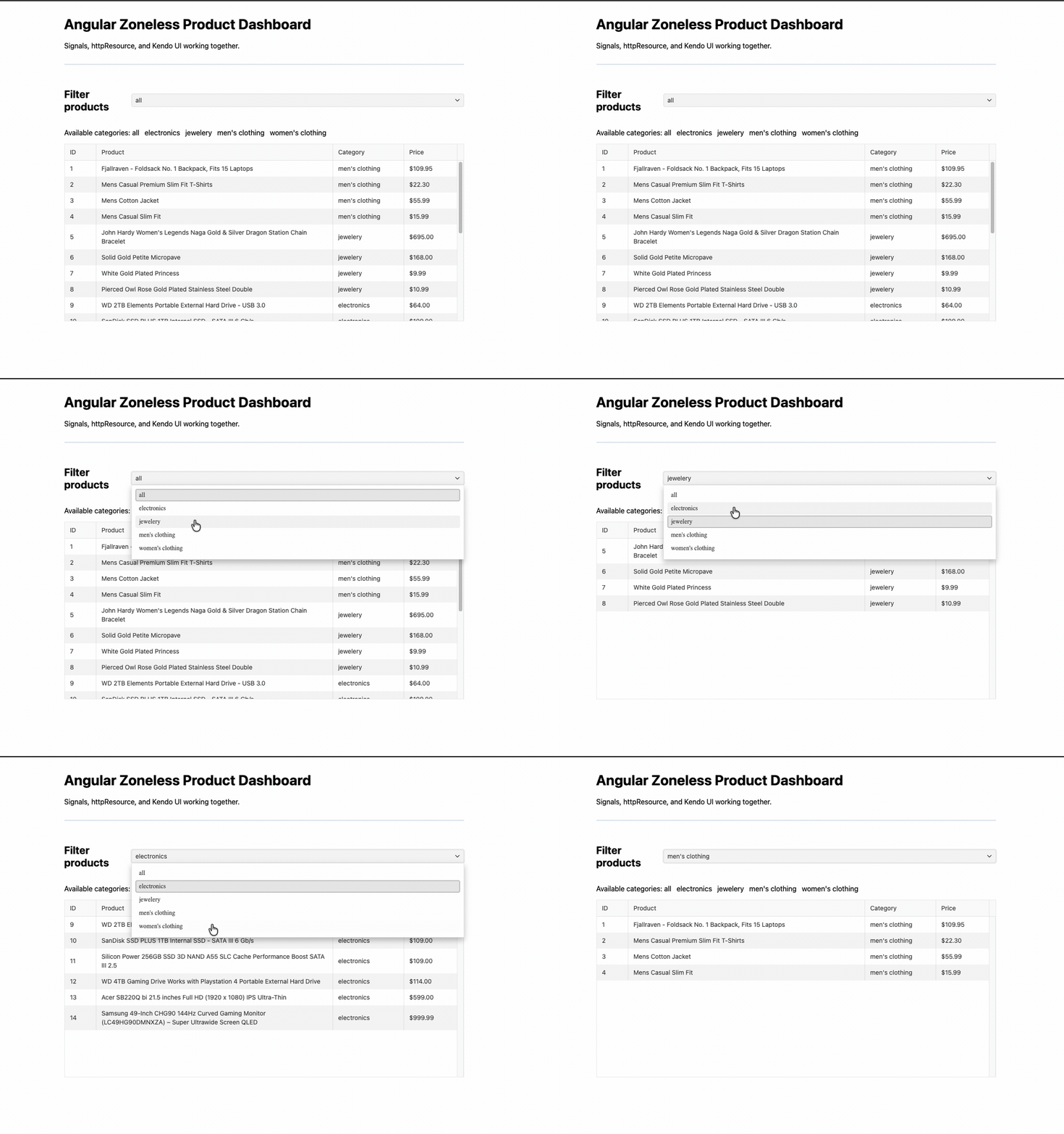
Done!! Our flow is working from the signal to the resource and then to the template. But my next question is: how do we test this flow without leaving an HTTP request pending? 🤔
Test Zoneless Components
In a Zoneless test, you need to wait for Angular’s scheduled work and control asynchronous dependencies. A pending HTTP request is not stable work, so flush it through HttpTestingController. This lets you test the same signal-to-view path without depending on the real API.
Here is a focused Vitest test for the initial product request in src/app/app.spec.ts. The test uses provideHttpClientTesting() to control the request.
The Zoneless provider is included in TestBed to make the setup explicit, even though Angular 22 enables it by default in a new application:
The following snippet copy and replace the app.spec.ts file:
import { provideHttpClient } from '@angular/common/http';
import {
  HttpTestingController,
  provideHttpClientTesting,
} from '@angular/common/http/testing';
import { provideZonelessChangeDetection } from '@angular/core';
import { ComponentFixture, TestBed } from '@angular/core/testing';
import { provideAnimationsAsync } from '@angular/platform-browser/animations/async';
import { App } from './app';

describe('App in a zoneless application', () => {
  let fixture: ComponentFixture<App>;
  let httpTesting: HttpTestingController;

  beforeEach(async () => {
    await TestBed.configureTestingModule({
      imports: [App],
      providers: [
        provideZonelessChangeDetection(),
                provideAnimationsAsync(),
        provideHttpClient(),
        provideHttpClientTesting(),
      ],
    }).compileComponents();

    fixture = TestBed.createComponent(App);
    httpTesting = TestBed.inject(HttpTestingController);
    fixture.detectChanges();
  });

  afterEach(() => {
    httpTesting.verify();
  });

  it('renders products after the HTTP request settles', async () => {
    const request = httpTesting.expectOne(
      'https://fakestoreapi.com/products',
    );

    request.flush([
      {
        id: 1,
        title: 'Test product',
        price: 10,
        category: 'electronics',
        description: 'A product for the test',
      },
    ]);

    await fixture.whenStable();

    expect(fixture.nativeElement.textContent).toContain('Test product');
  });

  it('loads products when the category changes', async () => {
    const initialRequest = httpTesting.expectOne(
      'https://fakestoreapi.com/products',
    );
    initialRequest.flush([]);
    await fixture.whenStable();

    fixture.componentInstance.onCategoryChange("men's clothing");
    fixture.detectChanges();

    const request = httpTesting.expectOne(
      "https://fakestoreapi.com/products/category/men's%20clothing",
    );

    request.flush([
      {
        id: 2,
        title: 'Test clothing product',
        price: 20,
        category: "men's clothing",
        description: 'A clothing product for the test',
      },
    ]);

    await fixture.whenStable();

    expect(fixture.nativeElement.textContent).toContain('Test clothing product');
  });
});
What does this code do? Well,
fixture.detectChanges() starts the initial render and request. flush() completes the controlled request. And whenStable() waits for Angular to finish the resulting render work. In other words, call whenStable() after you resolve the HTTP request instead of leaving it pending.
To run our test, use npm run test:
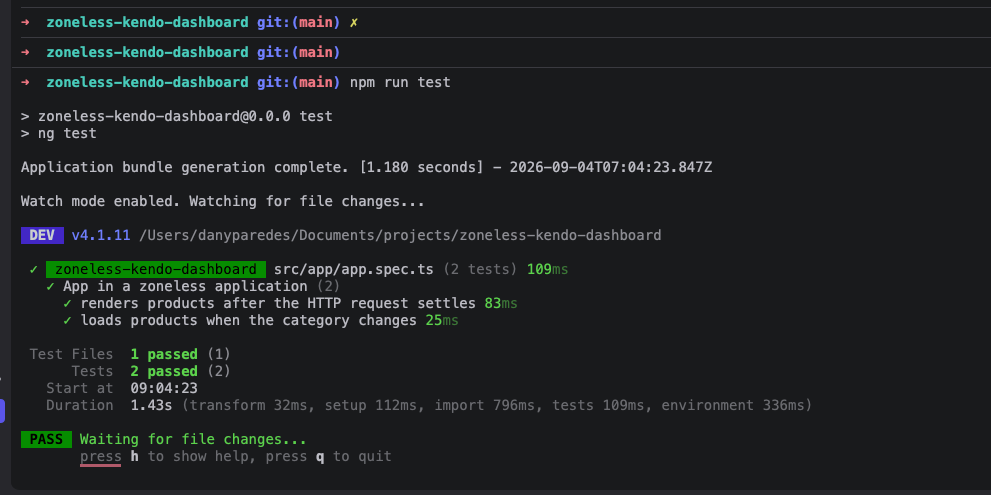
Yeah!! Our test now covers the initial request and a category change. So we have our app with Zoneless and testing, but this was a greenfield. Let me share with you the common migration problems I have encountered most often.
Common Migration Issues
Before we finish, let me share some of the most common problems I have found while migrating real Angular applications to Zoneless. This is not a complete list of every possible problem. These are the cases I’ve seen in real projects, and they are a good place to start when you review your own application.
These examples cover different migration boundaries. The practical fix depends on where the state enters the application.
A Timer Changes State But the UI Does Not Update
A normal property changed by setInterval() does not notify Angular in a Zoneless application. Use a signal for state read by the template, and clean up the timer when the component is destroyed:
import { Component, DestroyRef, inject, signal } from '@angular/core';

@Component({
  selector: 'app-notification',
  template: '{{ badgeCount() }}',
})
export class NotificationComponent {
  readonly badgeCount = signal(0);
  private readonly destroyRef = inject(DestroyRef);

  constructor() {
    const timer = setInterval(() => {
      this.badgeCount.update((count) => count + 1);
    }, 3000);

    this.destroyRef.onDestroy(() => clearInterval(timer));
  }
}
For RxJS streams, use takeUntilDestroyed() when a manual subscription must be tied to the component lifecycle.
The timer example is the simplest case: template state needs an Angular notification.
A Manual RxJS Subscription Leaves a Stale View
An Observable emission does not automatically make a normal component property reactive. Prefer toSignal() when the value belongs in a template:
import { Component, Service, inject } from '@angular/core';
import { toSignal } from '@angular/core/rxjs-interop';
import { interval, map } from 'rxjs';

@Service()
export class WeatherService {
  readonly temperature$ = interval(5000).pipe(map(() => 72));
}

@Component({
  selector: 'app-weather',
  template: '<p>{{ temperature() }} F</p>',
})
export class WeatherComponent {
  private readonly weatherService = inject(WeatherService);

  readonly temperature = toSignal(this.weatherService.temperature$, {
    initialValue: 72,
  });
}
toSignal() subscribes to the Observable, exposes the latest value as a signal, and connects the value to the component lifecycle. If you need a manual subscription to perform an action in code, use takeUntilDestroyed() and update a signal inside the callback.
This keeps the stream connected to the template without calling manual change detection. It is a useful pattern when an existing application already uses RxJS.
A Third-Party Widget Does Not Notify Angular
Maps, charts, editors and older wrappers may emit callbacks outside Angular’s reactive model. First, check whether the package has a current Angular integration. If it does not, isolate the integration and update a signal at the boundary:
import { Component, signal } from '@angular/core';

@Component({
  selector: 'app-map',
  template: '<p>Selected location: {{ selectedLocation() }}</p>',
})
export class MapComponent {
  readonly selectedLocation = signal('');

  onMapSelectionChanged(selection: string): void {
    this.selectedLocation.set(selection);
  }
}
Because the template reads selectedLocation(), updating the signal already notifies Angular in a Zoneless application. If an external callback updates ordinary component state instead, use markForCheck() at that boundary. I use detectChanges() only for a narrow integration boundary, because it runs change detection immediately and should not become the default solution throughout the application.
These are the boundaries I have encountered most often. They are not the only cases, but they are a useful starting point for a Zoneless migration.
A Practical Migration Path
When moving an existing application from ZoneJS to Zoneless, first check the Angular version and read the migration guide for that version. This shows whether the application needs provideZonelessChangeDetection() explicitly. Before removing anything, search the project for NgZone, zone.js, zone.js/testing and code that depends on onStable or onMicrotaskEmpty.
Next, follow the state that each feature exposes to its template. Please pay special attention to values changed by timers, external callbacks and manual subscriptions. If a normal property is doing that work, move it to signal(), computed(), toSignal() or another Angular notification mechanism. Also check third-party libraries such as maps, charts, dialogs, date pickers and editors, because their callbacks may need an explicit integration boundary.
Keep the migration small enough to test as you go. Once the application and its dependencies no longer rely on ZoneJS, remove it from the project configuration and uninstall the package. Finally, measure the result with the browser performance tools. Do not assume that Zoneless alone will improve every metric.
Recap
The main idea is this: Zoneless applications do not depend on NgZone and ZoneJS to schedule change detection after every asynchronous task. Instead, the application exposes template state through Signals and other Angular APIs that can tell Angular when relevant state changes.
In my experience, an incremental migration is the most practical approach. Move one feature, test it, inspect its integrations and then continue to the next feature. This makes the application’s real change detection dependencies easier to see without turning the whole migration into one large debugging session.
Now it is your turn to try the same model with a small piece of client-side state.
Open Challenge
Add a search input to the dashboard. Keep the query in a signal(), and use computed() to show the matching products. Leave the category request as it is, so the resource manages server state while Signals manage local UI state.
Happy coding!
Feel free to read extra docs to have a full overview. :)
- Angular Zoneless Guide
- Angular Signals Guide
- Angular Services Guide
- Kendo UI for Angular Grid Documentation
- Source code
And remember, Kendo UI for Angular, one of the best Angular libraries comes with a free 30-day trial. So go on:

Dany Paredes
Dany Paredes is a Google Developer Expert on Angular and Progress Champion. He loves sharing content and writing articles about Angular, TypeScript and testing on his blog and on Twitter (@danywalls).
Related Posts
Comments
All articles
Topics
Web MobileMobile
Desktop
Design
Productivity
People