Is it Safe? Creating Reliable AI Agents with Progress Agentic RAG

Summarize with AI:
The Progress Agentic RAG no-code, software-as-a-service solution lets you create an AI agent in minutes. But, after that, you need to validate whether your agent is providing relevant, accurate and complete responses.
You know that AI agents using Large Language Models (LLMs) are prone to “hallucinations” by providing responses that aren’t grounded in reality (insert your favorite story here). There is a solution for hallucinating agents: Retrieval-Augmented Generation (RAG) knowledge sources, used along with your LLM. A RAG-enabled agent contains resources (i.e., documents and websites) containing information related to your organization and the agent’s topic area that help your AI agent provide grounded responses.
You can create a RAG-enabled agent by writing code (I just finished a series on how to create agents with code using Progress Telerik tools)—a great approach when you need an agent tightly coupled to a specific application or an agent that needs a ton of flexibility at runtime to dynamically select its resources. Like any software project, a code-based approach can be expensive and time consuming.
Progress Agentic RAG, on the other hand, will let you, it in a few minutes and without writing a line of code, create a RAG-enabled agent that can be used by your whole organization.
Creating an agent is a two-step process: First, of course, you need to create your agent. But, before you start using your agent (or make your agent available for other people to use it), you need to validate your agent’s responses.
Creating and Evaluating an Agent
To create a RAG-enabled agent with Progress Agentic RAG, you first create a knowledge box and then load it with resources (documents and web links) that ground your agent’s responses and help reduce hallucinations.
While creating a RAG-enabled agent can reduce the chances of hallucinations by grounding responses in resources, that approach does not mean the agent’s responses will meet your organization’s needs. Presumably, you want to do more than just avoid bad responses. Just like the data in your organization’s databases, it’s your responsibility to assess your agent for reliable responses.
Specifically, you want a validation process that helps you evaluate whether your agent’s responses are:
- Complete
- Accurate (correct)
- Relevant (to what was asked)
- Explainable (does the agent’s response make sense to the audience)
Basically, this all adds up to the question from “Marathon Man”: Is it safe? … or, at least, reliable. Progress Agentic RAG gives you the tools to support that evaluation.
A Case Study Agent
Your goal is not to create a “universal agent” that will answer any question. First, of course, a universal agent would be hard to validate, leaving open the possibility of your agent providing an ungrounded response to some question in the future. You want your agent to focus on a topic area where you can prove that your agent provides reliable responses.
In addition, universal agents make it hard for users to get a useful response. Because a universal agent has no defined topic area, users are forced to spend time crafting specific prompts to get responses on the topic they’re actually interested in. And, if your users can’t refine their prompts sufficiently, they have to sift through unrelated responses provided by the universal agent in responses to get the response they need.
Your agent is more likely to be successful if you define your agent’s topic area. A topic area can be defined by three criteria:
- Who will use the agent (the agent’s audience)
- The scenarios where that audience will use the agent
- The goals you and the agent’s audience want to achieve when using your agent
As a case study for this post, I created an agent for:
- The kitchen staff in a restaurant (audience)
- To provide the kitchen staff guidance in cleaning the restaurant’s kitchen (scenario)
- To support alignment with applicable food safety regulations and company policy (goals)
To support that, I created an Agentic RAG knowledge box and added as resources a combination of company and government documents:
- A PDF version of the government “Health and Safety Act”
- A PDF booklet from the government about food safety in commercial kitchens
- A Microsoft Word document listing the makes and models of the equipment in my restaurant and the nicknames staff has assigned to them:
- A freezer the staff calls “Tom”
- An oven named “Belinda”
- A refrigerator named “Mabel”
- The manufacturer’s user manuals for each piece of equipment
- A link to the webpage for the section of the government’s “Health Protection and Promotion Act” that covered food premises (that act, for some reason, wasn’t available as a PDF document)
- A text document containing our company’s policies, including this section:
Food Safety
We will exceed the requirements of our regulatory body. This includes discarding any produce not used by the end of the day and replacing it the next business day. The same rule applies to any seafood or shellfish.
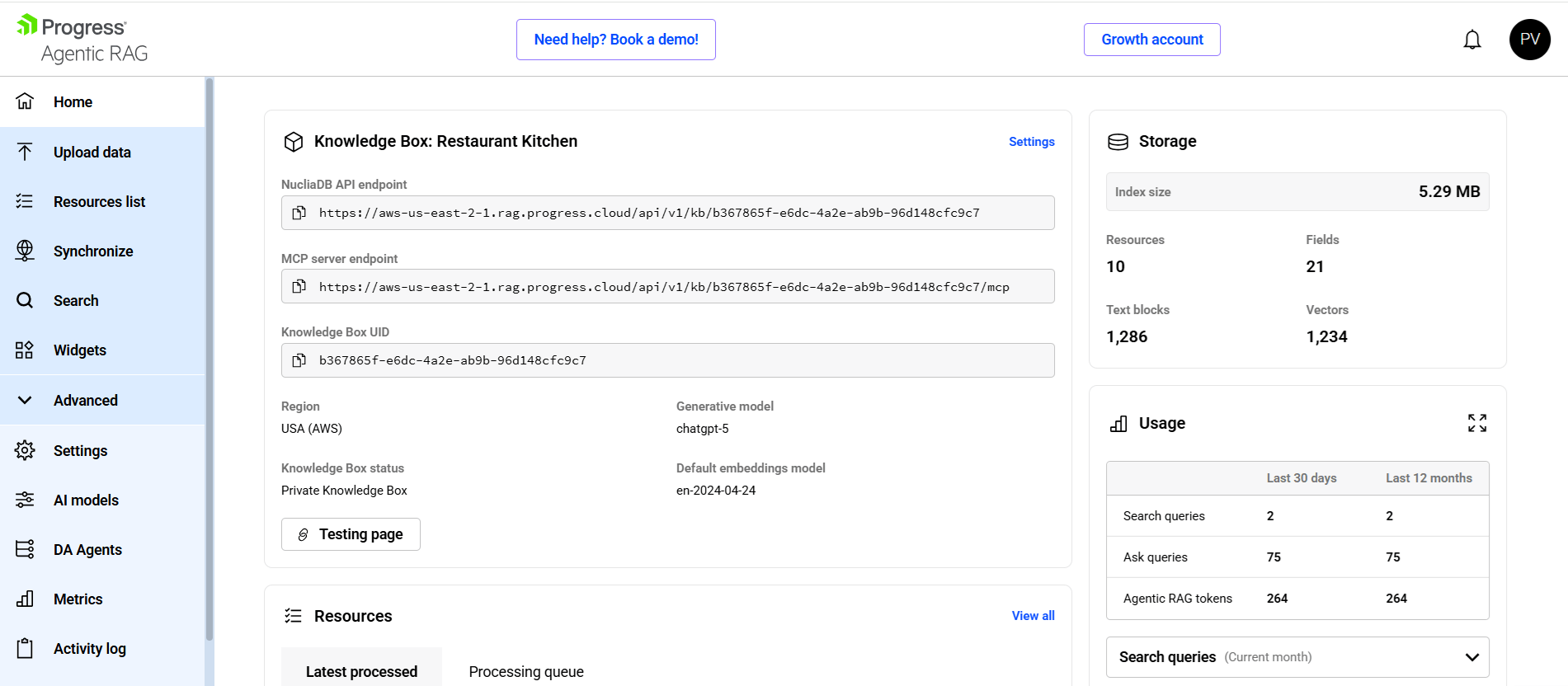
I was able to create a knowledge box and add those resources in less than 15 minutes (much of that time was spent uploading government’s PDF booklet—that thing was huge). When I was done, my agent looked like this:
With your agent created, you can now validate its responses.
Incorporating Validation with Experts
Unless your agent’s topic area is an area where you’re a Subject Matter Expert (a SME), your next step will be to involve the SMEs who do have the knowledge and experience to determine if your agent’s responses are correct and complete.
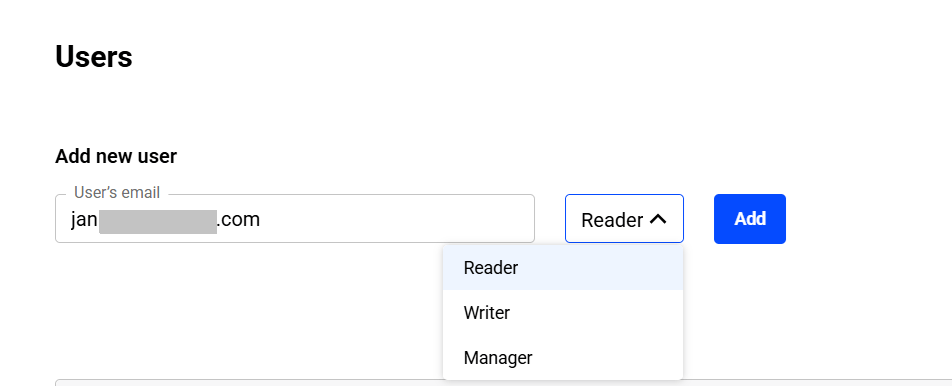
Your agent starts off as a private resource that only you (or someone using your user id and password) can access. To add the SMEs who can validate your agent to your agent, surf to your agent and, in the menu on the left side of your agent, expand the Advanced section, and click the Users option at the bottom.
In the Add New User section, enter the email address for one of your SMEs and set the role you want to assign to your SME (Reader, Writer or Manager—for testing purposes, the Reader role is probably the one you want to assign to your SME). Once you’ve done that, click the Add button to send an invitation to the SME to join your agent (you can change a user’s role after they’ve been added).
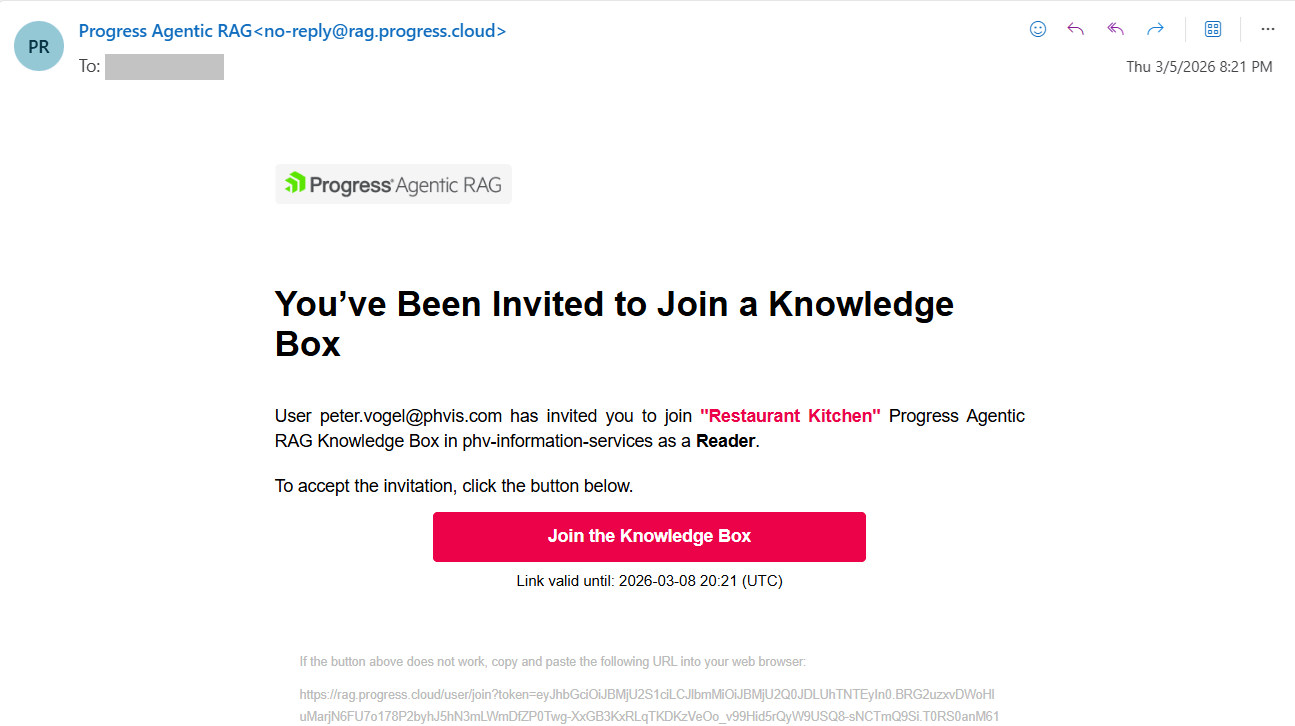
When your SMEs get the email, they only need to click the email’s Finish Registration button to be brought to your Agentic RAG. Once there, they can set their password and log into your knowledge box.
Now you (and any SMEs you’ve added) can try out prompts in the agent’s Search you think will be used with your knowledge box in order to validate the agent’s responses.
By the way: As you select your SMEs, target people whose opinion is valued by their co-workers. That way, when you SMEs approve your agent, they can also act as champions for your agent’s adoption.
Validating for Accuracy and Explainability
As an example, for my first test prompt, I opened my agent’s Search page and entered, “end of day checklist for tom.” The response I got certainly looked correct to me (which is why you want to get SMEs involved):
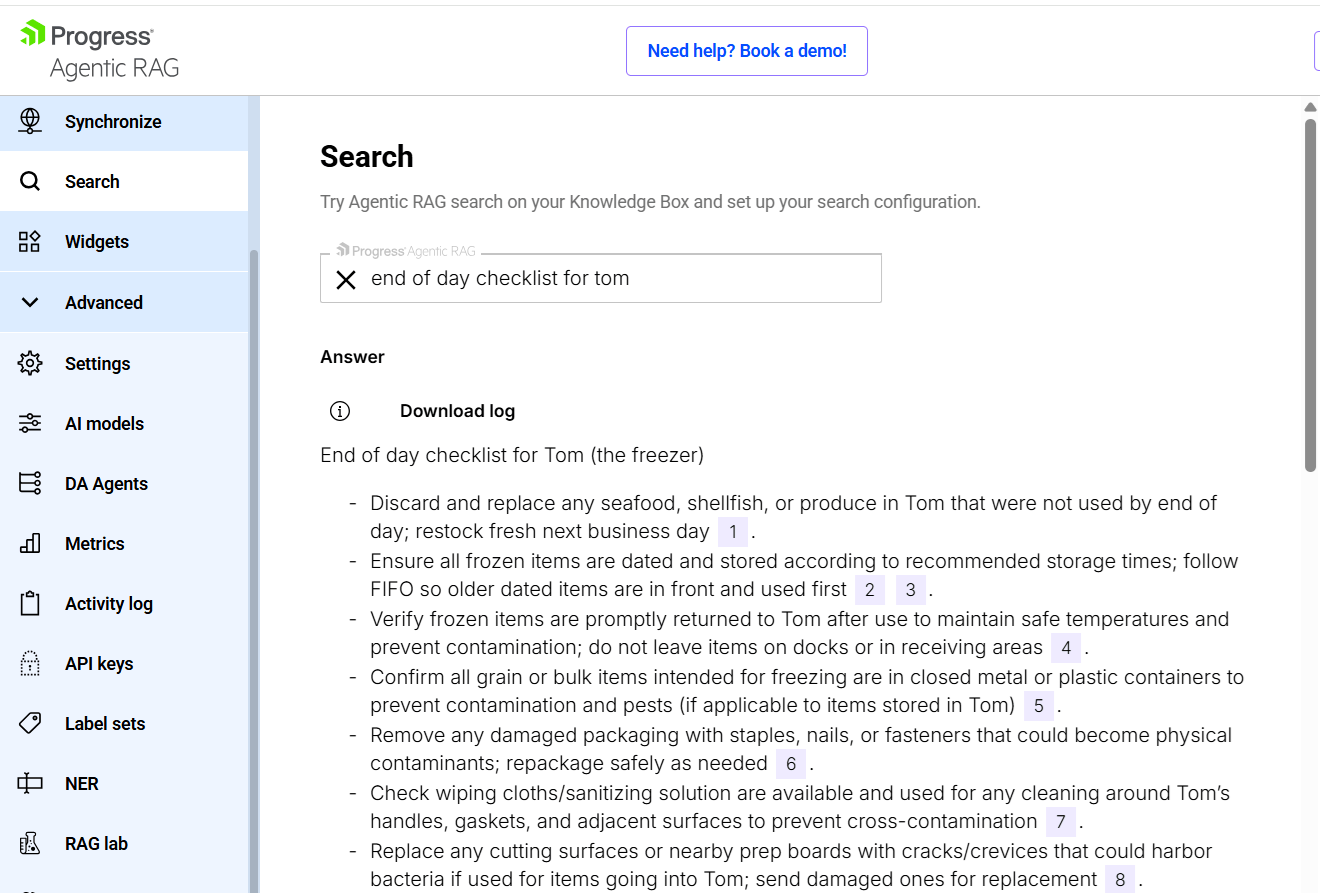
If my SMEs identified an error in the response, we would use the highlighted numbers assigned to each part of my agent’s response to determine which of my agent’s resources generated the error. Those numbers point to the citations in the Resources section at the bottom of your agent’s response which, in turn, show what resources were used to generate each part of the response.
Here, for example, are the resources used to generate the response for my first prompt:
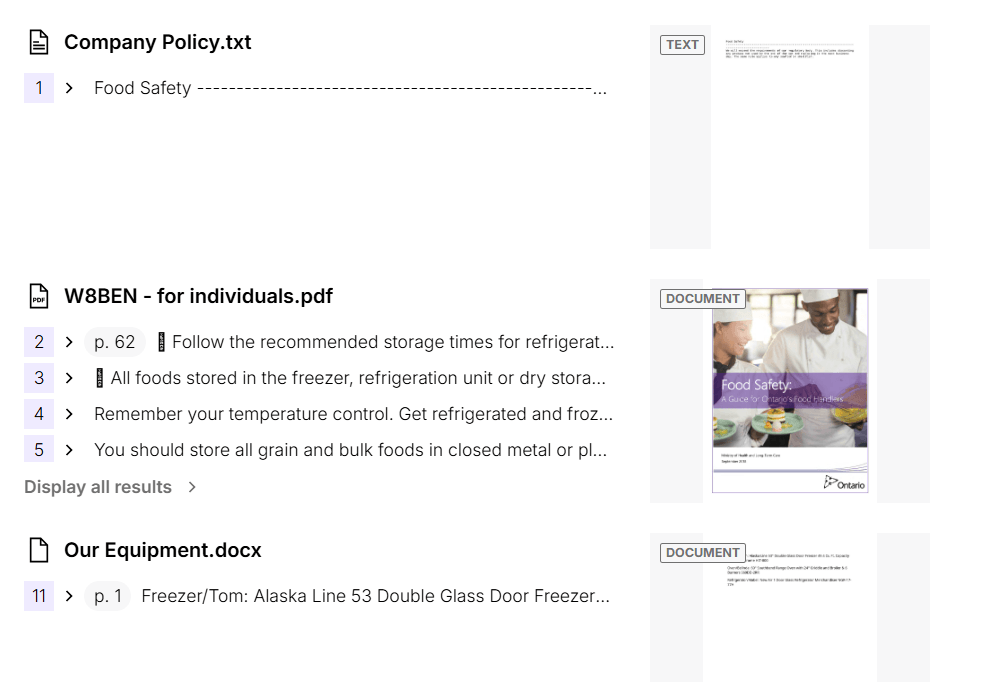
As the citations show, my agent drew on the relevant portion of the Food Safety booklet, my company policy and my list of kitchen equipment (that’s how the agent recognized “Tom” as the freezer). Had my SMEs identified any errors in the response, we could review the related resource and either correct it or remove it (or, potentially, discover that my SME was wrong and my agent is right).
Being able to link responses to citations also validates whether a response is explainable. A response generated from relevant and authoritative resources is more likely to be accepted by your agent’s users.
Validating for Completeness
Your responses’ citations are also useful if your SMEs find that your agent’s responses are accurate but incomplete.
First, you can use the citations to determine if agent has a resource that would complete the response but didn’t use it—in other words, what resources don’t appear in the citation list. If that’s the case, on the Search page where you’re entering your prompts, you can use the menu on the right to tweak how your agent uses its resources.
In most cases, though, if your agent’s responses are incomplete, it’s because you’re missing a resource. Turning on the Show Reasoning option under the Generative answer and RAG option in the menu on the right of the Search page can be helpful here. That option causes your AI to provide some insight into what your agent was looking for when assembling its response, which can help define what resources your knowledge box is missing.
Here, again, your SMEs can be helpful in identifying the missing resources you need to add (or in creating the missing resource for you to add to your agent).
Validating for Relevance
However, you shouldn’t take away from the discussion that adding more resources to your agent is always a good thing.
To begin with, adding more documents can interfere with providing relevant responses by expanding your agent’s topic area. By including the user manuals for my kitchen’s equipment, for example, I might cause my agent to veer off from food safety and into providing responses about equipment maintenance—a great response for my company’s maintenance team but not useful to the kitchen staff I’m targeting with this agent (the goal is not to create a universal agent that you would never be able to validate).
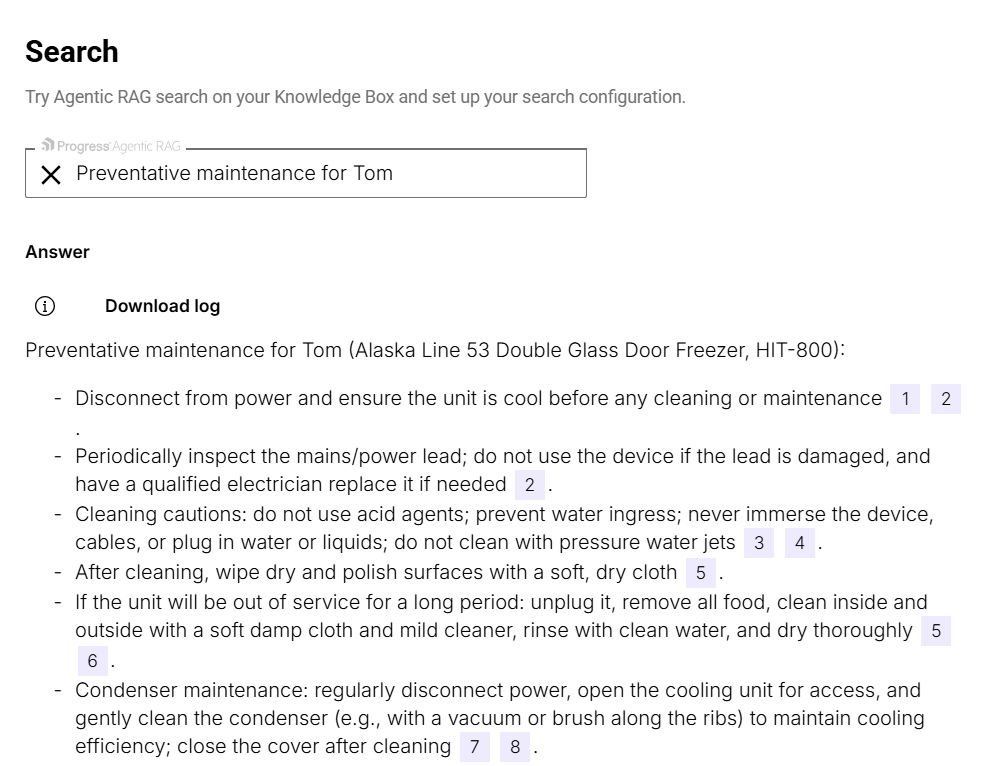
As an example, to check that my agent would stay in its topic area, I tried the prompt “Preventative maintenance for Tom” and got a response that, not surprisingly, focused on repair and maintenance activities. All the citations for that response pointed to the freezer’s user manual:
One solution is to provide some guidance to your agent on what your agent’s topic area is supposed to be. To do that, in the menu on the left side of your agent, under Advanced | AI Models, provide a system prompt to guide your agent in producing responses. As an example, I used “You provide expert advice on food safety to restaurant staff” as a system prompt.
Not all LLMs support system prompts. For those LLMs that do, you can take advantage of the Search Options | Prepend the Query option in the menu on the right side of the Search page. Any text you enter here will automatically be added to the front of every prompt and will help keep responses relevant to the agent’s topic area. For my case study, I might use “In terms of supporting food safety best practices” as my prepended text.
After providing a system prompt, I tried my preventative maintenance query again and got this appropriate response from my food safety agent:
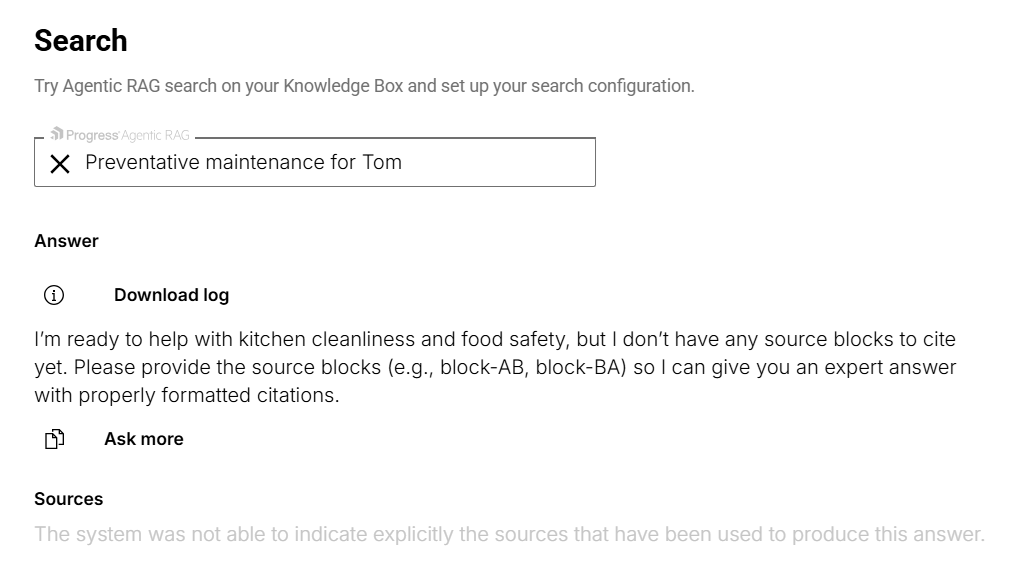
Another solution to this problem is to remove resources not relevant to the agent’s topic area. I could, for example, remove the equipment user manuals (provided those manuals aren’t used for any valid food safety questions, of course). I tried removing those documents from my agent’s resources and got this message:
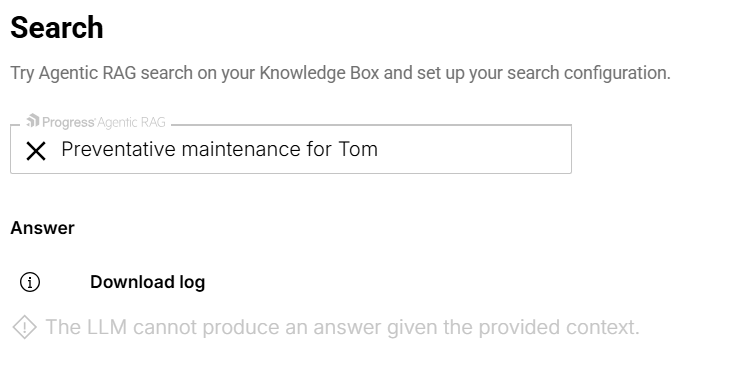
That’s not a bad response but I preferred the ones generated when I set the system prompt (you may not).
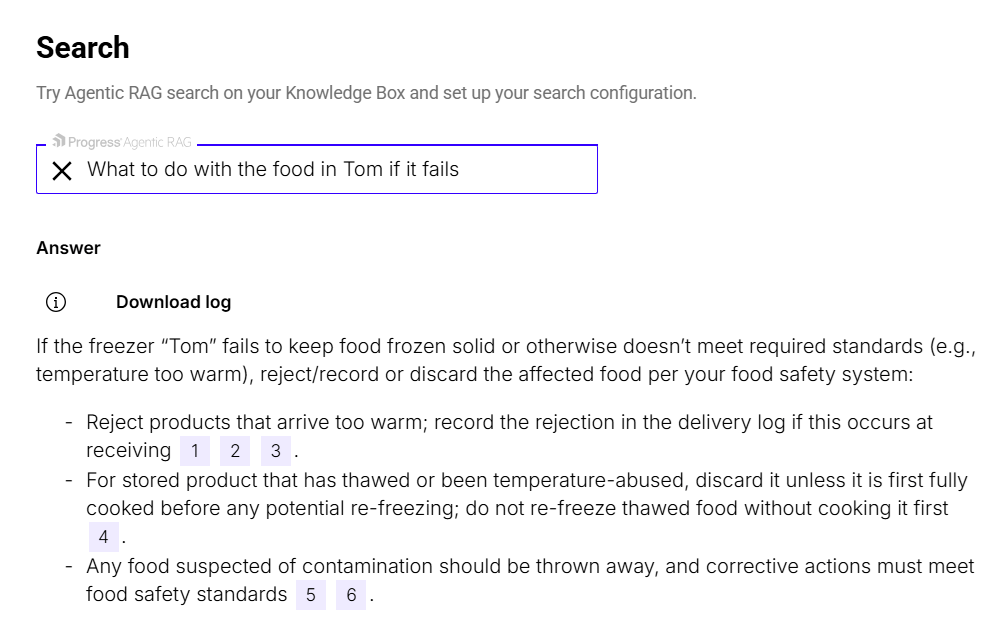
You should finish validating relevance by testing with prompts that are about the agent’s topic area but are “adjacent” to information outside the topic area. For example, I tried, “What to do with the food in Tom if it stops working” to see if the response focused on food safety or repair and maintenance.
That prompt gave me this “food safety related” response indicating that my agent is staying on track even with “maintenance adjacent” questions:
Eliminating the Unnecessary, Keeping the Valuable
Finally, after validating your agent, you should remove any resource that isn’t contributing to your agent’s responses.
It’s important to realize that you’re not only going to be responsible for creating your agent but also for keeping your agent up to date (in my case, I’d need to keep my agent current with changes in study food safety legislation). The more resources your agent uses, the more documents and websites you’ll have to review and synchronize with your agent.
I’ll put it another way: “Extra” resources aren’t free. They impose a maintenance burden on you and your agent. So, if your agent isn’t using some resource, you should eliminate it.
You can determine which resources are never used by your agent by keeping a list of your agent’s resources and checking them off as they appear in your responses’ citations (I eliminated the equipment user manuals, for example, because once I focused my agent on food safety, my agent never used the manuals).
Reviewing the citations in your agent’s response also allows you to determine if your agent is using the most appropriate resources in generating its responses. If you have some resource that you consider valuable that’s being ignored in favor of a resource you think is less valuable, you can try removing the less valuable resources to see if your responses improve.
Most of my test’s responses, for example, came from the government’s user-friendly Food Safety booklet, while none (to my surprise) came from the regulations that actually govern restaurants and food safety. So, for my next test, I deleted the Food Safety booklet from my agent’s resources.
With the booklet gone, my agent did switch to drawing on the legislation, but I got a worse response. The resulting checklist was far less specific about what kitchen staff needed to do. Given that response, I added the booklet back in.
A ‘New Hire’
It’s worthwhile to think of your AI agent like a new hire in your organization. Hiring the right people is important, but so is supervising them once they join your organization to support their development. In the same way, creating a reliable AI agent is important … but so is validating it. Progress Agentic RAG gives you the tools to both create and validate your AI agent.

Peter Vogel
Peter Vogel is both the author of the Coding Azure series and the instructor for Coding Azure in the Classroom. Peter’s company provides full-stack development from UX design through object modeling to database design. Peter holds multiple certifications in Azure administration, architecture, development and security and is a Microsoft Certified Trainer.
Related Posts
Comments
All articles
Topics
Web MobileMobile
Desktop
Design
Productivity
People