.NET MAUI SmartPasteButton Visual States
This article describes the visual states the SmartPasteButton provides. You can use the visual states to change the appearance of the control depending on whether it is disabled, pressed, or has the mouse pointer hovering over it
The SmartPasteButton provides the following CommonStates visual states:
| Visual States | Description |
|---|---|
Normal | Applies when the button is in normal state. |
Pressed | Applies when the button is pressed. |
MouseOver | (Desktop-only) Applies when the mouse pointer hovers over the control. |
Disabled | Applies when the button is disabled. |
Processing | Applies when a smart paste request is being processed. |
ProcessingPressed | Applies when the button is pressed while the smart paste request is in process. |
ProcessingMouseOver | (Desktop-only) Applies when the mouse pointer hovers over the button when the smart paste request is in process. |
ProcessingFocused | (Desktop-only) Applies when the button is focused and the smart paste request is being processed. |
Focused | (Desktop-only) Applies when the button is focused with the keyboard. |
Using the Visual States
The following example demonstrates how to use the SmartPasteButton visual states.
1. Define the buttons in XAML:
<telerik:RadSmartPasteButton Provider="{Binding .}"
SmartPasteRequestCommand="{Binding SmartPasteRequestCommand}"/>2. Define the explicit styling to the page's resources:
<Style x:Key="SmartPasteButtonStyle" TargetType="telerik:RadSmartPasteButton">
    <Setter Property="Padding" Value="12, 8" />
    <Setter Property="HorizontalOptions" Value="Start" />
    <Setter Property="CornerRadius" Value="12" />
    <Setter Property="FontAttributes" Value="Bold" />
    <Setter Property="TextColor" Value="#8660C5" />
    <Setter Property="IconTextColor" Value="#8660C5" />
    <Setter Property="BorderColor" Value="LightGray" />
    <Setter Property="BorderThickness" Value="1" />
    <Setter Property="VisualStateManager.VisualStateGroups">
        <Setter.Value>
            <VisualStateGroupList>
                <VisualStateGroup Name="CommonStates">
                    <VisualState Name="Normal" />
                    <VisualState Name="Focused" />
                    <VisualState Name="MouseOver">
                        <VisualState.Setters>
                            <Setter Property="BackgroundColor" Value="#F2EFF9" />
                        </VisualState.Setters>
                    </VisualState>
                    <VisualState Name="FocusedMouseOver">
                        <VisualState.Setters>
                            <Setter Property="BackgroundColor" Value="#F2EFF9" />
                        </VisualState.Setters>
                    </VisualState>
                    <VisualState Name="Pressed">
                        <VisualState.Setters>
                            <Setter Property="TextColor" Value="#998660C5" />
                            <Setter Property="IconTextColor" Value="#998660C5" />
                            <Setter Property="BackgroundColor" Value="#F2EFF9" />
                        </VisualState.Setters>
                    </VisualState>
                    <VisualState Name="FocusedPressed">
                        <VisualState.Setters>
                            <Setter Property="TextColor" Value="#998660C5" />
                            <Setter Property="IconTextColor" Value="#998660C5" />
                            <Setter Property="BackgroundColor" Value="#F2EFF9" />
                        </VisualState.Setters>
                    </VisualState>
                    <VisualState Name="Disabled">
                        <VisualState.Setters>
                            <Setter Property="TextColor" Value="#618660C5" />
                            <Setter Property="IconTextColor" Value="#618660C5" />
                        </VisualState.Setters>
                    </VisualState>
                    <VisualState Name="Processing">
                        <VisualState.Setters>
                            <Setter Property="BackgroundColor" Value="#F2EFF9" />
                        </VisualState.Setters>
                    </VisualState>
                    <VisualState Name="ProcessingPressed">
                        <VisualState.Setters>
                            <Setter Property="TextColor" Value="#998660C5" />
                            <Setter Property="IconTextColor" Value="#998660C5" />
                            <Setter Property="BackgroundColor" Value="#E8E1F7" />
                        </VisualState.Setters>
                    </VisualState>
                    <VisualState Name="ProcessingMouseOver">
                        <VisualState.Setters>
                            <Setter Property="BackgroundColor" Value="#EEE8F8" />
                        </VisualState.Setters>
                    </VisualState>
                    <VisualState Name="ProcessingFocused">
                        <VisualState.Setters>
                            <Setter Property="BackgroundColor" Value="#EEE8F8" />
                        </VisualState.Setters>
                    </VisualState>
                </VisualStateGroup>
            </VisualStateGroupList>
        </Setter.Value>
    </Setter>
</Style>
3. Define the implicit styling to the page's resources:
<Style TargetType="telerik:RadSmartPasteButton">
    <Setter Property="Padding" Value="12, 8" />
    <Setter Property="HorizontalOptions" Value="Start" />
    <Setter Property="CornerRadius" Value="12" />
    <Setter Property="FontAttributes" Value="Italic" />
    <Setter Property="TextColor" Value="#00897B" />
    <Setter Property="IconTextColor" Value="#00897B" />
    <Setter Property="IconFontSize" Value="20" />
    <Setter Property="BorderColor" Value="LightGray" />
    <Setter Property="BorderThickness" Value="1" />
    <Setter Property="VisualStateManager.VisualStateGroups">
        <Setter.Value>
            <VisualStateGroupList>
                <VisualStateGroup Name="CommonStates">
                    <VisualState Name="Normal" />
                    <VisualState Name="Focused" />
                    <VisualState Name="MouseOver">
                        <VisualState.Setters>
                            <Setter Property="BackgroundColor" Value="#E8F5F4" />
                        </VisualState.Setters>
                    </VisualState>
                    <VisualState Name="FocusedMouseOver">
                        <VisualState.Setters>
                            <Setter Property="BackgroundColor" Value="#E8F5F4" />
                        </VisualState.Setters>
                    </VisualState>
                    <VisualState Name="Pressed">
                        <VisualState.Setters>
                            <Setter Property="TextColor" Value="#9900897B" />
                            <Setter Property="BackgroundColor" Value="#E8F5F4" />
                        </VisualState.Setters>
                    </VisualState>
                    <VisualState Name="FocusedPressed">
                        <VisualState.Setters>
                            <Setter Property="TextColor" Value="#9900897B" />
                            <Setter Property="BackgroundColor" Value="#E8F5F4" />
                        </VisualState.Setters>
                    </VisualState>
                    <VisualState Name="Disabled">
                        <VisualState.Setters>
                            <Setter Property="TextColor" Value="#6100897B" />
                        </VisualState.Setters>
                    </VisualState>
                    <VisualState Name="Processing">
                        <VisualState.Setters>
                            <Setter Property="BackgroundColor" Value="#E8F5F4" />
                        </VisualState.Setters>
                    </VisualState>
                    <VisualState Name="ProcessingPressed">
                        <VisualState.Setters>
                            <Setter Property="TextColor" Value="#9900897B" />
                            <Setter Property="BackgroundColor" Value="#D7F0EE" />
                        </VisualState.Setters>
                    </VisualState>
                    <VisualState Name="ProcessingMouseOver">
                        <VisualState.Setters>
                            <Setter Property="BackgroundColor" Value="#DFF3F1" />
                        </VisualState.Setters>
                    </VisualState>
                    <VisualState Name="ProcessingFocused">
                        <VisualState.Setters>
                            <Setter Property="BackgroundColor" Value="#DFF3F1" />
                        </VisualState.Setters>
                    </VisualState>
                </VisualStateGroup>
            </VisualStateGroupList>
        </Setter.Value>
    </Setter>
</Style>
4. Add the telerik namespace:
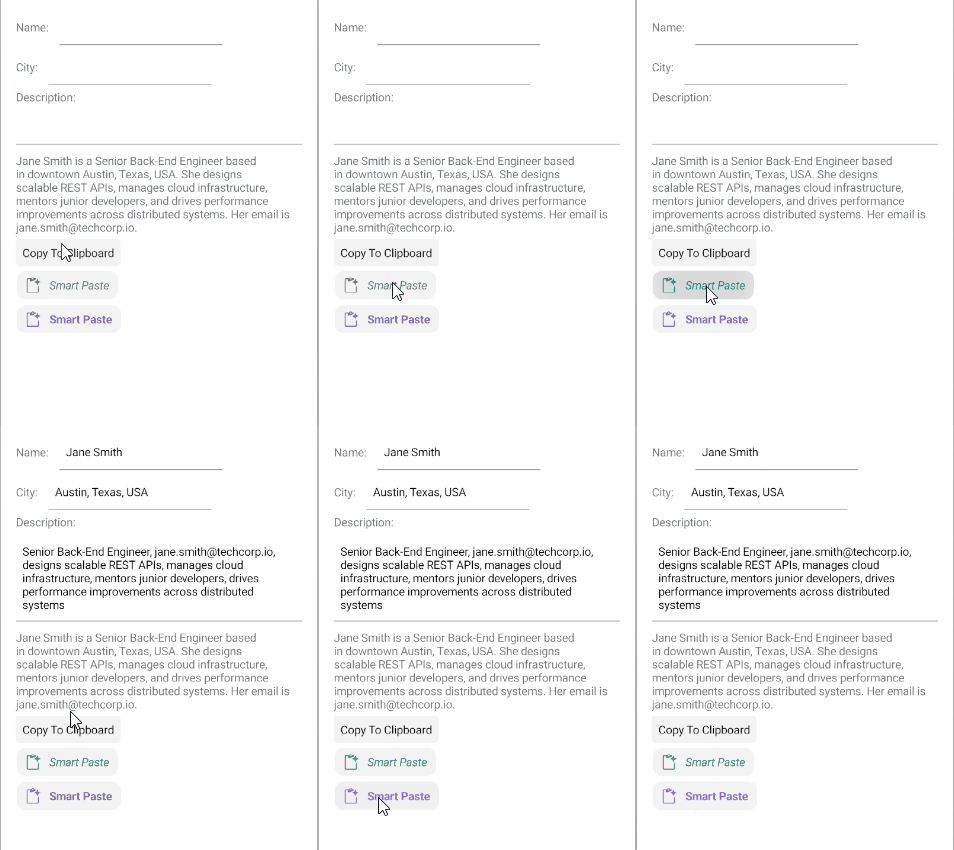
xmlns:telerik="http://schemas.telerik.com/2022/xaml/maui"This is the result:
The SmartPasteButton examples in the SDKBrowser Demo Application use a Telerik-hosted AI service for demonstration purposes only.
To use the smart paste functionality in your application, you must configure your own AI service.
How to do that is described in the Configuration article.
For a runnable example demonstrating the SmartPasteButton styling options, see the SDKBrowser Demo Application and go to the SmartPasteButton > Styling category.