.NET MAUI SmartPasteButton Events
The .NET MAUI SmartPasteButton exposes the following event:
SmartPasteRequest—Raised when theRadSmartPasteButtoninitiates a smart paste operation. TheSmartPasteRequestevent handler receives two parameters:- The
senderargument which is of typeRadSmartPasteButton. - A
SmartPasteButtonRequestContextobject which contains the clipboard content, fields, a cancellation token, and methods to signal the result of the AI request.
- The
Using the SmartPasteRequest Event
The following example demonstrates how to use the SmartPasteRequest event.
1. Define the button in XAML:
<telerik:RadSmartPasteButton Provider="{x:Reference dataForm}"
                             SmartPasteRequest="OnSmartPasteRequest" />
2. Add the DataForm control to your page. The SmartPasteButton is designed to work with the DataForm control, allowing you to populate form fields with structured data extracted from unstructured text. By integrating the SmartPasteButton with the DataForm, you can enhance the user experience and streamline data entry processes within your application.
<telerik:RadDataForm x:Name="dataForm"
                     AutoGenerateItems="False"
                     Grid.Row="1">
    <telerik:RadDataForm.BindingContext>
        <local:Profile />
    </telerik:RadDataForm.BindingContext>
    <telerik:DataFormRadEntryEditor PropertyName="Name" />
    <telerik:DataFormRadEmailMaskedEditor PropertyName="Email" />
    <telerik:DataFormRadEntryEditor PropertyName="JobTitle" />
    <telerik:DataFormRadEntryEditor PropertyName="Address" />
</telerik:RadDataForm>
3. Text from the clipboard is used for the smart paste operation.
<telerik:RadTemplatedButton Content="Copy To Clipboard"
                            Clicked="OnCopyFromClipboardClicked"/>
4. Add the telerik namespace:
xmlns:telerik="http://schemas.telerik.com/2022/xaml/maui"5. The copy button's Clicked event handler:
private async void OnCopyFromClipboardClicked(object sender, System.EventArgs e)
{
    if (!string.IsNullOrEmpty(this.label.Text))
    {
        await Clipboard.SetTextAsync(this.label.Text);
    }
}
6. The SmartPasteRequest event handler:
private async void OnSmartPasteRequest(object sender, SmartPasteButtonRequestContext e)
{
    try
    {
        var request = new { Content = e.Content, FormFields = e.Fields };
        var httpResponse = await new HttpClient().PostAsJsonAsync(
            "https://demos.telerik.com/service/v2/ai/smartpaste/smartpaste",
            request,
            e.CancellationToken);
        httpResponse.EnsureSuccessStatusCode();

        var response = await httpResponse.Content.ReadFromJsonAsync<SmartPasteResponse>(e.CancellationToken);
        e.SetResponse(response.FieldValues);
    }
    catch (OperationCanceledException)
    {
        e.Cancel();
    }
    catch (Exception ex)
    {
        e.SetError(ex);
    }
}
This is the result:
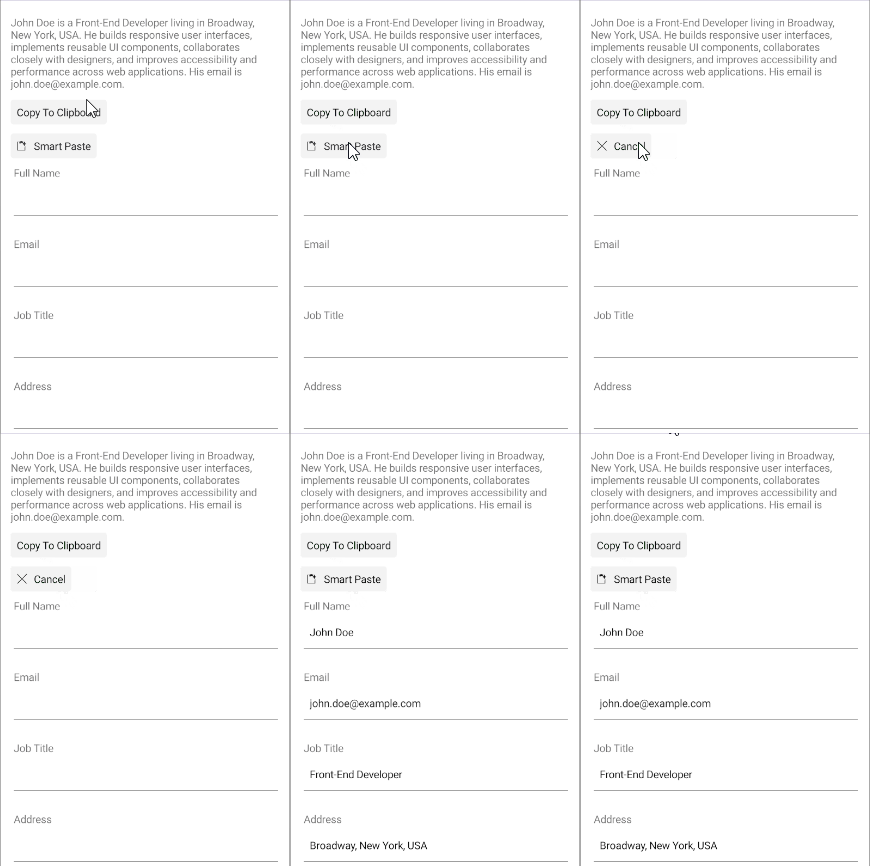
The SmartPasteButton examples in the SDKBrowser Demo Application use a Telerik-hosted AI service for demonstration purposes only.
To use the smart paste functionality in your application, you must configure your own AI service.
How to do that is described in the Configuration article.
For a runnable example demonstrating the SmartPasteButton
SmartPasteRequestevent, see the SDKBrowser Demo Application and go to the SmartPasteButton > Getting Started category.