.NET MAUI SmartPasteButton Styling
The SmartPasteButton provides a set of styling options by exposing properties for customizing its visual appearance.
Styling the SmartPasteButton
To style the SmartPasteButton, you can use the following properties:
Background(Brush)—Specifies the background brush of the control.BorderBrush(Brush)—Specifies the border brush of the control.BorderColor(Color)—Specifies the border color of the control.BorderThickness(Thickness)—Specifies the border thickness of the control.CornerRadius(CornerRadius)—Specifies the corner radius of the control.Padding(Thickness)—Specifies the padding of the control.TextColor(Color)—Specifies the color of theText.IconTextColor(Color)—Specifies the color of the icon.
The SmartPasteButton uses the .NET MAUI Visual State Manager and defines a visual state group named CommonStates with the following visual states:
NormalMouseOverPressedDisabledProcessingProcessingPressedProcessingMouseOverProcessingFocused
Using the Styling API
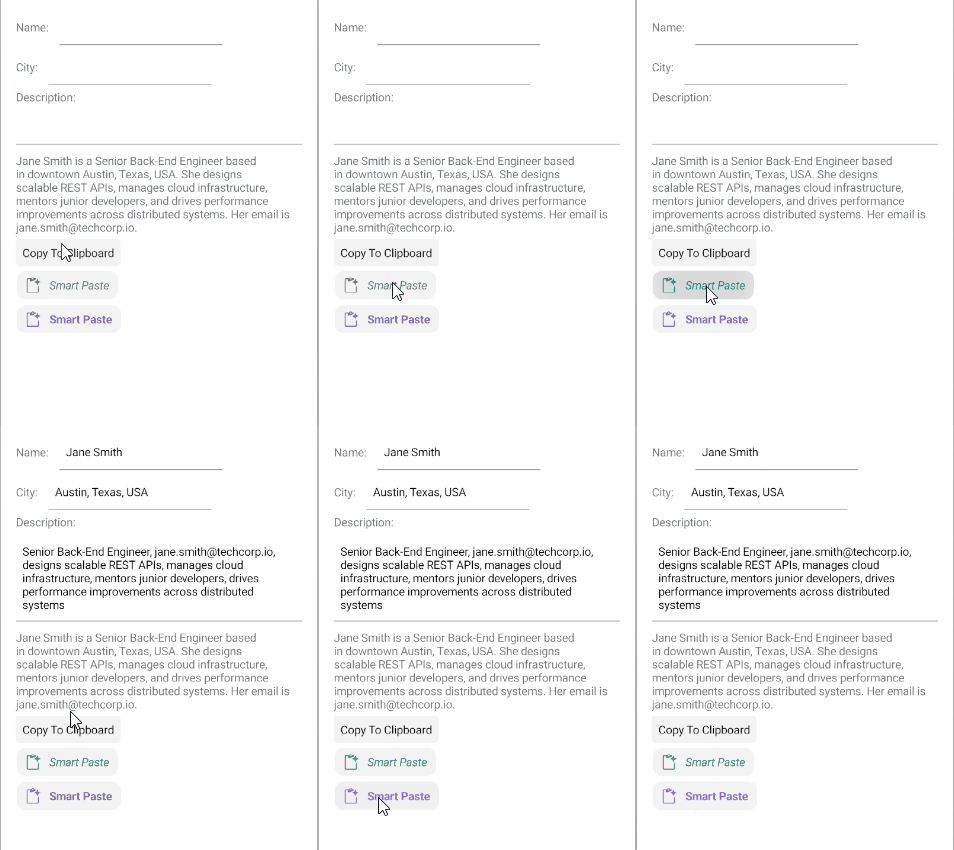
The following example demonstrates how to apply implicit and explicit styles to the SmartPasteButton using the visual states.
1. Define the buttons in XAML:
<telerik:RadSmartPasteButton Provider="{Binding .}"
SmartPasteRequestCommand="{Binding SmartPasteRequestCommand}"/>2. Define the explicit styling to the page's resources:
<Style x:Key="SmartPasteButtonStyle" TargetType="telerik:RadSmartPasteButton">
    <Setter Property="Padding" Value="12, 8" />
    <Setter Property="HorizontalOptions" Value="Start" />
    <Setter Property="CornerRadius" Value="12" />
    <Setter Property="FontAttributes" Value="Bold" />
    <Setter Property="TextColor" Value="#8660C5" />
    <Setter Property="IconTextColor" Value="#8660C5" />
    <Setter Property="BorderColor" Value="LightGray" />
    <Setter Property="BorderThickness" Value="1" />
    <Setter Property="VisualStateManager.VisualStateGroups">
        <Setter.Value>
            <VisualStateGroupList>
                <VisualStateGroup Name="CommonStates">
                    <VisualState Name="Normal" />
                    <VisualState Name="Focused" />
                    <VisualState Name="MouseOver">
                        <VisualState.Setters>
                            <Setter Property="BackgroundColor" Value="#F2EFF9" />
                        </VisualState.Setters>
                    </VisualState>
                    <VisualState Name="FocusedMouseOver">
                        <VisualState.Setters>
                            <Setter Property="BackgroundColor" Value="#F2EFF9" />
                        </VisualState.Setters>
                    </VisualState>
                    <VisualState Name="Pressed">
                        <VisualState.Setters>
                            <Setter Property="TextColor" Value="#998660C5" />
                            <Setter Property="IconTextColor" Value="#998660C5" />
                            <Setter Property="BackgroundColor" Value="#F2EFF9" />
                        </VisualState.Setters>
                    </VisualState>
                    <VisualState Name="FocusedPressed">
                        <VisualState.Setters>
                            <Setter Property="TextColor" Value="#998660C5" />
                            <Setter Property="IconTextColor" Value="#998660C5" />
                            <Setter Property="BackgroundColor" Value="#F2EFF9" />
                        </VisualState.Setters>
                    </VisualState>
                    <VisualState Name="Disabled">
                        <VisualState.Setters>
                            <Setter Property="TextColor" Value="#618660C5" />
                            <Setter Property="IconTextColor" Value="#618660C5" />
                        </VisualState.Setters>
                    </VisualState>
                    <VisualState Name="Processing">
                        <VisualState.Setters>
                            <Setter Property="BackgroundColor" Value="#F2EFF9" />
                        </VisualState.Setters>
                    </VisualState>
                    <VisualState Name="ProcessingPressed">
                        <VisualState.Setters>
                            <Setter Property="TextColor" Value="#998660C5" />
                            <Setter Property="IconTextColor" Value="#998660C5" />
                            <Setter Property="BackgroundColor" Value="#E8E1F7" />
                        </VisualState.Setters>
                    </VisualState>
                    <VisualState Name="ProcessingMouseOver">
                        <VisualState.Setters>
                            <Setter Property="BackgroundColor" Value="#EEE8F8" />
                        </VisualState.Setters>
                    </VisualState>
                    <VisualState Name="ProcessingFocused">
                        <VisualState.Setters>
                            <Setter Property="BackgroundColor" Value="#EEE8F8" />
                        </VisualState.Setters>
                    </VisualState>
                </VisualStateGroup>
            </VisualStateGroupList>
        </Setter.Value>
    </Setter>
</Style>
3. Define the implicit styling to the page's resources:
<Style TargetType="telerik:RadSmartPasteButton">
    <Setter Property="Padding" Value="12, 8" />
    <Setter Property="HorizontalOptions" Value="Start" />
    <Setter Property="CornerRadius" Value="12" />
    <Setter Property="FontAttributes" Value="Italic" />
    <Setter Property="TextColor" Value="#00897B" />
    <Setter Property="IconTextColor" Value="#00897B" />
    <Setter Property="IconFontSize" Value="20" />
    <Setter Property="BorderColor" Value="LightGray" />
    <Setter Property="BorderThickness" Value="1" />
    <Setter Property="VisualStateManager.VisualStateGroups">
        <Setter.Value>
            <VisualStateGroupList>
                <VisualStateGroup Name="CommonStates">
                    <VisualState Name="Normal" />
                    <VisualState Name="Focused" />
                    <VisualState Name="MouseOver">
                        <VisualState.Setters>
                            <Setter Property="BackgroundColor" Value="#E8F5F4" />
                        </VisualState.Setters>
                    </VisualState>
                    <VisualState Name="FocusedMouseOver">
                        <VisualState.Setters>
                            <Setter Property="BackgroundColor" Value="#E8F5F4" />
                        </VisualState.Setters>
                    </VisualState>
                    <VisualState Name="Pressed">
                        <VisualState.Setters>
                            <Setter Property="TextColor" Value="#9900897B" />
                            <Setter Property="BackgroundColor" Value="#E8F5F4" />
                        </VisualState.Setters>
                    </VisualState>
                    <VisualState Name="FocusedPressed">
                        <VisualState.Setters>
                            <Setter Property="TextColor" Value="#9900897B" />
                            <Setter Property="BackgroundColor" Value="#E8F5F4" />
                        </VisualState.Setters>
                    </VisualState>
                    <VisualState Name="Disabled">
                        <VisualState.Setters>
                            <Setter Property="TextColor" Value="#6100897B" />
                        </VisualState.Setters>
                    </VisualState>
                    <VisualState Name="Processing">
                        <VisualState.Setters>
                            <Setter Property="BackgroundColor" Value="#E8F5F4" />
                        </VisualState.Setters>
                    </VisualState>
                    <VisualState Name="ProcessingPressed">
                        <VisualState.Setters>
                            <Setter Property="TextColor" Value="#9900897B" />
                            <Setter Property="BackgroundColor" Value="#D7F0EE" />
                        </VisualState.Setters>
                    </VisualState>
                    <VisualState Name="ProcessingMouseOver">
                        <VisualState.Setters>
                            <Setter Property="BackgroundColor" Value="#DFF3F1" />
                        </VisualState.Setters>
                    </VisualState>
                    <VisualState Name="ProcessingFocused">
                        <VisualState.Setters>
                            <Setter Property="BackgroundColor" Value="#DFF3F1" />
                        </VisualState.Setters>
                    </VisualState>
                </VisualStateGroup>
            </VisualStateGroupList>
        </Setter.Value>
    </Setter>
</Style>
4. Add the telerik namespace:
xmlns:telerik="http://schemas.telerik.com/2022/xaml/maui"5. Define a ViewModel for the fields used by the SmartPasteButton, and the SmartPasteRequestCommand and CopyToClipboardCommand:
public class ViewModel : NotifyPropertyChangedBase, ISmartPasteButtonProvider
{
    private static readonly HttpClient HttpClient = new HttpClient();
    private string name;
    private string city;
    private string description;
    private string email;
    private string copyText = "Jane Smith is a Senior Back-End Engineer based in downtown Austin, Texas, USA. She designs scalable REST APIs, manages cloud infrastructure, mentors junior developers, and drives performance improvements across distributed systems. Her email is jane.smith@techcorp.io.";

    public ViewModel()
    {
        this.SmartPasteRequestCommand = new Command<object>(async obj => await this.OnSmartPasteRequestAsync(obj));
        this.CopyToClipboardCommand = new Command(async () => await this.OnCopyToClipboard());
    }

    public string Name
    {
        get => this.name;
        set => this.UpdateValue(ref this.name, value);
    }

    public string City
    {
        get => this.city;
        set => this.UpdateValue(ref this.city, value);
    }

    public string Description
    {
        get => this.description;
        set => this.UpdateValue(ref this.description, value);
    }

    public string Email
    {
        get => this.email;
        set => this.UpdateValue(ref this.email, value);
    }

    public string CopyText
    {
        get => this.copyText;
        set => this.UpdateValue(ref this.copyText, value);
    }

    public ICommand SmartPasteRequestCommand { get; }

    public ICommand CopyToClipboardCommand { get; }

    public IEnumerable<SmartPasteButtonField> GetFields()
    {
        yield return new SmartPasteButtonField { Field = nameof(this.Name), Description = "Full Name" };
        yield return new SmartPasteButtonField { Field = nameof(this.City), Description = "City" };
        yield return new SmartPasteButtonField { Field = nameof(this.Description), Description = "Description for job position, email address and daily work" };
        yield return new SmartPasteButtonField { Field = nameof(this.Email), Description = "Email address" };
    }

    public void SetFieldValue(string field, object value)
    {
        switch (field)
        {
            case nameof(this.Name):
                this.Name = (string)value;
                break;
            case nameof(this.City):
                this.City = (string)value;
                break;
            case nameof(this.Description):
                this.Description = (string)value;
                break;
            case nameof(this.Email):
                this.Email = (string)value;
                break;
        }
    }

    private async Task OnSmartPasteRequestAsync(object obj)
    {
        var context = (SmartPasteButtonRequestContext)obj;

        try
        {
            var request = new { Content = context.Content, FormFields = context.Fields };
            var httpResponse = await HttpClient.PostAsJsonAsync(
                "https://demos.telerik.com/service/v2/ai/smartpaste/smartpaste",
                request,
                context.CancellationToken);
            httpResponse.EnsureSuccessStatusCode();

            var response = await httpResponse.Content.ReadFromJsonAsync<SmartPasteResponse>(context.CancellationToken);
            context.SetResponse(response.FieldValues);
        }
        catch (OperationCanceledException)
        {
            context.Cancel();
        }
        catch (Exception ex)
        {
            context.SetError(ex);
        }
    }

    private async Task OnCopyToClipboard()
    {
        await Clipboard.SetTextAsync(this.CopyText);
    }
}
This is the result:
The SmartPasteButton examples in the SDKBrowser Demo Application use a Telerik-hosted AI service for demonstration purposes only.
To use the smart paste functionality in your application, you must configure your own AI service.
How to do that is described in the Configuration article.
For a runnable example demonstrating the SmartPasteButton styling options, see the SDKBrowser Demo Application and go to the SmartPasteButton > Styling category.