Capturing and Inspecting gRPC Traffic
My client application utilizes the gRPC framework. What exactly is gRPC? Can I capture and inspect gRPC traffic with Fiddler Everywhere?
Capturing gRPC in Fiddler Everywhere
gRPC is an open-source, cross-platform Remote- Procedure Call (RPC) framework. One of its common usages is to connect services in and across servers with pluggable support for tracing, load balancing, and authentication.
Fiddler Everywhere captures gRPC traffic automatically through all capturing modes with the clarification that as gRPC uses HTTP/2, you need to ensure that HTTP/2 capturing is enabled in Fiddler Everywhere. With the Fiddler proxy, you can capture gRPC traffic with all supported streaming modes - unary RPC (no streaming), server-streaming RPC, client-streaming RPC, and bi-directional streaming RPC. Learn more about the streaming modes in gRPC here...
To capture gRPC traffic with Fiddler Everywhere, the following conditions must be satisfied:
- Enable HTTP/2 capturing in Fiddler Everywhere through Settings > Connections > Enable HTTP/2 support.
- Configure the client using the gRPC framework to go through the Fiddler proxy. The execution of this step differs depending on the client's application. Here are some setup guidelines for different clients:
- Terminals and shell applications—A terminal and shells can be configured explicitly through the Fiddler proxy. Learn how to capture traffic from a terminal here...
- Bash—A bash application can be configured to go through the Fiddler proxy. Learn how to capture traffic from Bash here...
- Node.js—A Node.js application can be configured to go through the Fiddler proxy. Learn how to capture traffic from Node.js here...
- Python applications—Python applications can be configured to go through the Fiddler proxy. Learn how to capture traffic from Python applications here...
- Java applications—A Java application can be configured explicitly through the Fiddler proxy. Learn how to capture traffic from Java applications here...
- Other gRPC clients— If your gRPC client utilizes a different technology stack, you must find the proper method for configuring its proxy settings and set the Fiddler address (by default, http://127.0.0.1:8866) as an HTTP and HTTPS proxy.
- Start capturing! That is it! Fiddler Everywhere will start capturing gRPC immediately.
Inspecting gRPC Traffic
Fiddler Everywhere introduces a specific user interface to ease the inspection of gRPC traffic. The gRPC inspectors are pretty similar to the HTTP Inspector sub-inspectors used for capturing WebSocket traffic with one exception - the new gRPC Response inspector called Trailer (part of the Handshake tab).
You can use the Trailer inspector to examine the specific trailers the server sends or mock particular gRPC behavior. For example, you can modify (through a rule) the grpc_status trailer header and test how your application behaves in unexpected scenarios like unexpected errors in the stream.
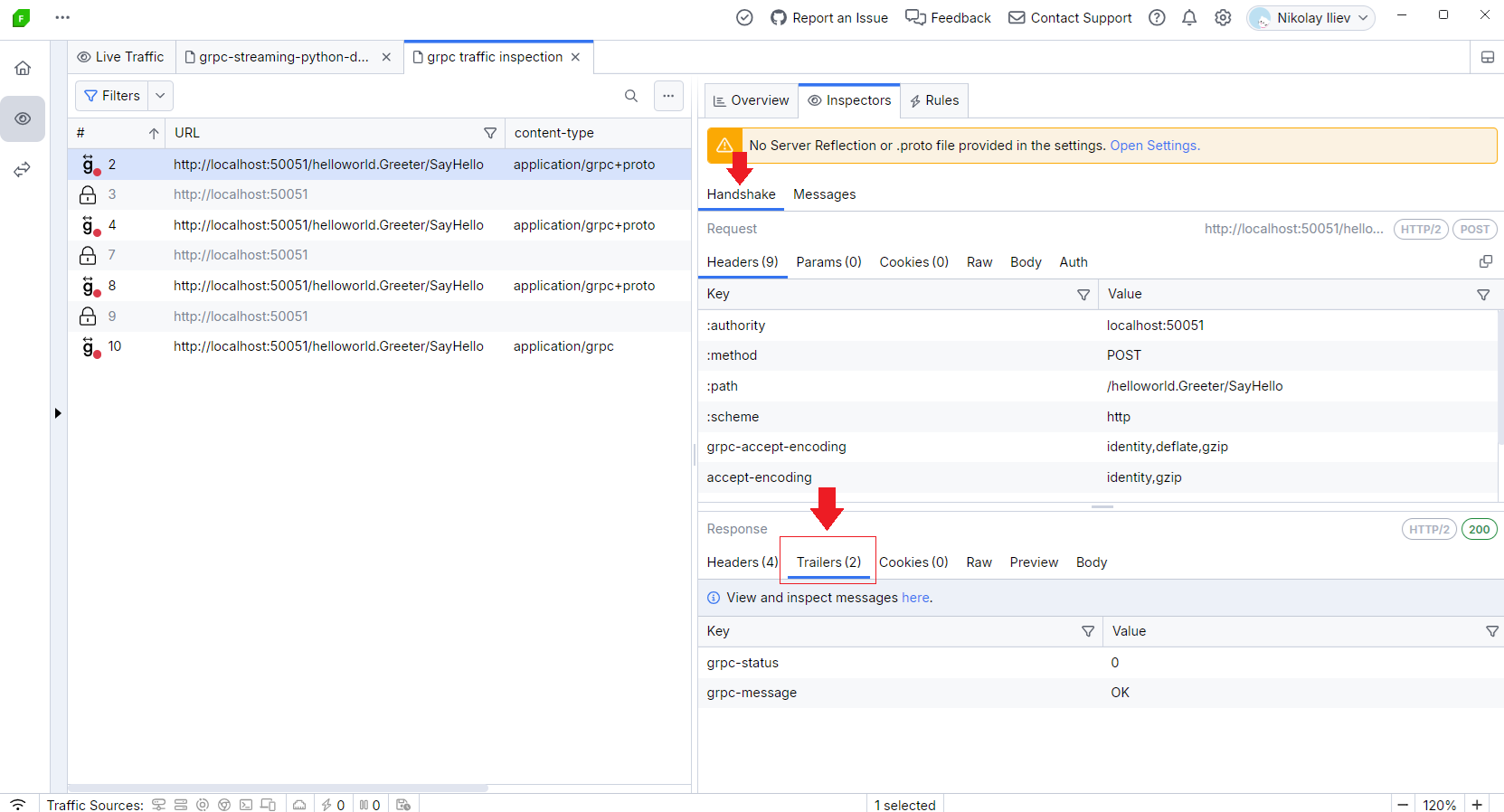
The captured gRPC session will have a green badge until the gRPC channel is open and a red badge when the gRPC channel is closed.
Double-click a gRPC session to automatically open the Messages tab and the Message inspector that allows you to inspect each gRPC message as originally received (the context menu provides decoding option) or through the HEX inspector.
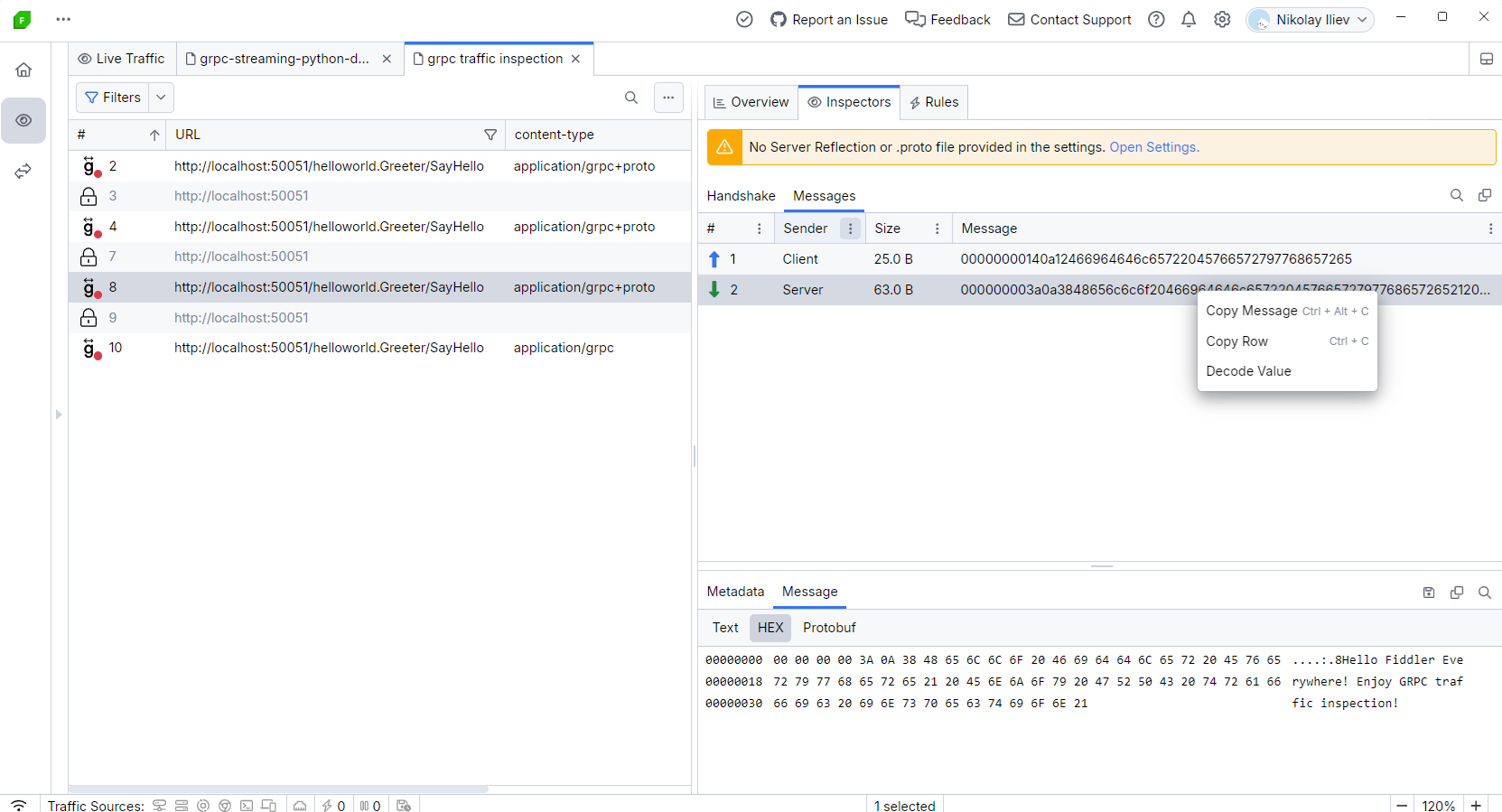
The Messages tab lists the outgoing (Sender: Client) and incoming (Sender: Server) gRPC messages. Fiddler Everywhere shows the size and the original content of each message. You can use the context menu to copy the whole row message quickly.
It is important to note that the gRPC uses Protobuf format, which is in unreadable form. That means that the Decode value context menu option cannot be used for proper decoding of any gRPC channel message. The only way to decode a Protobuf message is to own the .proto file, which cannot be extracted over the gRPC session. Only the scheme creators are aware of the .proto format. Fiddler can help developers (that have access to the .proto scheme) by allowing them to extract a specific message and then decode it through the owner .proto file and the following command:
// [message_object_name] is the name of the message object in the .proto file.
// If the message is inside a package, use package_name.message_object_name.
// [.proto_file_path] is the path to the .proto file where the message is defined.
// [binary_message_file_path] is the path to the file you want to decode.
protoc --decode [message_object_name] [.proto_file_path] < [binary_message_file_path]
Selecting a specific message allows you to inspect the message in detail through the Message inspector. You can examine the context as text or use the HEX inspector, which consists of an offset column, a hex view column, and a text view column.
Decoding gRPC traffic
Often, the content in the received gRPC messages will be encoded. Meanwhile, Fiddler Everywhere will try to present the content automatically in a readable form, which is often impossible. To further improve the decoding potions, Fiddler Everywhere also supports decoding through the following options:
-
Decoding through gRPC server reflection.
-
Decoding through Protobuf schema files (files with extension
.proto).
Server Reflection
Fiddler Everywhere will automatically detect if the gRPC server supports and uses server reflection. The server reflection might not work when it uses TLS due to certificate errors. You can ignore the errors through the Settings > HTTPS > Ignore Server Certificate Errors option.
The received gRPC messages will be automatically decoded if server reflection is available.
Protobuf Files
If you own the Protobuf schema files, you can provide them in Fiddler Everywhere through the Settings > Protobuf > Decode via .proto file option. Fiddler Everywhere will try to use the available .proto files to decode all received gRPC messages.
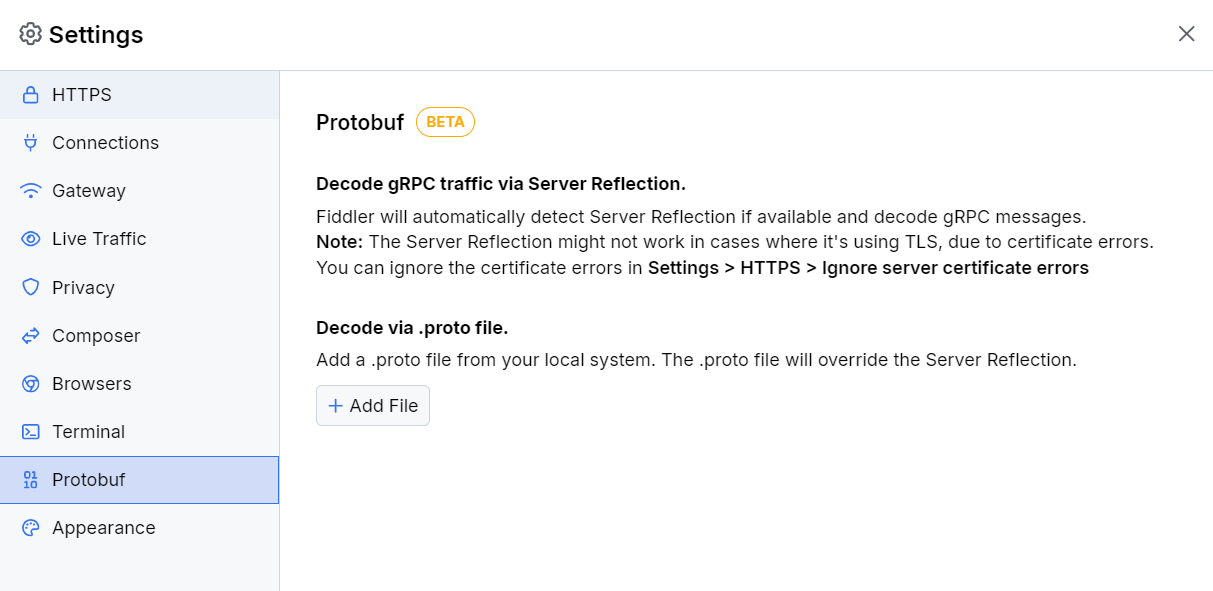
As a result, the gRPC message will have a tooltip indicating that Fiddler used a Protobuf file for its decoding.
Capturing gRPC Traffic via Proxy (Reverse vs Forward) — Python Example
Fiddler Everywhere supports two proxy approaches for capturing gRPC traffic. Understanding which one to use depends on whether your gRPC server uses TLS (h2 — HTTP/2 over TLS) or cleartext (h2c — HTTP/2 without TLS).
| Transport | Recommended Capture Method |
|---|---|
h2c (insecure, add_insecure_port) | Forward proxy |
h2 (TLS, add_secure_port) | Reverse proxy |
Some gRPC runtimes (including gRPC Python on some platforms) may not reliably use the operating system's certificate store. If you hit TLS verification errors while proxying, explicitly provide the relevant CA PEM bytes to the channel credentials.
Capturing h2 (TLS) gRPC Traffic via Reverse Proxy
When the gRPC server is configured with TLS (add_secure_port / ssl_server_credentials), the reverse proxy is the recommended capture method. Fiddler Everywhere accepts the TLS connection from the client on one port and forwards it to the server on a different port.
Step 1 — Configure the server to listen on a custom port.
Change your server to listen on a port that differs from the one your client connects to (for example, move the server to 8877 and keep the client pointing to 8843):
# greeter_server.py (TLS example)
port = server.add_secure_port('localhost:8877', server_credentials)
Step 2 — Add a reverse proxy rule in Fiddler Everywhere.
- Open the Reverse Proxy panel in Fiddler Everywhere.
- Set Client Port to
8843(the port your client connects to). - Set Remote Host to
localhost:8877(the port your server listens on). - Set both Client Protocol and Remote Protocol to HTTPS.
- Save and enable the reverse proxy.
Step 3 — Trust Fiddler's root CA in your gRPC client.
Because gRPC Python uses its own TLS stack (BoringSSL) independent of the OS certificate store, you may need to explicitly provide Fiddler's root CA certificate when constructing the channel credentials. Export Fiddler's root certificate via Settings > HTTPS > Advanced Settings > Export root certificate(PEM/ASCII format) and (if you already use a custom CA bundle) concatenate it with your existing CA roots before passing it to ssl_channel_credentials:
# Load your server's CA and Fiddler's root CA
with open('path/to/server_root.crt', 'rb') as f:
    server_ca = f.read()
with open('path/to/fiddler_root.pem', 'rb') as f:
    fiddler_ca = f.read()

# Combine both CAs so gRPC trusts the server cert and Fiddler's MITM cert
if not server_ca.endswith(b"\n"):
    server_ca += b"\n"
combined_roots = server_ca + fiddler_ca

channel = grpc.secure_channel('localhost:8843', channel_credential)
To reliably trust Fiddler's MITM certificate in gRPC Python, pass the Fiddler root CA PEM bytes (or a CA bundle that includes it) to
grpc.ssl_channel_credentials(...)rather than relying on the default root certificates.
gRPC Client → Fiddler reverse proxy (8843, HTTPS) → gRPC Server (8877, HTTPS)Capturing h2c (Cleartext) gRPC Traffic via Forward Proxy
When the gRPC server uses cleartext transport (add_insecure_port / insecure_channel), the reverse proxy cannot be used for gRPC. Fiddler Everywhere's reverse proxy does not support the h2c upgrade handshake (the PRI * HTTP/2.0 connection preface sent over plain TCP). Connections will be accepted but immediately dropped, resulting in a StatusCode.UNAVAILABLE: End of TCP stream error.
Use the forward proxy approach instead. The grpc.http_proxy channel option instructs the gRPC library to tunnel the connection through Fiddler using an HTTP CONNECT tunnel, which passes h2c traffic transparently.
Step 1 — Keep the server on its original port (no port changes needed):
# greeter_server.py
server.add_insecure_port('[::]:50051')
Step 2 — Configure the client to route through Fiddler's forward proxy:
# greeter_client.py
channel = grpc.insecure_channel(
    'localhost:50051',
    options=[('grpc.http_proxy', 'http://localhost:8866')]
)
Replace 8866 with the port Fiddler Everywhere listens on (configured in Settings > Connections > Fiddler listens on port).
Step 3 — Ensure HTTP/2 is enabled in Fiddler Everywhere.
Go to Settings > Connections and enable HTTP/2 support.
gRPC Client → Fiddler forward proxy (8866, CONNECT tunnel) → gRPC Server (50051, h2c)No port changes are required on either the client or the server when using the forward proxy approach. The proxy address is provided entirely through the
grpc.http_proxychannel option.