Fiddler Classic Migration
As of August 3, 2026, Fiddler Classic is available for personal, non-commercial use only under its updated EULA. It is no longer in active development and does not include commitments for releases, patches, or technical support. Commercial and enterprise use requires Fiddler Everywhere, which is the licensed Fiddler offering for teams and organizations.
Even before the EULA update, many users had already been migrating to Fiddler Everywhere for its cross-platform support, extended protocol coverage, and active development. To make that transition easier, Fiddler Everywhere includes a built-in import wizard for carrying over your existing settings, rules, and filters from Fiddler Classic. The following table compares the two products:
| Feature | Fiddler Classic | Fiddler Everywhere |
|---|---|---|
| License / Usage | Personal, non-commercial use only | Commercial, team, and enterprise use |
| OS support | Windows only | Windows, macOS, Linux |
| System proxy | Windows only | Windows, macOS, Linux |
| Low-level network capturing | No | Yes (macOS) |
| Sandboxed browser capturing | No | Yes |
| Rules to modify traffic | AutoResponder (limited options) | Rules (new enhanced functionality) |
| Comparing HTTP sessions | Third-party extensions | Built-in Comparison tab |
| Filters | Limited pre-defined options | Advanced filtering options |
| Collaboration | Manual export | Sharing, local & cloud saves, and manual export options |
| Supported version of HTTP | HTTP/1.x | HTTP/1.x and HTTP/2.x |
| Maximum supported version of TLS | TLS 1.2 | TLS 1.3 |
| Support for streaming protocols | WebSocket | WebSocket, SSE, Socket.IO, gRPC |
| Statistical and analytical data | Statistics tab | Overview tab with enhanced statistical data and diagram |
| Redirect a host to a different host/IP/port | Tools > HOSTS | Host Remapping (Tools menu or status bar), with added per-mapping port and protocol override, and import from the OS hosts file |
| AI Assistant | No | Yes |
| MCP server | No | Yes |
| Enterprise options | No | Technical support, SSO login, offline mode, managed app configuration, and more |
Importing Application Options
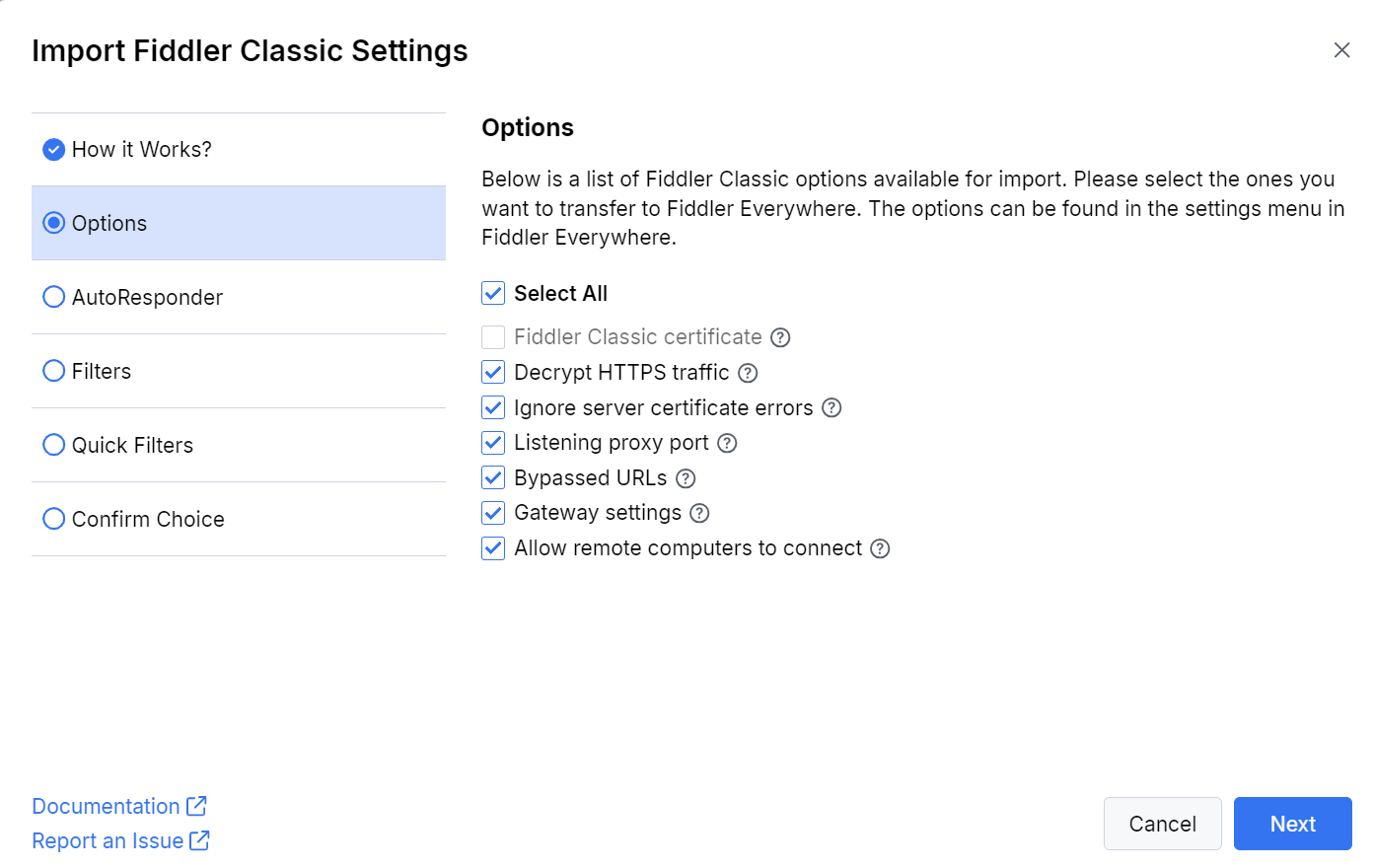
Starting with version 5.20.0, Fiddler Everywhere provides a built-in wizard allowing you to import the following configuration options from Fiddler Classic automatically. All configuration options have full feature parity, meaning they behave exactly the same in both applications. Once imported, the configuration options can be found in the Settings menu in Fiddler Everywhere.
The import wizard is accessible through the Home pane in Fiddler Everywhere.
-
Fiddler Classic certificate—Instructs Fiddler Everywhere to use the installed Fiddler Classic certificate authority file. This option is available only if you have not installed and trusted the Fiddler Everywhere CA. The certificate option will be unavailable if Fiddler Classic's certificate is not trusted or is incompatible with Fiddler Everywhere (the supported certificate generator is BouncyCastle, a.k.a. BCCertMaker).
-
Decrypt HTTPS traffic—Exports the Fiddler Classic value from Tools > Options > HTTPS > Decrypt HTTPS Traffic and imports as value for Settings > HTTPS > Capture HTTPS Traffic option in Fiddler Everywhere.
-
Ignore server certificate errors—Exports the Fiddler Classic value from Tools > Options > HTTPS > Ignore server certificate errors (unsafe) and imports as value for Settings > HTTPS > Ignore server certificate errors (unsafe) option in Fiddler Everywhere.
-
Listening proxy port—Exports the Fiddler Classic value from Tools > Options > Connection > Fiddler Classic listens on port and imports as value for Settings > Connections > Fiddler listens on port option in Fiddler Everywhere.
The default proxy port for Fiddler Classic is 8888, while for Fiddler Everywhere, it is 8866. This difference is often overlooked by users who follow a specific proxy tutorial but are trying solutions based on a different proxy port.
-
Bypassed URLs—Exports the Fiddler Classic value from Tools > Options > Connections > Bypass Fiddler Classic for URLs that starts with and imports as value for Settings > Connections > Bypass Fiddler for URLs that starts with option in Fiddler Everywhere.
-
Gateway settings—Exports the Fiddler Classic value from Tools > Options > Gateway and imports as value for Settings > Gateway option in Fiddler Everywhere. The Gateway checkbox will be unavailable if the selected option in Fiddler Classic is Automatically Detect Proxy using WPAD.
-
Allow remote computers to connect—Exports the Fiddler Classic value from Tools > Options > Connections > Allow Remote Computers to connect and imports as value for Settings > Connections > Allow remote devices to connect option in Fiddler Everywhere.
Importing AutoResponder Rules
In Fiddler Everywhere, Fiddler Classic's AutoResponder feature (as depicted in the screenshot below) is referred to as Rules. You can import only the loaded AutoResponder rules from Fiddler Classic to Fiddler Everywhere. Once imported, you will be able to modify or delete these rules as needed.
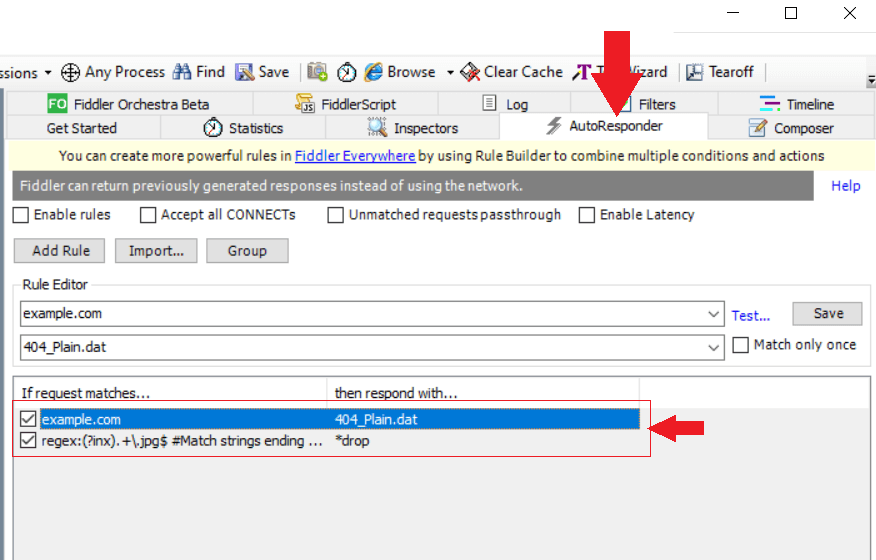
Additionally, you can import any exported rules archive (FARX) through the Import button in Fiddler Everywhere's Rules tab.
If the Fiddler Classic rule has a value populated within the "Comment" field, it will be used for the rule name in Fiddler Everywhere. Any Fiddler Classic rules that have no comment will use a predefined name.
Importing Filters
Fiddler Classic Filters function (refer to the screenshot) at a deeper level, excluding any traffic not explicitly requested by the user. In Fiddler Everywhere, actions are initiated through the Rules tab. This is why any loaded Fiddler Classic filters will be imported using separate rules.
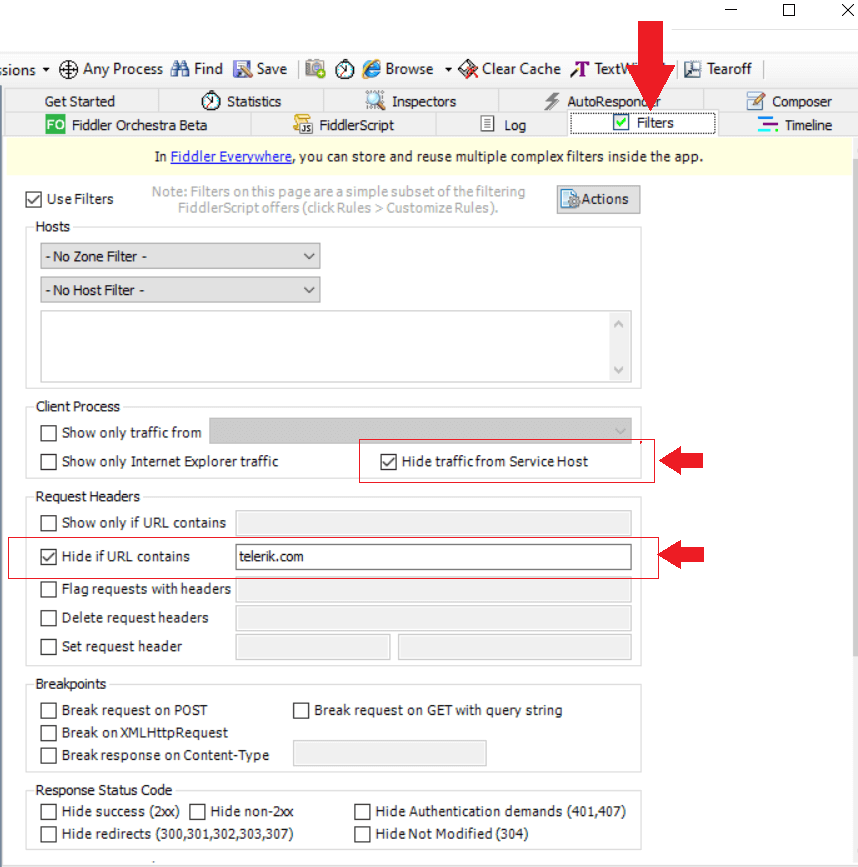
The import wizard will effectively import only currently loaded filters. As an alternative, you can import FFX files (Fiddler Filters archive) in Fiddler Everywhere through the Import button in the Rules tab.
Importing Quick Filters
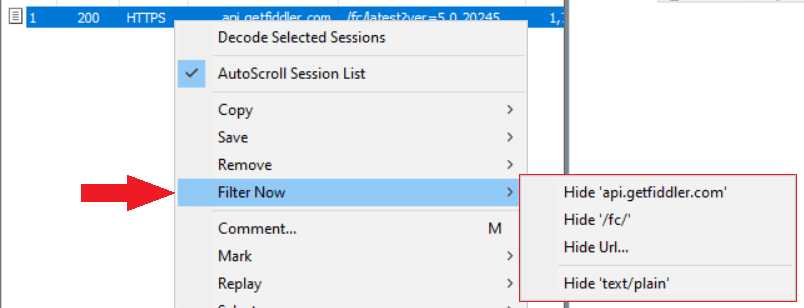
Quick filters in Fiddler Classic (refer to the screenshot) function similarly to filters in Fiddler Everywhere. You can import any existing quick filters into Fiddler Everywhere and find them in the Filters dialog under "Saved Filters" at the top left corner of the Live Traffic pane.