Deploying Containerized NestJS Applications on GCP Using Cloud Run

Summarize with AI:
While there are numerous ways to deploy an app to Cloud Run, see how to containerize and deploy a NestJS API. We will use a few products on GCP, such as Buildpacks and Artifact Registry, to build and deploy our image, and then finally deploy it to Cloud Run.
Google Cloud Run is a serverless platform that allows developers to deploy and scale a wide range of applications, from web, server-side and functions to AI/ML workloads. Internally, it runs all applications as containerized payloads.
While there are numerous ways to deploy an app to Cloud Run, in this article, we will see how to containerize and deploy a NestJS API. We will use a few products on GCP, such as Buildpacks and Artifact Registry, to build and deploy our image, and then finally deploy it to Cloud Run.
Prerequisites
To proceed with this guide, it is assumed you are comfortable with TypeScript and have basic knowledge of building a web server with the NestJS framework.
Setting Up a NestJS Project
Assuming you have the NestJS CLI installed, open your terminal and run the following command to set up a basic NestJS project:
nest new sample-project
Follow the prompt to set up the project in a folder called sample-project. Feel free to choose your preferred name. We will be making changes to our project as we proceed.
Setting Up Our Project on GCP
Let’s now set up a project on GCP. To achieve this, you can do one of the following:
- Create a project using the Firebase console UI or CLI
- Directly create it on the GCP console UI or using the Google Cloud CLI
Regardless of which method we choose, we will get the same result. However, in our case, we will be using the second option and will mostly be working with the Google Cloud CLI in our terminal to create resources.
Assuming you have the Google Cloud CLI installed, open your terminal and run the following commands to set up the CLI. Skip these steps if you have already configured it.
Start by logging in:
gcloud auth login
To verify the logged-in account, run this command: gcloud auth list.
Next, run the following command to create a project:
gcloud projects create dummy-nest-swish0062 --name dummy-nest-project --set-as-default
We specify the project ID and the project name, and set it as the default project in our CLI.
We will also need to enable billing on the project to be able to use Cloud Run. Run the following command:
gcloud billing accounts list
The command above lists the available billing accounts, which will return a list that looks like so:

Next, link the billing account by running this command:
gcloud billing projects link dummy-nest-swish0062 --billing-account=017F58-A35A34-XXXXXX
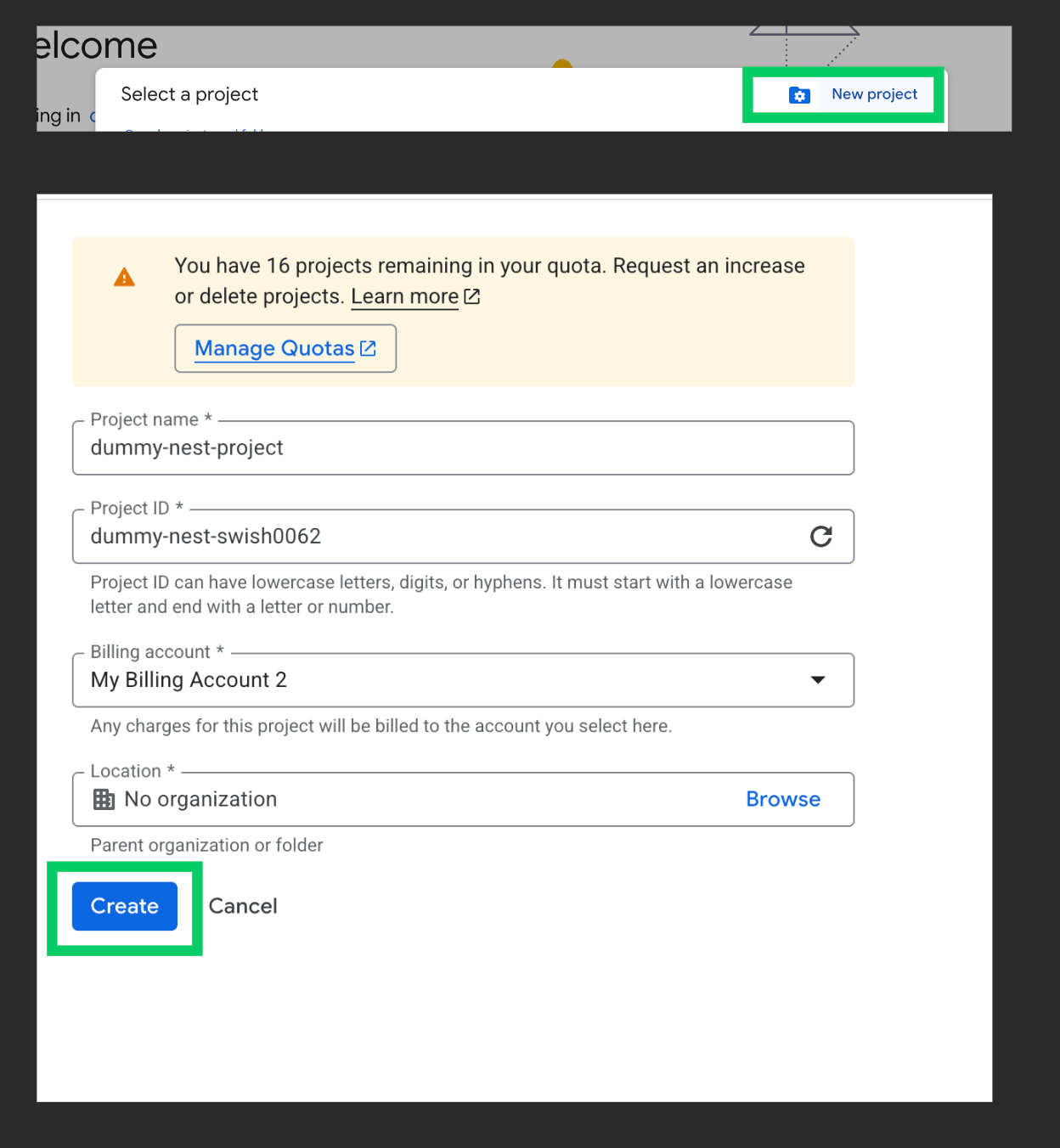
The command above is similar to clicking create project on GCP and filling the form as shown below:
Google Cloud Run, Knative and Kubernetes
Google Cloud Run is built on top of Knative, and Knative is built on top of Kubernetes. These tools are designed to simplify the deployment of containerized applications.
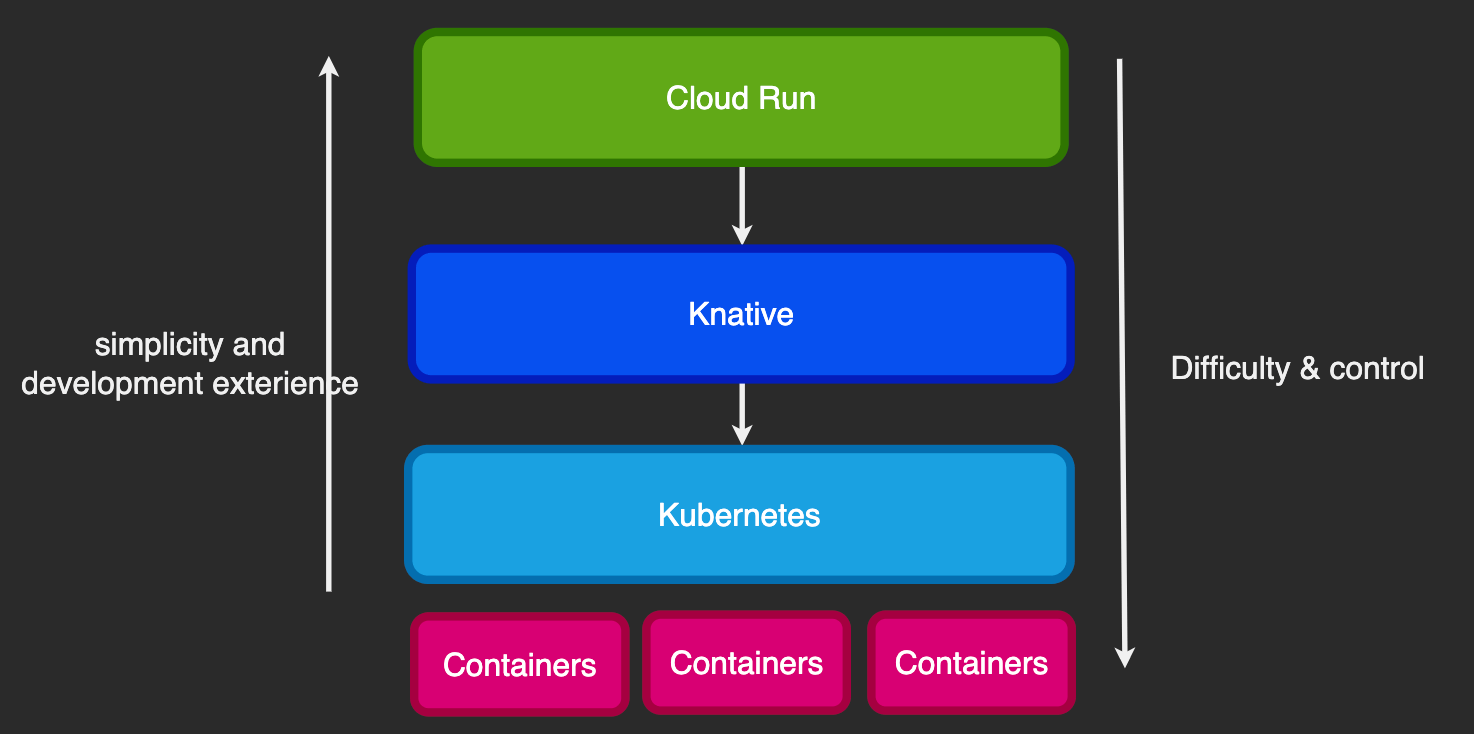
As we move from top to bottom, there is increased experience and expertise required, more control, more knowledge gaps to be filled, and, of course, a greater margin for error.
The opposite applies when moving from bottom to top, with Google Cloud Run at the apex. Cloud Run requires the least experience from developers and gives them the best deployment experience while doing all the heavy lifting.
To understand the benefits of Cloud Run, let’s do a basic walkthrough from bottom to top, outlining the struggles and benefits at each level.
Containers and Kubernetes
It all starts with having a project written in some language that needs to be deployed live to users. To proceed, the developer may need to understand how to use a container runtime like Docker or Podman to build images. Next, they need to put the images on some registry (e.g., Docker Hub).
To deploy the images, that is, run them as containers in production, a lot of things can go wrong. They need to determine how many instances of the container to run, which ports to expose, how to route traffic, and much more. To achieve this, learning how to use a tool like Kubernetes might help, since it allows the developer to define the desired state of the application. The developer needs to understand how Kubernetes works, understanding concepts like the control plane, data plane, workloads, pods, deployments, services and ingresses.
Knative
To save developers the stress, Knative was built. It abstracts all the inner complexities of working directly with Kubernetes and makes it easy to build and scale serverless applications with zero knowledge of containers, Kubernetes or any of its concepts. Since it is based on Kubernetes, it is highly portable and can run on any cloud platform.
Knative consists of three main components:
Functions Framework: A framework that allows developers to write HTTP-triggerable serverless functions in their preferred programming language. As of the time of writing, four languages are supported (Go, Python, Java and TypeScript/JavaScript). After writing their functions, developers can test them locally. The Functions Framework handles containerizing the function code, storing it in a registry and then passing it to Knative Serving for deployment.
Knative Serving: This is responsible for deploying and running containers on top of Kubernetes. Containers can hold the logic for any HTTP-triggerable workload—for example, one using the Functions Framework, our NestJS web server, or an AI/ML workload. Under the hood, it interacts with Kubernetes to create service definitions, which house all the configurations required to run the containers, route incoming traffic to them and handle scaling as well. For AI/ML workloads, it verifies containers have access to GPUs. Service definitions also maintain revisions of the service, which are snapshots or versions of the configurations and the state of our application, allowing developers to roll back to previous states in case of errors or failures.
Knative Eventing: Provides APIs for developers to employ an event-driven architecture suitable for building loosely coupled services. These APIs allow developers to route events between services via HTTP. Events are usually represented in the form of JSON. They originate from an event source and are then moved to a message broker, which routes the payload to an event consumer. An event source or consumer could be services running on Knative Serving or Kubernetes; event sources may also be external services and systems, such as databases.
Cloud Run
Finally, we have Cloud Run, which, in the simplest terms, is Knative for Google Cloud Platform with extra superpowers:
- Deployment directly from source code or using containers, with or without knowledge of container runtimes like Docker or Podman
- Runs containers in an isolated environment where running containers can still access your other cloud resources
- Multiple options to run containers: as services, jobs or worker pools
- Functions Framework with support for more languages, allowing you to write and deploy application logic in minutes
- Flexible payment options—either pay per request or pay per instance—with autoscaling handled automatically
- CI/CD tools to automatically deploy new versions of your application to production
Deployment Options
Regardless of the method we choose to deploy an application, we already know that it ends up running as a container. Generally, we can deploy our application as one of the following:
- Service: Used for HTTP-triggerable resources.
- Job: Jobs are typically used when we want our code to perform expensive computations that we trigger manually. Jobs are not called via HTTP.
- Worker pool: These are used to run resources that serve as consumers for jobs managed by a broker or queue service. Worker pools are always running and constantly listening for new data to process.
Since our NestJS application is HTTP-triggerable and listens on a port, we will be deploying it as a service.
When deploying our application as a service, we have two main options:
- Deploy from source: Here, you simply point Cloud Run to a repository (e.g., on GitHub), and it takes care of containerizing the application and deploying it. This option is available only for services.
- Deploy from container: Here, you point it to a container (e.g., on Docker Hub or Artifact Registry), and then it takes care of the rest. This is available for all resource types.
We will be using the second option, since this is the goal of this article.
Deploy from Container
When deploying from containers, we can choose to build and publish the image either locally or remotely:
- Locally: Here we install Docker, Podman or some other container runtime on a PC or VM, then build an image. To build the image locally, we can either write our build configuration in a Dockerfile or skip using a Dockerfile completely and install a local buildpack like the Pack CLI to build the image. We then publish it on Docker Hub, retrieve the URL to that image, and feed it to the Cloud Run console to deploy our app.
- Remotely: This is the option we will be using. Here, we don’t need to install any tools. We will leverage Google Cloud Buildpacks to build the image remotely, then proceed to push the built image to Google’s Artifact Registry and use the URL to the image to deploy the service.
Preparing Our NestJS Project Before Deployment
We will also need to make a few changes to our NestJS project before we can proceed with deployment.
Defining the Project Descriptor
In the root of your NestJS project, open your terminal and run the following command:
touch project.toml
Update its contents to match the following
[[build.env]]
name = "GOOGLE_ENTRYPOINT"
value = "node dist/main"
Earlier, we said we will be using Google’s Cloud Build service and the buildpacks it provides to build our application’s image. A project descriptor is a file used to guide the repository (i.e., the Cloud Build service) on how to build the image. Think of it as informing the Google Cloud Build service on how to update the contents of the Dockerfile before it builds the image and when it runs the image as a container.
There are special environment variable names, some of which are specific to Google Cloud Build (i.e., for any runtime such as Node or Java) and others specific to our project’s runtime (i.e., Node.js in our case).
In the project.toml file, we specified the one called GOOGLE_ENTRYPOINT. Without this variable, Cloud Run will not know how to execute our container. The value of this variable is synonymous with the CMD block in a Dockerfile.
It is important to note that the environment variables in the project.toml file are only for building the image and running the container. Later, we will describe how to add runtime-specific environment variables like database secrets that will be used in our NestJS app.
Configuring the Port
Update the main.ts file to look like this:
import { NestFactory } from '@nestjs/core';
import { AppModule } from './app.module';

async function bootstrap() {
    const app = await NestFactory.create(AppModule);
    await app.listen(process.env.PORT || 3000);
}
bootstrap();
The PORT environment variable is a special reserved variable that will be injected by Cloud Run when it runs our NestJS backend in a container. We updated the app to listen to the value of the PORT variable or fall back to the default value of 3000.
Building and Deploying Our NestJS App as a Service
In this section, we will be doing the following:
- Creating an artifact repository
- Building and publishing the image to the artifact repository
- Creating a service on Cloud Run using the image URL
Creating an Artifact Repository
Open your terminal, and run the following command to create a repository:
gcloud artifacts repositories create dummy-nest-repo\
    --repository-format=docker \
    --location=europe-west2 \
    --description=" this "repo will hold my nestjs app" \
    --immutable-tags
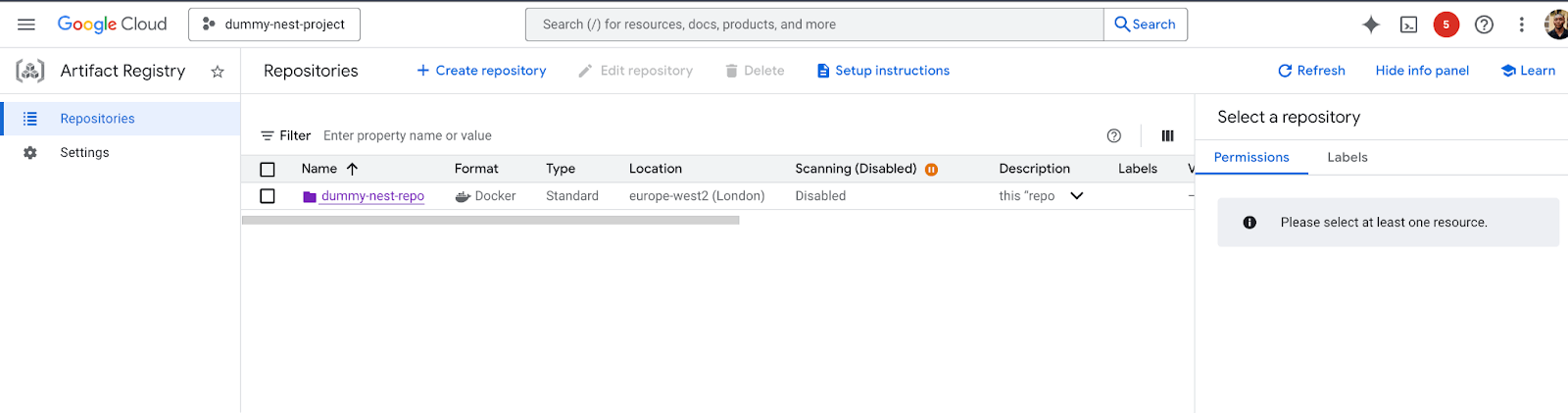
A repository holds one or more images. In the command above, we created one called “dummy-nest-repo” in the europe-west2 region with the Docker repository format.
If the command executes successfully, we get the newly created repository.
Here is a snapshot of the GCP console UI showing the newly created repository:
Building and Publishing the Image to the Artifact Repository
With our repository available, run the following command to trigger a build and publish it to the repository:
gcloud builds submit --pack image=europe-west2-docker.pkg.dev/dummy-nest-swish0062/dummy-nest-repo/dummy-app:0.0001
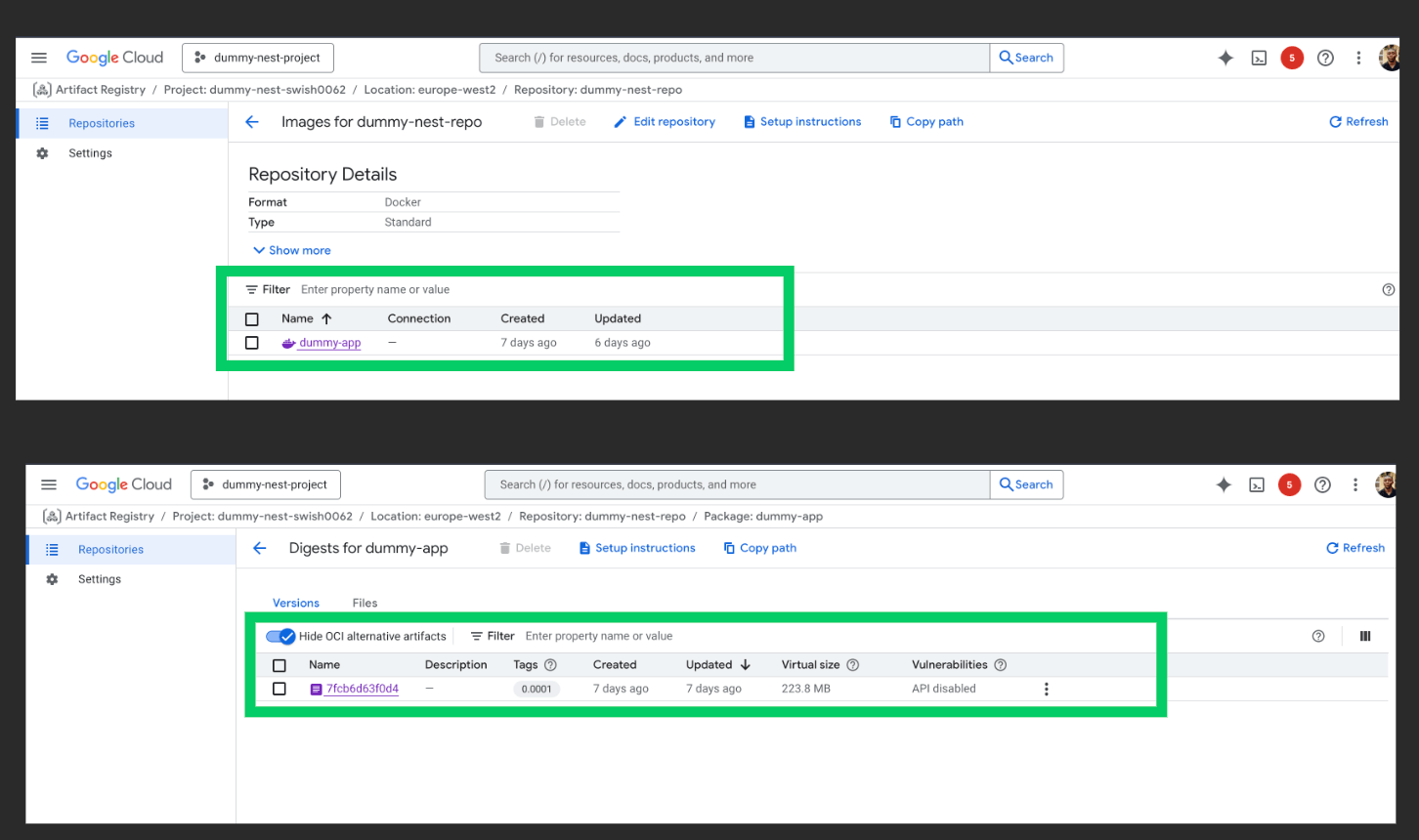
The command above triggers the Cloud Build service to build and deploy our image to the dummy-nest-repo repository.
The image URL is a string that takes the following form:
REGION-docker.pkg.dev/PROJECT-ID/REPOSITORY_NAME/IMAGE_NAME:TAG
Creating a Service on Cloud Run Using the Image URL
Open your terminal and run the following command to deploy the image as a service:
gcloud run deploy my-nestjs-app --image europe-west2-docker.pkg.dev/dummy-nest-swish0062/dummy-nest-repo/dummy-app:0.0001
The command above deploys a service called “my-nestjs-app” using the URL to the image we just uploaded.
The screenshot below shows the result of running the command.
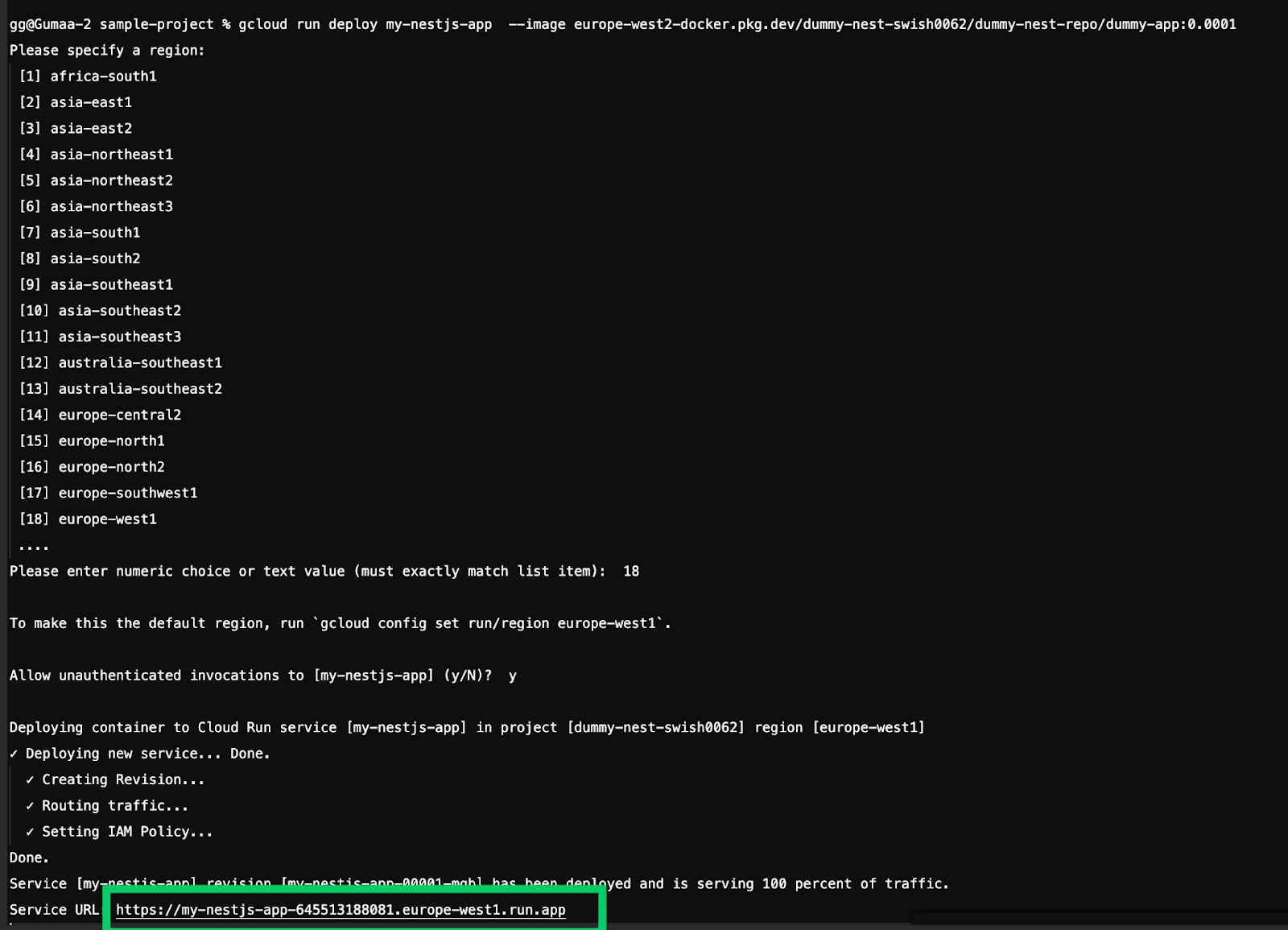
As seen above, we get a URL which we can use to connect to the application. We can visit this endpoint in our browser and receive a “Hello World” response from our NestJS server, as shown below.

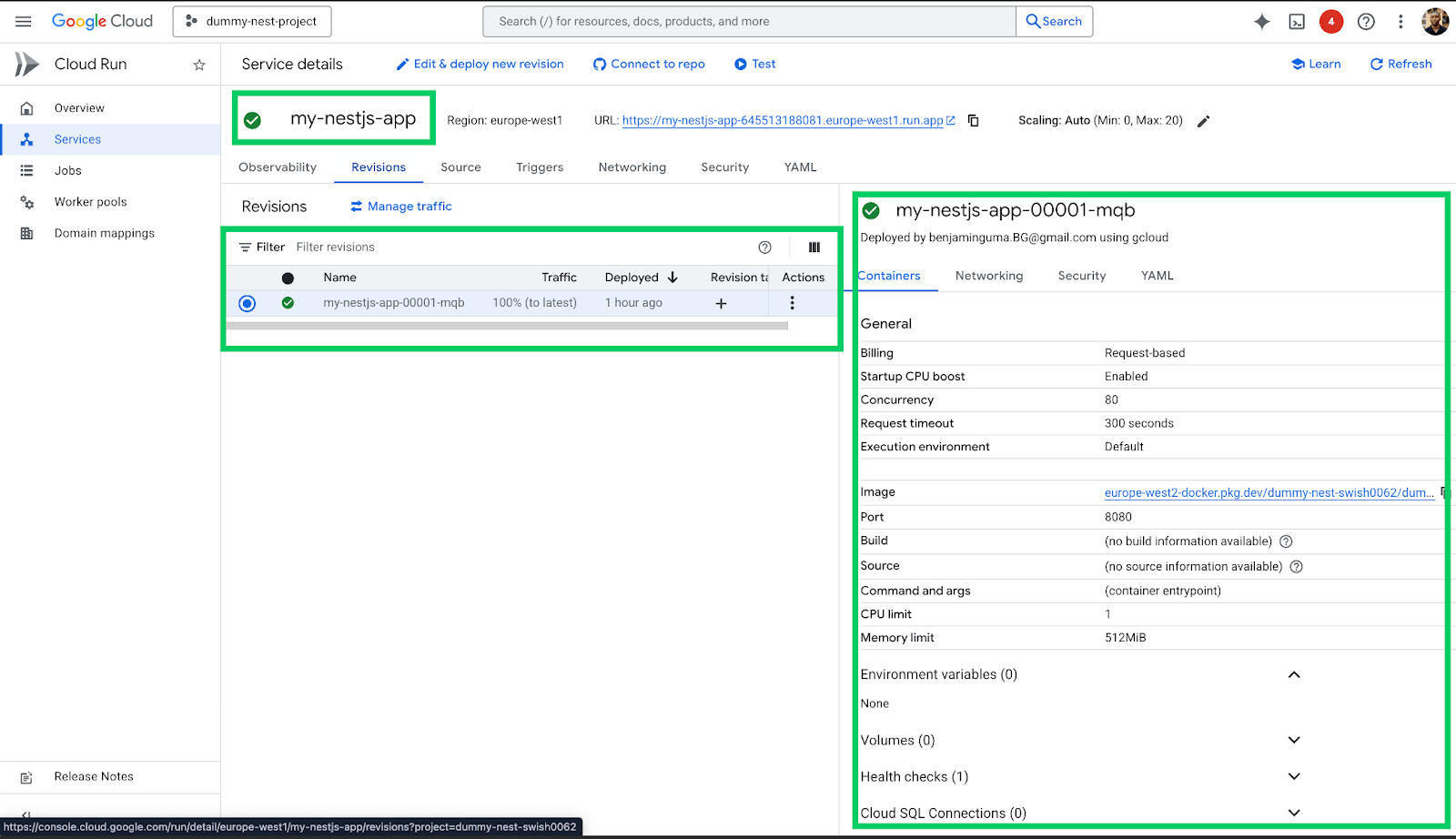
Also, on the GCP console, we can see the service, its revisions, configurations, routing, etc., similar to the definitions of the Knative Serving component described earlier.
Adding Runtime-Specific Environment Variables
Server-side applications may use one or more environment variables to connect to a database, communicate with third-party APIs, etc. In this section, we will see how to include runtime environment variables when deploying services. We will be doing the following:
- Adding .env files to our NestJS app
- Setting up and configuring the Config Module
- Deploying a new version of the service referencing the environment variable files
Adding .env files to our NestJS app
Assuming you are in the project’s root, open your terminal and run the following command to create two files: .env.dev and .env.prod.
touch .env.dev prod.env
These files will hold environment variables for development and production, respectively. Let’s proceed to update their contents.
Update the .env.dev file with the following:
MESSAGE="this is dev message"
Update the prod.env file with the following:
MESSAGE="this is production message"
We included a variable named MESSAGE in each file, which holds a dummy message.
Setting Up and Configuring the Config Module
Usually, when working with environment variables in a NestJS application, the ConfigModule is the recommended way to use and access them. That is what we will be doing in this guide.
Let’s now install it in our app.
pnpm install -save @nestjs/config
Next, let’s update the app.module.ts file to use this module:
import { Module } from '@nestjs/common';
import { AppController } from './app.controller';
import { AppService } from './app.service';
import { ConfigModule } from '@nestjs/config';

@Module({
    imports: [

    ConfigModule.forRoot({
        isGlobal: true,
        ignoreEnvFile: process.env.NODE_ENV === 'production',
        envFilePath: [
        '.env.dev'
        ],
    }),
    ],
    controllers: [AppController],
    providers: [AppService],
})
export class AppModule { }
The envFilePath points to files where we want to load environment variables from. We only specified .env.dev since we will be using that during development. However, in production, we ignore all .env files since they will be injected for us automatically in our container.
Note that the process.env.NODE_ENV variable will be automatically injected by the Cloud Build service when building the image and will default to production. We can override this value in the project.toml file in case we want different behavior in different environments.
Let’s now update the app.service.ts file and update its getHello method:
import { Injectable } from '@nestjs/common';
import { ConfigService } from '@nestjs/config';

@Injectable()
export class AppService {
    constructor(private readonly configService: ConfigService) {

    }
    getHello(): string {
    return this.configService.getOrThrow<string>('MESSAGE');
    }
}
The getHello method is now updated to return the contents of the MESSAGE environment variable.
Start the application locally by running:
pnpm run start:dev
If we visit localhost:3000 in our browser, we see the contents of the message from the .env.dev variable, as shown below:

Let’s now proceed to build and deploy a new version of our service.
gcloud builds submit --pack image=europe-west2-docker.pkg.dev/dummy-nest-swish0062/dummy-nest-repo/dummy-app:0.0002
The only notable change in the build command is that the new image has a tag of 0002. Next, let’s deploy it.
gcloud run deploy my-nestjs-app --image europe-west2-docker.pkg.dev/dummy-nest-swish0062/dummy-nest-repo/dummy-app:0.0002 --env-vars-file prod.env
Notice we included the –env-vars-file option and set it to the prod.env.
As a side note, verify that the file extension of the file holding environment variables that you intend to ship to production ends with
.env(e.g., prod.env in our case). Setting it to.env.prodwill not work.
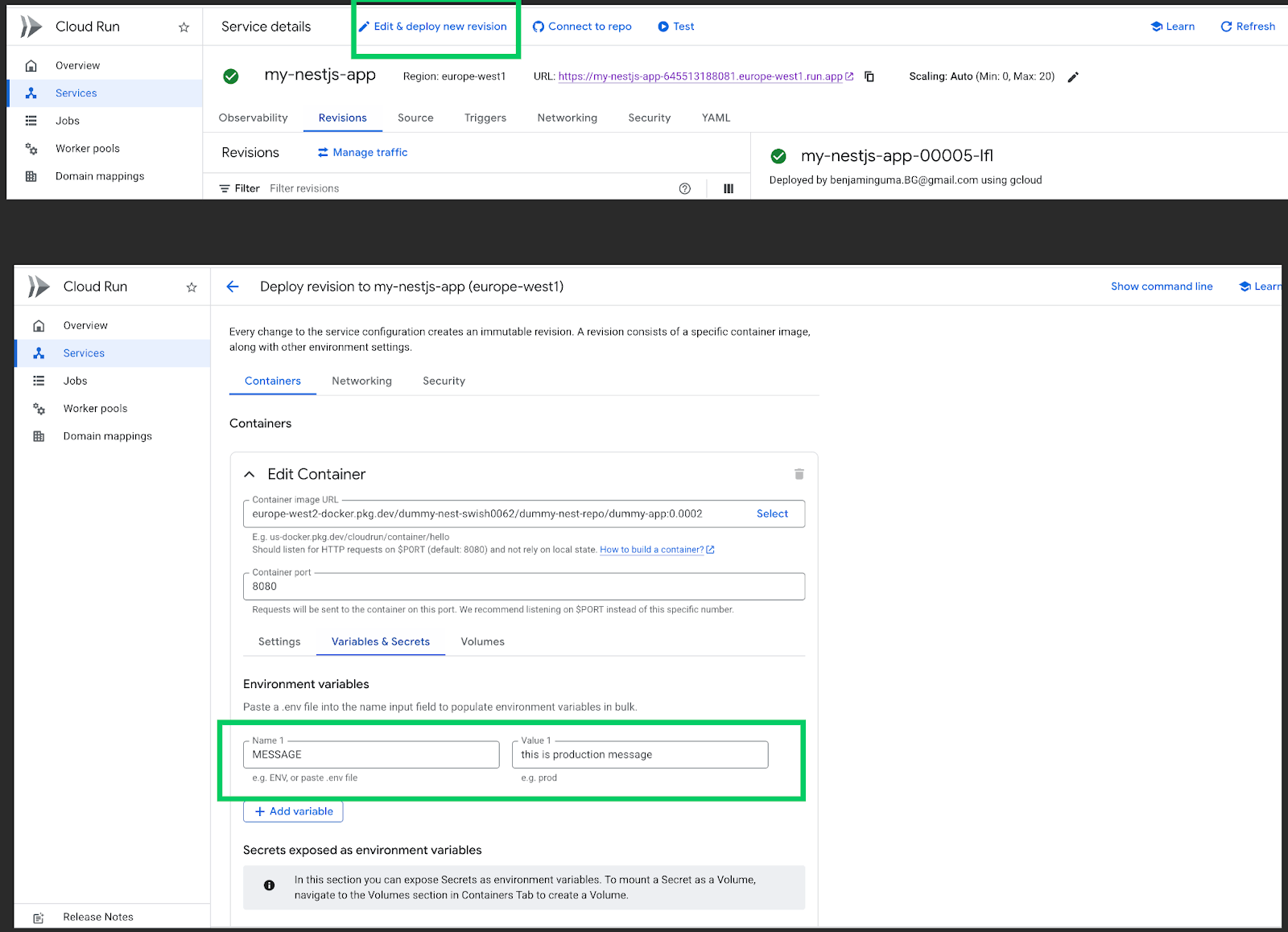
On the GCP console, look at our service and click on Edit and deploy new revision.
In the Variables and Secrets tab under Edit Container, we see the newly added variable, as shown below:
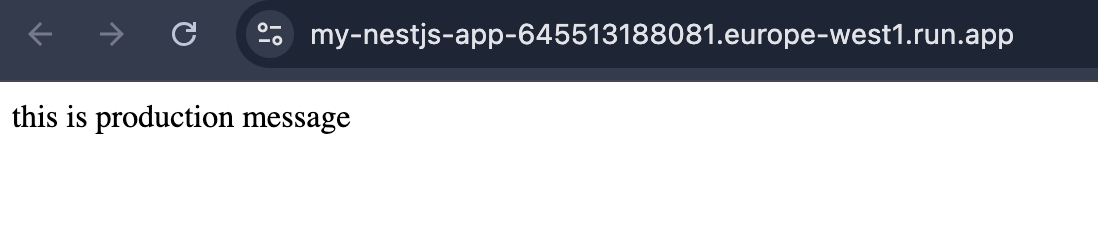
When we visit our service URL, we get the new message, as shown below:
Best Practices
In this section, we will discuss a few best practices to keep in mind when deploying containerized applications on Google Cloud Run. We have already established the fact that when deploying services, we can have billing set either per request (default) or per instance. We will go over some general guidelines for all services to be deployed on Cloud Run and runtime-specific guidelines for Node.js.
- If services are configured to run as request-based, they should not perform background tasks since their runtime is short-lived (i.e., limited to only when there are incoming requests). If you need services to perform background tasks, run them as instance-based and set at least one running instance.
- Start containers quickly. This can be done by keeping containers lightweight and removing unnecessary dependencies in your code. Also, if you are building the image yourself, use stable and community-maintained base images.
- For Node.js applications, minimize the number of dependencies. When using many dependencies, you should employ lazy loading to only load them when necessary to minimize startup time. Preferably, start your containers using
nodeinstead ofnpm. For example, in our case we started our container usingnode dist/maininstead ofnpm run start, which is slower.
Next Steps
When it comes to deploying applications, there is no one-size-fits-all approach. We have covered one of the numerous ways to deploy our application on GCP using the Cloud Run service. However, we can still make some improvements in our approach. The obvious one is the fact that we have to manually type each command.
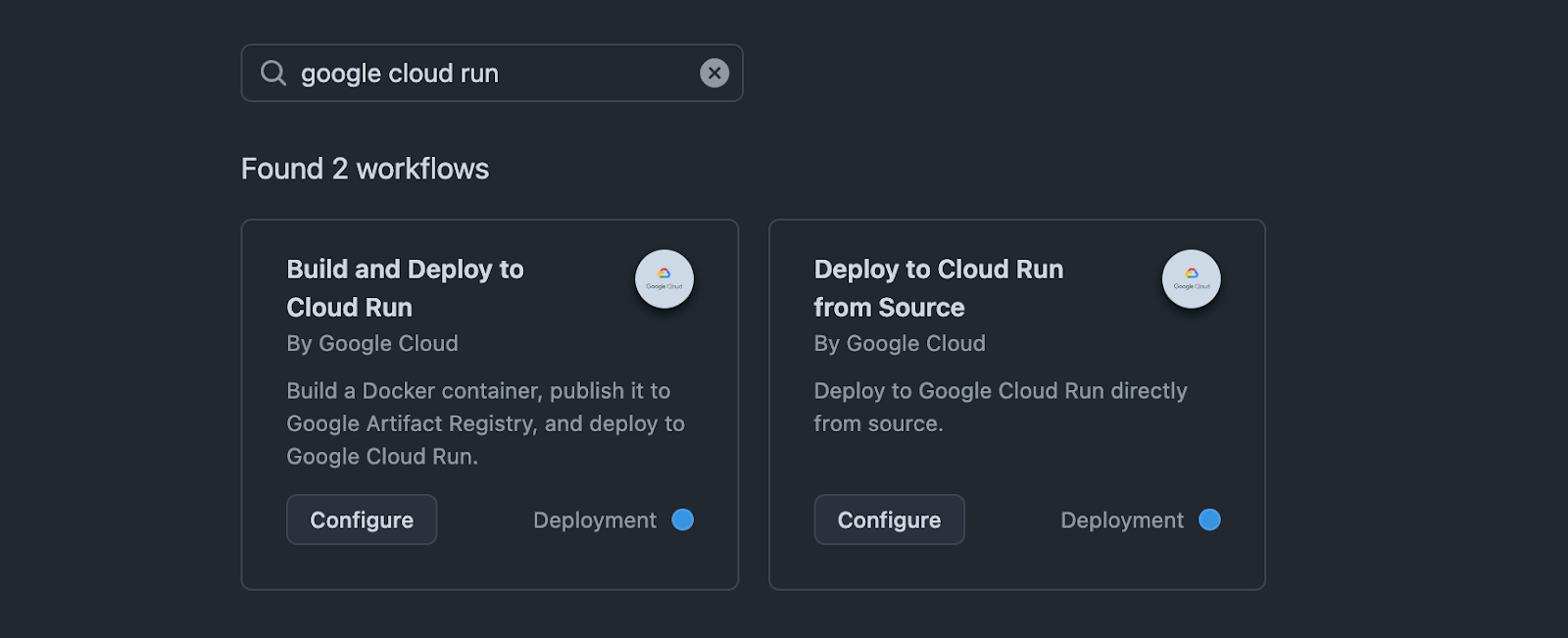
Also, to streamline our workflow, we need to enable CI/CD to provide a better experience when deploying our code. We can use GitHub Actions and any of the Google Cloud Run provided workflows to automate that process.
Conclusion
While there are numerous options for deploying applications, in this guide we focused on using Google Cloud and the Cloud Run service. Hopefully, this will serve as a potential option for deploying your applications in future projects.
Read more: How to Build a NestJS AI Chatbot with Google Gemini

Christian Nwamba
Chris Nwamba is a Senior Developer Advocate at AWS focusing on AWS Amplify. He is also a teacher with years of experience building products and communities.
Related Posts
Comments
All articles
Topics
Web MobileMobile
Desktop
Design
Productivity
People