Blazor Basics: Implementing a Loading Indicator for Asynchronous Components

Summarize with AI:
Learn how to properly implement a custom loading indicator and why professional UI libraries can provide the best user experience.
In modern web development, we often asynchronously load data from the server. Blazor is no different. To let the user know that data is being loaded and the app is working, we should show a busy or loading indicator during such operations.
In this article, we will implement a basic loading indicator in Blazor using CSS and also explore more advanced solutions.
You can access the code used in this example on GitHub.
The Blazor Project Template Approach
Let’s start simple by looking at the loading indicator used in the default Blazor project template.
@if (forecasts == null)
{
    <p><em>Loading...</em></p>
}
else
{
    <table class="table">
    <!-- code omitted -->
    </table>
}
This very basic approach uses an if-else statement to determine the component state and a simple paragraph HTML element to render a “Loading…” text.
There are a few flaws with this overly simplistic solution:
Static text does not provide a modern user experience. In a world where attention spans are short and user experience is important, we should use a spinner animation or another element that conveys the feeling of progress.
Static text does not act as a placeholder with the correct size. In the example above from the Weather page of the default Blazor project template, the Loading text has a much lower height compared to the fully rendered table containing the weather information.
A code snippet like the Loading text above is not reusable. It doesn’t include a CSS class to make it look consistent across pages, nor is it reusable. Copying the same snippet across multiple pages will yield different user experiences if one of the developers decides to alter its design in the future.
A Basic Reusable Loading Indicator Component
Let’s build a basic reusable LoadingIndicator component. First of all, we want to internalize the loading state.
This helps us get rid of the if-else statement in each page component. We want the code in the page component to look like this:
<LoadingIndicator IsLoading="@(forecasts == null)">
    <table>
    <!-- code omitted -->
</LoadingIndicator>
Let’s start with the component template:
@if (IsLoading)
{
    <div class="loading-indicator" Style="@($"height: {Height}px")">
        <div class="circular-progress" />
        <div class="progress-text">Loading...</div>
    </div>
}
else
{
    @ChildContent
}
We internalized the if-else statement handling the loading state. During loading, we display a loading indicator, which consists of three divs.
We show the child content (in the example above, an HTML table) when the loading state is false.
Now let’s look at the code section:
@code {
    [Parameter]
    public required int Height { get; set; } = 96;

    [Parameter, EditorRequired]
    public required bool IsLoading { get; set; }

    [Parameter, EditorRequired]
    public RenderFragment? ChildContent { get; set; }
}
Here, we have three component parameters. Let’s go through them one by one.
The Height parameter is optional (notice the absence of the EditorRequired attribute). By default, the height of our loading indicator is 96 pixels. However, we can provide a custom value to this property for each instance on a page component.
The IsLoading parameter decides whether the loading indicator or its children are rendered.
The ChildContent parameter of type RenderFragement allows us to wrap the content of the page into the LoadingIndicator for a good developer experience.
Now that we have the component template and its behavior, we need the CSS styling:
.loading-indicator {
    display: flex;
    flex-direction: column;
    align-items: center;
    justify-content: center;
    width: 100%;
    gap: 8px;
}

.circular-progress {
    width: 32px;
    height: 32px;
    border: 3px solid rgba(0, 0, 0, 0.1);
    border-top: 3px solid #3b82f6;
    border-radius: 50%;
    animation: spin 0.8s linear infinite;
}

.progress-text {
    font-size: 1rem;
}

/* Spinner animation */
@keyframes spin {
    0% {
        transform: rotate(0deg);
    }

    100% {
        transform: rotate(360deg);
    }
}
CSS, unfortunately, most of the time requires a lot of code to implement rather simple things.
For example, here, we have the loading-indicator class, which contains a flex layout and its layout properties. It basically takes up the entire available width and places its children one below the other.
Next, we have the circular-progress class, which defines the circle’s layout. It’s the base of our animation.
The progress-text class is simple for now and only sets the font-size.
Last but not least, we have an animation definition using keyframes. We use the named animation in the circular-progress class’s animation property.
Let’s see how it works in action.
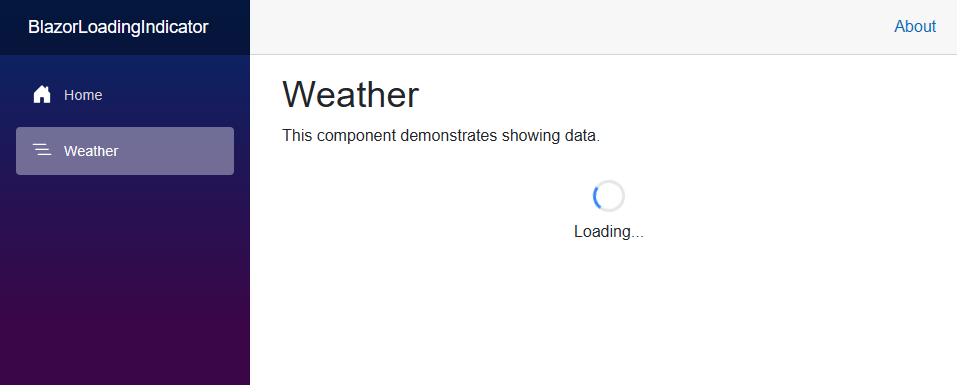
I set the delay in the Weather page component to 2 seconds so that I can see the full loading animation for testing.
// Simulate asynchronous loading to demonstrate a loading indicator
await Task.Delay(2000);
As soon as the data is loaded from the screen, the IsLoading property of the LoadingIndicator component will return false. Therefore, instead of the circular progress animation, we will see the pages’ content.
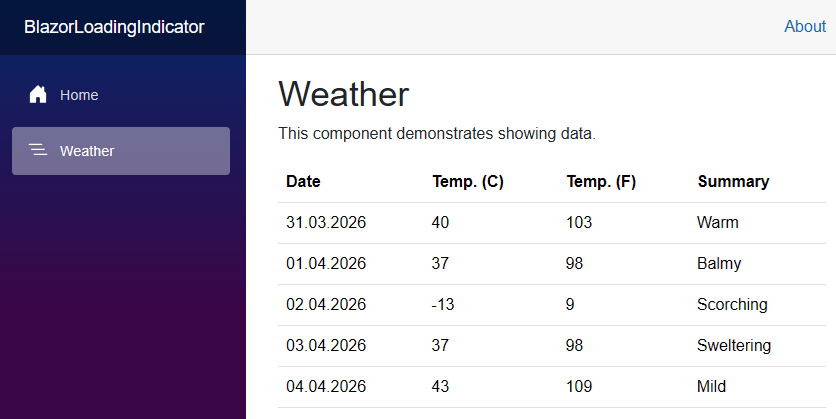
Hint: One of the advantages of component-oriented web frameworks such as Blazor is that we can reuse this LoadingIndicator component and therefore hide the large CSS definition and the component behavior behind this LoadingIndicator component.
Professional Integrated Solutions
While we definitely provided a more useful component and a better user experience with our reusable LoadingIndicator component, there is still room for improvement.
As application developers, we want to provide the best solutions for business problems while providing the best possible user experience.
We should focus on delivering value to our business rather than wasting time implementing generic components. Standing on the shoulders of giants is the right call.
There are professional user interface libraries, such as Progress Telerik UI for Blazor. Developers of those libraries invest much more time into building those reusable components than we are able to spend in our projects.
Component libraries like Telerik UI for Blazor integrate sophisticated loading indicators and loading state handling into higher-level components, such as AutoComplete fields, Grid layouts and ListViews, and more advanced components like TreeList and TreeView.
Conclusion
Handling the loading state and providing a good user experience during asynchronous data fetching operations is crucial in modern web development.
The default Blazor web application project template provides a simple solution that lacks in multiple regards.
We implement a custom LoadingIndicator component, which improves the solution from the default project template by extracting logic and behavior into a reusable component. Using its Height property, we can make the loading indicator take the same space as the rendered elements, thus preventing layout shifts. It’s a step in the right direction.
However, if possible, I usually prefer using one of the brilliant, existing solutions over my handmade approach. For example, the Loader and LoaderContainer components provide a great developer and user experience for building modern Blazor web applications.
Telerik UI for Blazor comes with a free 30-day trial, so you can explore these plus 120 other components for yourself.

Claudio Bernasconi
Claudio Bernasconi is a passionate software engineer and content creator writing articles and running a .NET developer YouTube channel. He has more than 10 years of experience as a .NET developer and loves sharing his knowledge about Blazor and other .NET topics with the community.
Related Posts
Comments
All articles
Topics
Web MobileMobile
Desktop
Design
Productivity
People