Blazor Basics: Building Responsive Blazor Apps with CSS Media Queries

Summarize with AI:
Responsive design is the reason applications feel polished and user-friendly. Learn how to build responsive Blazor web applications using CSS media queries.
Today, we will learn how to build responsive Blazor web applications. Responsive design is the reason applications feel polished and user-friendly.
We will first learn the basics of responsive design and how to use CSS media queries to implement responsive layouts. Next, we will learn about what we should and should not do in our Blazor logic (C# code).
You can access the code used in this example on GitHub.
What Is Responsive Design for Blazor Apps?
Blazor provides a user interface rendering engine (Razor components) that lets us implement behavior using C#. Blazor components consist of an HTML and CSS template combined with C# interaction logic.
In modern web development, we want to utilize CSS media queries to let our web applications adapt to different screen sizes:
- Small screens, such as mobile phones
- Medium screens, such as tablets
- Large screens, such as desktop computers
- (optional) Ultra-wide monitors
Best practices for general web development also apply to implementing Blazor web applications.
CSS Media Queries in Blazor Components
Let’s learn about CSS media queries using a practical example, a Blazor web application generated from the .NET 10 Blazor Web App project template.
The NavMenu component contains a menu toggler. How it appears on the screen differs completely between a larger and a smaller screen.
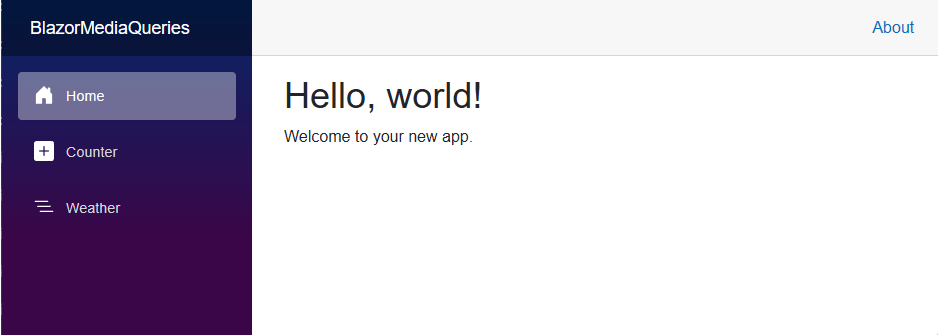
For a larger screen, the menu is always visible on the left. For a smaller screen, the menu is collapsed, and the menu toggler is visible. The menu only appears if the user presses the hamburger menu button.
The HTML definition in the NavMenu component looks like this:
<input type="checkbox" title="Navigation menu" class="navbar-toggler" />
It’s an input element with the navbar-toggler CSS class attached.
Let’s look at the CSS code defining that behavior:
.navbar-toggler {
    appearance: none;
    cursor: pointer;
    width: 3.5rem;
    height: 2.5rem;
    color: white;
    position: absolute;
    top: 0.5rem;
    right: 1rem;
    border: 1px solid rgba(255, 255, 255, 0.1);
    background: url("data:image/svg+xml,%3csvg xmlns='http://www.w3.org/2000/svg' viewBox='0 0 30 30'%3e%3cpath stroke='rgba%28255, 255, 255, 0.55%29' stroke-linecap='round' stroke-miterlimit='10' stroke-width='2' d='M4 7h22M4 15h22M4 23h22'/%3e%3c/svg%3e") no-repeat center/1.75rem rgba(255, 255, 255, 0.1);
}
This CSS class definition defines the visual appearance of the menu toggler. It includes an inline SVG to define the three horizontal lines and a few spacing definitions.
As shown in the image above, on larger screens, this nav menu button is not visible. Let’s look at the CSS code that implements this behavior.
@media (min-width: 641px) {
    .navbar-toggler {
        display: none;
    }
}
The @media syntax introduces the CSS media query feature. In the parentheses, we can implement a filter. In this case, we want all CSS definitions placed inside the curly braces to apply in case the filter condition evaluates to true. In this case, the minimum width of the rendered web page is expected to be 641 pixels.
In other words: When the page is at least 641 pixels in width, we want the CSS definitions inside the curly braces to be applied. In this definition, we set the display property to none for the navbar-toggler CSS class.
Learning: Using CSS media queries, we can implement conditional rules based on a filter criterion. For example, we can add additional CSS definitions for existing CSS classes.
Hint: There are additional CSS definitions inside the NavMenu.razor.css file generated by the default .NET 10 Blazor Web App project template. For simplicity and illustration, I included only the relevant code.
Hiding Information on Smaller Screens
A very useful technique is to show certain information only for larger screens.
As mentioned earlier, you want to carefully decide what information to show on the screen. Does it help the user with the current use case, or does it distract? Is it really necessary?
Consider the following screenshot of the Weather page for a desktop-sized screen.
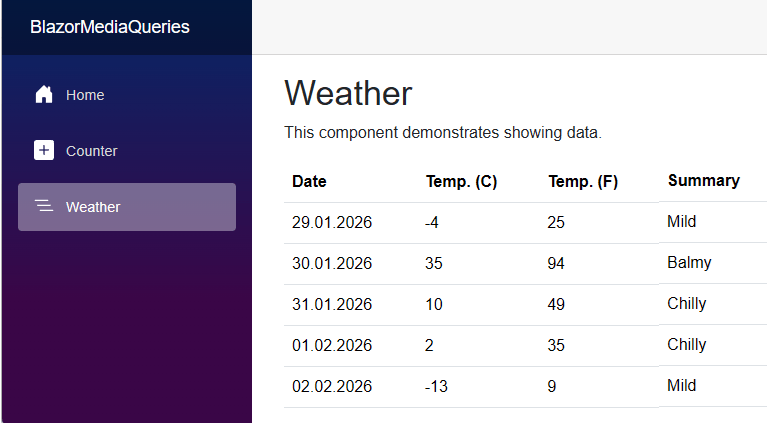
We have data in four columns: Date, Temperature in Celsius, Temperature in Fahrenheit and Summary.
The Summary column adds a textual explanation and gives slightly more detail than the numerical temperature. Let’s say we don’t want to show that Summary on mobile to help the user focus on the actual temperature numbers.
Let’s add the following class definition to the th and td elements of the table in the Weather page component:
<th class="desktop-only">Summary</th>
<td class="desktop-only">@forecast.Summary</td>
We added the desktop-only CSS class to those HTML elements.
Now, we implement the CSS code inside the Weather.razor.css file:
.desktop-only {
    display: none;
}

@media (min-width: 768px) {
    .desktop-only {
        display: block;
    }
}
We set the display property to none and implement a media query to set it to block for screens larger than 768 pixels.
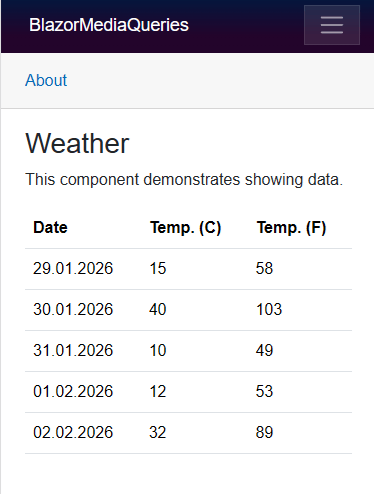
As you can see in the image, the Summary column doesn’t show up for mobile users.
This is a simple yet powerful technique for conditionally rendering information based on screen size without requiring imperative C# code, such as using the @if directive in the component’s template.
Integrating User Interface Control Libraries
You might think that using a professional user control library, such as Progress Telerik UI for Blazor, solves everything for you. They provide professional-looking, tested user interface controls with accessibility and usability in mind. They also provide theming support, making it easy to apply custom colors.
However, while those components are implemented with responsive design in mind internally, you still have to arrange the layout around them, show and hide panels, and adjust spacing or information density.
You need to understand the overall structure of your web application and know when to step in and adjust the page layout to accommodate the various aspect ratios and device sizes of the modern world—from a handheld smartphone to a large 34" desktop monitor.
A good example provides the implementation of the MainLayout page in the default .NET 10 Blazor Web App project template:
.page {
    position: relative;
    display: flex;
    flex-direction: column;
}

@media (min-width: 641px) {
    .page {
        flex-direction: row;
    }
}
The page CSS class is applied to the most outer div of the MainLayout component. It defines a relative position and a flex layout with the flex direction column. It means that the items will be rendered vertically below each other.
The following media query, with a minimum width of 641 pixels, sets the flex direction to row. It means that for screens at least 641 pixels wide, the items will be placed horizontally beside each other.
This is an excellent example of how to utilize CSS media queries to structure your pages for different screen sizes.
Yes, utilizing one of the proven user interface libraries will take a lot of weight off your shoulders and provide you with ready-to-use building blocks.
It will save you a lot of time and let you focus on solving your business problems rather than reinventing the wheel by implementing foundational components.
However, a fully responsive web application integrates those components to form a truly responsive web application.
In short: Responsive design touches all levels of web application development. You have to consider it when implementing reusable building blocks, and when orchestrating them to form a page or application part.
Best Practices for Implementing Responsive Blazor Web Applications
The following best practices will help you with implementing your responsive Blazor web applications:
- Use a mobile-first approach: When implementing page layouts, always start with the layout for the smallest screens. It will force you to clearly structure the information and present it in a user-friendly way. Creating the layouts for bigger screens is much simpler than starting with a big screen and trying to size it down.
- Use CSS Grid & CSS Flexbox: They adapt naturally to screen changes, reducing the need for complex breakpoints and other complex CSS magic. I personally prefer Flexbox for internal component structure and Grid for layout.
- Use CSS Isolation in Blazor: Component-specific styles written in [Component].razor.css files are scoped and easily maintainable. You’re sure that changes made in that file do not propagate to other components or your entire application code.
- Avoid screen-size logic in C#: Do not try to detect screen width or similar information from C# interaction code. Let CSS do the layouting and focus on loading, storing, updating and organizing data in your C# Code.
- Use the browser’s developer tools: Test your responsive web app by changing resolutions and aspect ratios to simulate different devices.
- Use prebuilt user interface libraries: Reinventing the wheel is time-consuming, and you risk repeating mistakes others have already made and fixed. However, you still need to take care to properly integrate and arrange those third-party components to keep your web application fully responsive.
Conclusion
Blazor provides a powerful, simple user interface rendering engine. However, true responsiveness comes from combining it with modern CSS techniques, such as media queries.
Utilizing CSS Isolation will allow you to separate the scope of your CSS for individual components.
Responsive design is important for implementing modern low-level components, but also for integrating them into a full webpage or web application.
While CSS media queries are powerful and let us implement conditional behavior, it’s still a lot of code that needs to be maintained. Be careful to extract reused code into components to minimize the effect, and use third-party user interface libraries to avoid re-inventing the wheel.
If you want to learn more about Blazor development, watch my free Blazor Crash Course on YouTube. And stay tuned to the Telerik blog for more Blazor Basics.

Claudio Bernasconi
Claudio Bernasconi is a passionate software engineer and content creator writing articles and running a .NET developer YouTube channel. He has more than 10 years of experience as a .NET developer and loves sharing his knowledge about Blazor and other .NET topics with the community.
Related Posts
Comments
All articles
Topics
Web MobileMobile
Desktop
Design
Productivity
People