Available Now in .NET 11 for .NET MAUI

Summarize with AI:
Explore the .NET 11 updates available now in .NET MAUI, including map enhancements, long press recognition, animation improvements and more.
Oh yeahhh!! 🎉 .NET 11 for .NET MAUI is here!
And, as always, my recommendation is to stay up to date with every new release. What changed? What’s new? What has been improved? Keeping up with these updates helps us build better apps and keeps our code inline with the latest recommendations from the Microsoft team.
For .NET 11, the team’s main focus has been improving the overall quality of .NET MAUI, making it faster and easier for us as developers, to build amazing applications. In this article, you’ll discover some of my favorite improvements that Microsoft has introduced for .NET MAUI in .NET 11!
1. Maps Improvements
This is one of my favorite updates in .NET 11! 🤩 Let’s start by exploring the Map control, which has received some really nice improvements. Here are some of the highlights!
Pin Clustering
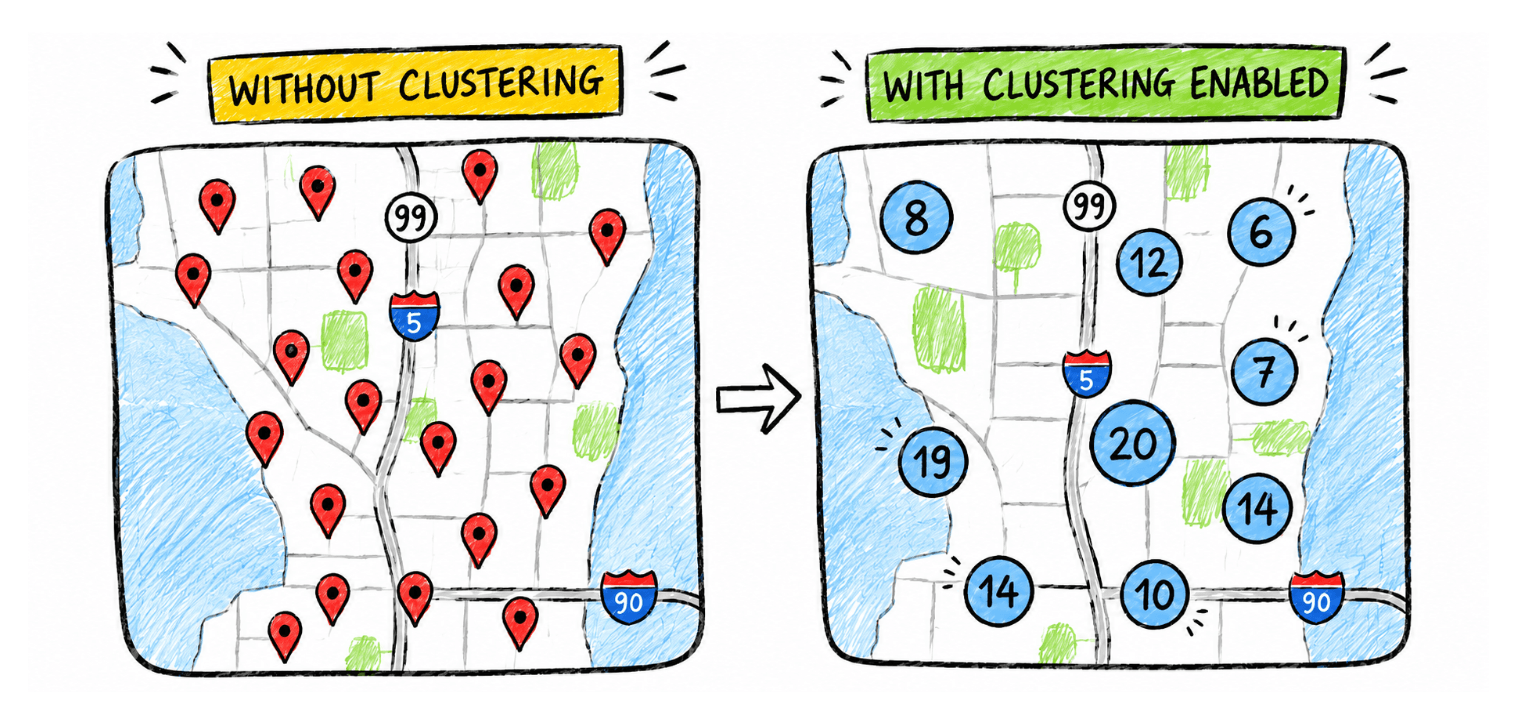
For educational purposes, this image was generated with AI
Imagine you’re building a restaurant app where users can view nearby restaurants on a map. You may have 300, 400 or even more locations to display. If the user opens the map while zoomed out, it could look something like this: 📍📍📍📍📍📍📍📍📍📍
This quickly becomes overwhelming because many pins overlap, making it difficult to select a specific location.
With .NET 11, you can simply use this property:
IsClusteringEnabled="True"
And with that, .NET MAUI will automatically group nearby pins into clusters. So instead of displaying multiple overlapping pins like 📍📍📍📍📍, users will see something like (5), indicating that five locations are grouped together.
As users zoom in, those clusters gradually split into individual pins, creating a much cleaner experience and making it much easier to interact with the map.
Using it in .NET MAUI is incredibly simple:
<maps:Map IsClusteringEnabled="True"

	    ClusterClicked="OnClusterClicked" />
Custom Location Markers
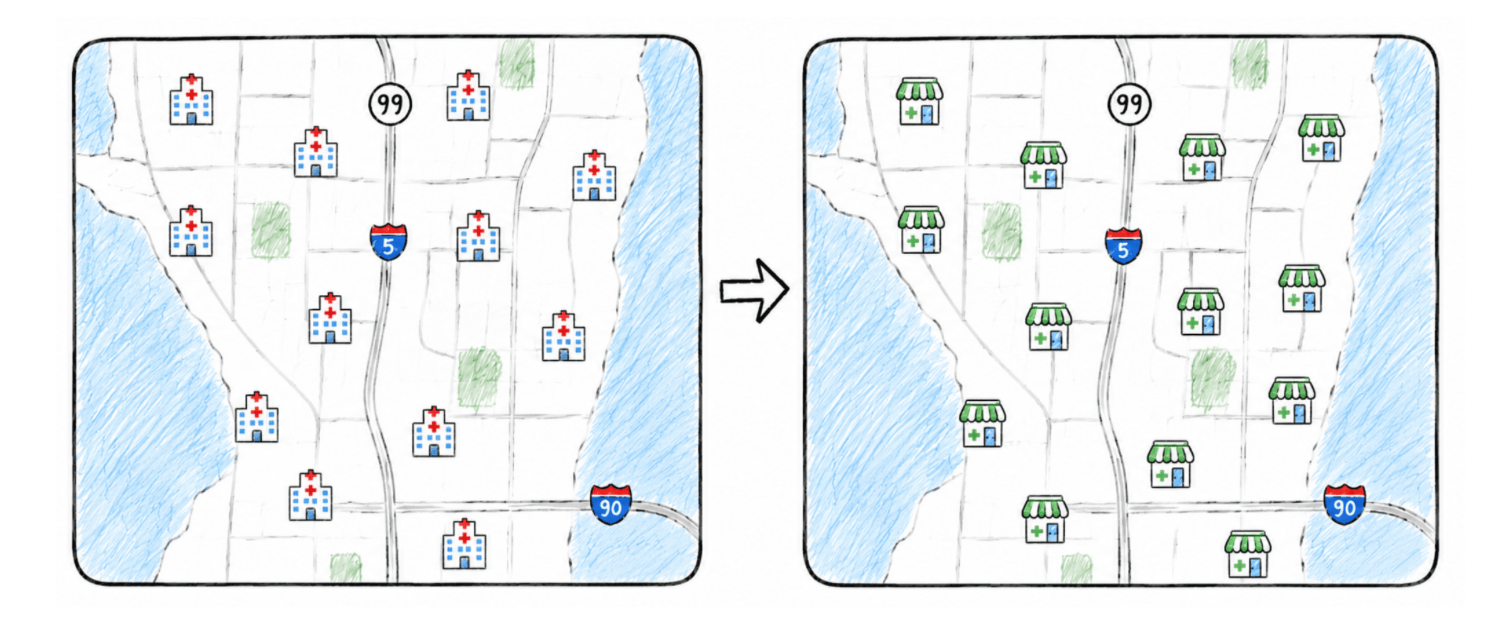
For educational purposes, this image was generated with AI
Yay!! 🎉 Another great addition is the ability to customize your map markers.
Instead of using the default pin for every location, you can now display a custom image for each marker, making your maps much more intuitive and visually appealing.
For example, imagine you’re building a healthcare app. You could use one icon for hospitals and a different one for pharmacies, allowing users to quickly identify each type of location without even reading the labels.
This is possible by simply setting the ImageSource property on the pin.
Here’s what it looks like in code:
var pin = new Pin
{
    Label = "Custom pin",
    Location = new Location(18.4861, -69.9312),
    ImageSource = ImageSource.FromFile("hospitals.png")
};
JSON Map Style (Android)
Google Maps allows you to customize the map using a JSON file. This means you can change colors, switch between light and dark mode, customize labels and much more.
Previously, this was much more complicated in .NET MAUI. Now, all you have to do is assign your JSON file to the MapStyle property, and you’re done! 😎
2. Cancel Animations with CancellationToken
This improvement may seem small, but it’s actually a very useful one, especially when you have multiple animations running at the same time.
Before .NET 11, if you started an animation and later wanted to stop it, your only option was to do something like this:
image.CancelAnimations();
However, there was a small problem. 😅 This method canceled every animation running on that control.
Imagine your image is running two animations simultaneously: a rotation animation and a fade animation. If you only wanted to stop the rotation while keeping the fade animation running, that simply wasn’t possible.
Starting with .NET 11, the animation methods now optionally accept a CancellationToken. This means you can cancel a specific animation without affecting the others.
For example:
var cts = new CancellationTokenSource();

await image.FadeToAsync(
opacity: 0,
cancellationToken: cts.Token);
And when you want to stop that animation:
cts.Cancel();
That’s it! Only the animation associated with that CancellationToken will be canceled, while any other animations on the same control will continue running normally.
Methods Without Async Are Now Obsolete
Another important change is that animation methods without the Async suffix have now been marked as obsolete. Methods such as FadeTo(), RotateTo() and ScaleTo() are now marked as [Obsolete]. Instead, Microsoft recommends using their asynchronous counterparts:
- await FadeToAsync(…);
- await RotateToAsync(…);
- await ScaleToAsync(…);
Of course, these methods also support the new CancellationToken, giving you much greater control over your animations.
3. LongPressGestureRecognizer
Have you noticed that some actions in mobile apps are only triggered when you press and hold a control for some seconds? Thanks to .NET 11, .NET MAUI now includes the LongPressGestureRecognizer, making it easy to detect this gesture.
It provides several useful features:
- Detects long-press gestures
- Configurable press duration
- Movement threshold to cancel the gesture if the finger moves too far
- Gesture state tracking through GestureState
- Support for Command and CommandParameter
Using it is as simple as this:
<Image Source="flower.png">
<Image.GestureRecognizers>
<LongPressGestureRecognizer
    Duration="500"
    LongPressed="OnLongPressed"/>
	    </Image.GestureRecognizers>
</Image>
The event:
void OnLongPressed(object sender, LongPressGestureRecognizerEventArgs e)
{
    if (e.State == GestureState.Completed)
    {
	    // Your code goes here
    }
}
4. We Can Finally Use Gradients in BoxView!
BoxView is a super useful control that gives us a lot of flexibility when building UI. However, before .NET 11, it had one important limitation: it could only display a solid color. So, if you wanted a gradient, you had to rely on other controls or custom solutions.
With .NET 11, BoxView now includes the Fill property, which is of type Brush. This means you can finally apply gradients directly to a BoxView! And don’t worry, if you only need a solid color, you can continue using the BackgroundColor property as before.
Here’s a simple example:
<BoxView HeightRequest="260">
    <BoxView.Fill>
	    <LinearGradientBrush>
	    ...
	    </LinearGradientBrush>
    </BoxView.Fill>
</BoxView>
5. Trimmable CSS
I don’t know if you knew this, but .NET MAUI has supported CSS for quite some time. The problem was that even if your application didn’t use CSS, .NET MAUI still had to include all the infrastructure required to support it, increasing the final size of your app.
With .NET 11, that’s no longer the case. If your application doesn’t use CSS stylesheets, the CSS infrastructure is automatically removed during the publishing process. In short, if you don’t use CSS, your application becomes smaller without you having to do anything.
6. Material 3 on Android
Previously, some .NET MAUI controls on Android were not fully aligned with Material 3. Starting with .NET 11 Preview 4, several Android handlers now use Material 3 by default. This applies to controls such as:
- ImageButton
- DatePicker
- Entry
- Slider
In short, it was common to find controls that didn’t fully follow Android’s modern design guidelines. With .NET 11, that changes. These controls are now much more aligned with Material 3, resulting in a more modern, consistent look that feels fully integrated with the Android ecosystem. 🚀
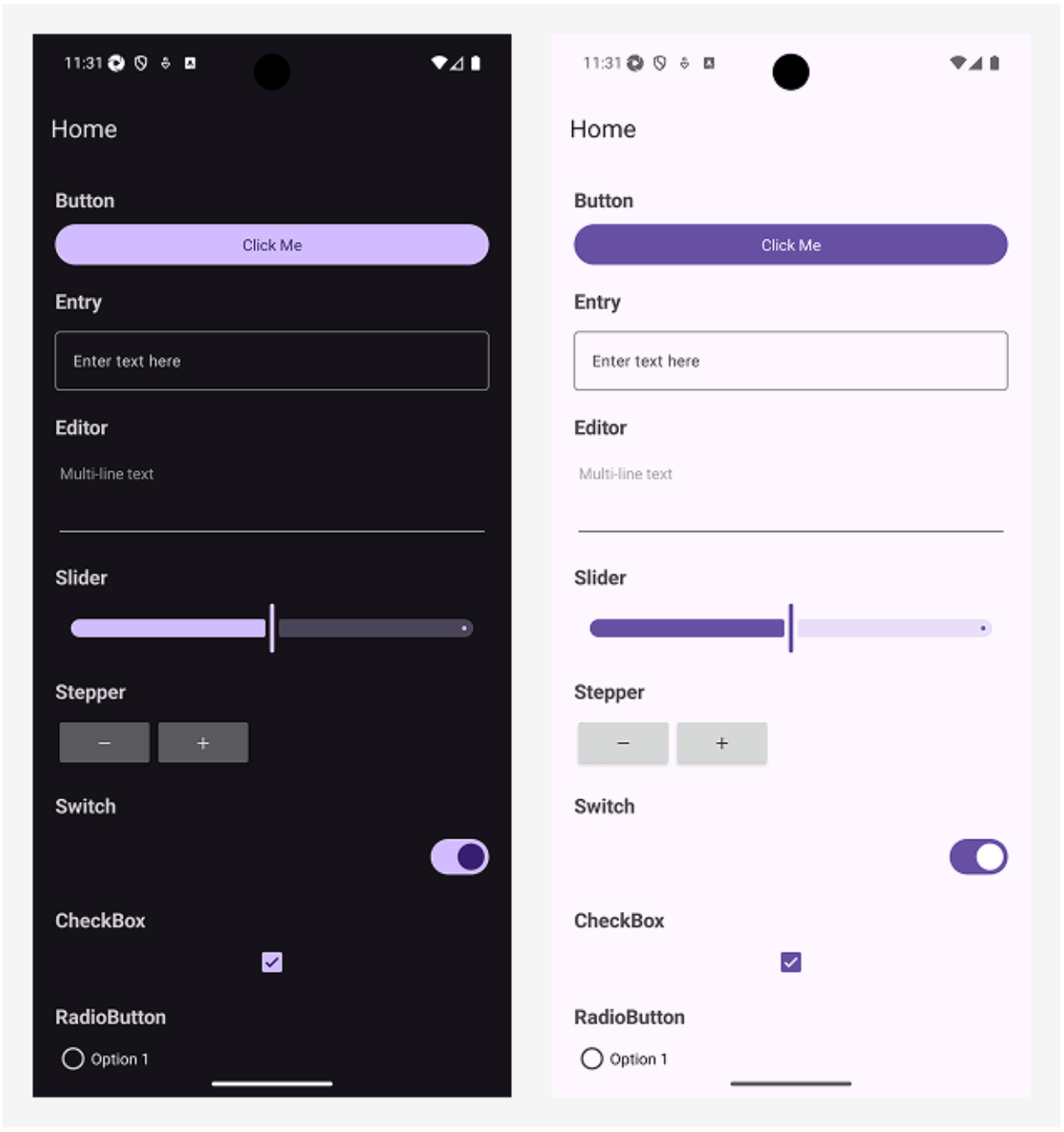
Image obtained from the official documentation
Conclusion
And that’s it! I hope this article helps you discover some of the exciting new features coming to .NET MAUI with .NET 11.
Throughout this article, we explored some of my favorite improvements, including the new LongPressGestureRecognizer, Map enhancements, BoxView gradients, animation improvements and Android Material 3 support.
Of course, these are just a few of my favorites! I encourage you to explore the article “What’s new in .NET MAUI for .NET 11” from the official documentation to discover even more improvements and enhancements included in this release.
I also encourage you to keep experimenting with these new features and continue learning something new every day. 💚
See you in the next article! 🙋♀️🚀

Leomaris Reyes
Leomaris Reyes is a software engineer from the Dominican Republic specializing in mobile development. She is a 7-time Microsoft MVP and actively builds mobile applications while sharing practical knowledge through technical articles and developer-focused content.
Through her work, she explains programming concepts, developer tools and real-world development practices to help developers grow in their careers.
You can follow her on Instagram and TikTok at @leomarisreyes.dev, read her articles on AskXammy, and connect with her on LinkedIn, where she shares tutorials, insights and resources for developers.
Related Posts
Comments
All articles
Topics
Web MobileMobile
Desktop
Design
Productivity
People