Routing Management and Creating NotFound Pages in Blazor

Summarize with AI:
Route handling got better in .NET 10. Let’s see how to create context for managing information on an error page and show users specific error pages.
If you have worked with Blazor in versions prior to .NET 10, you have certainly encountered some difficulties in implementing not found pages and in handling NavLink to show users the page they are currently on.
This is why, during the last update to .NET 10, the team behind Blazor has significantly improved the handling of routes and the management of not found pages. In this article, we will analyze the most important aspects. Let’s get started!
Understanding the Handling of Not Found Routes in Blazor
When we talk about routing, we refer to the mechanism that allows the user to navigate to a specific component based on the requested URL. However, there may be times when there are non-existent URLs that the user attempts to navigate to, such as when an item has been deleted or when, for some reason, a page has been removed from the site.
Properly handling these scenarios is essential for a good user experience, good SEO and, in general, having a reliable web application.
The Problem with Not Found Pages Before .NET 10
You should know that before .NET 10, as part of the Router component, there was a render fragment called NotFound, which at first glance could lead us to think that it allowed defining graphical code to show content when a route was not found:
<Router AppAssembly="typeof(Program).Assembly">
    <Found Context="routeData">
        ...
    </Found>
    <NotFound>
        <LayoutView Layout="typeof(Layout.MainLayout)">
            <h1>Page not found</h1>
            <p>Sorry, but there is nothing here!</p>
        </LayoutView>
    </NotFound>
</Router>
In practice, something different occurred, as when attempting to navigate to a non-existent page, an error page was displayed instead of the defined graphical code:
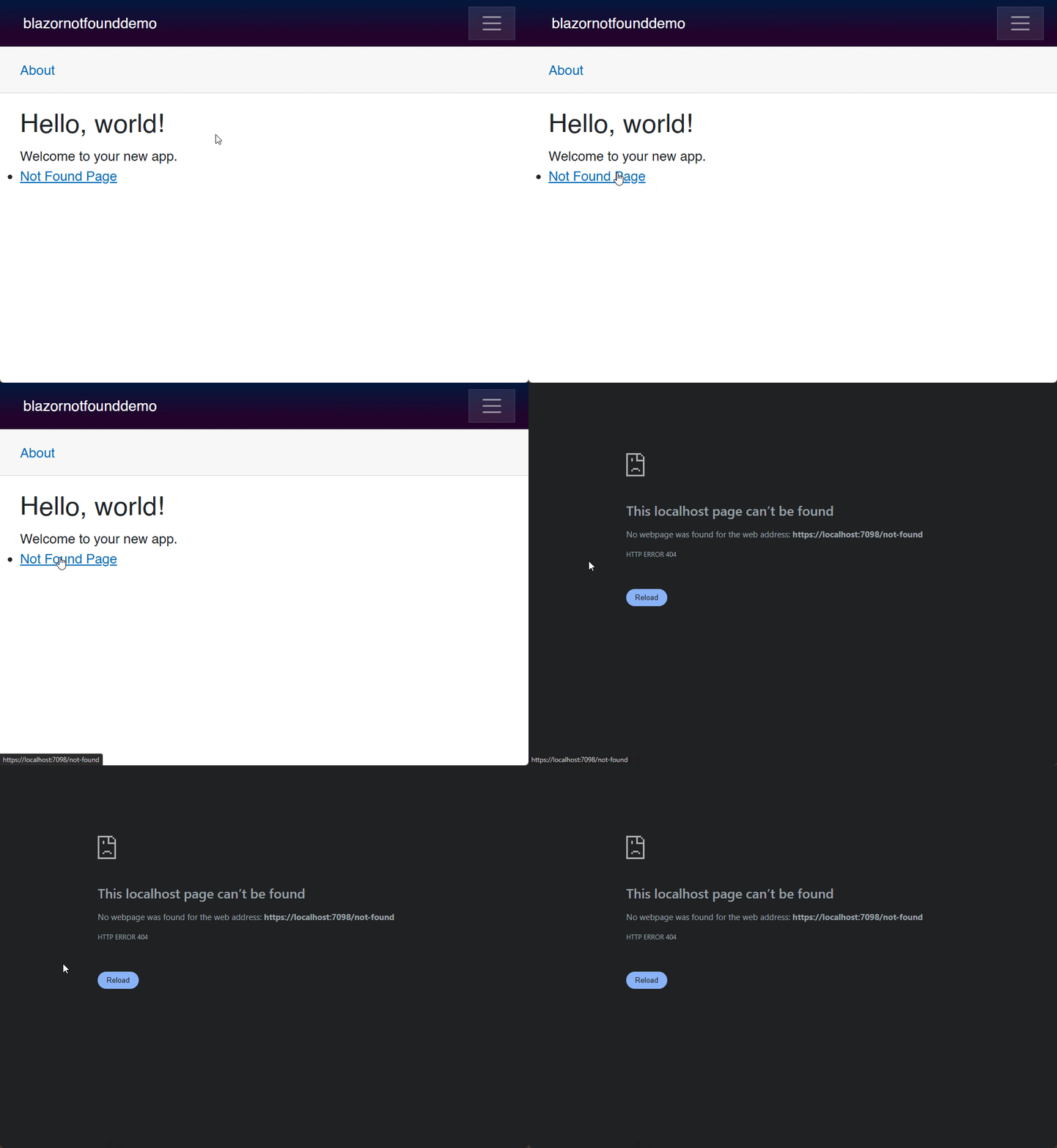
Another technique that was used before .NET 10 was to handle the not found page code within the components. For example, there could be an ecommerce-type application with a products page and a product details page. On the product details page, if the user tried to access a non-existent page, it was handled similarly to the following way:
@if (product == null)
{
<div class="alert alert-warning text-center" role="alert">
<h4 class="alert-heading">Product Not Found</h4>
<p>The product with ID <strong>@Id</strong> does not exist in our catalog.</p>
<hr>
<button class="btn btn-outline-primary" @onclick="GoBack">
← Back to Products
</button>
</div>
}
else
{
...
}
The execution of the previous code resulted in the following appearance:
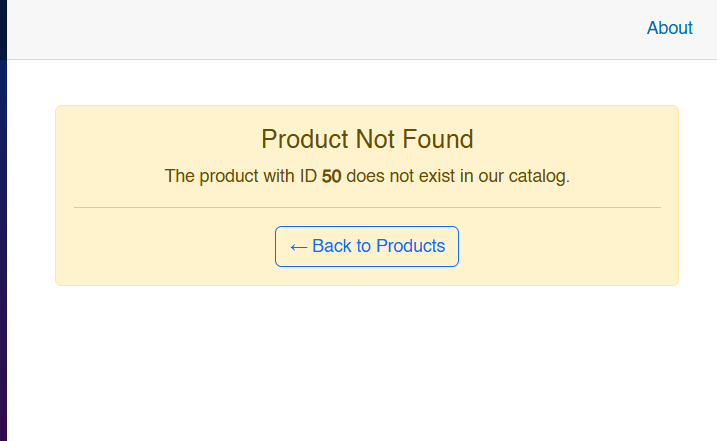
The previous code, although it achieved the goal of showing the user that the product did not exist, had several problems:
- It returned an HTTP 200 code, not a 404.
- Each component had to implement its own logic.
- If there was navigation to a non-existent URL (not handled by a component), a site error page was shown.
Next, let’s see how .NET 10 improves the handling of not found pages.
Features in .NET 10 for Route Management
In .NET 10, things have changed regarding route management. Let’s analyze what these new features are.
The Router.NotFoundPage Parameter
One of the most prominent updates is the addition of the NotFoundPage parameter to the Router component, which allows specifying a Razor page component that will be displayed when a route is not found. By default, in Blazor projects starting from .NET 10, in the Pages folder we find a component called NotFound.razor, whose structure is as follows:
NotFound.razor
@page "/not-found"
@layout MainLayout

<h3>Not Found</h3>
<p>Sorry, the content you are looking for does not exist.</p>
Routes.razor
<Router AppAssembly="typeof(Program).Assembly" NotFoundPage="typeof(Pages.NotFound)">
   ...
</Router>
The preview of this code gives the following result:
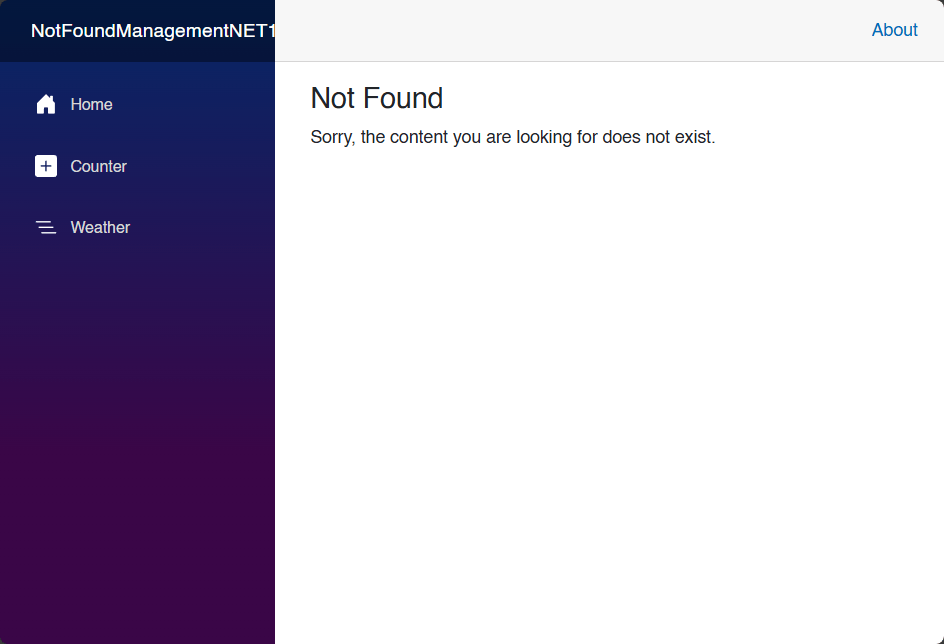
In the code above, we can see that the 404 error page must include the @page directive for it to function correctly.
Customizing the NotFound Component
With the NotFound.razor component showing us how to implement a 404 page in our Blazor apps, the next step is to customize it. There are several ways to do this. For example, by adding support for contextual messages through a service class called NotFoundContext:
public class NotFoundContext
{
    public string? Heading { get; private set; }
    public string? Message { get; private set; }

    public void UpdateContext(string heading, string message)
    {
        Heading = heading;
        Message = message;
    }
}
This class will allow you to show a custom heading and message based on the operation the user has requested. For it to work correctly, you need to register the service in Program.cs:
var builder = WebApplication.CreateBuilder(args);
...
builder.Services.AddScoped<NotFoundContext>();
...
var app = builder.Build();
Now, let’s give a bit more design to the NotFound.razor template:
@page "/not-found"
@layout MainLayout
@using NotFoundManagementNET102.Services
@inject NotFoundContext NotFoundContext
<PageTitle>Not Found</PageTitle>
<div class="container mt-5">
<div class="row justify-content-center">
<div class="col-md-8 col-lg-6">
<div class="card shadow-sm border-0 text-center">
<div class="card-body p-5">
<div class="mb-4">
<svg xmlns="http://www.w3.org/2000/svg" width="80" height="80" fill="#6c757d"
class="bi bi-exclamation-triangle" viewBox="0 0 16 16">
<path d="M7.938 2.016A.13.13 0 0 1 8.002 2a.13.13 0 0 1 .063.016..." />
</svg>
</div>
<h3 class="card-title text-dark mb-3">
@(NotFoundContext.Heading ?? "Page Not Found")
</h3>
<p class="card-text text-muted mb-4">
@(NotFoundContext.Message ?? "Sorry, the content you are looking for does not exist.")
</p>
<div class="d-flex justify-content-center gap-2">
<a href="/products" class="btn btn-primary">
← Back to Products
</a>
<a href="/" class="btn btn-outline-secondary">
Go Home
</a>
</div>
</div>
</div>
</div>
</div>
</div>
In the code above, you can notice that it checks whether the user sets a value for Heading and Message, in order to display either a generic message or a personalized one. Let’s see next how to display custom pages based on the user’s context.
Handling Not Found Pages with NavigationManager.NotFound() and OnNotFound
In .NET 9, NavigationManager.NotFound() and OnNotFound were introduced as part of the framework improvements for handling not found pages. We can combine both with the NotFoundContext service to display a 404 response and custom messages, through the following code:
@page "/product/{Id:int}"
@using NotFoundManagementNET102.Models
@using NotFoundManagementNET102.Services
@implements IDisposable
@inject ProductService ProductService
@inject NavigationManager Navigation
@inject NotFoundContext NotFoundContext
<PageTitle>@(product?.Name ?? "Product Detail")</PageTitle>
@if (product != null)
{
<div class="container mt-4">
<nav aria-label="breadcrumb">
<ol class="breadcrumb">
<li class="breadcrumb-item"><a href="/products">Products</a></li>
<li class="breadcrumb-item active" aria-current="page">@product.Name</li>
</ol>
</nav>
<div class="card shadow-sm">
<div class="card-body">
<div class="row">
<div class="col-md-8">
<h2 class="card-title">@product.Name</h2>
<span class="badge bg-secondary mb-3">@product.Category</span>
<p class="card-text text-muted">@product.Description</p>
<div class="row mt-4">
<div class="col-6">
<h5>Price</h5>
<p class="fs-4 text-primary fw-bold">$@product.Price.ToString("N2")</p>
</div>
<div class="col-6">
<h5>Stock</h5>
<span class="badge @(product.Stock > 30 ? "bg-success" : product.Stock > 10 ? "bg-warning" : "bg-danger") fs-6">
@product.Stock units
</span>
</div>
</div>
</div>
</div>
</div>
<div class="card-footer">
<TelerikButton OnClick="GoBack"
ThemeColor="@ThemeConstants.Button.ThemeColor.Primary">
← Back to Products
</TelerikButton>
</div>
</div>
</div>
}
@code {
[Parameter]
public int Id { get; set; }
private Product? product;
protected override void OnInitialized()
{
// 1.
Navigation.OnNotFound += HandleNotFound;
// 2.
product = ProductService.GetProductById(Id);
if (product == null)
{
// 3.
Navigation.NotFound();
}
}
private void HandleNotFound(object? sender, NotFoundEventArgs e)
{
// 4.
NotFoundContext.UpdateContext(
"Product Not Found",
$"The product with ID {Id} does not exist in our catalog.");
}
private void GoBack()
{
Navigation.NavigateTo("/products");
}
public void Dispose()
{
// 5.
Navigation.OnNotFound -= HandleNotFound;
}
}
Let’s analyze in more detail what happens in the code above:
- We subscribe to
Navigation.OnNotFoundto monitor when a product is not found. - The product is searched by its ID.
- If the product does not exist,
Navigation.NotFoundis invoked, allowing the rendering of the component with an HTTP 404 code. - In the
HandleNotFoundhandler, we set a custom title and message. - We unsubscribe from the event to avoid memory leaks.
With the previous implementation, if we navigate to a nonexistent URL such as https://localhost:7038/not-found-page, a generic message will be displayed:

However, when trying to access the URL of a nonexistent product such as https://localhost:7038/product/122, we will find a custom message:
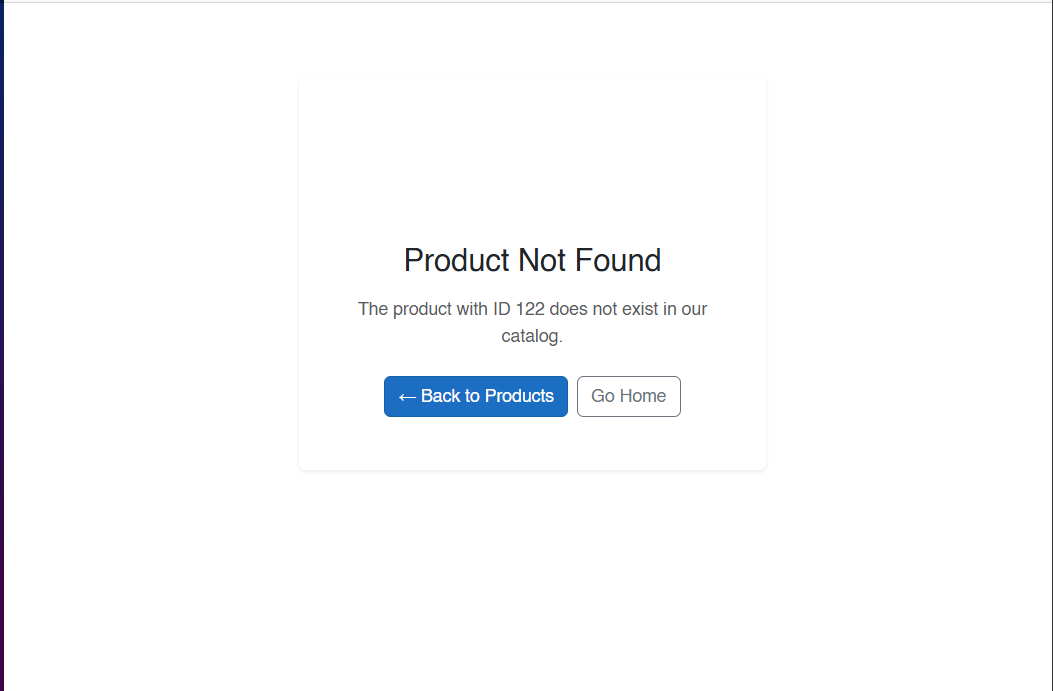
With the above, we have confirmed that it is now much easier to handle not found routes.
Improvements in URL Detection using NavLinkMatch.All
Before .NET 10, when using Match="NavLinkMatch.All", Blazor was very strict in detecting links. For example, suppose you had something like this in your navigation menu:
<NavLink href="products" Match="NavLinkMatch.All">Products</NavLink>
If you visited the /products page, the UI would mark an active link in the menu. However, if you navigated to a different URL such as /products?price=cheap or /products#offers, the UI would mark the section as inactive, leading to a poor user experience. This behavior is currently happening in our application:
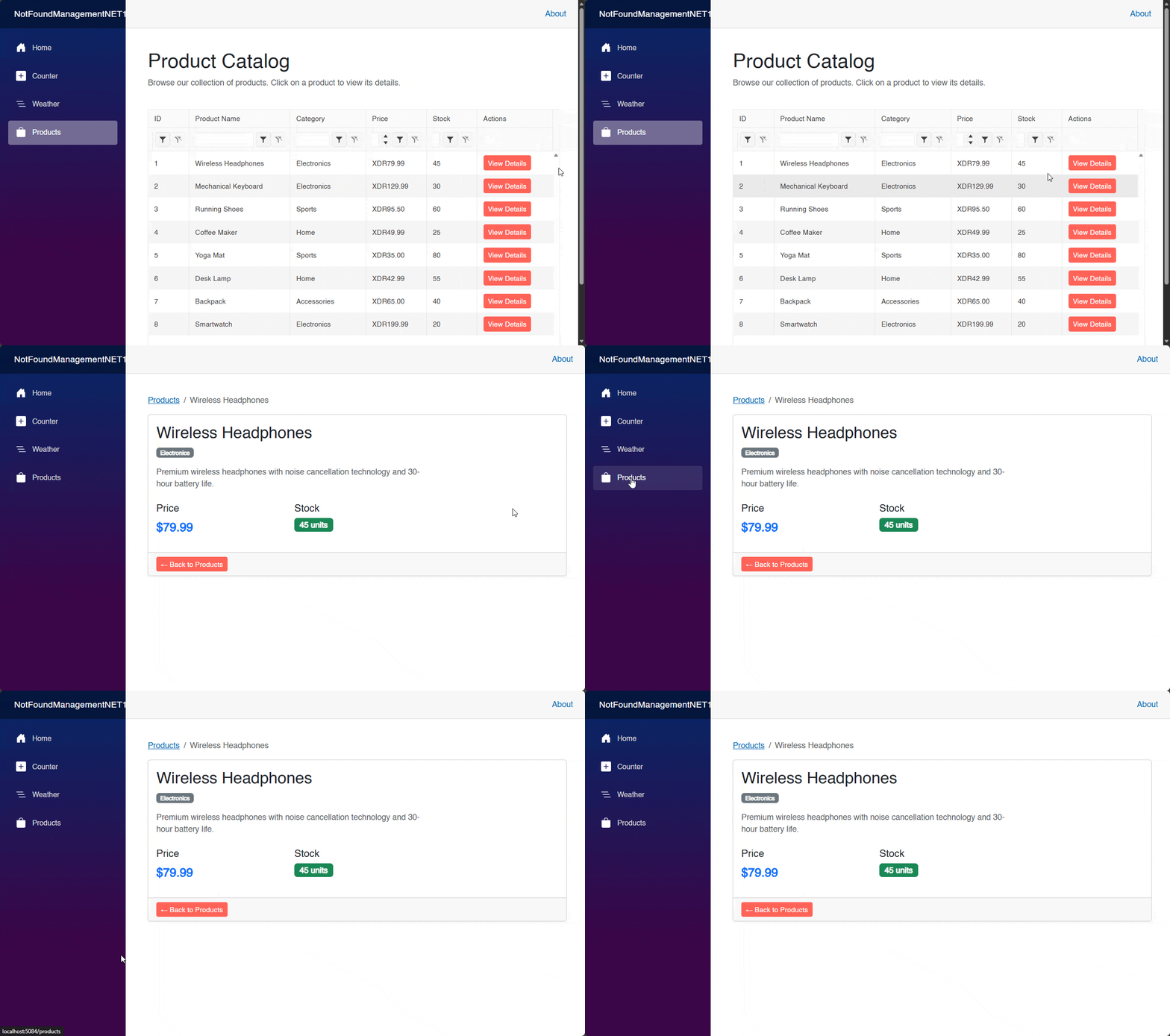
In the image above, you can see how the focus is lost when navigating to a product details page. This happens because the main URL is http://localhost:5084/products, while the product URL looks like this: http://localhost:5084/product/2.
Fortunately, in .NET 10 we can inherit from NavLink and write custom logic to handle matching the URLs we need:
public class CustomNavLink : NavLink
{
    protected override bool ShouldMatch(string currentUriAbsolute)
    {
        // 1.
        var baseUri = new Uri(NavigationManagerBase.BaseUri);
        var currentUri = new Uri(currentUriAbsolute);
        var relativePath = currentUri.AbsolutePath.TrimStart('/').ToLowerInvariant();

        // 2.
        var href = AdditionalAttributes != null
            && AdditionalAttributes.TryGetValue("href", out var hrefValue)
            ? hrefValue?.ToString()?.TrimStart('/').ToLowerInvariant()
            : null;

        if (string.IsNullOrEmpty(href))
            return base.ShouldMatch(currentUriAbsolute);

        // 3.
        if (href == "products")
        {
            return relativePath == "products"
                || relativePath.StartsWith("product/");
        }

        return base.ShouldMatch(currentUriAbsolute);
    }

    [Inject]
    private NavigationManager NavigationManagerBase { get; set; } = default!;
}
In the code above:
- We obtain the relative path from the absolute URI.
- We get the href.
- We perform a custom match so that
NavLinkis active both in/productsand/product/{id}.
For the previous implementation to work in the project, we need to swap NavLink for CustomNavLink in NavMenu.razor:
...
<div class="nav-item px-3">
    <CustomNavLink class="nav-link" href="products">
        <span class="bi bi-bag-fill-nav-menu" aria-hidden="true"></span> Products
    </CustomNavLink>
</div>
...
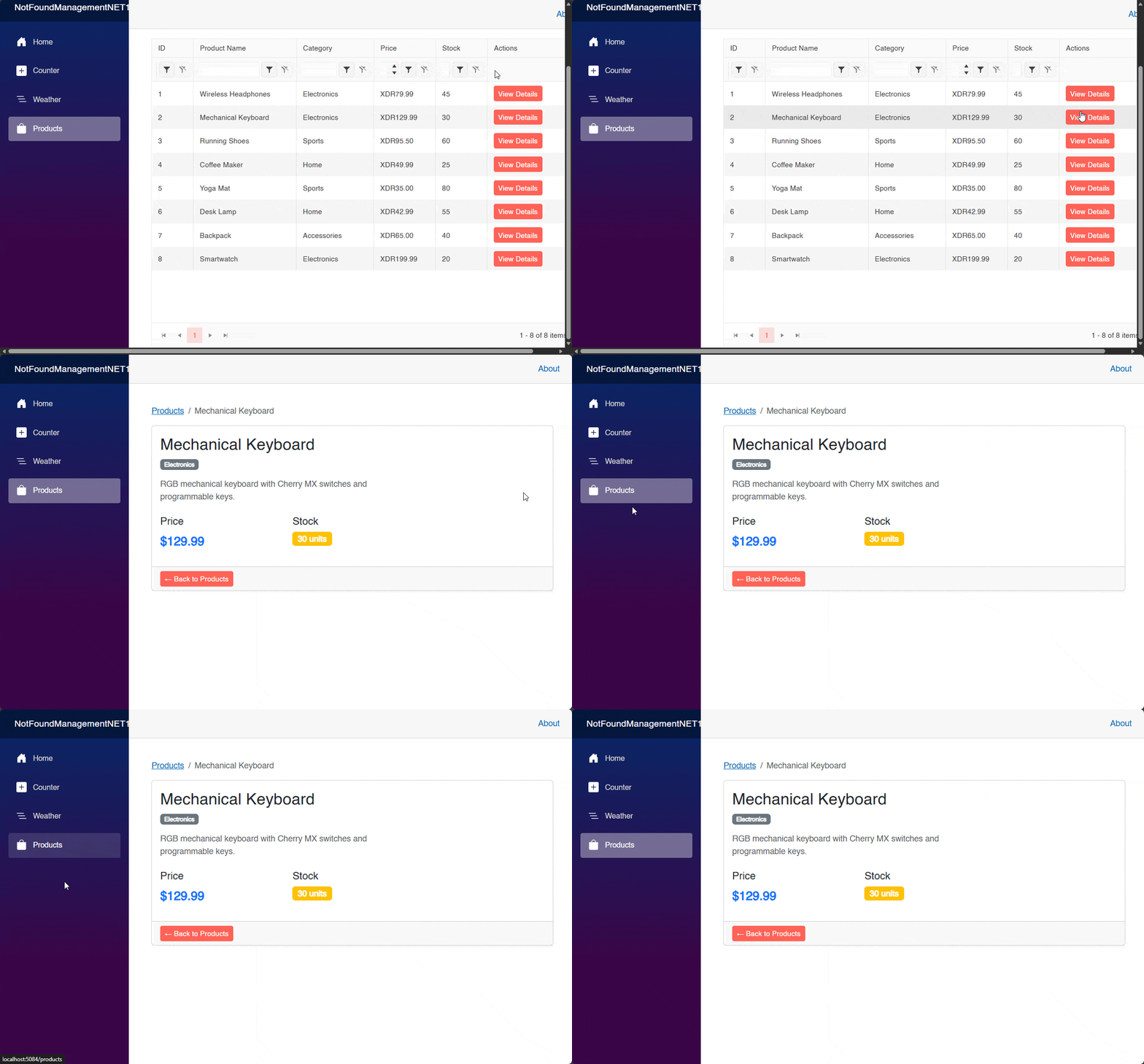
The result of the implementation is that the user knows at all times where they are, thanks to the implementation of a custom NavLink:
Conclusion
Throughout this article, you have learned about some new features in .NET 10 that are particularly useful for handling routes.
This includes creating a context for managing information on an error page and how to use this context to show users specific error pages, in addition to an inheritance of NavLink to define custom rules for better navigation.
Undoubtedly, these new features were much needed in Blazor. Now it’s your time to use them and create better user experiences utilizing them alongside Progress Telerik components for Blazor.

Héctor Pérez
Héctor Pérez is a Microsoft MVP with more than 10 years of experience in software development. He is an independent consultant, working with business and government clients to achieve their goals. Additionally, he is an author of books and an instructor at El Camino Dev and Devs School.
Related Posts
Comments
All articles
Topics
Web MobileMobile
Desktop
Design
Productivity
People