Blazor Basics: Getting Started with Blazor Development in VS Code

Summarize with AI:
Learn how to use Visual Studio Code for Blazor web development. VS Code is a free, lightweight code editor, and it is available for Mac and Linux users (unlike its more robust sibling Visual Studio, which is exclusive to Windows).
While many developers using Windows love the fully integrated development experience Visual Studio provides, it’s not an option for some of us.
We will learn how to set up Visual Studio Code for Blazor web application development, a few first-hand tips and how to conveniently debug.
Why Use Visual Studio Code for Blazor Web Development?
Maybe you or your team already use Visual Studio Code for software development because of its excellent code editor or GIT integration. Why learn something new if you are happy with what you already have?
Another reason that comes to mind is your preferred operating system.
Visual Studio is only available for Windows. While I am a Windows user and have always loved the fully fledged feature set provided by Visual Studio for .NET development, I understand that there are other options.
For macOS or Linux, you do not have the option to use Visual Studio. Visual Studio Code (VS Code) is a great, lightweight, and free alternative.
Also, licensing can be an issue. While the Visual Studio Community edition has limitations, VS Code is free for .NET development, both personal and commercial.
Last but not least, VS Code uses less RAM, hard-drive space and CPU compared to fully fledged IDEs, such as Visual Studio. For hardware constraint situations, it’s an ideal choice.
Getting Started: The Setup
We need two essential things before we can start developing Blazor web applications with VS Code.
- Obviously, we need the latest Visual Studio Code version installed
- We also need the latest .NET SDK installed
Make sure you can execute the dotnet --version command in a terminal. If it doesn’t show the version of the installed .NET SDK, add the .NET CLI to the PATH variable of your operating system and restart your computer before trying again.
Installing the C# Dev Kit
Next, we want to install the C# Dev Kit extension for Visual Studio Code.
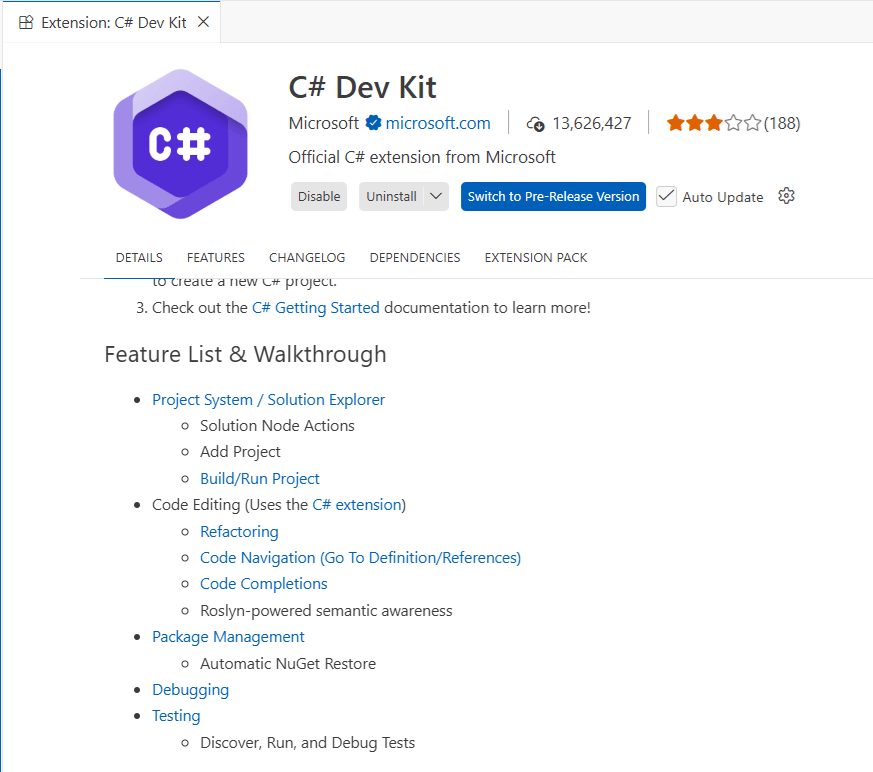
This extension adds C# development features, including project and solution management, debugging, syntax highlighting, code navigation, refactorings and more, to VS Code. It’s a mature extension with more than 13 million downloads.
Hint: The C# Dev Kit extension not only adds support for Blazor web development but for all C# project types, including desktop, mobile, web, or cloud-native applications.
Creating a Blazor Web App in VS Code
If you open an empty VS Code instance, you’ll get the Create .NET Project menu option in the Explorer panel.
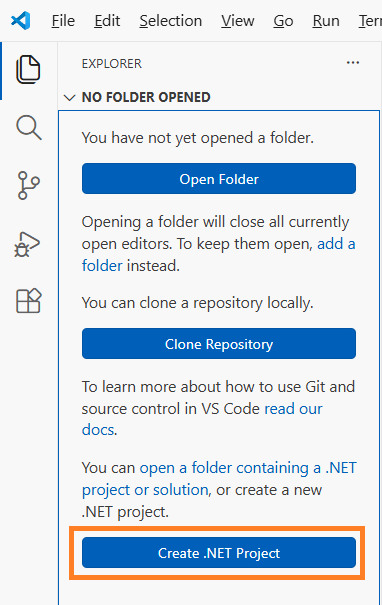
Pressing the Create .NET Project button will execute a VS Code command that allows you to select the project type. We select the default Blazor Web App project template and choose the destination folder on the hard drive.
Depending on the project template you choose, you’ll be able to add additional information to influence the outcome of the created project.
After a few seconds, the Explorer now shows the project folder containing the created solution file, the project file and the Components folder containing the example pages and layouts.
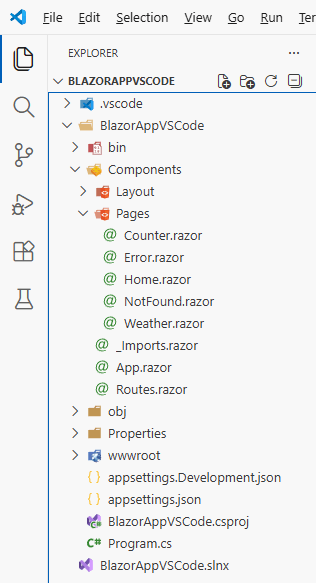
Hint: We won’t explore the structure and architecture of the Blazor Web application.
Another option for creating a .NET project is using the .NET CLI from the terminal. The dotnet new blazor command creates the same project as shown above.
Running the Blazor Web Application in VS Code
Running a Blazor Web Application is no different from running any other .NET-based application. In a terminal, you can use the dotnet run or dotnet watch run command to run it.
The dotnet watch run command automatically rebuilds and refreshes the browser (hot reload) when you edit the code and save the file.
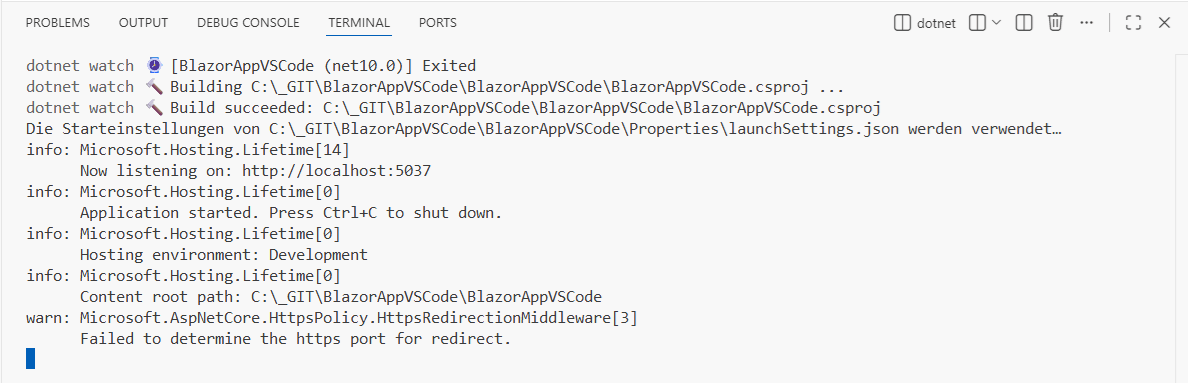
The application runs the same whether you run it in Visual Studio or from the command line without VS Code. All three options use the .NET CLI under the hood.
Compared to Visual Studio, VS Code is noticeably faster at applying simple changes to components, such as the text of the default Home page component.
Tip: Using hot reload saves a lot of time. Use the
dotnet watch runcommand and open theCounter.razorcomponent. Change the code in theIncrementCountmethod fromcurrentCount++tocurrentCount+=2and save the file. Whenever you hit the Click Me button, the counter now increases the value by two instead of one.
Debugging C# Code in VS Code
VS Code not only supports running the Blazor web app, but also debugging it.
To enable debugging:
- Open the Run and Debug panel (CTRL+SHIFT+D)
- Click the Run and Debug button.
- Select C#
- Select one of the available project options, or launch the Startup project.
- Click on Start Debugging (Green Triangle), or press F5.
You can click left of any C# code line to add a breakpoint. A yellow background highlights the code line when the debugger stops the execution. And you can use the toolbar to step through your code and hover over variables to see their values.
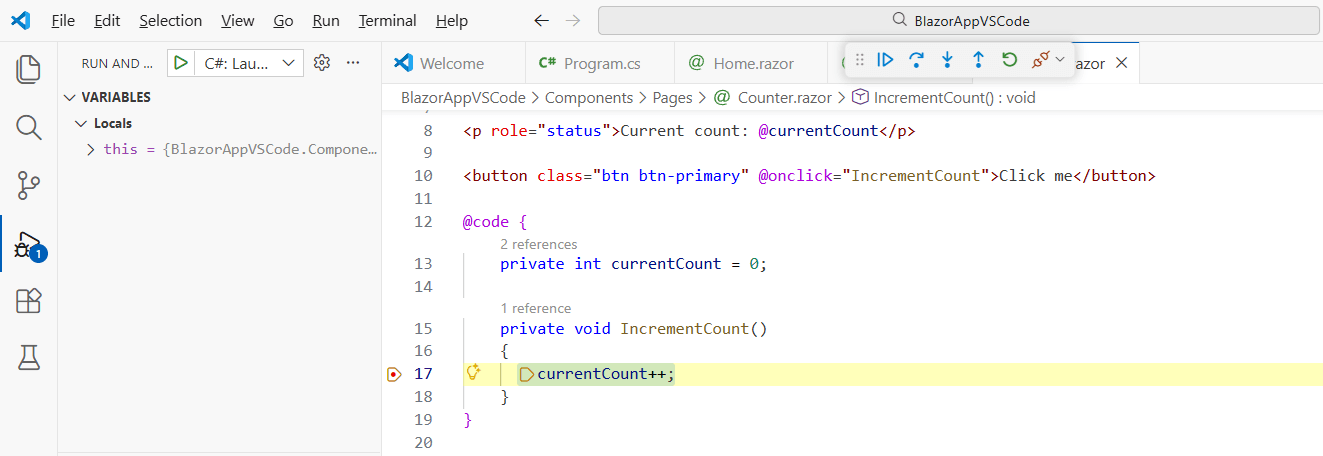
The debugging experience is comparable to that of other fully fledged IDEs and allows you to find bugs and understand code execution.
You can add variables to the watch view to keep their values visible as you step through program execution. You also see the call stack whenever the program execution halts, and you can enable or disable the breakpoints.
Hint: Make sure the application isn’t running from a terminal, such as using the dotnet watch run command.
Conclusion
While I personally prefer using Visual Studio 2026 for most of my development work, I hopefully was able to have shown that Visual Studio Code also offers a first-class development environment.
For Linux or macOS, VS Code would definitely be my first choice because it provides most of the tools I regularly use and contains much less bloat than a fully fledged IDE. VS Code is free for personal and commercial use.
Depending on the scope of your project and how you want to work, VS Code is a good choice to get started with Blazor web development. Especially if you already use VS Code for other projects, such as React or Angular web application development.
If you want to learn more about Blazor development, watch my free Blazor Crash Course on YouTube. And stay tuned to the Telerik blog for more Blazor Basics.

Claudio Bernasconi
Claudio Bernasconi is a passionate software engineer and content creator writing articles and running a .NET developer YouTube channel. He has more than 10 years of experience as a .NET developer and loves sharing his knowledge about Blazor and other .NET topics with the community.
Related Posts
Comments
All articles
Topics
Web MobileMobile
Desktop
Design
Productivity
People