SubReport Item Overview
The Telerik Reporting SubReport item embeds a separate report definition inside a main report. Use it when the nested content needs its own layout, data source, parameters, or reusable design.
In this article, main report means the parent report that contains the SubReport item, and subreport means the child report loaded through the ReportSource property of that item.
At design time, the SubReport item acts as a placeholder in the main report. Each subreport can use different data and parameters, which lets you combine content such as product lists, sales summaries, and detail records in one document.
When to Use a SubReport
Use a SubReport when you need to:
- Reuse the same child report in multiple parent reports.
- Show nested content that has its own data source, parameters, or layout.
- Build a master-detail report in which each parent row renders a child report.
If your goal is to create groups dynamically inside a Table or Crosstab, configure row groups or column groups in that data item instead of using a SubReport. A SubReport embeds another report definition; it does not create dynamic grouping inside a table data region.
How to Identify the Main Report and the Subreport
Use the following terms throughout this article:
| Term | What it means | What you edit |
|---|---|---|
| Main report | The parent report that contains the SubReport item | The report surface where you place and select the SubReport item |
| SubReport item | The report item in the main report that hosts the child report | Its properties, such as ReportSource, parameter mappings, and DataSource |
| Subreport | The child report definition loaded by the SubReport item | The separate report whose layout, parameters, and data definition you want to display |
This distinction matters in the designer: you select and configure the SubReport item in the main report, while you define fields, sections, and report parameters in the subreport itself.
How to Pass Parameters to a SubReport
Before you map parameters, create the required report parameters in the subreport definition and assign the ReportSource of the SubReport item in the main report.
In this procedure, edit the main report that contains the SubReport item. Edit the subreport itself only when you need to add, remove, or rename the report parameters.
Defining the Parameters
To set up the SubReport:
- Open the main report and select the SubReport item that will host the child report. The selected item's properties appear in the Property Browser.
- In the
ReportSourceproperty, click the Edit Collection (…) button. The Load a Report From window opens. - Select the child report that you want to use as the subreport, and then click the Edit Parameters button. The Edit Parameters window opens.
- Click the New button to add a new parameter mapping.
- In the Parameter Name drop-down list, select a parameter that is defined in the subreport.
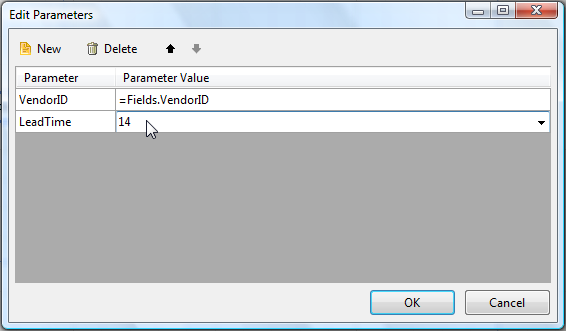
- In the Parameter Value field, enter the value that the main report should pass to that subreport parameter. You can type a literal value or create an
<Expression>or a<New Report Parameter>. - When you are done, click OK.
The following image shows the parameter editor after the mapping is configured.
Setting the Report Source
To specify a subreport for a SubReport item, you need a ReportSource object.
Edit this property on the SubReport item in the main report. The report that you select becomes the child report rendered inside that item.
The SubReport enables you to set up the report source either by using a Telerik Report Designer tool or programmatically.
When you use a relative path to the report in the UriReportSource of the SubReport, it resolves as follows:
- In the Standalone Report Designer, Reporting REST Services, and Report Viewers, relative to the main report that calls the subreport.
- In custom applications that render reports programmatically with the ReportProcessor class, relative to the application starting point.
When you reference reports stored in the Telerik Report Server, use the
[CategoryName]/[ReportName]path in the URI, as described in Working with Report Server Reports.
Using a Report Designer
To set the report source of the SubReport item by using a Telerik Report Designer:
- Open the main report in Design view, right-click the SubReport item, and then click Properties.
- In the selected SubReport item's Properties, click
ReportSource. The Load a Report from dialog opens. - Select the report source type that points to the child report. For example, click Instance Report Source and then select the report that will serve as the subreport.
- If the subreport requires parameters, click Edit Parameters and then click New.
- In the Parameter Name column, select the name of a report parameter that exists in the subreport.
- In the Parameter Value column, type or select the value from the main report that you want to pass to that subreport parameter.
Defining Programmatically
The following snippet demonstrates how to set the report source of the SubReport programmatically.
var instanceReportSource = new Telerik.Reporting.InstanceReportSource();

// Assigning the Report object to the InstanceReportSource
instanceReportSource.ReportDocument = new Telerik.Reporting.Examples.CSharp.Invoice();

// Adding the initial parameter values
instanceReportSource.Parameters.Add(new Telerik.Reporting.Parameter("OrderNumber", "SO43659"));Due to the format of the produced reports, the Standalone Report Designer includes only XmlReportSource and UriReportSource options.
The Visual Studio Report Designer provides the report sources options.
If you are using the HTML5 Report Viewer to preview the report, the main report will be rendered in HTML and loaded on the client. The subreport is considered part of the main report content, and its report source will be internally resolved without additional calls to the Reporting REST service.
Loading a Report from a Stream
When a TRDX or TRDP report is stored as a project resource, obtain its resource stream in the application and load it with the serializer that matches the report format. Use ReportXmlSerializer.Deserialize(Stream) for a TRDX file and ReportPackager.Unpackage(Stream) for a TRDP file.
The following example replaces a design-time UriReportSource with an InstanceReportSource. Assigning the new report source to the SubReport.ReportSource property is sufficient; you do not need to set the report source type separately.
using System.IO;
using Telerik.Reporting;
using Telerik.Reporting.XmlSerialization;

static Report LoadTrdx(Stream reportStream)
{
	var serializer = new ReportXmlSerializer();
	return (Report)serializer.Deserialize(reportStream);
}

static Report LoadTrdp(Stream reportStream)
{
	var packager = new ReportPackager();
	return packager.Unpackage(reportStream);
}

static void ConfigureSubReport(
	SubReport subReportItem,
	Stream reportStream,
	bool isTrdp,
	object parameterValue,
	object replacementDataSource)
{
	var childReport = isTrdp
		? LoadTrdp(reportStream)
		: LoadTrdx(reportStream);

	var reportSource = new InstanceReportSource
	{
		ReportDocument = childReport
	};

	reportSource.Parameters.Add("OrderId", parameterValue);
	subReportItem.ReportSource = reportSource;
	subReportItem.DataSource = replacementDataSource;
}
Pass the SubReport item from the main report and the stream obtained from the project resource to ConfigureSubReport. The OrderId name must match a report parameter defined in the child report. Omit the Parameters.Add or DataSource assignment when the child report does not require them.
For more information about loading report definitions, see Serializing and Deserializing Report Definitions and Packaging and Unpackaging Report Definitions.
The property DataSource of the SubReport item
Starting with R3 2022 SP1 (16.2.22.1109), the DataSource property lets you feed the subreport directly with data from the main report.
When you set this property, processing uses that data instead of the data configured in the subreport definition.
All the data sources supported in the DataSource property are applicable as a value of this property.
A common scenario is to feed the inner report with data that comes from the data context of the SubReport item. To do this, define a Binding to bind the DataSource property to a data field.
For example, define a Binding with Path: DataSource, and Expression: = Fields.InvoiceRows to link the inner report DataSource to the collection with the invoice rows from the main report DataSource.
Considerations and Known Limitations
When working with the SubReport item, mind the following:
-
Page sections are not related to the report itself, but are relative to the paper or screen. Therefore, page sections of nested or detail reports are ignored, and only the page sections of the main report are visible.
-
The
PageSettingsare not related to the report itself, but to the paper or screen. For that reason, the subreport ignores them, and properties such asColumnCountdo not apply. -
To render page sections that appear on each page, similar to page sections, consider using an unbound group (no grouping criteria specified) and set the PrintOnEveryPage property of its sections to
True. Note that you cannot use thePageCountandPageNumberglobal objects in group sections. -
The Table of Contents (TOC) section is designed to be displayed at the top/bottom of the entire report document. For that reason, the TOC section of the subreport is ignored.
-
To remove blank vertical space in the detail section of a SubReport, set the
Heightof theSubReport.ReportSourceDetailSectionto the height of the highest item. -
Sections can grow to accommodate their children, but they cannot shrink to hide empty spaces. To make the detail section shrink only at runtime, set the
Heightproperty of theDetailSectionin the report constructor. Place theHeightproperty assignment code right after theInitializeComponent()method call. -
The default styles used in subreports may be overridden by inherited styles from their parent reports.
When report items and sections use default styles, meaning their styles are not set explicitly, they inherit styles from their parents. This behavior applies to the SubReport item and to the corresponding subreport specified by its
ReportSource. As a result, the same subreport may render differently when you render it separately and when you render it inside a main report.For example, assume the subreport does not define a font. When you render that subreport separately, text boxes with default font settings use the default
10ptfont size.If the main report explicitly sets its font size to
20pt, the same subreport text inherits the20ptfont when it is rendered inside the main report.
Next Steps
Use the following resources to continue working with SubReport items:
- (Demo) Invoice Report with a SubReport
- Creating Master-Detail Reports with the SubReport
- Binding the SubReport to Parent Report Data
- (API) SubReport
- (API) ReportSource
- (API) DataItem.DataSource
- Demo Page for Telerik Reporting
- Telerik Reporting Knowledge Base