New to Telerik UI for ASP.NET AJAX? Start a free 30-day trial
Getting Started with the SmartPasteButton
Updated on Aug 24, 2026
This guide demonstrates how to get up and running with the Telerik WebForms SmartPasteButton.
After the completion of this guide, you will be able to achieve the following end result:
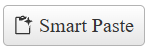
Create the SmartPasteButton
To create the SmartPasteButton in the markup, add a telerik:RadSmartPasteButton element to the page and configure its properties like Icon, CancelIcon, Text and ServiceUrl.
ASP.NET
<telerik:RadSmartPasteButton runat="server" ID="SmartPasteButton1" Icon="clipboard-code" CancelIcon="cancel" Text="Smart Paste" ServiceUrl="https://demos.telerik.com/service/v2/ai/smartpaste/smartpaste" />To create the SmartPasteButton on the server, create a new instance of the RadSmartPasteButton object, set its options and add it to the Controls collection of another control (e.g. PlaceHolder1)
ASP.NET
<asp:PlaceHolder ID="PlaceHolder1" runat="server"></asp:PlaceHolder>C#
protected void Page_Init(object sender, EventArgs e)
{
    RadSmartPasteButton smartPasteButton = new RadSmartPasteButton()
    {
        ID = "RadSmartPasteButton1",
        Text = "Smart Paste",
        Icon = "clipboard-code",
        CancelIcon = "cancel",
        ServiceUrl = "https://demos.telerik.com/service/v2/ai/smartpaste/smartpaste",
    };

    PlaceHolder1.Controls.Add(speechToTextButton);
}