.NET MAUI SmartPasteButton Integration with External UI
The SmartPasteButton control can be integrated with external UI components to enhance the user experience and provide additional functionality. For example, you can integrate the SmartPasteButton with a custom form or layout to allow users to populate fields with structured data extracted from unstructured text.
To integrate the SmartPasteButton with external UI components, you have to implement the ISmartPasteButtonProvider interface in the external UI component that will provide the fields and handle value assignment for the smart paste operation. Then, you need to set the Provider property of the SmartPasteButton to reference the external UI.
The ISmartPasteButtonProvider implements the following methods:
IEnumerable<SmartPasteButtonField> GetFields()—Returns a list ofSmartPasteButtonFieldobjects that represent the fields that will be used for the smart paste operation.void SetFieldValue(string field, object value)—Assigns an extracted value to the field identified by field. The method is called after the AI service has processed the clipboard content and produced a typed result for each field.
The SmartPasteButtonField class has the following properties:
Field(string)—Specifies the unique identifier of the field, typically the property name in the underlying data model (for example"FirstName", "Email"). This value is used to map extracted results back to the originating field viaTelerik.Maui.Controls.SmartPasteButton.ISmartPasteButtonProvider.SetFieldValue(System.String,System.Object).Description(string)—Specifies a human-readable label that describes the field (for example "First Name", "Email Address"). The AI service uses this description as context when matching clipboard content to the appropriate field.AllowedValues(string[])—Specifies the collection of valid values the field can accept. When set, the AI service is constrained to return only one of these values (for example["Active", "Inactive"]for a status enum)Type(string)—Specifies the full CLR type name of the field (for example"System.String", "System.DateTime", "System.Double"). This is used to deserialize the AI response into the correct .NET type before the value is assigned to the field.FieldType(Type)—Specifies the CLRSystem.Typeof the field. When set, this takes precedence over the string-basedTelerik.Maui.Controls.SmartPasteButton.SmartPasteButtonField.Typeproperty for deserializing the AI response into the correct .NET type.
Example
This is an example of how to integrate the SmartPasteButton with an external UI form:
1. Define the editors on the page with two buttons: one for copying the text to the clipboard and another one for the smart paste operation:
<Grid RowDefinitions="Auto, Auto"
      RowSpacing="10">
    <VerticalStackLayout>
        <HorizontalStackLayout>
            <Label Text="Name: " />
            <telerik:RadEntry Text="{Binding Name}" />
        </HorizontalStackLayout>
        <HorizontalStackLayout>
            <Label Text="City: " />
            <telerik:RadEntry Text="{Binding City}" />
        </HorizontalStackLayout>
        <VerticalStackLayout>
            <Label Text="Description: " />
            <telerik:RadEditor Text="{Binding Description}"
                               AutoSize="TextChanges" />
        </VerticalStackLayout>
    </VerticalStackLayout>
    <VerticalStackLayout Grid.Row="1">
        <Label Text="{Binding CopyText}"/>
        <telerik:RadTemplatedButton Content="Copy To Clipboard"
                                    Command="{Binding CopyToClipboardCommand}" />
        <telerik:RadSmartPasteButton Provider="{Binding .}"
                                     SmartPasteRequestCommand="{Binding SmartPasteRequestCommand}" />
    </VerticalStackLayout>
</Grid>
2. Add the telerik namespace:
xmlns:telerik="http://schemas.telerik.com/2022/xaml/maui"3. Define a ViewModel that implements the ISmartPasteButtonProvider interface for the fields that will be used by the SmartPasteButton, and the SmartPasteRequestCommand and CopyToClipboardCommand:
public class ViewModel : NotifyPropertyChangedBase, ISmartPasteButtonProvider
{
    private static readonly HttpClient HttpClient = new HttpClient();
    private string name;
    private string city;
    private string description;
    private string email;
    private string copyText = "Jane Smith is a Senior Back-End Engineer based in downtown Austin, Texas, USA. She designs scalable REST APIs, manages cloud infrastructure, mentors junior developers, and drives performance improvements across distributed systems. Her email is jane.smith@techcorp.io.";

    public ViewModel()
    {
        this.SmartPasteRequestCommand = new Command<object>(async obj => await this.OnSmartPasteRequestAsync(obj));
        this.CopyToClipboardCommand = new Command(async () => await this.OnCopyToClipboard());
    }

    public string Name
    {
        get => this.name;
        set => this.UpdateValue(ref this.name, value);
    }

    public string City
    {
        get => this.city;
        set => this.UpdateValue(ref this.city, value);
    }

    public string Description
    {
        get => this.description;
        set => this.UpdateValue(ref this.description, value);
    }

    public string Email
    {
        get => this.email;
        set => this.UpdateValue(ref this.email, value);
    }

    public string CopyText
    {
        get => this.copyText;
        set => this.UpdateValue(ref this.copyText, value);
    }

    public ICommand SmartPasteRequestCommand { get; }

    public ICommand CopyToClipboardCommand { get; }

    public IEnumerable<SmartPasteButtonField> GetFields()
    {
        yield return new SmartPasteButtonField { Field = nameof(this.Name), Description = "Full Name" };
        yield return new SmartPasteButtonField { Field = nameof(this.City), Description = "City" };
        yield return new SmartPasteButtonField { Field = nameof(this.Description), Description = "Description for job position, email address and daily work" };
        yield return new SmartPasteButtonField { Field = nameof(this.Email), Description = "Email address" };
    }

    public void SetFieldValue(string field, object value)
    {
        switch (field)
        {
            case nameof(this.Name):
                this.Name = (string)value;
                break;
            case nameof(this.City):
                this.City = (string)value;
                break;
            case nameof(this.Description):
                this.Description = (string)value;
                break;
            case nameof(this.Email):
                this.Email = (string)value;
                break;
        }
    }

    private async Task OnSmartPasteRequestAsync(object obj)
    {
        var context = (SmartPasteButtonRequestContext)obj;

        try
        {
            var request = new { Content = context.Content, FormFields = context.Fields };
            var httpResponse = await HttpClient.PostAsJsonAsync(
                "https://demos.telerik.com/service/v2/ai/smartpaste/smartpaste",
                request,
                context.CancellationToken);
            httpResponse.EnsureSuccessStatusCode();

            var response = await httpResponse.Content.ReadFromJsonAsync<SmartPasteResponse>(context.CancellationToken);
            context.SetResponse(response.FieldValues);
        }
        catch (OperationCanceledException)
        {
            context.Cancel();
        }
        catch (Exception ex)
        {
            context.SetError(ex);
        }
    }

    private async Task OnCopyToClipboard()
    {
        await Clipboard.SetTextAsync(this.CopyText);
    }
}
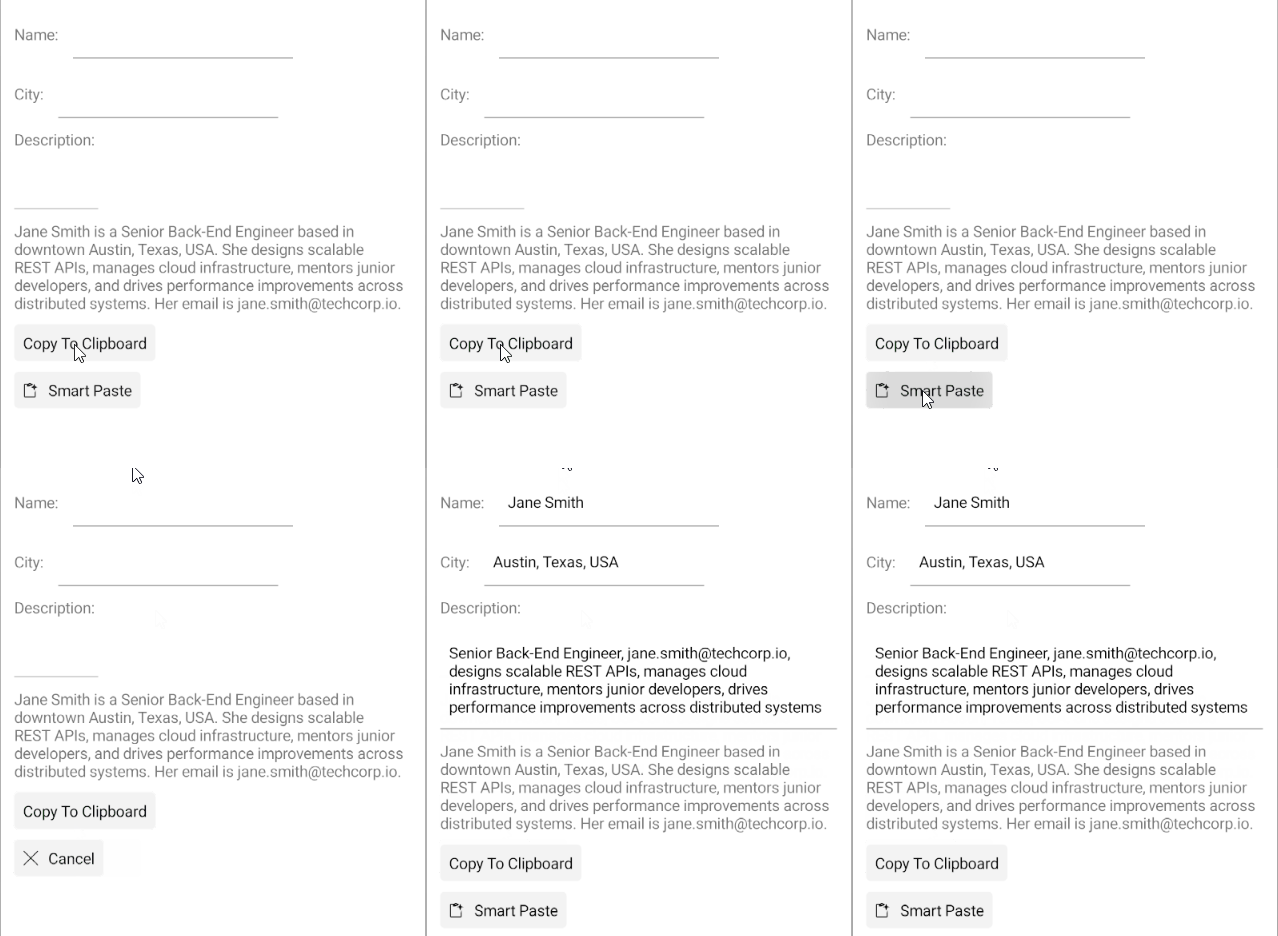
This is the result on Android:
The SmartPasteButton examples in the SDKBrowser Demo Application use a Telerik-hosted AI service for demonstration purposes only.
To use the smart paste functionality in your application, you must configure your own AI service.
How to do that is described in the Configuration article.
For a runnable example with the SmartPasteButton with External UI scenario, see the SDKBrowser Demo Application and go to SmartPasteButton > ExternalEditor category.