Configure the AI Smart Assistant in .NET MAUI DataGrid
This article provides information on how to configure the AI Smart Assistant functionality in the .NET MAUI DataGrid control.
AI Smart Assistant Settings
You can configure the default settings for the AI Smart Assistant functionality using the AISettings (of type Telerik.Maui.Controls.DataGrid.DataGridAISettings) property of the DataGrid.
When the IsAIEnabled property is set to true, the DataGrid will display the AI Smart Assistant panel and the Semantic Search options. The AISettings property allows you to customize the behavior of the AI Smart Assistant, including the default view mode and search mode.
Below you can find a list of the available configuration options applied through the RadDataGrid.AISettings:
InputText(string)—Specifies the text of the input field.Placeholder(string)—Specifies the placeholder text of the input field.SubmitPromptOnSelection(bool)—Specifies whether selecting a prompt should automatically submit the request. The default value isfalse.OpenOnFocus(bool)—Specifies whether the prompt input should open the suggestions dropdown when the input field is focused. The default value istrue.IsSuggestedPromptsVisible(bool)—Specifies whether the suggested prompts should be visible. The default value istrue.IsRecentPromptsVisible(bool)—Specifies whether the recent prompts should be visible. The default value istrue.IsEmptyContentVisible(bool)—Specifies whether the empty content message should be visible when no suggestions are available. The default value istrue.SuggestedPrompts(IEnumerable<string>)—Specifies the collection of suggested prompts.RecentPrompts(IEnumerable<string>)—Specifies the collection of recent prompts.ViewMode(DataGridAIViewMode)—Specifies the view mode of the AI Smart Assistant. The options areSearchandAIAssistant.
To hide the Semantic Search functionality, set the IsTextSearchOptionVisible and IsSemanticSearchOptionVisible properties to false.
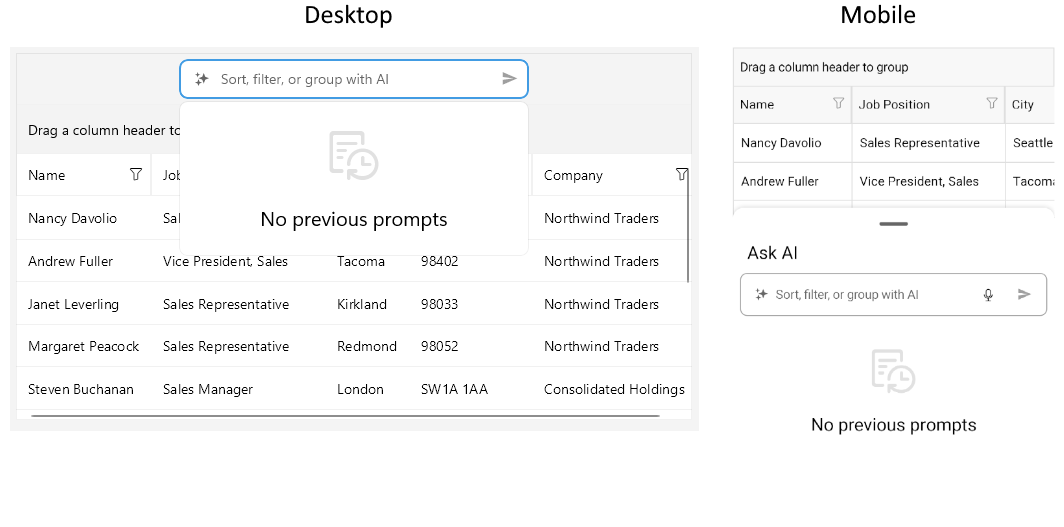
This is how the default AI Smart Assistant view looks like when there are no suggestions and recent prompts available and the IsEmptyContentVisible property is set to True:
Events
The DataGrid provides the following events related to AI Smart Assistant functionality:
-
PromptRequest—Occurs when a prompt is submitted from the AI Smart Assistant panel.- The
senderargument, which is of typeobject, but can be cast to theRadDataGridtype. - A
DataGridPromptRequestEventArgsobject, which provides the following properties:Prompt—Gets the prompt text that was submitted from the user.RequestJson—Specifies the JSON request sent to the AI model.ResponseJson—Specifies the response text.HasError—Specifies whether an error occurred during processing.
- The
-
CancelPromptRequest—Occurs when the user requests to cancel the current AI processing operation- The
senderargument, which is of typeobject, but can be cast to theRadDataGridtype. - An
EventHandlerobject.
- The
Commands
PromptRequestCommand(ICommand)—Gets the command that is executed when a prompt request is submitted. The command parameter is of typeTelerik.Maui.Controls.DataGrid.DataGridPromptRequestCommandContext.CancelPromptRequestCommand(ICommand)—Gets the command that is executed when canceling a prompt request. The command parameter is of typeobject.
Example
Here is an example of how to configure the AI Smart Assistant settings in the .NET MAUI DataGrid:
1. Add the DataGrid definition in XAML:
<telerik:RadDataGrid x:Name="dataGrid"
                     AutoGenerateColumns="False"
                     IsAIEnabled="True"
                     UserEditMode="Cell"
                     UserGroupMode="Enabled"
                     PromptRequest="OnPromptRequest"
                     CancelPromptRequest="OnCancelPromptRequest"
                     Grid.Row="1">
    <telerik:RadDataGrid.AISettings>
        <telerik:DataGridAISettings x:Name="AISettings" />
    </telerik:RadDataGrid.AISettings>
    <telerik:RadDataGrid.Columns>
        <telerik:DataGridTextColumn PropertyName="Name" HeaderText="Name" />
        <telerik:DataGridTextColumn PropertyName="Position" HeaderText="Job Position" />
        <telerik:DataGridTextColumn PropertyName="City" HeaderText="City" />
        <telerik:DataGridTextColumn PropertyName="PostalCode" HeaderText="Postal Code" />
        <telerik:DataGridTextColumn PropertyName="Company" HeaderText="Company" />
    </telerik:RadDataGrid.Columns>
</telerik:RadDataGrid>
2. Add the telerik namespace:
xmlns:telerik="http://schemas.telerik.com/2022/xaml/maui"
3. Add a sample data model:
public class Person
{
    public string Name { get; set; }

    public string Position { get; set; }

    public string City { get; set; }

    public string PostalCode { get; set; }

    public string Company { get; set; }
}
4. Define the data for the DataGrid ItemsSource:
private void LoadSampleData()
{
    this.people.Add(new Person { Name = "Nancy Davolio", Position = "Sales Representative", City = "Seattle", PostalCode = "98101", Company = "Northwind Traders" });
    this.people.Add(new Person { Name = "Andrew Fuller", Position = "Vice President, Sales", City = "Tacoma", PostalCode = "98402", Company = "Northwind Traders" });
    this.people.Add(new Person { Name = "Janet Leverling", Position = "Sales Representative", City = "Kirkland", PostalCode = "98033", Company = "Northwind Traders" });
    this.people.Add(new Person { Name = "Margaret Peacock", Position = "Sales Representative", City = "Redmond", PostalCode = "98052", Company = "Northwind Traders" });
    this.people.Add(new Person { Name = "Steven Buchanan", Position = "Sales Manager", City = "London", PostalCode = "SW1A 1AA", Company = "Consolidated Holdings" });
    this.people.Add(new Person { Name = "Michael Suyama", Position = "Sales Representative", City = "London", PostalCode = "EC1A 1BB", Company = "Consolidated Holdings" });
    this.people.Add(new Person { Name = "Robert King", Position = "Sales Representative", City = "London", PostalCode = "W1A 1HQ", Company = "Consolidated Holdings" });
    this.people.Add(new Person { Name = "Laura Callahan", Position = "Inside Sales Coordinator", City = "Portland", PostalCode = "97205", Company = "Contoso Ltd." });
    this.people.Add(new Person { Name = "Anne Dodsworth", Position = "Sales Representative", City = "Portland", PostalCode = "97209", Company = "Contoso Ltd." });
    this.people.Add(new Person { Name = "Tim Cook", Position = "Account Manager", City = "San Francisco", PostalCode = "94103", Company = "Fabrikam" });
}
5. Define the prompt handling properties:
private static readonly HttpClient HttpClient = new HttpClient();
private CancellationTokenSource cancellationTokenSource;
private ObservableCollection<string> suggestedPrompts;
private ObservableCollection<string> recentPrompts;
private readonly ObservableCollection<Person> people = new();
6. Handle the PromptRequest event in the code-behind:
private async void OnPromptRequest(object sender, Telerik.Maui.Controls.DataGrid.DataGridPromptRequestEventArgs e)
{
    if (this.cancellationTokenSource != null)
    {
        // An AI request is already being processed
        return;
    }

    this.cancellationTokenSource = new CancellationTokenSource();

    try
    {
        var request = JsonSerializer.Deserialize<object>(e.RequestJson);
        var requestResult = await HttpClient.PostAsJsonAsync("https://demos.telerik.com/service/v2/ai/grid/smart-state", request, this.cancellationTokenSource.Token);
        var response = await requestResult.Content.ReadAsStringAsync(this.cancellationTokenSource.Token);

        e.ResponseJson = response;
    }
    catch (OperationCanceledException)
    {
    }
    catch (Exception ex)
    {
        await this.ShowErrorAsync($"Failed to process request: {ex.Message}");
        e.HasError = true;
    }
    finally
    {
        this.cancellationTokenSource?.Dispose();
        this.cancellationTokenSource = null;
    }
}
7. Handle the CancelPromptRequest event in the code-behind:
private void OnCancelPromptRequest(object sender, System.EventArgs e)
{
    this.cancellationTokenSource?.Cancel();
}
8. Add items to the suggested prompts collection:
this.suggestedPrompts = new ObservableCollection<string>
{
    "Group the employees by Company",
    "Filter employees that work for Northwind Traders",
    "Sort the employees by City in descending order",
    "Lock the Position column",
    "Clear all sorting, filtering and grouping",
};
9. Add items to the recent prompts collection:
this.recentPrompts = new ObservableCollection<string>
{
    "Clear all sorting, filtering and grouping",
    "Group the employees by Company",
};
10. Assign the collections to the AISettings:
this.AISettings.SuggestedPrompts = this.suggestedPrompts;
this.AISettings.RecentPrompts = this.recentPrompts;
11. Set the data to the DataGrid ItemsSource:
this.LoadSampleData();
this.dataGrid.ItemsSource = this.people;
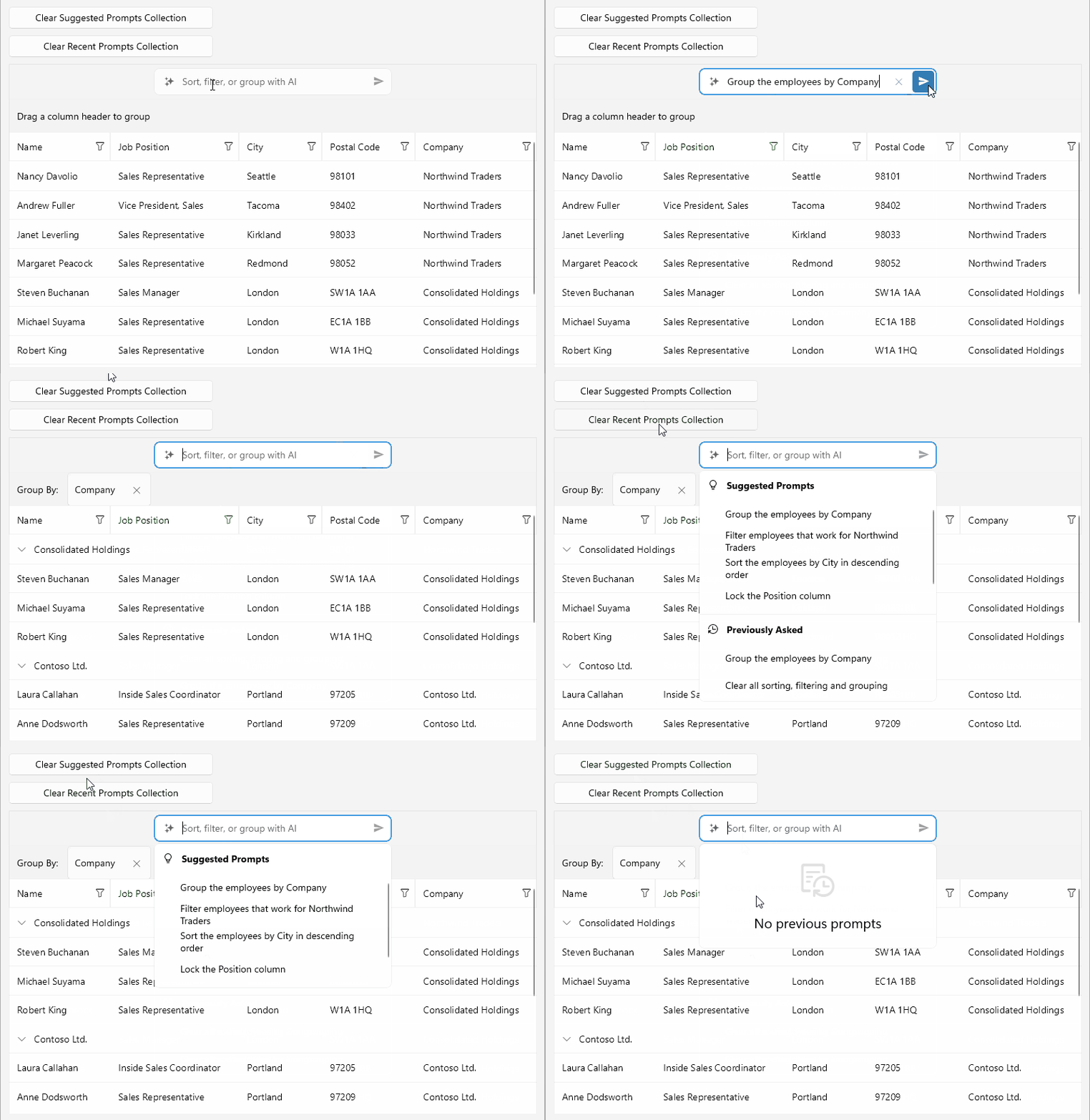
This is how the AI Smart Assistant configuration in the .NET MAUI DataGrid looks:
The DataGrid AI Smart Assistant examples in the SDKBrowser Demo Application use a Telerik-hosted AI service for demonstration purposes only.
You have to configure your own AI service for the AI Smart Assistant to work in your application.
How to do that is described in the Getting Started with the AI Smart Assistant article.
For a runnable example demonstrating the configuration options, see the SDKBrowser Demo Application and go to the DataGrid > AI Smart Assistant category.