Configuring Commands
RadInlineAIAssistant allows you to define a collection of predefined AI commands that end users can select from a dropdown, instead of (or in addition to) typing a free-form prompt.
Populating the Commands Collection
The Commands property accepts an ObservableCollection<InlineAIAssistantCommandBase>. The commands button in the input area (see Visual Structure) is visible only while this collection has items.
InlineAIAssistantCommandBase is the base class for the two supported item types and exposes:
Text—The display text for the command. It is also used as thePromptof thePromptRequestevent when the command is selected.Icon—The icon representing the command. By default, the item template displays it through aRadGlyph, so set it to a glyph string value, such as one from the Glyphs Reference Sheet. If you need a different visual for the icon (for example, anImage), replace the item container style throughCommandsItemContainerStyleSelector, described below.
InlineAIAssistantCommand
A leaf command. Its Command property, if set, is an ICommand that is executed when the item is selected, in addition to PromptRequest being raised with the command's Text as the prompt.
InlineAIAssistantCommandGroup
A command that displays its own Commands collection of InlineAIAssistantCommand items in a sub-menu flyout, letting you group related commands together (for example, a "Tone" group containing "Neutral", "Friendly", and "Formal").
Defining a Commands collection with a leaf command and a group
var glyphConverter = new StringToGlyphConverter();
this.assistant.Commands = new ObservableCollection<InlineAIAssistantCommandBase>
{
new InlineAIAssistantCommand { Text = "Rewrite", Icon = glyphConverter.Convert("", null, null, null) },
new InlineAIAssistantCommand { Text = "Grammar", Icon = glyphConverter.Convert("", null, null, null) },
new InlineAIAssistantCommandGroup
{
Text = "Tone",
Icon = glyphConverter.Convert("", null, null, null),
Commands = new List<InlineAIAssistantCommand>
{
new InlineAIAssistantCommand { Text = "Neutral" },
new InlineAIAssistantCommand { Text = "Friendly" },
new InlineAIAssistantCommand { Text = "Formal" },
}
},
};The
Iconproperty expects a glyph value converted throughStringToGlyphConverter. Check the Glyphs Reference Sheet article for the full list of available glyphs and their string values.
RadInlineAIAssistant with a Configured Commands Dropdown
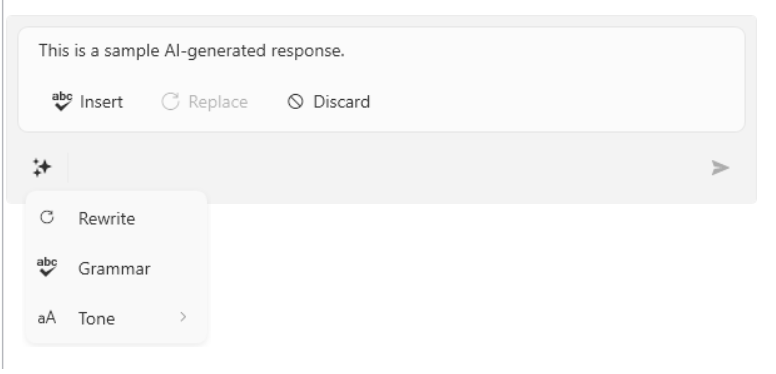
Selecting any leaf command (whether at the top level or inside a group) raises the PromptRequest event with the command's Text as the Prompt, exactly as if the end user had typed and submitted that text.
Built-in Routed Commands
RadInlineAIAssistantCommands exposes the routed commands that back the control's built-in interactions:
Insert—Inserts the response text at the caret position, through the currentInteractionProvider. ItsCanExecutestate is driven byInteractionProvider.CanInsertText.Replace—Replaces the currently selected text with the response text, through the currentInteractionProvider. ItsCanExecutestate is driven byInteractionProvider.CanReplaceSelectedText.Discard—Hides the response and closes the assistant.ExecuteInlineCommand—Executed when aCommandsitem is selected from the dropdown; raisesPromptRequestwith that item'sText.
These commands back the built-in Insert, Replace, and Discard buttons in the response area described in Handling Responses, so you typically do not need to invoke them yourself.
Customizing the Commands Item Style
The CommandsItemContainerStyleSelector property lets you provide a StyleSelector that chooses the container style applied to each Commands item. The built-in InlineAIAssistantCommandsStyleSelector selects between a style for InlineAIAssistantCommand items and one for InlineAIAssistantCommandGroup items, through its CommandStyle and CommandGroupStyle properties.
Defining styles for the leaf commands and the command groups
<Window.Resources>
    <ResourceDictionary>
        <!-- you need the GenericWindows11.xaml only if you use the XAML version of the Telerik dlls -->
        <ResourceDictionary.MergedDictionaries>
            <ResourceDictionary Source="/Telerik.Windows.Controls.ConversationalUI;component/Themes/GenericWindows11.xaml" />
        </ResourceDictionary.MergedDictionaries>

        <Style x:Key="CommandItemStyle" TargetType="telerik:RadMenuItem" BasedOn="{StaticResource InlineAIAssistantCommandStyle}">
            <Setter Property="FontStyle" Value="Italic" />
        </Style>
        <Style x:Key="CommandGroupItemStyle" TargetType="telerik:RadMenuItem" BasedOn="{StaticResource InlineAIAssistantCommandGroupMenuItemStyle}">
            <Setter Property="FontWeight" Value="Bold" />
            <Setter Property="Foreground" Value="DarkBlue" />
        </Style>
    </ResourceDictionary>
</Window.Resources>
Assigning the InlineAIAssistantCommandsStyleSelector
this.assistant.CommandsItemContainerStyleSelector = new InlineAIAssistantCommandsStyleSelector
{
    CommandStyle = (Style)this.Resources["CommandItemStyle"],
    CommandGroupStyle = (Style)this.Resources["CommandGroupItemStyle"],
};