Handling Responses
When the end user submits a prompt, RadInlineAIAssistant raises the PromptRequest event and waits for you to set a response through the InlineAIAssistantPromptRequestEventArgs passed to the handler.
Setting an Immediate Response
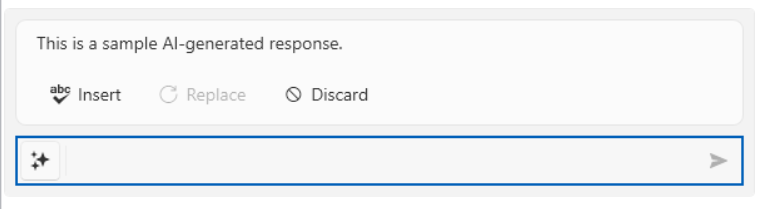
Use SetResponse(string) to display a single response text as soon as it is available.
Setting an immediate response
private void OnPromptRequest(object sender, InlineAIAssistantPromptRequestEventArgs e)
{
    e.SetResponse("This is a sample AI-generated response.");
}
RadInlineAIAssistant Displaying a Response
Streaming a Response
Use SetResponse(IAsyncEnumerable<string>) when your AI model streams its answer back in chunks. RadInlineAIAssistant awaits the sequence and appends each chunk to the displayed response text as it arrives, so the end user sees the response build up incrementally.
Streaming a response
private void OnPromptRequest(object sender, InlineAIAssistantPromptRequestEventArgs e)
{
    e.SetResponse(this.GetResponseStreamAsync(e.Prompt));
}

private async IAsyncEnumerable<string> GetResponseStreamAsync(string prompt)
{
    // Replace this with the streaming call to your AI model.
    yield return "This is ";
    await Task.Delay(200);
    yield return "a streamed ";
    await Task.Delay(200);
    yield return "AI-generated response.";
}
Customizing How the Response Is Displayed
The response area is bound to the ResponseViewModel property, an InlineAIAssistantResponseViewModel exposing:
ResponseText—The response text accumulated so far.IsAIResponseVisible—Whether the response area is visible. It is set totrueautomatically once the first chunk of a response arrives.
The ResponseTemplate property defines the DataTemplate used to render ResponseViewModel. By default, it displays an InlineAIAssistantResponse control, which shows the response text in a scrollable area (its height capped by the ResponseMaxHeight property of RadInlineAIAssistant) together with Insert, Replace, and Discard buttons bound to the commands described in the Configuring Commands article. You can replace ResponseTemplate to customize how the response is displayed.
Defining a custom ResponseTemplate
<Window.Resources>
    <DataTemplate x:Key="CustomResponseTemplate">
        <telerikChat:InlineAIAssistantResponse ResponseText="{Binding ResponseText}" Background="Bisque"/>
    </DataTemplate>
</Window.Resources>
Assigning the ResponseTemplate
this.assistant.ResponseTemplate = (DataTemplate)this.Resources["CustomResponseTemplate"];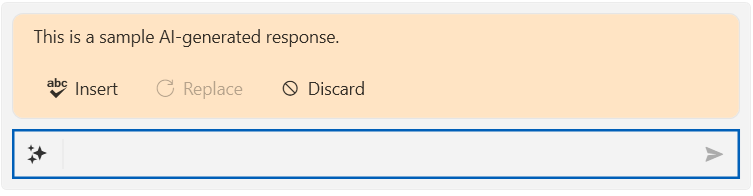
Indicating Progress
You can manually set the IsProcessing property to true while your AI model call is in flight, and back to false once it completes, to reflect the busy state on the prompt input. This will change the current state of the send button.