Localize Reports in the Web Report Designer
Use report localization to create language-specific versions of the static content in a report. The Web Report Designer stores the language versions together with the report package and displays the version that matches the selected language.
Report localization in the Web Report Designer is supported only for TRDP report packages. TRDX and TRDJ reports cannot contain the localization resources.
The feature was introduced with Telerik Reporting 2026 Q3 (20.2.26.1007).
Before You Start
Make sure that you have access to the following:
- A running Web Report Designer where you can open and save reports.
- A report saved in the TRDP format.
- The cultures that you want to use in the report. The available cultures depend on the Web Report Designer configuration.
Enabling Report Localization
Enable localization before you add language-specific content:
- Open the report in the Web Report Designer.
- Select the report. You can select the report on the design surface or in the Report Explorer.
- In the Properties panel, expand the DESIGN group, and check the Localizable checkbox.
The Language property becomes editable after you enable localization.
Selecting a Language
Select the language that you want to edit from the Language property:
- Select the TRDP report.
- In the Properties panel, open the Language drop-down list from the DESIGN group.
- Select a culture, such as
en-USorbg-BG.
The designer saves any unsaved changes before it changes the language. It then updates the report package and reloads the report with the selected language. Wait for the reload to finish before you continue editing.
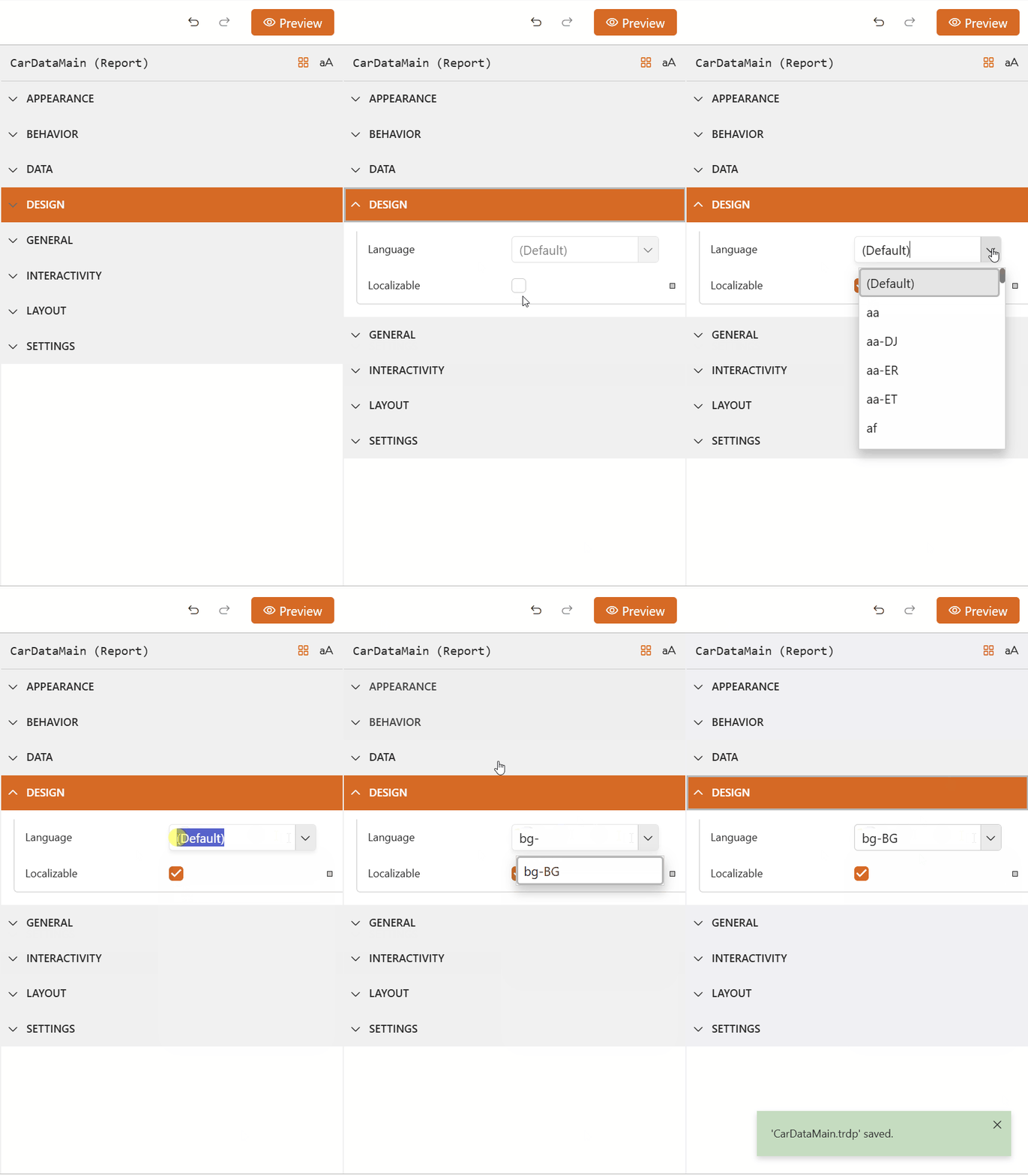
To return to the base report language, select (Default) from the Language drop-down list. The base language contains the report values, which will be used when no language-specific value exists.
Translating Report Content
After you select a language, edit the report content that you want to translate:
- Select a report item that contains static content, such as a
TextBox. - In the Properties panel, edit the value that you want to translate. For example, edit the
Valueproperty of a text box. - Repeat the process for each report item and localizable property.
- Select Save in the main menu to save the language-specific values.
The designer applies the changes to the language that appears in the Language property. Changes that you make in one language do not overwrite the corresponding values in another language.
You cannot add new report items while the Language property contains a language other than
(Default). Return to(Default)before you add new report items, then select the target language again.
Disabling Report Localization
Disable localization when you no longer need language-specific values:
- Select the report.
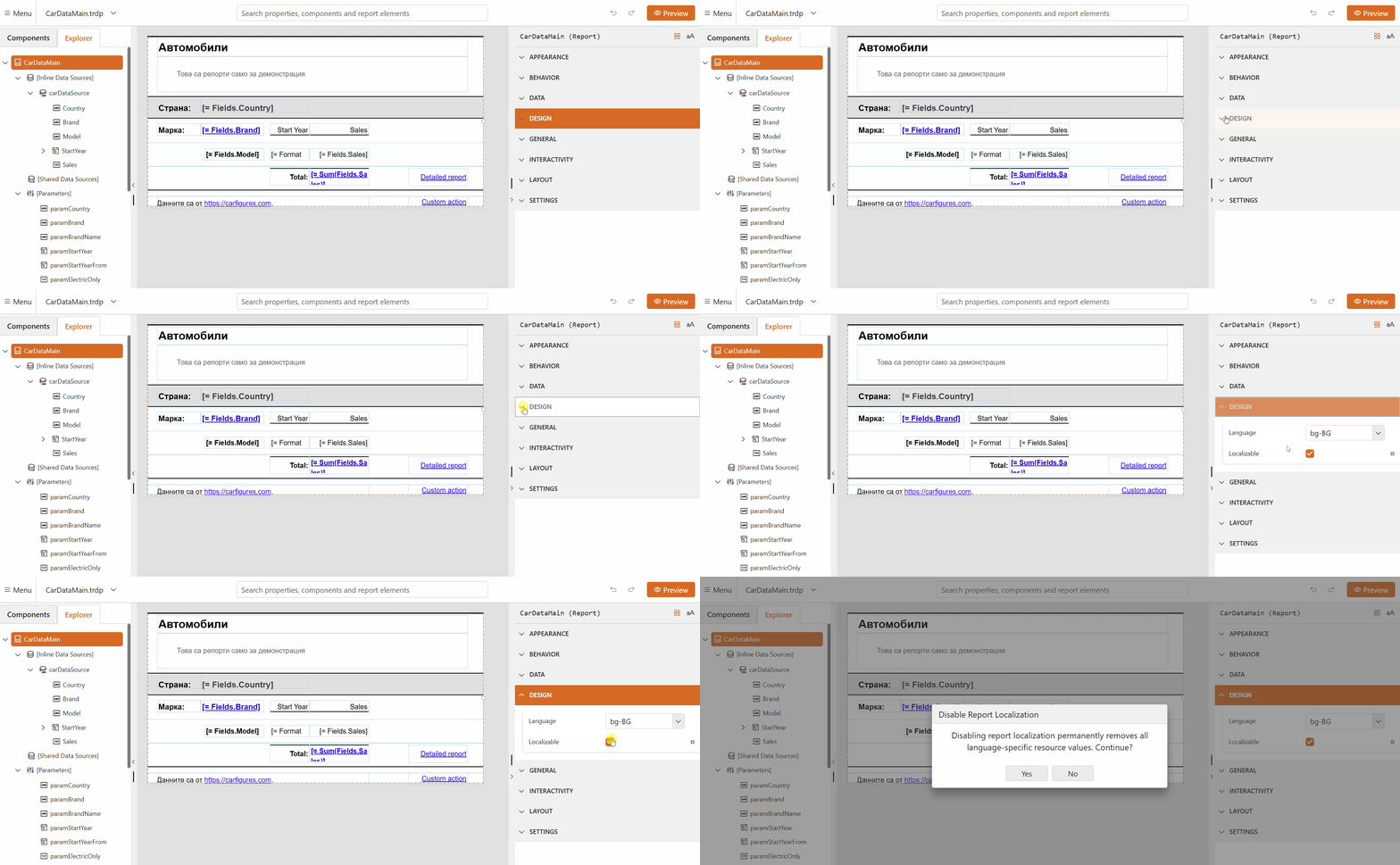
- In the Properties panel, expand the DESIGN group, and uncheck the Localizable checkbox.
- In the confirmation window, select Yes.
- Select Save in the main menu.
Disabling localization permanently removes all language-specific resource values from the report. The report keeps the values from the active language as its regular report values.
Verifying the Localized Report
Verify the language-specific content in Preview mode of the web report designer:
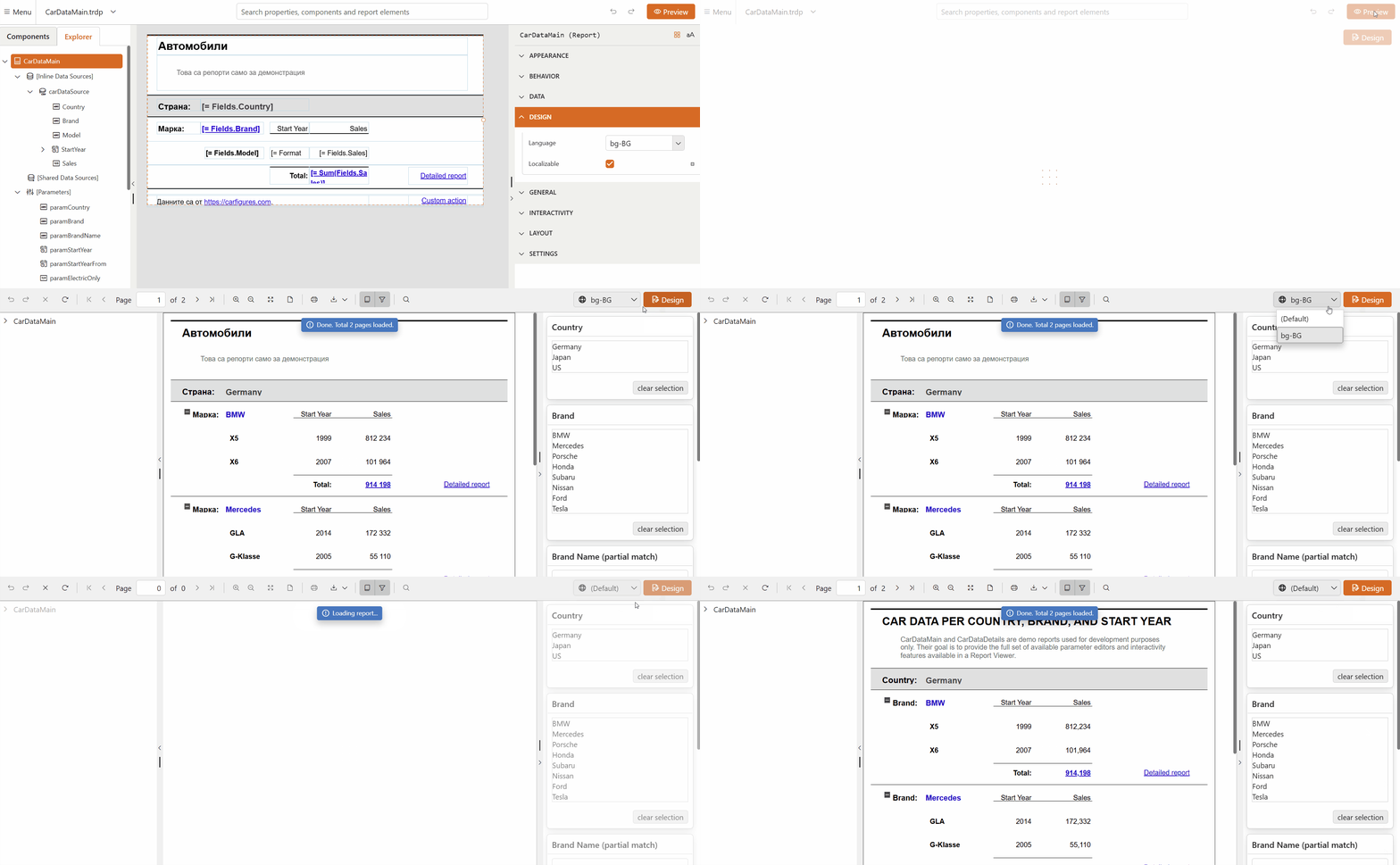
- If you are in Design mode, click on the Preview button to switch to Preview mode.
- Select the language that you want to verify from the Language drop-down list beside the Design button.
In Preview mode of the web report designer, initially, you will see the report with the culture corresponding to the currently selected culture in Design mode.
- Review the static content and switch between the available languages to compare the translations.
Next Steps
After you localize the report, you can:
See Also
For related information, see: