Configuring the User Preferences in Web Report Designer
The Workspace Preferences provide options for personalizing the Web Report Designer interface without affecting the actual report content. These settings are user-specific and typically stored in the browser.
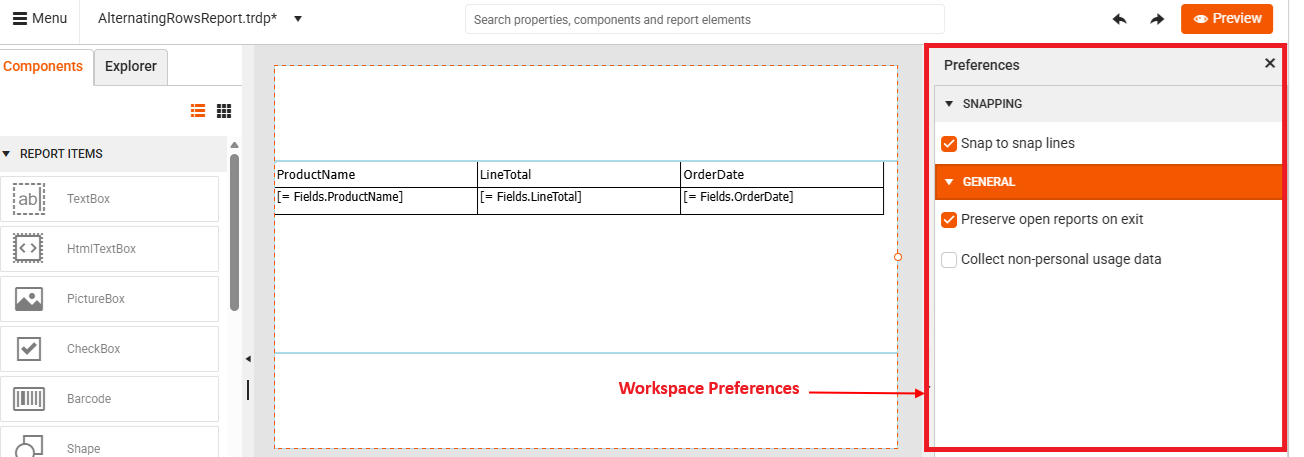
To open the Preferences panel:
-
Open the Web Report Designer in your browser.
-
Click the Main Menu at the top left corner.
-
Select Workspace Preferences from the menu options:
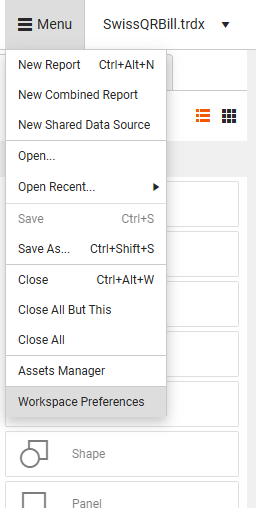
The Workspace Preferences are split into two categories:
- Snapping—this category lists the options related to the automatic alignment of objects on the design surface of the Web Report Designer.
- General—this category lists options related to the behavior of the Web Report Designer.
Snapping
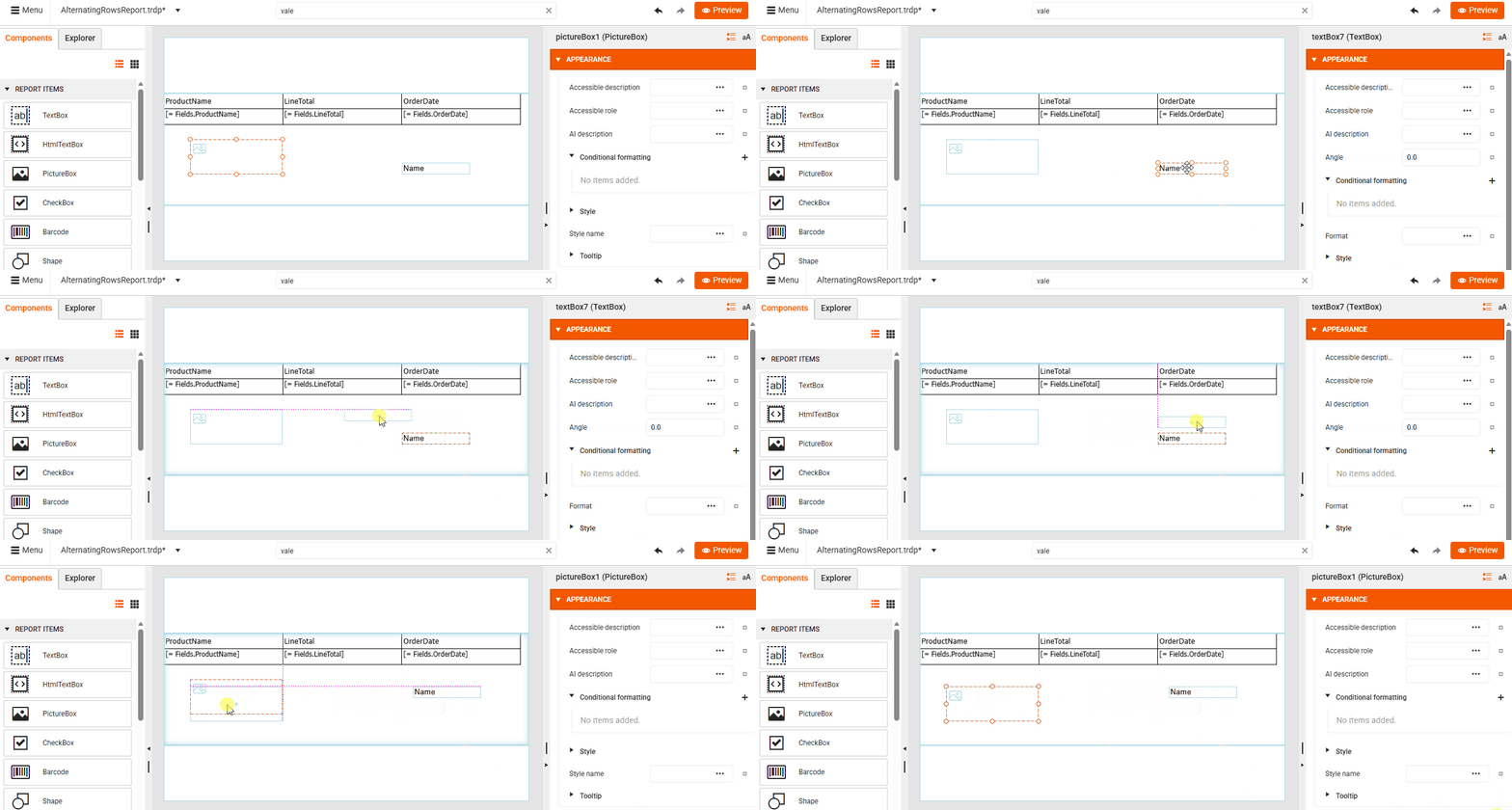
Snapping is a feature that detects alignment opportunities while designing the report. You can enable or disable the following snapping option:
- Snap to snap lines—Helps you position elements relative to each other (for example, aligning TextBoxes, Charts, or Tables). Snap lines appear temporarily as you drag items and they are based on the edges or centers of nearby items:
General
The GENERAL settings section provides options that control how the application behaves on startup and how it collects usage data to enhance functionality. You can configure the following options:
-
Preserve open reports on exit—Controls whether the designer remembers which reports were open when you closed the application and automatically restores them at the next launch.
-
Collect non-personal usage data—Determines whether non-personal usage data is collected. This data includes information about how the web designer's interface and tools are used and helps us improve its functionality.
Some users might not see the Workspace Preferences menu item if they don't have such permissions (configured by the app developer).