How to use Visual Studio Report Designer to edit CS Reports in .NET Projects
Environment
| Product Version | 13.0.19.116+ |
| Product | Progress® Telerik® Reporting |
| Target Framework | .NET |
Visual Studio Report Designer for .NET Preview
Starting with the Telerik Reporting 2026 Q3 October release (20.2.26.1007), the Visual Studio Report Designer for .NET (VSRD.NET) is available as a preview. You can now edit and preview C# and VB coded reports directly in Visual Studio in supported SDK-style .NET projects, without linking the report files to a .NET Framework project.
See Getting Started with the Visual Studio Report Designer for .NET for prerequisites and setup. The preview requires Visual Studio 2026 version 18.10 or later and a report project targetingnet8.0-windowsor later withUseWindowsForms=true.
Description
The Visual Studio Report Designer for .NET Framework does not support editing reports directly in .NET projects. The Visual Studio Report Designer for .NET preview now supports this scenario for projects that meet its prerequisites.
The following legacy workaround lets you use the .NET Framework designer to edit C# reports hosted in a .NET ClassLibrary project when using an older Telerik Reporting release or an environment that does not meet the preview prerequisites.
Suggested Workaround
The CSharp code of a report definition is identical in the .NET Framework and .NET. For that reason, it is possible to link the report definition files hosted in a .NET ClassLibrary project to the corresponding files hosted in a .NET Framework ReportLibrary project. This way, all the changes made with the Visual Studio Report Designer to the report in the .NET Framework project will be automatically applied to the .NET project.
Let's assume that we already have a ReportLibrary project in .NET Framework. Here are the necessary steps to link it to a .NET ClassLibrary project:
-
Create a new .NET ClassLibrary project. You may delete the default CS file usually named
Class1.cs. -
Add references to the following assemblies/NuGet packages in the project:
Telerik.Reporting- defines the needed report definition elementsSystem.Resources.Extensions- needed to resolve the resources from theRESXfile
-
Add the corresponding
CSreport file from the .NET Framework project to the .NET project through the Add -> Existing Item... option of the project context menu.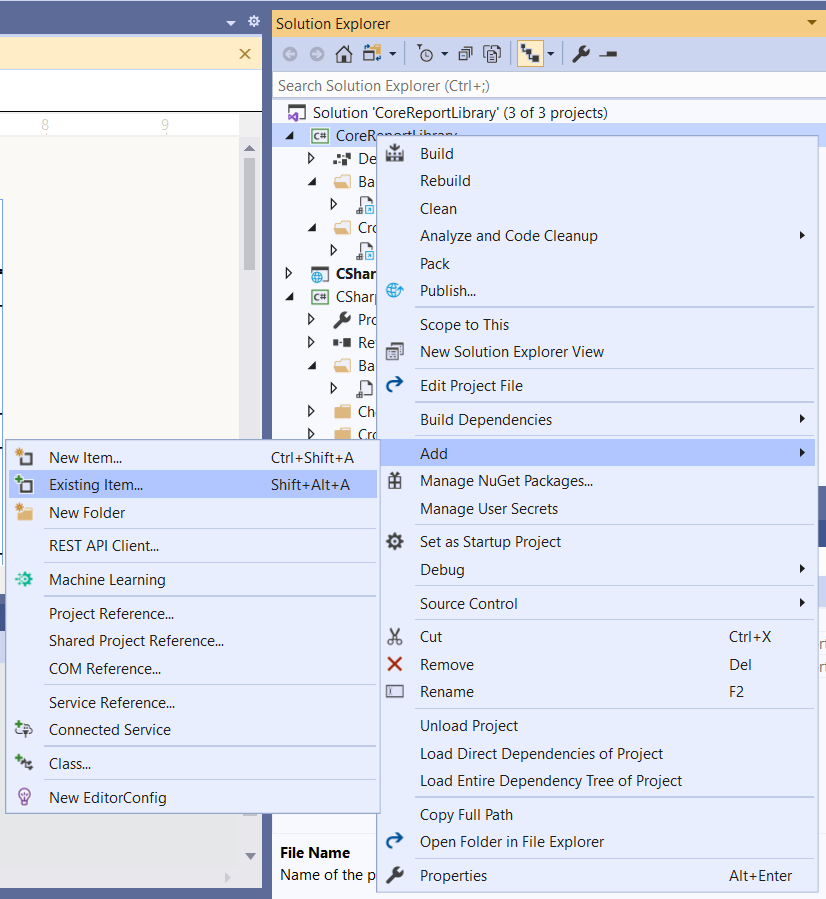
When selecting the CS file make sure to select Add As Link from the Add Existing Item wizard. The corresponding
DESIGNER.CSfile will be added automatically.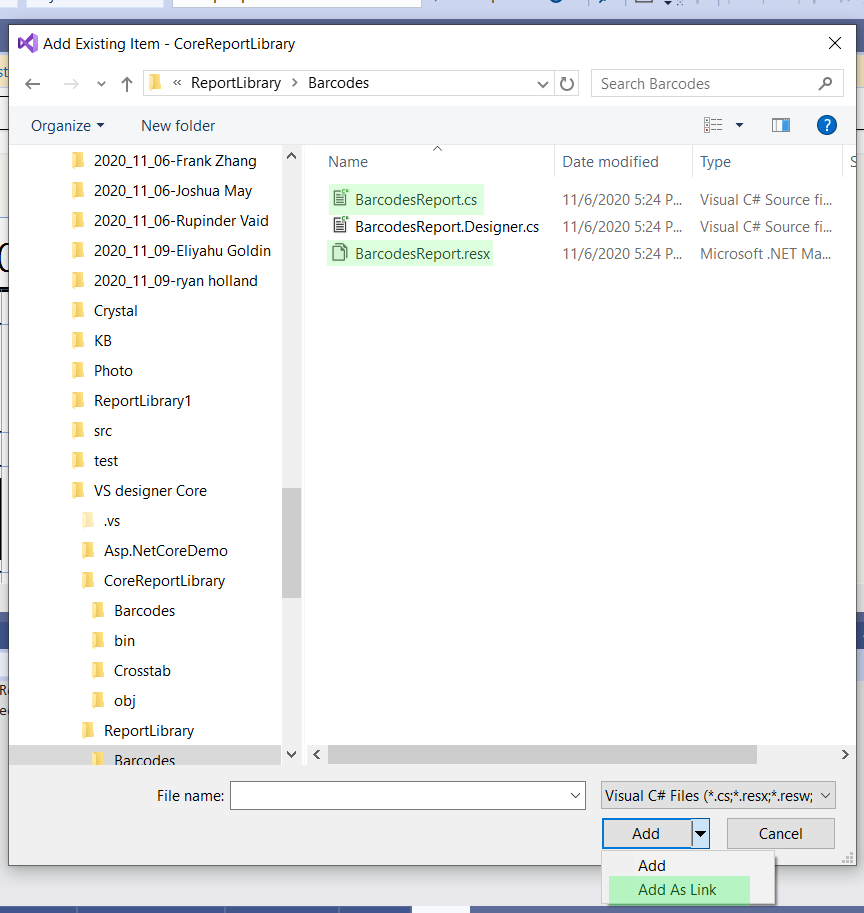
-
Add in the same way also the
RESXfile of the report definition. -
Reference the .NET ClassLibrary project in your .NET project hosting the Telerik Reporting engine. Pass the AssemblyQualifiedName of the report class to the Reporting engine. Use TypeReportSourceResolver for resolving your reports in a Telerik Reporting REST Service.
A demo solution demonstrating the approach may be found in our GitHub repo - VS Designer in .NET
If you add SubReport or NavigatToReport Action to your CLR reports in Visual Studio Report Designer and select TypeReportSource suggested by the Wizard, it will include a reference to the corresponding .NET Framework ReportLibrary Report Class. You need to make sure the AssemblyQualifiedName is identical when resolved from the .NET ClassLibrary project or correct it manually. Otherwise, you may receive an exception for
Invalid report type.