EntityCoreDataSource Wizard of the Standalone Report Designer for .NET
The EntityCoreDataSource Wizard is available in the Standalone Report Designer for .NET since 2026 Q2 (20.1.26.520). It lets you create new or edit existing EntityCoreDataSource components based on an Entity Framework Core DbContext. The wizard discovers the available DbContext types in an assembly that you provide, configures data retrieval, and resolves any parameters required to execute the selected member.
Make sure the assembly that contains your Entity Framework Core
DbContextis built against a .NET version compatible with the Standalone Report Designer for .NET and that all referenced assemblies (including the Entity Framework Core runtime and the database provider) are available next to it. If a dependency cannot be resolved, the wizard will not be able to list theDbContexttypes.
After the EntityCoreDataSource wizard appears, you have to perform the following steps:
-
Choose Your Data Connection. In this step you have to point the wizard to the assembly (
.dll) that contains the Entity Framework CoreDbContextyou want to use. The designer loads the assembly together with its dependencies so that the wizard can enumerate the availableDbContexttypes and their members.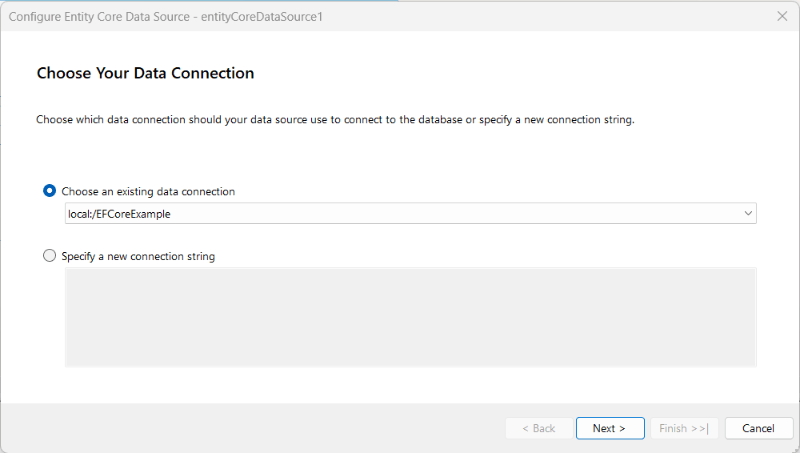
-
Choose a DbContext. In this step you have to specify the
DbContexttype that is responsible for accessing your model. The availableDbContexttypes are organized in a hierarchical manner grouped by namespace.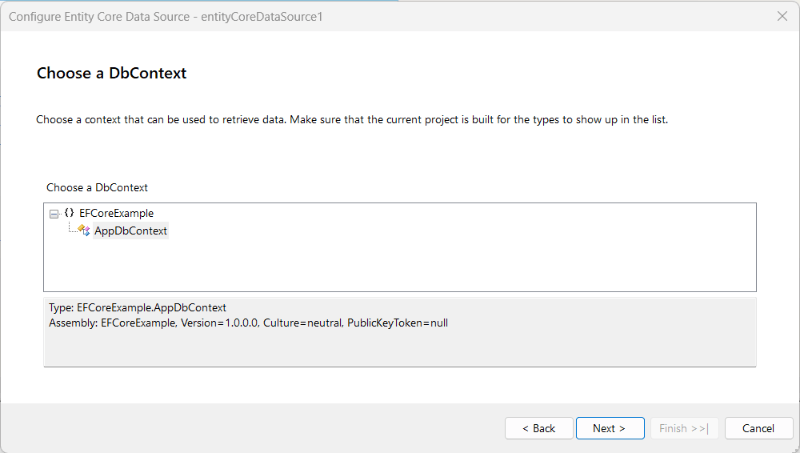
The wizard instantiates the selected
DbContextat design time in order to read its model and to execute the selected member when previewing data. Make sure that theDbContextcan be created by the wizard — for example, through a public parameterless constructor and a registeredIDesignTimeDbContextFactory<TContext>implementation. For more information, refer to Design-time DbContext Creation. -
Choose a context member. In this step you have to specify a member of the chosen
DbContextthat is responsible for data retrieval. You can choose either a property that returns the desired entities directly (typically aDbSet<T>) or a method that executes some business logic against the model to obtain the required data for the report.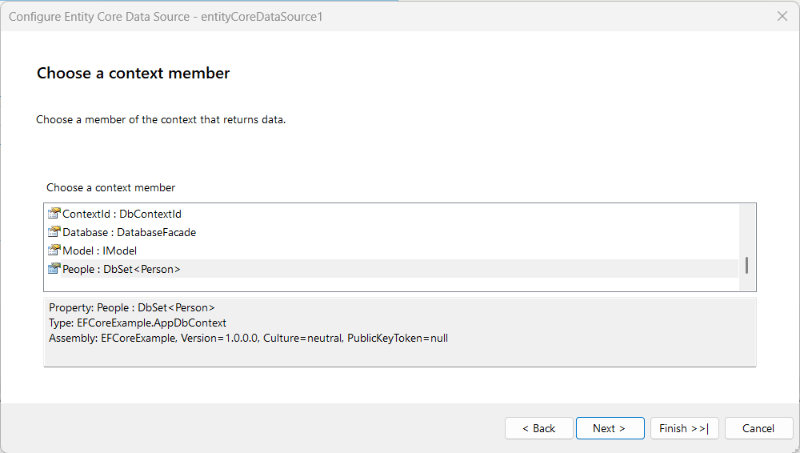
If the chosen member does not have any parameters, this is the last step of the wizard. However, if the specified member is a method with parameters, the next step allows you to configure those parameters.
-
Configure Data Source Parameters (optional). Each argument of the selected method corresponds to a data source parameter. This step allows you to specify, for each parameter, a constant value, an expression, or a new
ReportParameterwhose value will be assigned to the parameter automatically.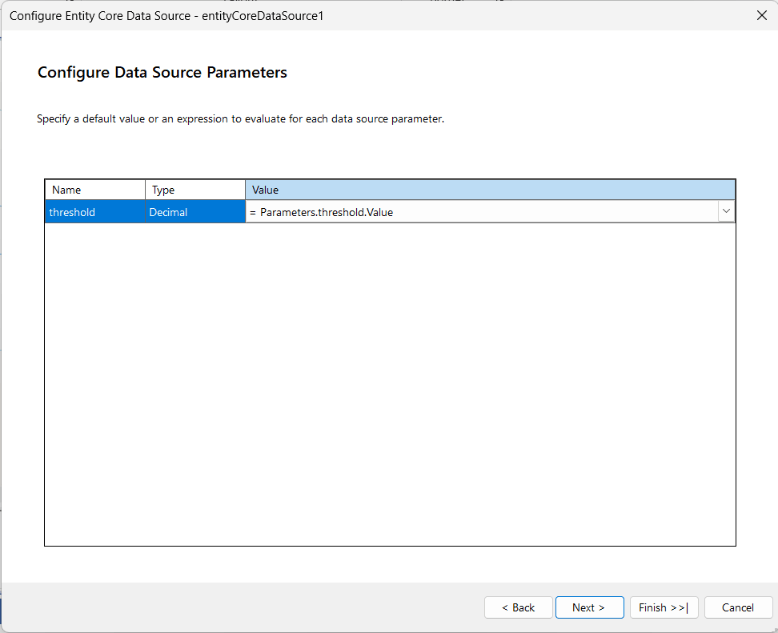
The names and types of the defined parameters must match exactly the arguments of the selected method. If this requirement is not fulfilled, the
EntityCoreDataSourcecomponent will not be able to resolve or call the method correctly and will raise an exception at run time. -
Configure Design Time Parameters (optional). This step allows you to specify a value for each data source parameter that can be used at design time to retrieve the schema of the
EntityCoreDataSourcecomponent. At design time there is no expression context, so expressions are not supported and the values must be constant.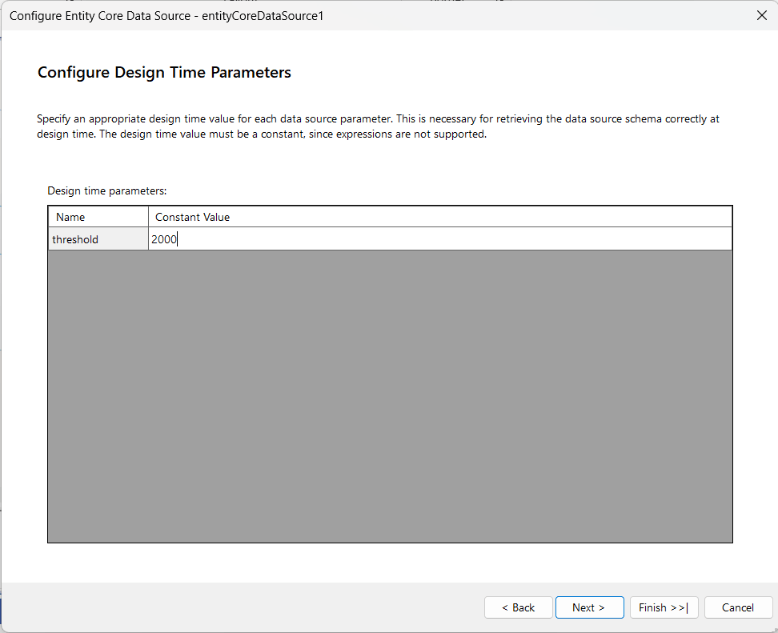
Specifying design time values for the parameters is necessary because the designer might need to execute the selected member to populate the schema displayed in the Data Explorer tool window and in the Edit Expression Dialog. These values do not affect the execution of the member at run time.
-
Preview data source results Preview first 100 data rows based on the design-time parameter values.
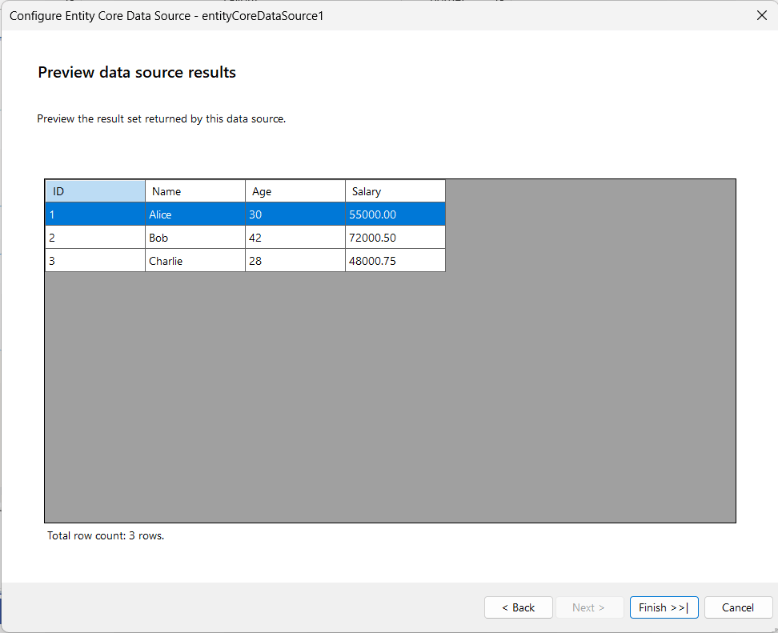
This is the last step of the wizard. After pressing the Finish button, the wizard will configure the EntityCoreDataSource component with the specified settings and close.