.NET MAUI Editor Visual States
This article describes the visual states provided by the Editor control. You can use these visual states to change the appearance of the control based on its state—such as when it’s disabled, focused, hovered, and more.
The Editor provides the following CommonStates visual states:
| Visual State | Description |
|---|---|
Normal | Applies when the control is in normal state. |
Focused | Applies when the control is focused. |
MouseOver | (Desktop-only) Applies when the mouse pointer is over the control. |
Invalid | Applies when there is a validation and the text entered inside the control is not valid (the IsValueValid property is set to false). |
InvalidFocused | Applies when the control is focused, there is validation, and the text entered inside the control is not valid (the IsValueValid property is set to false). |
InvalidMouseOver | (Desktop-only) Applies when the mouse is over the control and there is a validation and the text entered inside the control is not valid (the IsValueValid property is set to false). |
ReadOnly | Applies when the control is not editable (the IsReadOnly property is set to false). |
ReadOnlyFocused | Applies when the control is focused and not editable (the IsReadOnly property is set to false). |
ReadOnlyMouseOver | (Desktop-only) Applies when the mouse pointer is over the control, and the control is not editable (the IsReadOnly property is set to false). |
ReadOnlyInvalid | Applies when the control is not editable (the IsReadOnly property is set to false), and not valid (the IsValueValid property is set to false). |
ReadOnlyInvalidFocused | Applies when the control is focused, not editable (the IsReadOnly property is set to false) and not valid (the IsValueValid property is set to false). |
ReadOnlyInvalidMouseOver | (Desktop-only) Applies when the mouse pointer is over the control, and the control is not editable (the IsReadOnly property is set to false), and not valid (the IsValueValid property is set to false). |
Disabled | Applies when the control is disabled. |
Using the Visual States
The following example demonstrates how to use the Editor's Visual States.
1. Define the Editor in XAML:
<telerik:RadEditor x:Name="editor"
                   AutoSize="TextChanges"
                   Style="{StaticResource EditorStyle}" />
2. Define the Editor's style in the page's resources:
<Style x:Key="EditorStyle" TargetType="telerik:RadEditor">
    <Setter Property="BackgroundColor" Value="#F4FAF9" />
    <Setter Property="BorderBrush" Value="#00897B" />
    <Setter Property="BorderThickness" Value="1" />
    <Setter Property="CornerRadius" Value="10" />
    <Setter Property="ClearButtonStyle" Value="{StaticResource CustomClearButtonStyle}" />
    <Setter Property="ValidationErrorImageStyle" Value="{StaticResource CustomValidationErrorImageStyle}" />
    <Setter Property="ValidationErrorLabelStyle" Value="{StaticResource CustomValidationLabelStyle}" />
    <Setter Property="ValidationErrorMessage" Value="Entered text is not valid" />
    <Setter Property="Placeholder" Value="Enter text here" />
    <Setter Property="VisualStateManager.VisualStateGroups">
        <VisualStateGroupList>
            <VisualStateGroup Name="CommonStates">
                <VisualState Name="Normal" />
                <!-- Applicable for Desktop only -->
                <VisualState Name="MouseOver">
                    <VisualState.Setters>
                        <Setter Property="BorderBrush" Value="#00BCA9" />
                    </VisualState.Setters>
                </VisualState>
                <VisualState Name="Focused">
                    <VisualState.Setters>
                        <Setter Property="BackgroundColor" Value="#FFFFFF" />
                        <Setter Property="BorderBrush" Value="#00BCA9" />
                    </VisualState.Setters>
                </VisualState>
                <VisualState Name="Invalid">
                    <VisualState.Setters>
                        <Setter Property="BorderBrush" Value="#A30111" />
                    </VisualState.Setters>
                </VisualState>
                <!-- Applicable for Desktop only -->
                <VisualState Name="InvalidMouseOver">
                    <VisualState.Setters>
                        <Setter Property="BorderBrush" Value="#B53340" />
                    </VisualState.Setters>
                </VisualState>
                <VisualState Name="InvalidFocused">
                    <VisualState.Setters>
                        <Setter Property="BackgroundColor" Value="#FFFFFF" />
                        <Setter Property="BorderBrush" Value="#C76670" />
                    </VisualState.Setters>
                </VisualState>
                <VisualState Name="ReadOnly">
                    <VisualState.Setters>
                        <Setter Property="BackgroundColor" Value="#E5F6F6F6" />
                        <Setter Property="BorderBrush" Value="#EBEBEB" />
                    </VisualState.Setters>
                </VisualState>
                <!-- Applicable for Desktop only -->
                <VisualState Name="ReadOnlyMouseOver">
                    <VisualState.Setters>
                        <Setter Property="BackgroundColor" Value="#B2F9F9F9" />
                        <Setter Property="BorderBrush" Value="#EBEBEB" />
                    </VisualState.Setters>
                </VisualState>
                <VisualState Name="ReadOnlyFocused">
                    <VisualState.Setters>
                        <Setter Property="BackgroundColor" Value="#FFFFFF" />
                        <Setter Property="BorderBrush" Value="#00BCA9" />
                    </VisualState.Setters>
                </VisualState>
                <VisualState Name="ReadOnlyInvalid">
                    <VisualState.Setters>
                        <Setter Property="BackgroundColor" Value="#E5F6F6F6" />
                        <Setter Property="BorderBrush" Value="#A30111" />
                    </VisualState.Setters>
                </VisualState>
                <!-- Applicable for Desktop only -->
                <VisualState Name="ReadOnlyInvalidMouseOver">
                    <VisualState.Setters>
                        <Setter Property="BackgroundColor" Value="#B2F9F9F9" />
                        <Setter Property="BorderBrush" Value="#A30111" />
                    </VisualState.Setters>
                </VisualState>
                <VisualState Name="ReadOnlyInvalidFocused">
                    <VisualState.Setters>
                        <Setter Property="BackgroundColor" Value="#E5F6F6F6" />
                        <Setter Property="BorderBrush" Value="#C76670" />
                    </VisualState.Setters>
                </VisualState>
                <VisualState Name="Disabled">
                    <VisualState.Setters>
                        <Setter Property="Opacity" Value="0.6" />
                    </VisualState.Setters>
                </VisualState>
            </VisualStateGroup>
        </VisualStateGroupList>
    </Setter>
</Style>
3. Define the clear button style in the page's resources:
<Style x:Key="CustomClearButtonStyle" TargetType="telerik:RadTemplatedButton">
    <Setter Property="TextColor" Value="#A30111" />
    <Setter Property="VisualStateManager.VisualStateGroups">
        <VisualStateGroupList>
            <VisualStateGroup Name="CommonStates">
                <VisualState Name="Normal" />
                <!-- Applicable for Desktop only -->
                <VisualState Name="MouseOver">
                    <VisualState.Setters>
                        <Setter Property="telerik:RadTemplatedButton.TextColor" Value="#B53340" />
                    </VisualState.Setters>
                </VisualState>
                <VisualState Name="Pressed">
                    <VisualState.Setters>
                        <Setter Property="telerik:RadTemplatedButton.TextColor" Value="#C76670" />
                    </VisualState.Setters>
                </VisualState>
                <VisualState Name="Disabled" />
            </VisualStateGroup>
        </VisualStateGroupList>
    </Setter>
</Style>
4. Define the validation error label style in the page's resources:
<Style x:Key="CustomValidationLabelStyle" TargetType="Label">
    <Setter Property="FontAttributes" Value="Italic" />
    <Setter Property="TextColor" Value="#A30111" />
</Style>
5. Define the validation error image style in the page's resources:
<Style x:Key="CustomValidationErrorImageStyle" TargetType="Image">
<Setter Property="Source">
<FontImageSource Glyph=""
Color="#A30111"
Size="{OnPlatform Default=16, iOS=20, MacCatalyst=20}"
FontFamily="TelerikFontExamples" />
</Setter>
</Style>6. Add the telerik namespace:
xmlns:telerik="http://schemas.telerik.com/2022/xaml/maui"This is the result on WinUI:
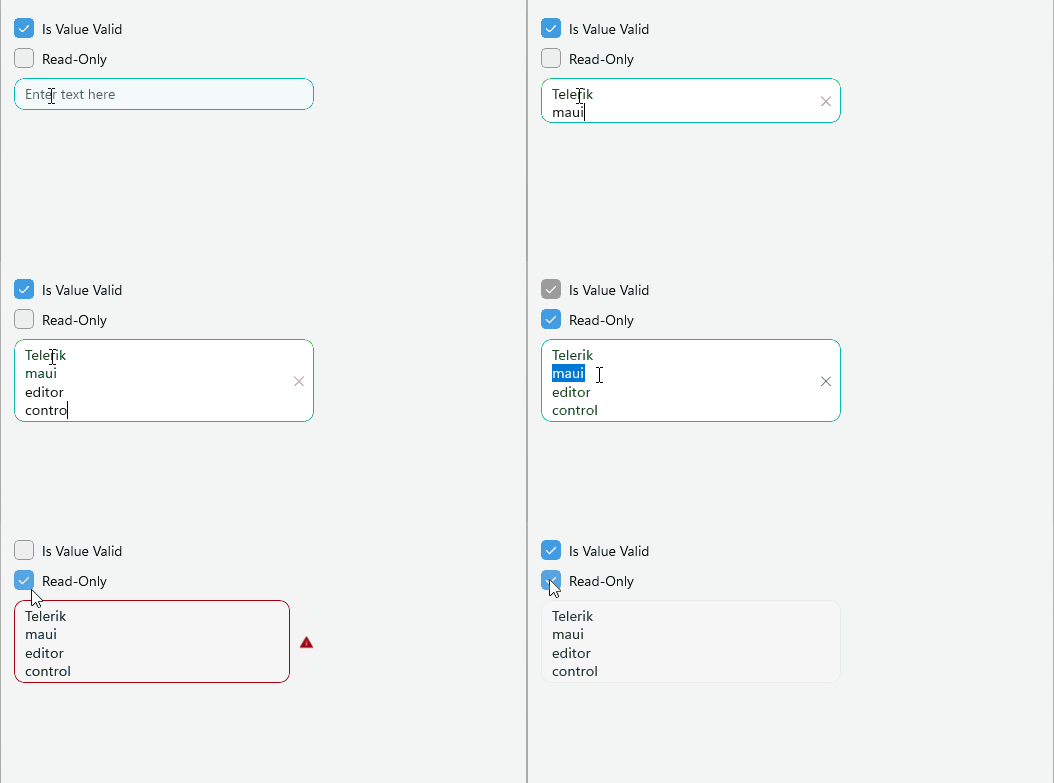
For a runnable example demonstrating the Editor's Visual States, see the SDKBrowser Demo Application and go to the Editor > Styling category.