Troubleshooting macOS Trust Certificate Issues
Environment
| Product | Fiddler Everywhere |
| Product Version | 1.0.0 and above |
| Supported OS | macOS |
| OS tool | Keychain Access |
Description
To capture secure (HTTPS) traffic on macOS, Fiddler Everywhere requires the installation of a root CA (certificate authority) in the macOS Keychain Access application. This process failed and I'd like to know how can I handle the "Fiddler root certificate NOT trusted successfully" error?
Solution
Test the import of the Fiddler Everywhere root certificate on macOS by using custom bash scripts and terminal commands.
-
Create a Bash file, for example,
import.sh. -
Save the following script in
import.sh:Bashlogin_keychains_paths=$(security list-keychains | grep -e "\Wlogin.keychain\W"); if [ -z "$login_keychains_paths" ] then echo "No login keychain found."; exit 10; fi security add-trusted-cert -k login.keychain ~/Desktop/Fiddler_Root_Certificate_Authority.crt; security_exit_code=$?; if [ $security_exit_code -ne 0 ] then echo "security add-trusted-cert failed with error code $security_exit_code"; fi -
Make the
import.shfile executable.Bashchmod +x import.sh -
Execute the created file in your Bash shell.
Bash./import.sh -
After successfully executing the file, you will be prompted for your macOS username and password. Enter the credentials, and the generated root CA adds in the Keychain Access application in login > Certificates as Fiddler Root Certificate Authority.
-
Test that the certificate generated from Fiddler is successfully installed and trusted by running the following command in your Bash shell:
Bashsecurity trust-settings-export /tmp/trustSettings.xmlAs a result, the command outputs a success message:
Bash...Trust Settings exported successfully. -
Go to login > Certificates and confirm that the Fiddler Root Certificate Authority is present in the Keychain Access application. Double-click the CA, scroll to the bottom and note the
SHA-1value. Open the exported settings file from/tmp/trustSettings.xmland check that theSHA-1value is present there. For example, the certificate from your Keychain Access application will be identical to theSHA-1.The
SHA-1key in thetrustSettings.xmlfile will also be present in the Keychain Access application.XML<key>68E0B8FE34DF4A756B664E300B067CA9A1B9DE8</key>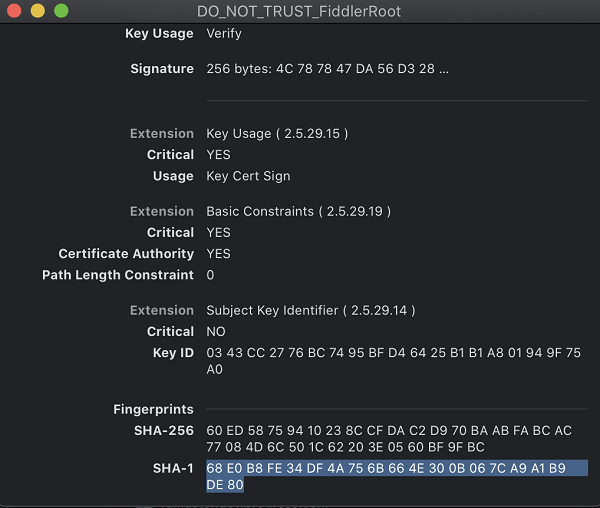
-
(Optional) Delete the
/tmp/trustSettings.xmlfile after troubleshooting the issue as it is only needed to check that theSHA-1key is properly exported.