Resetting Fiddler Everywhere Settings to Default
Updated on Sep 29, 2026
Environment
| Product | Fiddler Everywhere |
| Product Version | 3.0.0 and above |
Description
When I troubleshoot common issues, I need to reset the Fiddler Everywhere settings to their default values to facilitate the process. How can I do this?
Solution
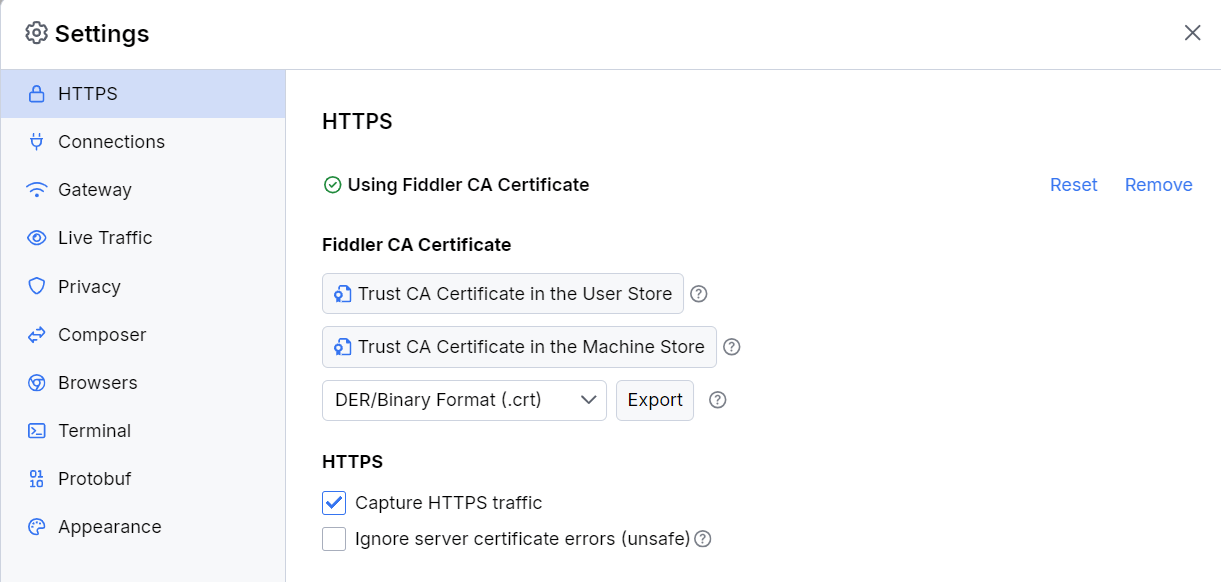
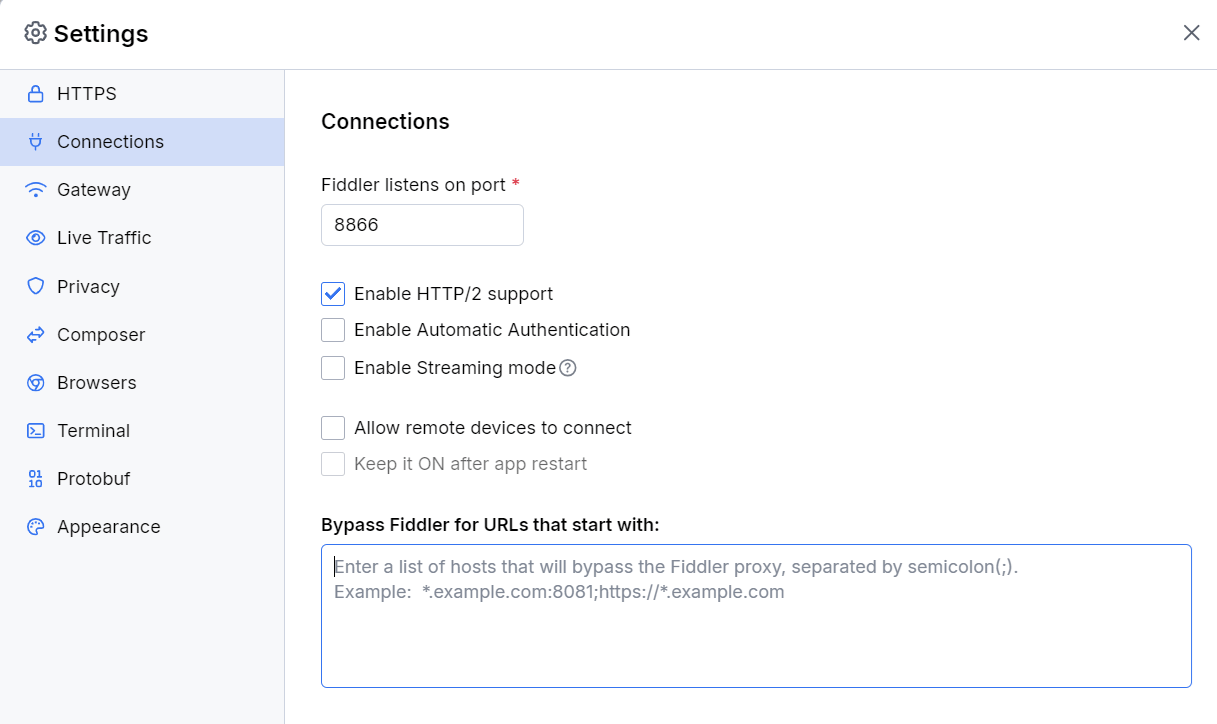
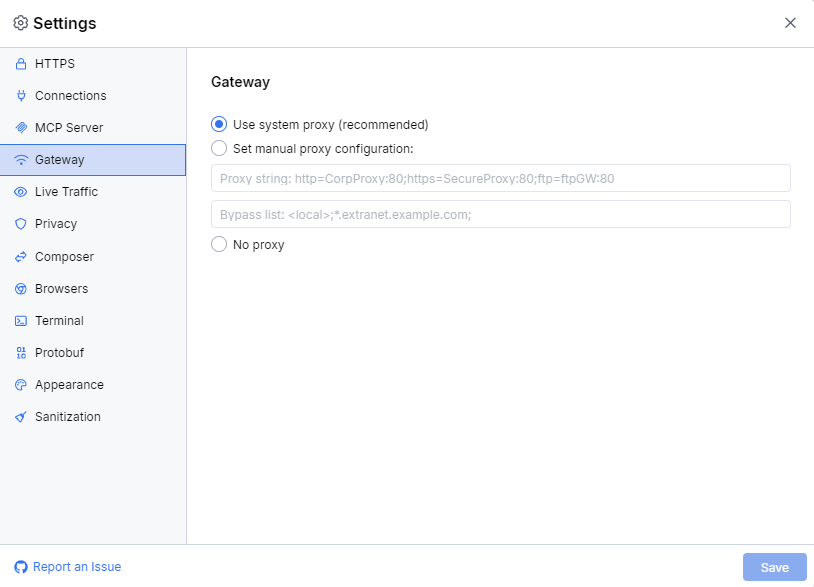
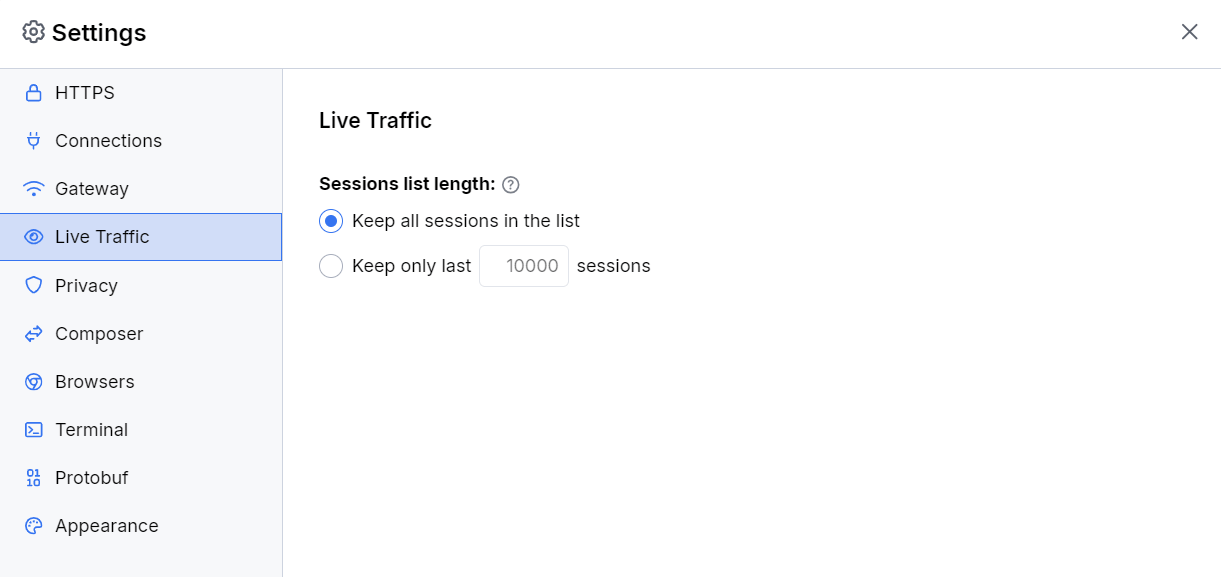
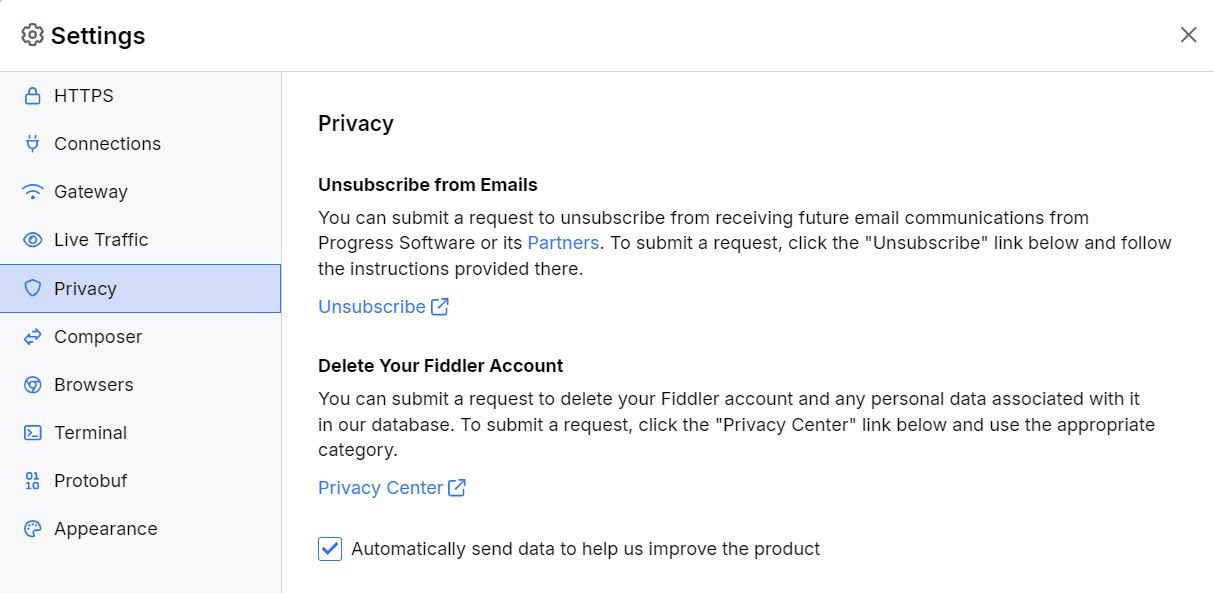
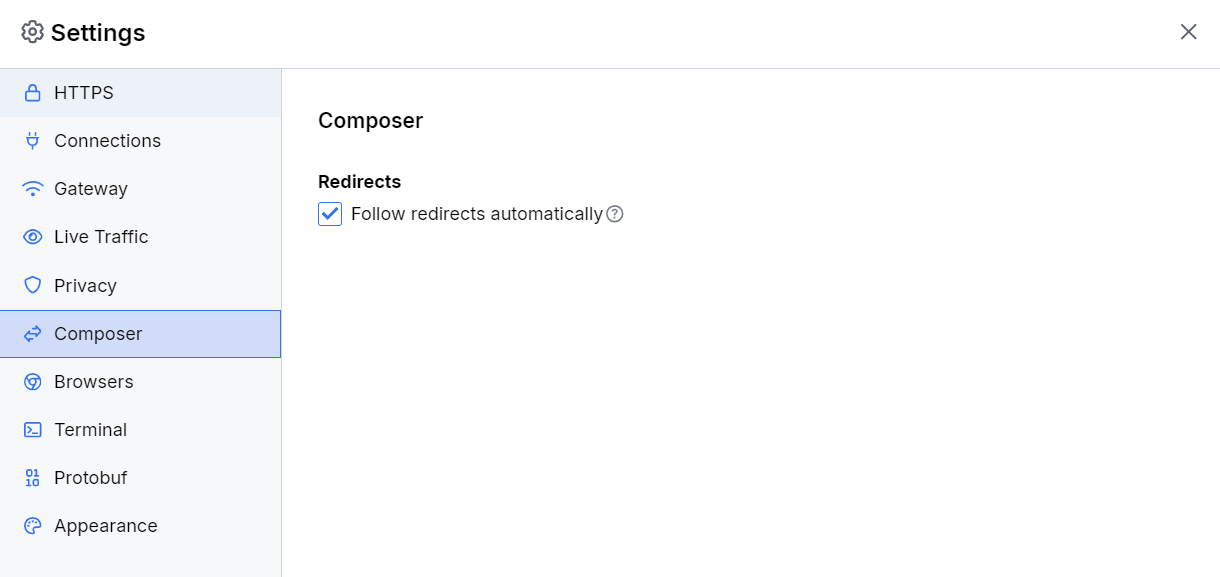
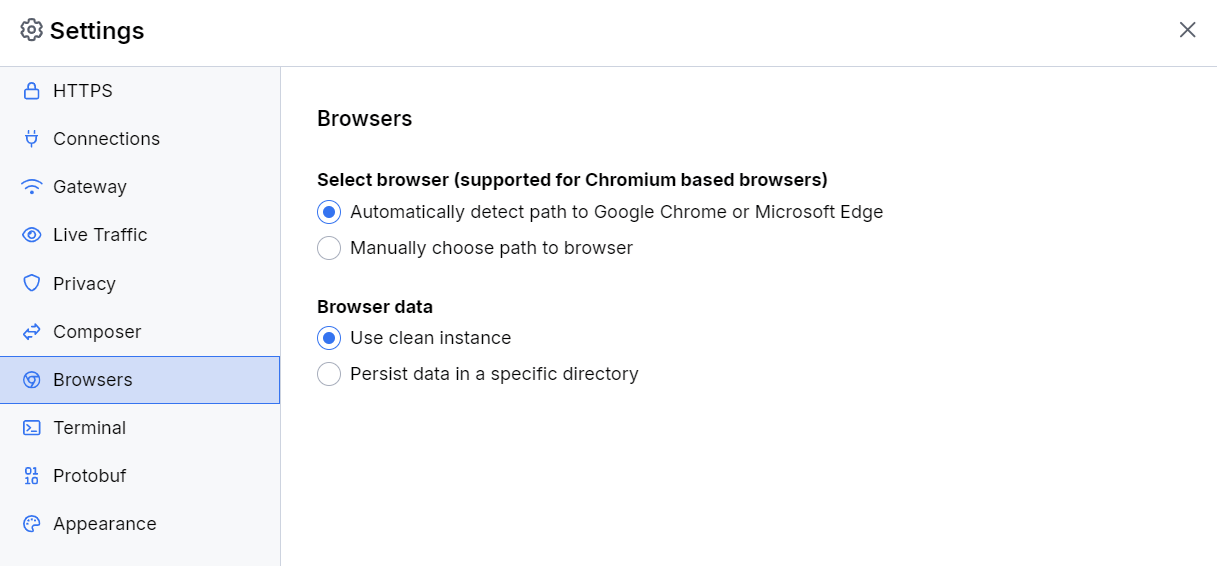
The following screenshots represent the default Fiddler Everywhere settings.
- Default HTTPS settings—Resets Fiddler Everywhere to its initial state, which means the secure traffic will not be captured until Capture HTTPS is checked.
- Default Connection settings—Acts as a system proxy on application startup. Remote connections and HTTP/2 support are disabled.
- Default Gateway settings—Use system proxy
- Default Live Traffic settings—Keep all sessions in the list
- Default Privacy settings
- Default Composer settings—Follows HTTP 3xx responses as redirects when executing requests from the Composer.
- Default Browsers settings—Fiddler Everywhere tries to detect the default path to the Google Chrome installation folder (to be used with the Open Browser functionality)
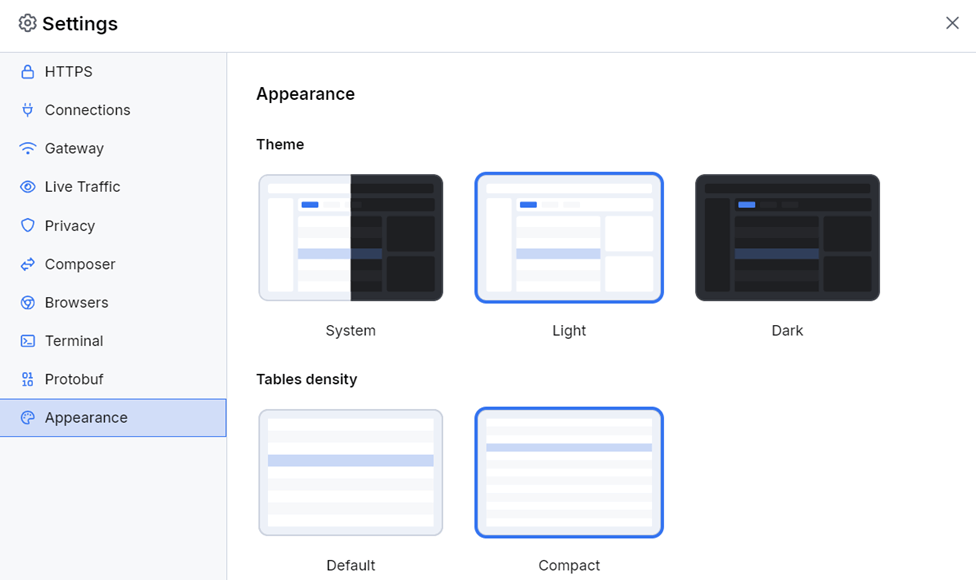
- Default Theme settings—Default Light theme loads as the initial UI theme.